Microsoft Teams Support:
Many customers enable the Teams meeting policy setting for automatic recording and expect every meeting to start recording on its own.
The details to enable automatic recording are documented in meeting-recording. Teams does have a parameter for -AutoRecording in the set-csteamsmeetingpolicy PowerShell command.
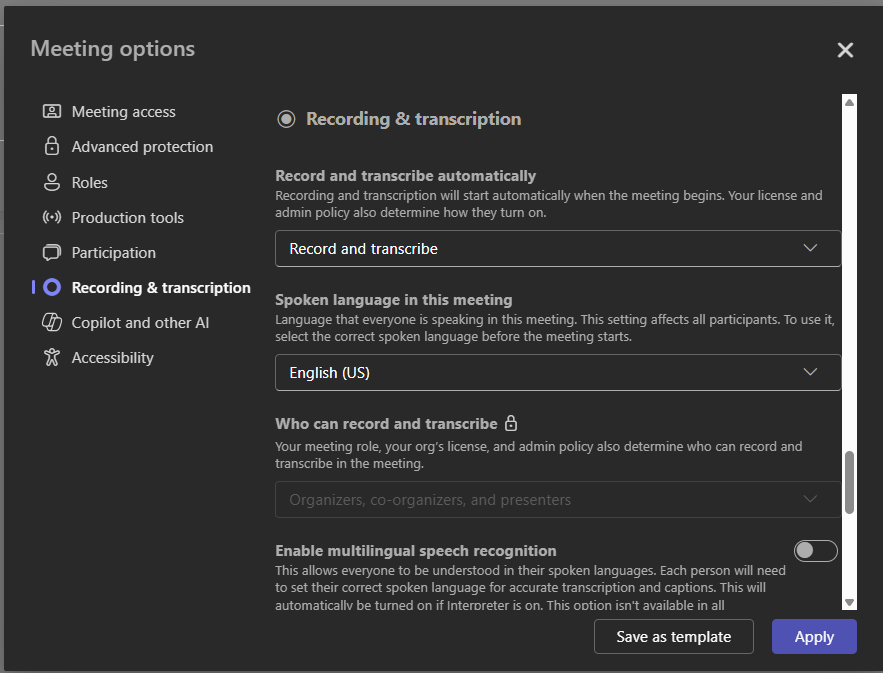
Enabling AutoRecording in Teams policy does not automatically record every meeting. It gives the organizer access to the meeting option "Record and transcribe automatically". The organizer must still set that option to "Record and transcribe" for each meeting individually.
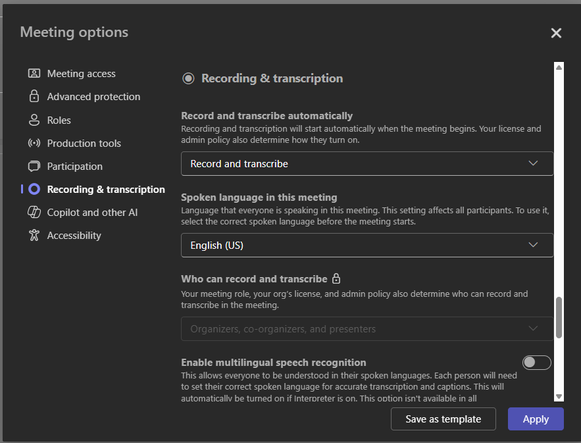
Teams meeting options - Record and transcribe automatically
Where meeting templates fit
Microsoft Teams Premium includes the ability to create custom meeting templates. Meeting templates can be used to control meeting options that the meeting organizer normally controls. With templates, you can create consistent meeting experiences in your organization and help enforce compliance requirements and business rules.There are personal meeting templates users create themselves and Teams Administrators can Create a custom meeting template in Microsoft Teams. Personal templates are created from the "Save as template" button on the meeting options page.
To use a template when scheduling a meeting:
Teams
Go to the Teams calendar and click the drop down on "New" in the top right corner. This is where the users can see the available templates. In this example I created a template named "Auto record". It has the meeting option for "Record and transcribe automatically" set.
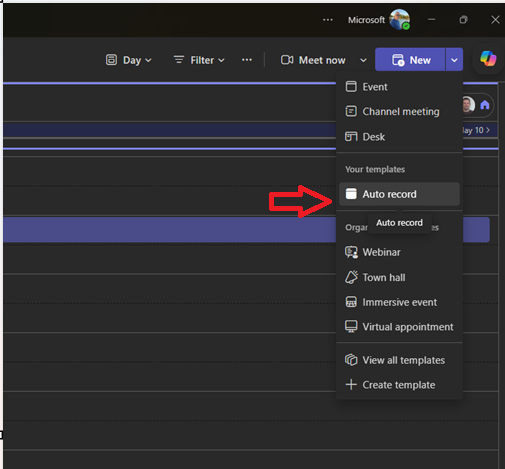
Select the template when creating the meeting.
In conclusion, configuring automatic recording is a two-step process. The first step is setting the Teams meeting policy to allow AutoRecording. The second step is making sure organizers know they must turn on Record and transcribe automatically in Meeting options for each meeting or use a meeting template that applies that setting.
Source:
Automatic Teams meeting recording: why the policy alone is not enough | Microsoft Community Hub
The details to enable automatic recording are documented in meeting-recording. Teams does have a parameter for -AutoRecording in the...
 techcommunity.microsoft.com