Apps Block Microsoft Store apps with AppLocker in Windows 11


AppLocker_header.webp

This tutorial will show you how to use AppLocker to create a rule to block the Microsoft Store app and/or specific apps installed from the Microsoft Store from running for all or specific users and groups in Windows 10 and Windows 11.

AppLocker is included in Local Security Policy (secpol.msc) to configure Application Control Policies in the Pro, Enterprise, and Education editions of Windows 10 and Windows 11. Local Security Policy is not available in the Home edition.

Apps installed from the Microsoft Store are packaged apps.

You can use AppLocker to create rules to deny (block) specified packaged apps from running for everyone, specific user(s), and/or specific group(s).

References:

You must be signed in as an administrator to use AppLocker.


AppLocker Packaged app Rules are saved to the registry key below.

HKEY_LOCAL_MACHINE\SOFTWARE\Policies\Microsoft\Windows\SrpV2\Appx


EXAMPLE: "This app has been blocked by your system administrator" message when open a blocked app

This_app_has_been_blocked_by_your_system_administrator.webp


Here's How:

1 Open Local Security Policy (secpol.msc).

2 Expand open Application Control Policies in the left pane of the Local Security Policy window, click/tap on AppLocker, and click/tap on the Configure rule enforcement link on the right side. (see screenshot below)

AppLocker_packaged_app_rules-1.webp

3 In the Enforcement tab under Packaged app Rules, check Configured to Enforce rules, and click/tap on OK. (see screenshot below)

This setting is what enforces any "Packaged app Rules" you create.


AppLocker_packaged_app_rules-2.webp

4 Perform the steps below to add default rules: (see screenshots below)

If this step is not done, AppLocker will block all Microsoft Store apps from running.

If you already have the "(Default Rule) All signed packaged apps" allowed for everyone like in the right screenshot below, then you can skip this step and go to step 5 instead.

  1. Expand open AppLocker.
  2. Right click on Packed app Rules.
  3. Click/tap on Create Default Rules.
AppLocker_packaged_app_rules-3.webp
AppLocker_packaged_app_rules-4.webp

5 Right click on Packaged app Rules, and click/tap on Create New Rule. (see screenshot below)

AppLocker_packaged_app_rules-5.webp

6 Click/tap on Next. (see screenshot below)

AppLocker_packaged_app_rules-6.webp

7 Under Action, select (dot) Deny. (see screenshot below)

AppLocker_packaged_app_rules-7.webp

8 If you want to select a specific User or group instead of the default Everyone to apply this rule to, then follow the steps below:

If you want to block the app for the default Everyone, then go to step 9 instead.


A) Click/tap on Select. (see screenshot below)​

AppLocker_packaged_app_rules-8.webp

B) Click/tap on the Advanced button. (see screenshot below)​

AppLocker_packaged_app_rules-9.webp

C) Click/tap on the Find Now button. (see screenshot below)​

AppLocker_packaged_app_rules-10.webp

D) Select a user or group you want to block from being able to open the app, and click/tap on OK. (see screenshot below)​

AppLocker_packaged_app_rules-11.webp

E) Click/tap on OK. (see screenshot below)​

AppLocker_packaged_app_rules-12.webp

9 Click/tap on Next. (see screenshot below)

AppLocker_packaged_app_rules-13.webp

10 Select (dot) Use an installed packaged app as a reference, and click/tap on Select. (see screenshot below)

AppLocker_packaged_app_rules-14.webp

11 Check the app (ex: "Microsoft Store") you want to block, and click/tap on OK. (see screenshot below)

It may take a moment for the "Select applications" window to open.


AppLocker_packaged_app_rules-15.webp

12 Click/tap on Create. (see screenshot below)

AppLocker_packaged_app_rules-16.webp

13 This new "Deny" rule will now be added for "Packaged app Rules". (see screenshot below)

AppLocker_packaged_app_rules-17.webp

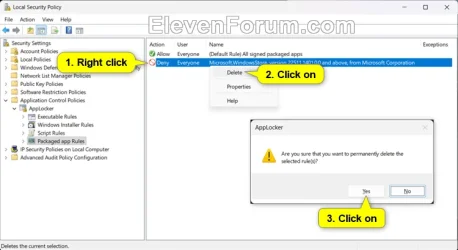
To undo and remove this rule, you can right click on the rule, click/tap on Delete, and click/tap on Yes to confirm.
AppLocker_packaged_app_rules-18.webp


That's it,
Shawn Brink


Last edited:
Hi Shawn, thanks for the tutorial. Just one really minor thing... There should be a period where a comma is between secpol and msc in step 1. (see below)

secpol period msc.webp


Kind regards,

tecknot
 

My Computer My Computer

At a glance

Windows 11 Pro 25H2 build 26200.8457Intel i7 8750H @ 2.2 GHz16 GB (all Samsung) DDR4-3200 SODIMM (non-ECC...Intel UHD Graphics 630 & NVIDIA Quadro P600
OS
Windows 11 Pro 25H2 build 26200.8457
Computer type
Laptop
Manufacturer/Model
Lenovo ThinkPad Workstation P72
CPU
Intel i7 8750H @ 2.2 GHz
Motherboard
Lenovo 01YU291
Memory
16 GB (all Samsung) DDR4-3200 SODIMM (non-ECC) PCIe 3
Graphics Card(s)
Intel UHD Graphics 630 & NVIDIA Quadro P600
Sound Card
Realtek ALC3286 & Focusrite Saffire 24 Pro DSP
Monitor(s) Displays
17.3"
Screen Resolution
3840x2160
Hard Drives
1TB SSD Samsung 860 EVO SATA 3
1TB SSD Samsung 970 EVO M.2 NVMe PCIe 3 x 4
2TB SSD Samsung 990 PRO M.2 NVMe PCIe 3 x 4
PSU
230W
Cooling
fan
Keyboard
UltraNav
Mouse
Kensington wireless Orbit
Internet Speed
640Mbps
Browser
DuckDuckGo and Firefox
Antivirus
Defender
Other Info
CM246 Chipset

My Computers My Computers

  • At a glance

    Windows 11 Pro for WorkstationsIntel i7-8700K 5 GHz64 GB (4x16GB) G.SKILL TridentZ RGB DDR4 3600...ASUS ROG-STRIX-GTX1080TI-O11G-GAMING (11GB GD...
    OS
    Windows 11 Pro for Workstations
    Computer type
    PC/Desktop
    Manufacturer/Model
    Custom self build
    CPU
    Intel i7-8700K 5 GHz
    Motherboard
    ASUS ROG Maximus XI Formula Z390
    Memory
    64 GB (4x16GB) G.SKILL TridentZ RGB DDR4 3600 MHz (F4-3600C18D-32GTZR)
    Graphics Card(s)
    ASUS ROG-STRIX-GTX1080TI-O11G-GAMING (11GB GDDR5X)
    Sound Card
    Integrated Digital Audio (S/PDIF)
    Monitor(s) Displays
    2 x Samsung Odyssey G75 27"
    Screen Resolution
    2560x1440
    Hard Drives
    1TB Samsung 990 PRO M.2,
    4TB Samsung 990 PRO M.2,
    TerraMaster F8 SSD Plus NAS
    PSU
    Seasonic Prime Titanium 850W
    Case
    Thermaltake Core P3 wall mounted
    Cooling
    Corsair Hydro H115i
    Keyboard
    Amazon Basics Wired Full Keyboard MD005
    Mouse
    Logitech MX Master 4
    Internet Speed
    2 Gbps Download and 100 Mbps Upload
    Browser
    Chrome and Edge
    Antivirus
    Microsoft Defender
    Other Info
    Logitech Z625 speaker system,
    Logitech BRIO 4K Pro webcam,
    HP Color LaserJet Pro MFP M477fdn,
    CyberPower CP1500PFCLCD
    Galaxy S23 Plus phone
  • At a glance

    Windows 11 ProSnapdragon X Elite (12 core) 3.42 GHz16 GB LPDDR5x-7467 MHz
    Operating System
    Windows 11 Pro
    Computer type
    Laptop
    Manufacturer/Model
    Surface Laptop 7 Copilot+ PC
    CPU
    Snapdragon X Elite (12 core) 3.42 GHz
    Memory
    16 GB LPDDR5x-7467 MHz
    Monitor(s) Displays
    15" HDR
    Screen Resolution
    2496 x 1664
    Hard Drives
    1 TB SSD
    Internet Speed
    Wi-Fi 7 and Bluetooth 5.4
    Browser
    Chrome and Edge
    Antivirus
    Microsoft Defender
Back
Top Bottom