Microsoft 365 Insider Blog:
As AI becomes part of everyday work, it’s more important than ever to clearly indicate when content has been generated or altered using AI. To help support transparency and responsible use, Microsoft 365 now includes watermarking options for AI‑generated content, giving organizations and individuals clearer signals about AI involvement while maintaining flexibility and control.
Whether you’re an IT admin, an information worker, or a consumer using Microsoft 365 at home, here’s what you need to know.
Why watermarks for AI‑generated content matter
AI can help people create faster and more confidently, but transparency builds trust. Watermarks help provide a visible or audible signal when content has been generated or modified using AI in Microsoft 365, supporting responsible sharing and clearer communication.Even when watermarks aren’t visible, Microsoft 365 also adds AI‑related metadata to generated or altered content to help provide additional context about how that content was created.
How watermarks work in Microsoft 365
Watermark behavior varies slightly depending on the type of content and account type, but the goal is consistent: make AI‑generated content easier to identify.At Work
Video and audio content (admin‑controlled)
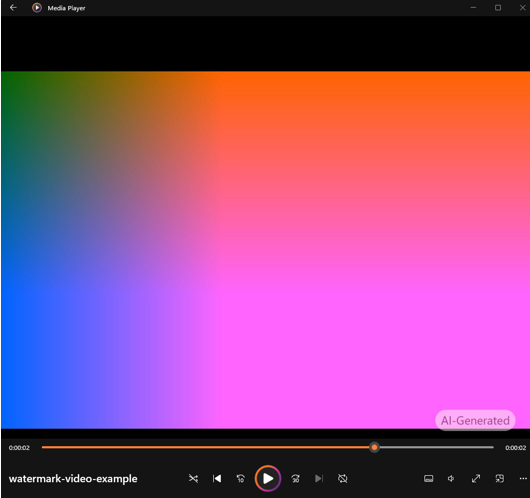
For video and audio content generated or altered using AI in Microsoft 365, organizations can enable the Include a watermark when content from Microsoft 365 is generated or altered by AI policy that adds:- Visual watermarks to AI‑generated videos (for example, videos created with Clipchamp)
- Audible watermarks to AI‑generated audio (such as audio overviews created with Copilot)
Images (user-controlled)
Images follow a slightly different model. Instead of an admin policy, individuals in your organization can choose whether to add watermarks to AI‑generated images. When turned on, the Show watermark toggle in Settings & Privacy adds a watermark to new AI‑generated images or existing images that are altered using AI.At home
AI-generated images, videos, and audio can include watermarks to indicate AI involvement, along with embedded metadata for additional context.By default, the Include a watermark when content from Microsoft 365 is AI-generated control toggle is off. To turn it on:
- Sign in to the Microsoft privacy dashboard with your Microsoft account.
- In the dashboard, go Privacy > Empower your productivity > Copilot.
- Turn on the toggle under Include a watermark when content from Microsoft 365 is AI-generated.
Additional resources
- For IT Admins: Add watermarks to content generated or altered by using AI in Microsoft 365
- At school or at work: Watermarks on content generated or altered by using AI in Microsoft 365
- At home: Include a watermark when content from Microsoft 365 is AI-generated
Source:

Bringing transparency to AI-generated content with watermarks in Microsoft 365
Use watermarks to indicate when content has been generated or altered using AI, and support responsible sharing and clearer communication.
 techcommunity.microsoft.com