This tutorial will show you how to change the braille display input and output language and table type for your account in Windows 11.
Narrator is a screen reader included with Windows 11 that describes what's on your screen. Narrator lets you use your PC without a mouse to complete common tasks if you’re blind or have low vision. It reads and interacts with things on the screen, like text and buttons. Use Narrator to read and write email, browse the internet, and work with documents.
Narrator supports braille displays from several manufacturers that use a USB or serial port.
Starting with Windows 11 build 26300.8497 (Experimental), build 26220.8925 (Beta 25H2), build 28020.2539 (Beta 26H1), and build 28120.2546 (Experimental 26H1) for Insiders, Microsoft is making refreshable braille displays easier to use in Windows. Narrator now supports displays that use the HID standard — an open industry standard for braille displays. If your display supports HID, simply connect it via USB and start reading — true plug-and-play with no additional setup required. For Bluetooth, pair your HID braille display in Settings > Bluetooth & devices just like any other accessory, and you can work wirelessly without being tethered to your PC. Compatible HID displays include models like the Orbit Reader 20, Orbit Slate 340, Freedom Scientific Focus 40, and APH Mantis Q40. HID braille displays now work during the initial Windows setup experience (OOBE) over USB — meaning users who are deaf-blind can set up their PC independently, right from the first screen. You can customize braille input and output options anytime in Settings > Accessibility > Narrator > Braille.
You can change the language for input and output and table type for input and output (grade 1, grade 2, or 8 dot computer braille) to match your preferred language and braille format.
Reference:
Chapter 8: Using Narrator with braille | Microsoft Support
 support.microsoft.com
Here's How:
1 Open Settings (Win+I).
2 Click/tap on Accessibility on the left side, and click/tap on Narrator on the right side. (see screenshot below)
3 Under Braille, click/tap on Use a braille display with Narrator or Configure braille displays. (see screenshots below)
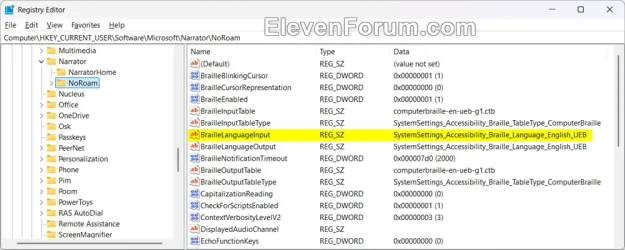
4 Under Braille display input and output settings, select a input language you want to use in the drop menu. (see screenshot below step 8)
This input language setting is saved to the BrailleLanguageInput string value (REG_SZ) in the registry key path below.
HKEY_CURRENT_USER\Software\Microsoft\Narrator\NoRoam
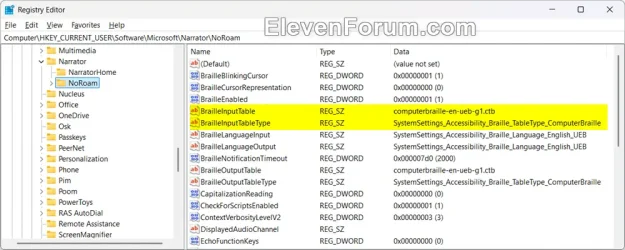
5 Under Braille display input and output settings, select a Input table type you want to use in the drop menu. (see screenshot below step 8)
Input Table Type | Description |
|---|---|
| Computer braille (default) | Standard for most systems |
| Uncontracted | No shortcuts, every character shown fully |
| Contracted | Uses contractions for faster reading |
This Input table type setting is saved to the BrailleInputTable and BrailleInputTableType string values (REG_SZ) in the registry key path below.
HKEY_CURRENT_USER\Software\Microsoft\Narrator\NoRoam
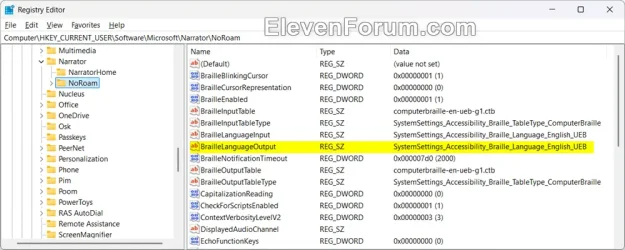
6 Under Braille display input and output settings, select a Output language you want to use in the drop menu. (see screenshot below step 8)
This Output language setting is saved to the BrailleLanguageOutput string value (REG_SZ) in the registry key path below.
HKEY_CURRENT_USER\Software\Microsoft\Narrator\NoRoam
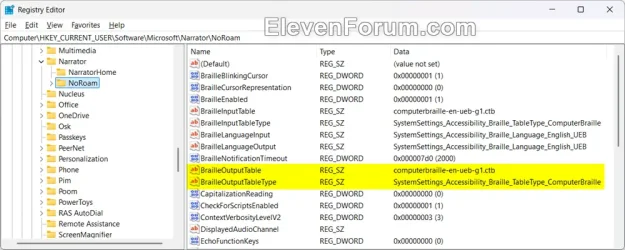
7 Under Braille display input and output settings, select a Output table type you want to use in the drop menu. (see screenshot below step 8)
Output Table Type | Description |
|---|---|
| Computer braille (default) | Standard for most systems |
| Uncontracted | No shortcuts, every character shown fully |
| Contracted | Uses contractions for faster reading |
This Output table type setting is saved to the BrailleOutputTable and BrailleOutputTableType string values (REG_SZ) in the registry key path below.
HKEY_CURRENT_USER\Software\Microsoft\Narrator\NoRoam
8 You can now close Settings if you like.
That's it,
Shawn Brink
- Enable or Disable Braille Support for Narrator in Windows 11
- Install or Uninstall Braille Support for Narrator in Windows 11
- Open Braille Viewer in Narrator in Windows 11
- Change How Text Cursor is Displayed on Braille Display with Narrator in Windows 11
- Change How Long Notifications Stay Open on Braille Display in Windows 11