This tutorial will show you how to set a maximum disk usage limit for the total space consumed by all restore points captured by VSS on the device for point-in-time restore in Windows 11.
Starting with Windows 11 build 26100.8737 (24H2), build 26200.8737 (25H2), and build 28000.2340 (26H1), Microsoft introduced point-in-time restore for Windows. This flexible recovery feature empowers you to quickly roll your device back to a previous state—helping minimize downtime and simplify troubleshooting when disruptions strike. Whether you’re dealing with a widespread outage or a one-off issue, point-in-time restore helps recover your system (including apps, settings, and user files) to get you back to productivity faster.
Point-in-time restore enables users to restore a Windows PC to the exact state it was at an earlier point in time in minutes, using restore points. Restore points are stored locally on the machine and are captured using Volume Shadow Copy Service (VSS). Point-in-time restore focuses on fast recovery from recent issues by restoring the full system state captured within the last 72 hours. This feature is designed to help minimize downtime and simplify remediation, without the need for technical expertise or lengthy troubleshooting.
Restore points are captured automatically at a frequency (default: 24 hours) which is configurable by administrators. Restore points are comprehensive and include the OS, apps, settings, and local files (no user data is scoped out of the restore point). All restore points are stored locally on the system and are captured in the background.
- Creation window: When point-in-time restore is enabled or settings change, the scheduler plans the next restore point based on boot timing and the most recent restore point. If there’s no recent restore point, one is scheduled promptly after enablement.
- Retention: Each restore point is retained for a maximum of 72 hours; after that, it’s automatically deleted.
- Deletions: Restore points are deleted, starting from the oldest restore point under the following conditions:
- The max VSS storage configured for restore points is exceeded.
- The device reports low free space conditions that cause VSS to limit or evict restore points.
- If VSS encounters a condition that will prevent it from preserving data that is about to be overwritten all restore points are deleted. For example, the disk full, fails to allocate memory, inability to expand diff area in time, write errors.
Point-in-time restore | System Restore | |
|---|---|---|
| User experience | System settings | Control panel |
| Restore points trigger | Automatic, configurable cadence; user files are included in restore point | Event-triggered or manual only; user files are excluded from restore point |
| Retention | Max 72 hours per restore point | Indefinite (subject to disk usage/cleanup) |
| Target scope | Full system state | System files and settings; app/user data coverage varies |
| Storage impact | Minimizes storage impact by integrating with reserved storage* | Higher impact to storage space |
| Management | Will support robust remote management capabilities | Limited remote management capabilities |
Administrators can configure the feature. The configuration options consist of:
- Feature On/Off, if feature is ON, restore points are automatically captured.
- Restore point frequency controls how frequently restore points are created.
- Restore point retention defines how long restore points can exist on the system before they are automatically deleted (earlier deletion can occur under storage pressure).
- Maximum usage limit sets an upper bound for the total space consumed by all restore points captured by VSS on the device. Space isn't pre-allocated for restore points; any remaining space within the maximum usage limit not used by restore points is available to be used by the system.
Configuration | Defaults | Options |
|---|---|---|
| Feature On/Off | On | On, Off |
| Restore point frequency | Every 24 hours | 4, 16, 12, 24 hours |
| Restore point retention | 72 hours | 6, 12, 16, 24, 72 hours |
| Maximum usage limit | 2% of disk | Percent of disk (min 2GB, max 50GB equivalent) |
Storage implications
- The configured max space isn't pre-allocated; it's the upper bound VSS can use. Unused capacity remains available to the system. When needed, VSS consumes free disk space up to the maximum allowed.
- In most cases, it's appropriate for user to assume that most if not all the max space set for restore points is used.
- VSS storage is shared with other tools that use VSS such as System Restore or third party rollback software. Point-in-time restore can’t reserve a siloed pool; the maximum restore point limit is for all restore points captured by VSS.
- If the VSS storage limit is reached or updates require the space used by restore points, the oldest restore points are removed automatically.
- To complete a restore, the device must have at least as much free space as the total size of all restore points.
Data loss: point-in-time restore is a comprehensive recovery solution that reverts the entire system—including user files, applications, settings, passwords, secrets, certificates, and keys—to the selected restore point. Any local changes made after the restore point will be lost. Data stored in cloud services such as OneDrive isn't affected.
- The capture of a restore point can fail due to insufficient disk space, system experiencing heavy I/O load, or unstable VSS writer.
- The restoration of a system can fail due to insufficient free disk space, EFS-encrypted files changing, sudden power during restoration, or a corrupted file system.
- Certain configurations, data corruption, or powering off the PC can prevent a successful boot after rollback as that could leave the device in a corrupt state.
- Restoring the system can revert recent security updates or policies; validate and remediate post-restore.
- A restore can only be initiated locally in WinRE.
- BitLocker recovery key is required for local restore on encrypted volumes.
- There's no guarantee a restore point is captured at the exact frequency configured due to conditions such as: the device is powered off, in sleep or modern standby mode, recent reboot, or disk is full.
- If the PC’s edition change, for example, from Home to Pro or Enterprise, point-in-time restore shouldn't be used. Restoring across different editions/SKUs can lead to system instability or unsupported configurations.
- Usage of EFS encrypted files may affect reliability of point-in-time restore.
- For devices that have multiple volumes, only the MainOS volume is restored.
- Export/mount of restore points as independent images isn't supported.
- Point-in-time restore is not a substitute for a system image.
References:

Point-in-time restore for Windows 11 is now generally available
 techcommunity.microsoft.com

Point-in-time restore for Windows

Scalable Windows Resiliency with new recovery tools - Windows IT Pro Blog
techcommunity.microsoft.com
You must be signed in as an administrators to set a maximum disk usage limit for the total space consumed by all restore points captured by VSS on the device for point-in-time restore when turned on.
Settings for point-in-time restore are reset to the defaults after a feature update. Current solution is to reconfigure the feature if settings were changed from the defaults.
If you do not have the point-in-time restore feature available in the builds above yet and would like to try it now, then you can use the ViVeTool command below to enable it.
vivetool.exe /enable /id:55324166,59673297

Enable or Disable Hidden Feature Flags in Windows 11
 www.elevenforum.com
- Option One: Change Maximum Disk Usage Limit for Point-in-time Restore in Settings
- Option Two: Change Maximum Disk Usage Limit for Point-in-time Restore in Registry Editor
1 Open Settings (WIn+I).
2 Click/tap on System on the left side, and click/tap on Recovery on the right side. (see screenshot below)
3 Perform an available step below: (see screenshots below)
- Under "Recovery options", click/tap on Point-in-time restore. (see screenshot below
- Under "Recovery options", click/tap on the View or edit button for Point-in-time restore.
4 If prompted by UAC. click/tap on Yes to allow.
5 Adjust the Maximum usage limit slider between 2 GB to 50 GB of disk space you want to set as maximum. (see screenshots below)
6 Click/tap on Save and Close.
7 You can now close Settings if you like.
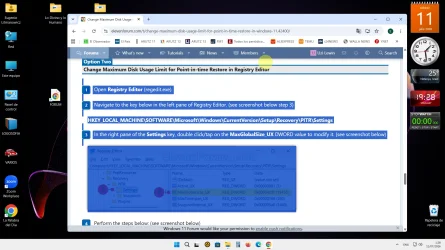
1 Open Registry Editor (regedit.exe).
2 Navigate to the key below in the left pane of Registry Editor. (see screenshot below step 3)
3 In the right pane of the Settings key, double click/tap on the MaxGlobalSize_UX DWORD value to modify it. (see screenshot below)
4 Perform the steps below: (see screenshot below)
- Select (dot) Decimal.
- Enter a Value data in MB for 2 GB to 50 GB of disk space you want to set as maximum.
1024 MB = 1 GB
For example, if you want to set a max of 19 GB disk usage, you would enter 19456 (19x1024). - Click/tap on OK.
5 You can now close Registry Editor if you like.
That's it,
Shawn Brink
- Enable or Disable Point-in-time Restore in Windows 11
- Perform Point-in-time Restore of Windows 11
- Change Restore Point Frequency for Point-in-time Restore in Windows 11
- Change Restore Point Retention for Point-in-time Restore in Windows 11
- See List of Available Point-in-time Restore Points in Windows 11
- Delete Restore Points for System Restore and Point-in-time Restore in Windows 11