This tutorial will show you how to enable or disable Copilot in Outlook.com for the web and new Outlook for Windows app for your account in Windows 10 and Windows 11.
Copilot in Outlook helps you manage and triage your email and time more efficiently. It provides personalized suggestions, summaries, and insights to help you stay on top of things and save time. Whether you need help drafting the appropriate email response, schedule meetings in a few clicks, find key information in an email thread, or make sure your message has the right tone and clarity, Copilot can help you achieve your goals.
When logged into Outlook with an account that has access to Copilot Pro or AI credits through a Microsoft 365 Personal or Family subscription, Copilot features will be available for all connected email accounts.
If Copilot is available to you in Outlook.com for the web and new Outlook for Windows app, you can disable Copilot to remove it if wanted.
References:
What's new in new Outlook for Windows | Microsoft Support
What's new in new Outlook for Windows
 support.microsoft.com
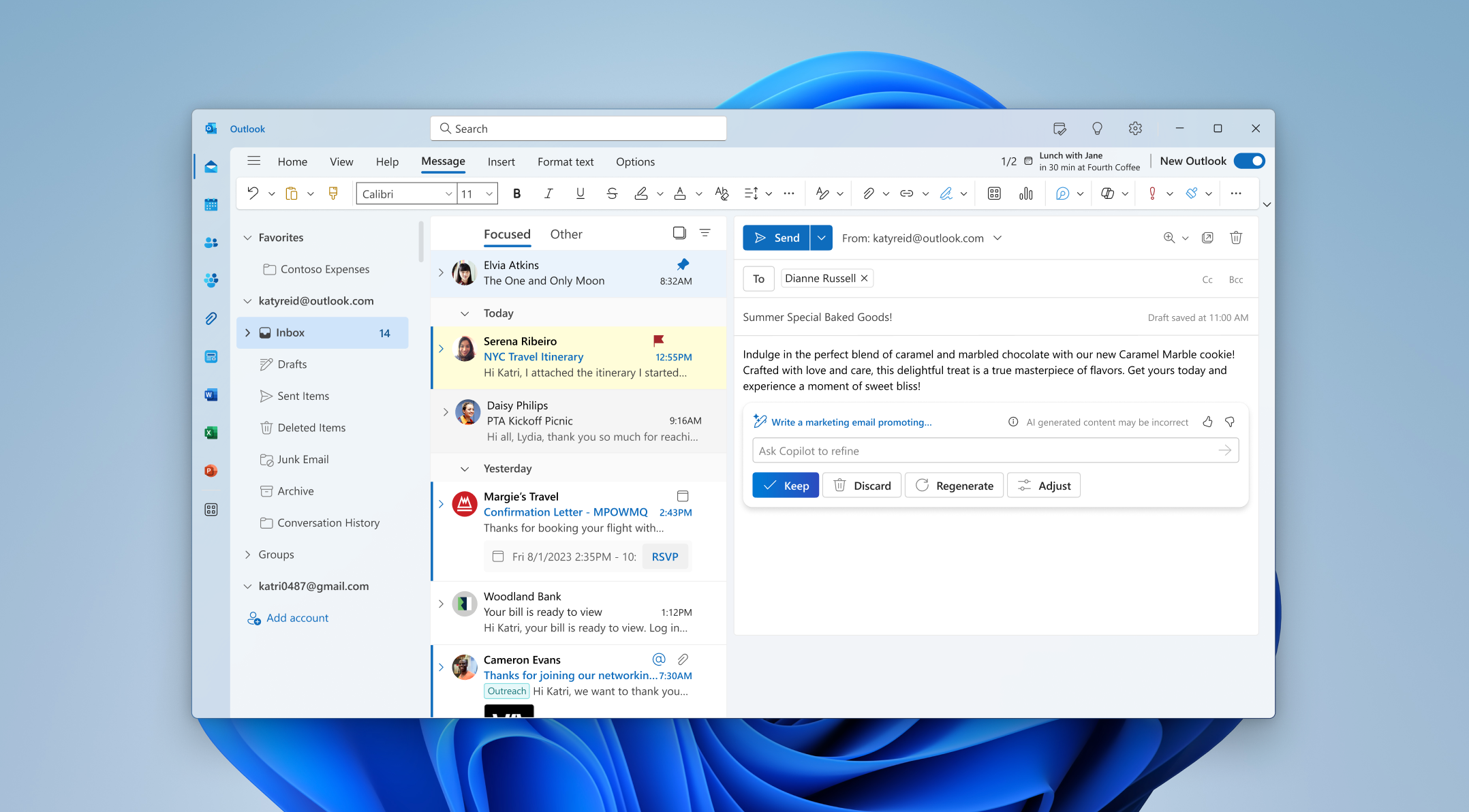
Microsoft Copilot in the new Outlook for Windows at Microsoft Ignite 2023
All the new features for Microsoft Copilot in the new Outlook for Windows during Microsoft Ignite 2023
 techcommunity.microsoft.com
Draft an email message with Copilot in Outlook | Microsoft Support
Learn how to draft an email using Copilot in Outlook.
support.microsoft.com
Chat with Copilot in Outlook | Microsoft Support
Copilot in Outlook offers fully integrated contextual help, email summarization, and task automation like drafting, auto-replies, and rule creation for Windows and Web.
support.microsoft.com
Frequently asked questions about Copilot in Outlook | Microsoft Support
Get answers to frequently asked questions about using Copilot with Outlook.
support.microsoft.com
EXAMPLE: Copilot in Outlook
Here's How:
1 Open the Outlook for Windows app.
2 Click/tap on the Settings (gear) icon on the toolbar. (see screenshot below)
3 In Settings, click/tap on Copilot in the left pane. (see screenshot below)
4 If you have more than one email account added to Outlook, then select the email account in the These settings are applied at the account level drop menu you want to apply changes to.
5 Turn on (default) or off Turn on Copilot for what you want.
6 Click/tap on Save to apply.
7 You can now close the Settings window if you like.
That's it,
Shawn Brink
Last edited: