How do I mimic [Lack of a better term] a windows install USB With 2 Partitions?


Rbcc

Well-known member
Local time
5:32 AM
Posts
124
OS
Windows 11 pro
How do I mimic [Lack of a better term] a windows install USB With 2 Partitions?
I am trying to mimic a usb drive with 2 partitions so I can put my apps and utilities on the second partition and using Unattend.xml RunSyncronous command with only 1 ISO , to test on VMWare Workstation. Can this be done? Should I Create a ISO for the Secondary ISO for the apps? TIA John
 

My Computer

System One

  • OS
    Windows 11 pro
    Computer type
    Laptop
    Manufacturer/Model
    Asus
    CPU
    I-7 2gigaherz
    Motherboard
    Asus
    Memory
    16Gig
    Screen Resolution
    1024x768
    Hard Drives
    512 SSD
Why do you need to create a second partition for your 3rd-party apps? Most users create another folder on the USB drive's root, and copy their optional files there. If you want Setup to automatically copy that folder to the Windows install disk, then use the \sources\$OEM$ folder.

Windows Setup only cares about the folders it expects to find. Any other unknown folders on the USB media are ignored. So you don't need to waste time on another ISO image.
 

My Computer

System One

  • OS
    Windows 7
Hi Rbcc,

Here are the steps for creating two partitions on a USB flash drive:

Start Command Prompt (or Terminal, which I usually do with Administrator rights) and press enter for this and each of the following commands;
Type Diskpart in the command prompt;
Type List disk;
Type Select disk for the USB disk;
Next, type Clean;
Type Create Partition Primary size=??? (desired size of the first partition in MB);
Type Format FS=FAT32 quick (Label=??? (if desired));
Type Assign (a File Explorer window will pop up, but you can close it);
Type Create Partition Primary;
Type Format FS=NTFS quick (Label=??? (if desired)); and
Type Assign.

Now you will have an USB flash drive with two partitions.

Kind regards,

tecknot
 

My Computer

System One

  • OS
    Windows 11 Pro 25H2 build 26200.8457
    Computer type
    Laptop
    Manufacturer/Model
    Lenovo ThinkPad Workstation P72
    CPU
    Intel i7 8750H @ 2.2 GHz
    Motherboard
    Lenovo 01YU291
    Memory
    16 GB (all Samsung) DDR4-3200 SODIMM (non-ECC) PCIe 3
    Graphics Card(s)
    Intel UHD Graphics 630 & NVIDIA Quadro P600
    Sound Card
    Realtek ALC3286 & Focusrite Saffire 24 Pro DSP
    Monitor(s) Displays
    17.3"
    Screen Resolution
    3840x2160
    Hard Drives
    1TB SSD Samsung 860 EVO SATA 3
    1TB SSD Samsung 970 EVO M.2 NVMe PCIe 3 x 4
    2TB SSD Samsung 990 PRO M.2 NVMe PCIe 3 x 4
    PSU
    230W
    Cooling
    fan
    Keyboard
    UltraNav
    Mouse
    Kensington wireless Orbit
    Internet Speed
    640Mbps
    Browser
    DuckDuckGo and Firefox
    Antivirus
    Defender
    Other Info
    CM246 Chipset
@garlin:
Why do you need to create a second partition for your 3rd-party apps? On the USB that the Windows 11 installation files are on one partition and the Third-Party apps are on another. I was trying to create a tester ISO to be just like that USB Drive to see if what I did works! Is there a way to do this? John
 

My Computer

System One

  • OS
    Windows 11 pro
    Computer type
    Laptop
    Manufacturer/Model
    Asus
    CPU
    I-7 2gigaherz
    Motherboard
    Asus
    Memory
    16Gig
    Screen Resolution
    1024x768
    Hard Drives
    512 SSD
Your proposed method is too complicated. The way most IT folks do this:

Option 1: Using $OEM$ folders


1. Create a normal, updated Windows ISO image.
2. Use Rufus or another tool to write the ISO to an USB drive.
3. Create a new folder"\sources\$OEM$\$1\Apps"on the same drive. $1 maps to C:\, so $1\Apps is C:\Apps.
4. Copy your installer files or subfolders into this new folder.
5. When WinPE runs, it will copy everything from"\sources\$OEM$"to the target folder(s).
6. Since you know where the copied folders are, you can hard-code the RunSynchronous command to "C:\Apps\installerA.exe"
7. Include a final RunSynchronous command to rmdir C:\Apps, to clean up the installer folder.

Option 2: Set an environment variable to find the USB's drive letter.


Follow the previous steps 1-2.
3. Create a folder on the USB with an unique name. For example: "Apps".
4. Add these lines to your unattended file:
Code:
<RunSynchronousCommand wcm:action="add">
        <Order>1</Order>
        <Description>Search for the unique folder name, and set the drive letter as a variable</Description>
        <Path>cmd /c for %i in (D E F G H I J K L N M O P Q R S T U V W X Y Z) do if exist %i\Apps setx /m USBDRIVE=%i:</Path>
</RunSynchronousCommand>
<RunSynchronousCommand wcm:action="add">
        <Order>2</Order>
        <Path>%USBDRIVE%\folder\installerA.exe</Path>
</RunSynchronousCommand>
<RunSynchronousCommand wcm:action="add">
        <Order>3</Order>
        <Path>%USBDRIVE%\folder\installerB.exe</Path>
</RunSynchronousCommand>

The first command searches through all drive letters (higher than C:), and looks for the drive which contains folder "Apps". Then adds a persistent environment variable with the drive letter. Now you can use that variable in later RunSynchronous commands to to know where the folders are.

This method avoids copying any files, and executes commands directly from the mounted USB drive. You should name the source folder with an unique name, so it doesn't match any other folder which might exist on any of the readable drives.

 

My Computer

System One

  • OS
    Windows 7
So I test an ISO on vmware workstation 17.6.2 I would like have the Windows Installation drive be X: and the Partition be as if it were a partition on a USB Drive ie [Y Drive]. the [Y Drive would house three Batchfiles the apps and Utilities]. can this be done??
 

My Computer

System One

  • OS
    Windows 11 pro
    Computer type
    Laptop
    Manufacturer/Model
    Asus
    CPU
    I-7 2gigaherz
    Motherboard
    Asus
    Memory
    16Gig
    Screen Resolution
    1024x768
    Hard Drives
    512 SSD
VMware allows you to pass-thru USB drives attached to your physical host. Of course you can create two partitions on the drive. The problem is during the install you're not guaranteed any drive letters. If you change absolutely nothing in the VM, the drive letters probably won't change.

Outside of a VM, in the real world, you can't always control things. So your drive letters are more likely to change. The point isn't the partitions, it's figuring out how to get to the right folder paths.
 

My Computer

System One

  • OS
    Windows 7
I'm not currently running VMware, but I tested this with Hyper-V. With Hyper-V you can directly attach an external drive. Note that this won't work with a thumb drive UNLESS that drive presents itself to Windows as a HD rather than a removable storage device. I tested with PNY Elite V3 USB 3.2 thumb drive that actually has 3 partitions (2 for Windows installation + 1 additional data partition) and was able to boot from it and install Windows unattended.
 

My Computers

System One System Two

  • OS
    Win11 Pro 25H2 (RTM+)
    Computer type
    PC/Desktop
    Manufacturer/Model
    Acemagic
    CPU
    Intel i7-14650HX
    Memory
    32 GB
    Graphics Card(s)
    No GPU - Built-in Intel Graphics
    Sound Card
    Integrated
    Monitor(s) Displays
    Varies as machine will often be moved to locations with different monitors
    Screen Resolution
    Varies
    Hard Drives
    1 x 1TB Gen 4 NVMe SSD
    PSU
    120W Power Brick
    Keyboard
    Corsair K70 Max RGB Magnetic Keyboard
    Mouse
    Logitech MX Master 3
    Internet Speed
    1Gb Up / 1 Gb Down
    Browser
    Edge
    Antivirus
    Windows Defender
  • Operating System
    Win11 Pro 25H2 (RTM+)
    Computer type
    Laptop
    Manufacturer/Model
    Lenovo ThinkBook 13x Gen 2
    CPU
    Intel i7-1255U
    Memory
    16 GB
    Graphics card(s)
    Intel Iris Xe Graphics
    Sound Card
    Realtek® ALC3306-CG codec
    Monitor(s) Displays
    13.3-inch IPS Display
    Screen Resolution
    WQXGA (2560 x 1600)
    Hard Drives
    2 TB 4 x 4 NVMe SSD
    PSU
    USB-C / Thunderbolt 4 Power / Charging
    Keyboard
    Backlit, spill resistant keyboard
    Mouse
    Buttonless Glass Precision Touchpad
    Internet Speed
    1Gb Up / 1Gb Down
    Browser
    Edge
    Antivirus
    Windows Defender
    Other Info
    WiFi 6e / Bluetooth 5.1 / Facial Recognition / Fingerprint Sensor / ToF (Time of Flight) Human Presence Sensor
A follow-up to my testing: After I disconnected the thumb drive / SSD from my Hyper-V machine and reattached it to my physical system, I noticed that the second partition had a lock icon indicating that the partition was BitLocker encrypted along with an exclamation mark on the same icon. I found that this partition was now partially encrypted, and I had to perform a "manage-bde -off x:" to decrypt it. So, for some reason the Hyper-V VM had decide3d that it needed to BitLocker that partition without my permission. Nice!

YMMV, just be aware of this as a possibility.
 

My Computers

System One System Two

  • OS
    Win11 Pro 25H2 (RTM+)
    Computer type
    PC/Desktop
    Manufacturer/Model
    Acemagic
    CPU
    Intel i7-14650HX
    Memory
    32 GB
    Graphics Card(s)
    No GPU - Built-in Intel Graphics
    Sound Card
    Integrated
    Monitor(s) Displays
    Varies as machine will often be moved to locations with different monitors
    Screen Resolution
    Varies
    Hard Drives
    1 x 1TB Gen 4 NVMe SSD
    PSU
    120W Power Brick
    Keyboard
    Corsair K70 Max RGB Magnetic Keyboard
    Mouse
    Logitech MX Master 3
    Internet Speed
    1Gb Up / 1 Gb Down
    Browser
    Edge
    Antivirus
    Windows Defender
  • Operating System
    Win11 Pro 25H2 (RTM+)
    Computer type
    Laptop
    Manufacturer/Model
    Lenovo ThinkBook 13x Gen 2
    CPU
    Intel i7-1255U
    Memory
    16 GB
    Graphics card(s)
    Intel Iris Xe Graphics
    Sound Card
    Realtek® ALC3306-CG codec
    Monitor(s) Displays
    13.3-inch IPS Display
    Screen Resolution
    WQXGA (2560 x 1600)
    Hard Drives
    2 TB 4 x 4 NVMe SSD
    PSU
    USB-C / Thunderbolt 4 Power / Charging
    Keyboard
    Backlit, spill resistant keyboard
    Mouse
    Buttonless Glass Precision Touchpad
    Internet Speed
    1Gb Up / 1Gb Down
    Browser
    Edge
    Antivirus
    Windows Defender
    Other Info
    WiFi 6e / Bluetooth 5.1 / Facial Recognition / Fingerprint Sensor / ToF (Time of Flight) Human Presence Sensor
If I mount a ISO on my M Drive in subdir "mount" and I want a unattend.xml to come inside the ISO so it runs in installing Windows to install all the 3rd party apps . If I Save and unload the ISO. Will it be there when all is said and done? John
 

My Computer

System One

  • OS
    Windows 11 pro
    Computer type
    Laptop
    Manufacturer/Model
    Asus
    CPU
    I-7 2gigaherz
    Motherboard
    Asus
    Memory
    16Gig
    Screen Resolution
    1024x768
    Hard Drives
    512 SSD
That's not how ISOs work (someone correct me if I'm wrong). You have to save the contents elsewhere, modify the files, and re-make the iso. Windows apps like AnyBurn will automate a lot of this for you, but that's what they're doing underneath.
 

My Computer

System One

  • OS
    Windows 11 Pro 25H2
    Computer type
    PC/Desktop
    Manufacturer/Model
    Intel NUC12WSHi7
    CPU
    12th Gen Core i7-1260P
    Motherboard
    NUC12WSBi7
    Memory
    64 GB Micron PC4-25600
    Graphics Card(s)
    Intel Iris Xe Graphics
    Sound Card
    on-board Realtek HD Audio
    Monitor(s) Displays
    Dell U3219Q
    Screen Resolution
    3840 x 2160
    Hard Drives
    Samsung SSD 990 PRO 1TB
    Crucial MX500 2 TB
    Antivirus
    Microsoft Defender
If I mount a ISO on my M Drive in subdir "mount" and I want a unattend.xml to come inside the ISO so it runs in installing Windows to install all the 3rd party apps . If I Save and unload the ISO. Will it be there when all is said and done?

No the mount is not writeable.

you could use any of the well known isohandlers to edit the iso file.

free version of anyburn will edit.
--------------------------------------------------------------------


Alternatively copy the mounted iso and paste to disk. Then unmount.

Make your changes to files on disk.

create an iso from the parent folder on disk using either command line tools e.g. oscdimg or mkisofs

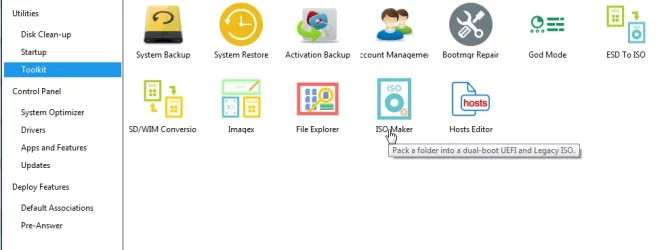
or do it the easy way with with dism++

dism++-isomaker.webp
 
Last edited:

My Computers

System One System Two

  • OS
    Win7,Win11
    Computer type
    PC/Desktop
    CPU
    i7-9700
    Motherboard
    gigabyte b365m ds3h
    Memory
    2x16gb 3600mhz
    Monitor(s) Displays
    benq gw2480
    PSU
    bequiet pure power 11 400CM
    Cooling
    cryorig m9i
  • Operating System
    win7,win11
    Computer type
    PC/Desktop
    CPU
    i5-8400
    Motherboard
    gigabyte b365m ds3h
    Memory
    2x8gb 3200
    PSU
    xfx pro 450
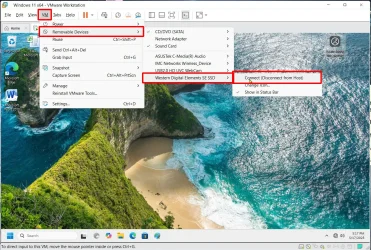
If you can't get this set up like you want you can always mount an external USB drive from within the Windows 11 virtual machine you created in VMware Workstation. You can have all your apps and other setup programs on the external USB drive.

The following shows how I mount a 2TB external SSD from within the Windows 11 VM.

Removable Drive #2.webp
 

My Computers

System One System Two

  • OS
    Windows 11 Pro 25H2 (26200.6901)
    Computer type
    Laptop
    Manufacturer/Model
    ASUS TUF Gaming A15 (2022)
    CPU
    AMD Ryzen 7 6800H with Radeon 680M GPU (486MB RAM)
    Memory
    Crucial DDR5-4800 (2400MHz) 32GB (2 x 16GB)
    Graphics Card(s)
    NVIDIA RTX 3060 Laptop (6GB RAM)
    Sound Card
    n/a
    Monitor(s) Displays
    15.6-inch
    Screen Resolution
    1920x1080 300Hz
    Hard Drives
    2 x Samsung 990 Evo Plus (2TB M.2 NVME SSD)
    PSU
    n/a
    Mouse
    Wireless Mouse M510
    Internet Speed
    2100Mbps/300Mbps
    Browser
    Firefox
    Antivirus
    Malwarebytes
  • Operating System
    Windows 11 Pro 25H2 (26200.8246)
    Computer type
    PC/Desktop
    Manufacturer/Model
    Custom build
    CPU
    AMD Ryzen 7 5700X3D
    Motherboard
    ASUS ROG Strix B550-F Gaming WiFi II
    Memory
    G.SKILL Flare X 32GB (2x16GB) DDR4
    Graphics card(s)
    ASUS ROG-STRIX-RTX3060TI-08G-V2-GAMING (RTX 3060-Ti, 8GB RAM)
    Monitor(s) Displays
    Samsung G50D IPS 27"
    Screen Resolution
    1440p/180Hz
    Hard Drives
    SAMSUNG 990 EVO Plus (2TB] M.2 NVME SSD
    SAMSUNG 990 EVO Plus (4TB) M.2 NVME SSD
    PSU
    Corsair RM750x (750 watts)
    Case
    Cooler Master MasterCase 5
    Cooling
    Scythe Mugen 6
    Keyboard
    Logitech K520 (MK540 keyboard/mouse combo)
    Mouse
    Logitech M310 (MK540 keyboard/mouse combo)
    Internet Speed
    2100 Mbps down / 300 Mbps up
    Browser
    Firefox, Edge, Chrome
    Antivirus
    Malwarebytes (Premium)
    Other Info
    ASUS Blu-ray Burner BW-16D1HT (SATA) || Western Digital Easystore 20TB USB 3.0 external hard drive used with Acronis True Image 2025 backup software || HP OfficeJet Pro 6975 Printer/Scanner
That's not how ISOs work (someone correct me if I'm wrong). You have to save the contents elsewhere, modify the files, and re-make the iso. Windows apps like AnyBurn will automate a lot of this for you, but that's what they're doing underneath.
What @Rbcc wants to do is to segregate the Post-Setup install files into a 2nd volume.

This is not the preferred way, because it's more time consuming. Every time you create an updated Windows ISO and write to USB, the first volume's size will probably change over time, and force you to delete/recreate the 2nd partition to fit the remaining drive space.

But suppose you did that. One way to make Windows "correctly" mount the 2nd volume is to assign it a drive letter in diskpart.
Code:
diskpart
list volume
select volume V
assign letter=R
exit

Unless there's a conflict with drive assignments, then R:\ should be available to read files from.
 

My Computer

System One

  • OS
    Windows 7
Back
Top Bottom