UPDATE 9/05:

 www.elevenforum.com
Hello Windows Insiders, today we are releasing Windows 11 Insider Preview Build 26220.5770 (KB5064089) to the Dev Channel.
Please note the major build number has incremented to Build 26220 with this flight. This build number will only be used for builds flighted to the Dev Channel. Windows 11, version 25H2 will be released as Build 26200 and is now available in the Release Preview Channel.
Changes in Dev Channel builds and updates are documented in two buckets: new features, improvements, and fixes that are being gradually rolled out for Insiders who have turned on the toggle to get the latest updates as they are available (via Settings > Windows Update*) and then new features, improvements, and fixes rolling out to everyone in the Dev Channel. For more information, see the Reminders section at the bottom of this blog post.
 www.elevenforum.com
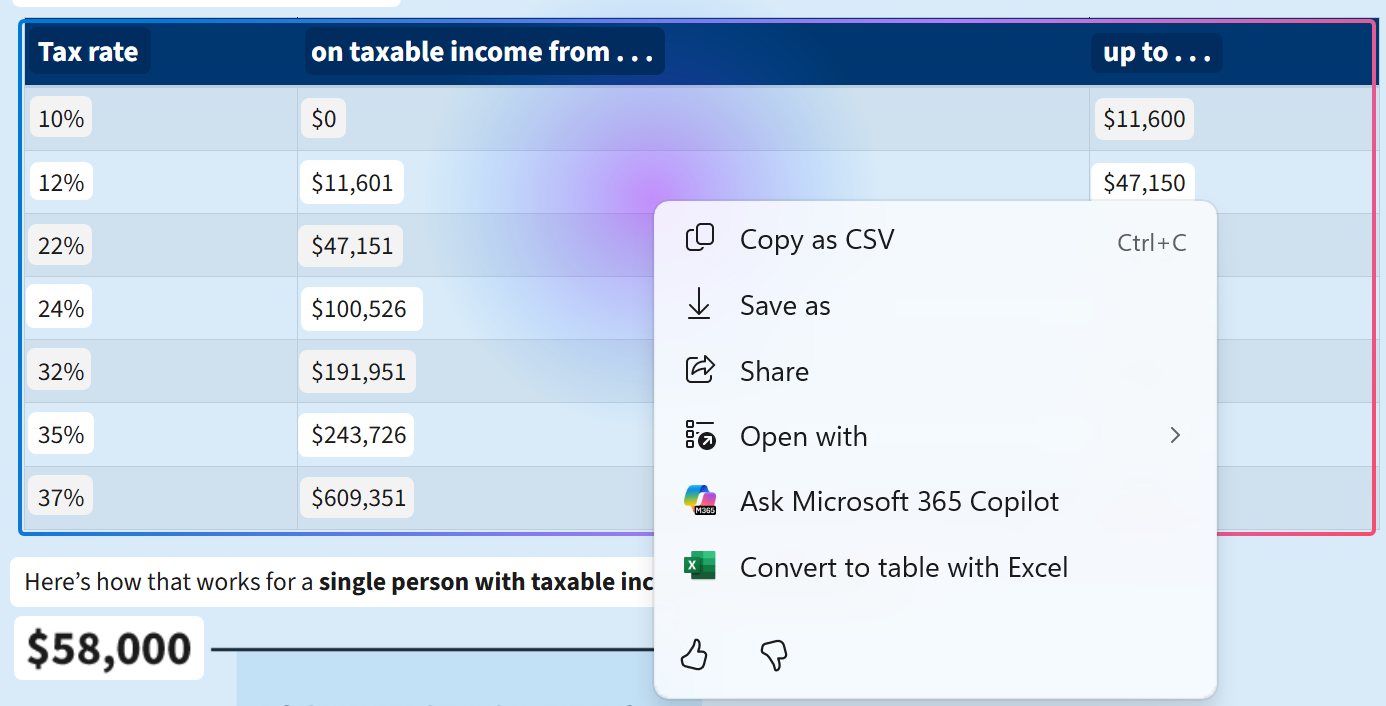
Convert to table with Excel: Click to Do now recognizes tables so you can work smarter and faster with information you encounter everyday – whether it’s a table you see shared over Teams in a meeting, a school calendar from a photo, or any other document with an embedded table. With tables in Click to Do, you can now highlight any simple table and immediately send to Excel, copy or share it – all without retyping a single cell.
See a table in any application and you can press Win + Click to invoke Click to Do, or Win + Q or right swipe and tap to select the table. Once selected, you’ll see the actions you can take like Convert to table with Excel. Just click, capture and continue.
 www.elevenforum.com
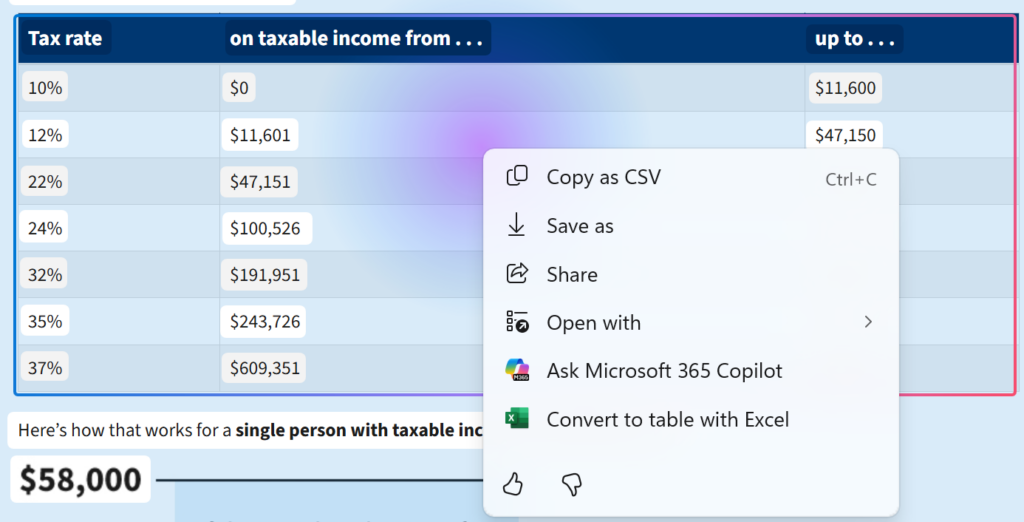
Click to Do with table highlighted and action to convert to table with Excel shown in the Click to Do menu.
This is an early preview of this action in Click to Do and table detection may sometimes not work correctly. However, table detection quality will improve over time in subsequent flights to the Dev and Beta Channels.
Tables in Click to Do are rolling out to Windows Insiders on Snapdragon-powered Copilot+ PCs, with support for AMD and Intel-powered Copilot+ PCs coming soon. You’ll need the latest Microsoft Excel application installed on your PC to see Convert to table with Excel and a Microsoft 365 Subscription. This change is not yet rolling out to Windows Insiders in the EEA (European Economic Area).
View Microsoft 365 Profile Cards: Rather than opening Microsoft Outlook or Teams or anywhere to look up someone’s profile, get straight to their info about them thanks to the integration of Live Persona Cards for from Microsoft 365 in Click to Do. See how to contact them or past collaborations without leaving your flow. This new action is available on emails seen in Click to Do. Press Win + Click right on an email and, if it’s part of your work or school’s organization, the profile card is displayed.
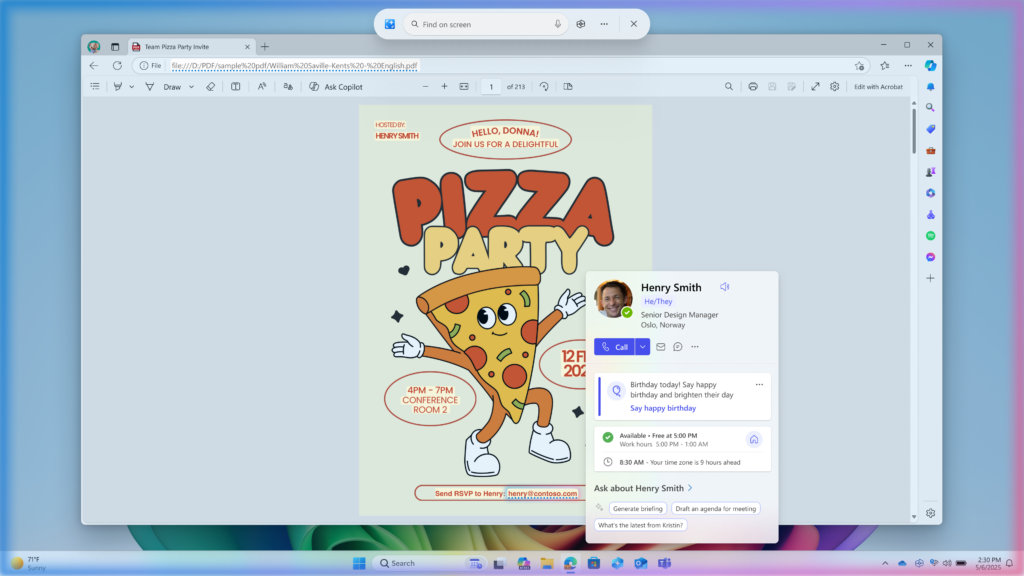
Click to Do showing a Microsoft 365 profile card after clicking on an email address.
You must be signed in to your PC with a work or school account (Entra ID) and have a Microsoft 365 subscription. This change is not yet rolling out to Windows Insiders in the EEA (European Economic Area).
You can learn more about using Click to Do here.
FEEDBACK: Please file feedback in Feedback Hub (WIN + F) under Desktop Environment > Click to Do.
Teachers of Students with Visual Impairments (TVIs) can use Braille viewer to help improve student’s Braille skills or follow along in classroom as the teachers can visually see the textual and Braille representation on the screen while the student reads it on their connected Braille display.
 www.elevenforum.com

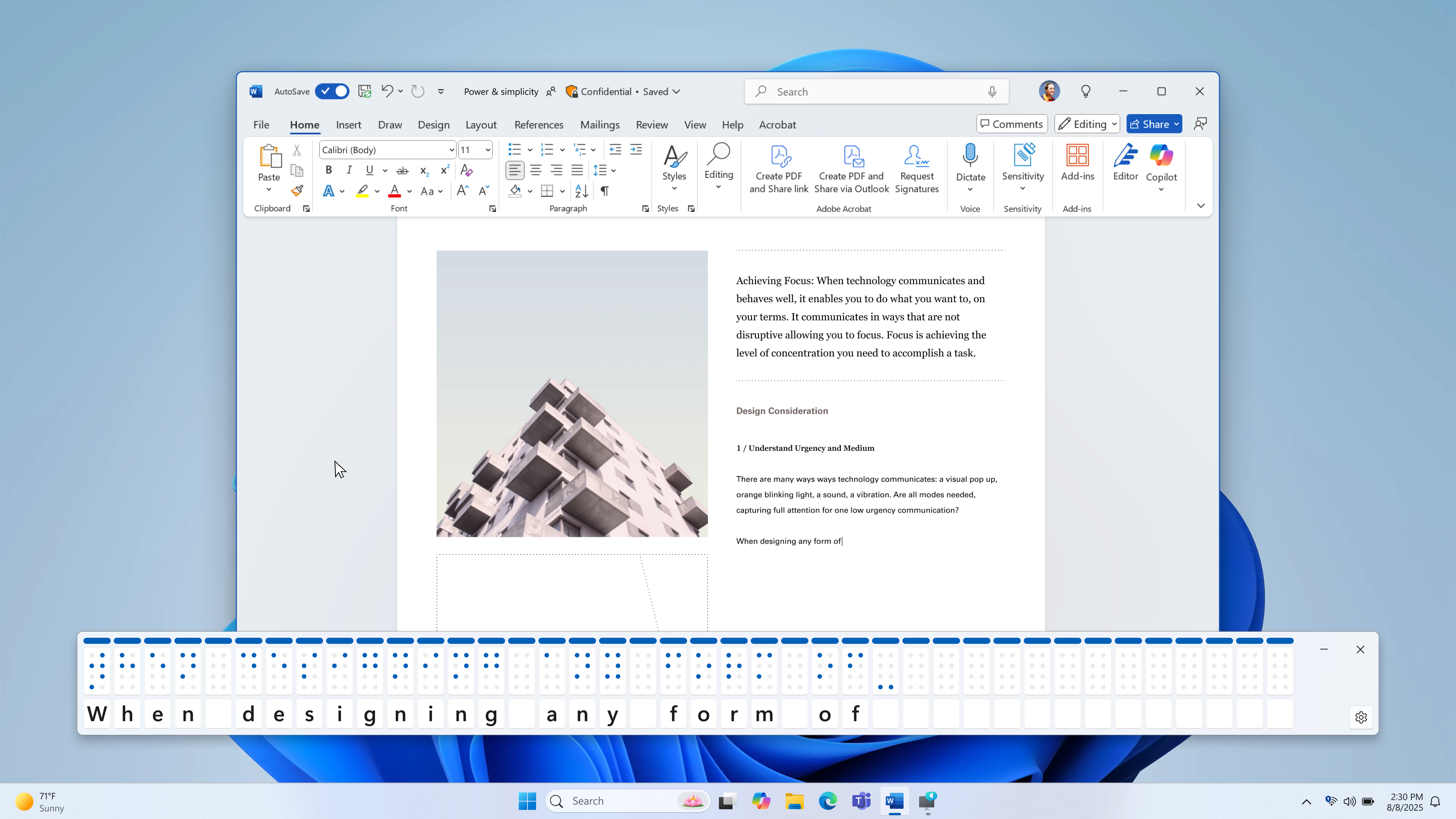
On-screen textual and Braille representation shown over a Word document.
To open Braille viewer, start Narrator using Win + Ctrl + Enter and press Narrator key + Alt + B. A new floating window opens – contents of this window are updated as you continue to use Narrator. The number of Braille cells shown on the viewer depends on the size of your refreshable Braille display. If an 80-cell display is connected, the viewer shows 80 cells. If no display is connected, the viewer shows 40 cells by default. You could also change the display size and position of the viewer using settings menu on the viewer.
NOTE: For Braille viewer to work, make sure Narrator is set up to give Braille output. To download and install Braille package, navigate to Settings > Accessibility > Narrator > Use a Braille display with Narrator.
 www.elevenforum.com
FEEDBACK: Please file feedback in Feedback Hub (WIN + F) under Accessibility > Narrator.
KB5065779 Windows 11 Insider Dev build 26220.5790 (25H2) - Sep. 5
Windows Insider Blog: Source: Check Windows Updates UUP Dump: 64-bit ISO download: x ARM64 ISO download: x https://www.elevenforum.com/t/uup-dump-download-windows-insider-iso.344/
www.elevenforum.com
Windows Insider Blog:
Hello Windows Insiders, today we are releasing Windows 11 Insider Preview Build 26220.5770 (KB5064089) to the Dev Channel.
Please note the major build number has incremented to Build 26220 with this flight. This build number will only be used for builds flighted to the Dev Channel. Windows 11, version 25H2 will be released as Build 26200 and is now available in the Release Preview Channel.
Changes in Dev Channel builds and updates are documented in two buckets: new features, improvements, and fixes that are being gradually rolled out for Insiders who have turned on the toggle to get the latest updates as they are available (via Settings > Windows Update*) and then new features, improvements, and fixes rolling out to everyone in the Dev Channel. For more information, see the Reminders section at the bottom of this blog post.
Enable or Disable Get Latest Updates as soon as available in Windows 11
This tutorial will show you how to turn on or off "Get the latest updates as soon as they are available" in Windows 11. Starting with Windows 11 build 22621.1635, Microsoft added a new "Get the latest updates as soon as they are available" toggle under Settings > Windows Update. When you turn...
www.elevenforum.com
New Copilot+ PC experiences
New Microsoft 365 text action in Click to Do
We are beginning to roll out a new text action in Click to Do!Convert to table with Excel: Click to Do now recognizes tables so you can work smarter and faster with information you encounter everyday – whether it’s a table you see shared over Teams in a meeting, a school calendar from a photo, or any other document with an embedded table. With tables in Click to Do, you can now highlight any simple table and immediately send to Excel, copy or share it – all without retyping a single cell.
See a table in any application and you can press Win + Click to invoke Click to Do, or Win + Q or right swipe and tap to select the table. Once selected, you’ll see the actions you can take like Convert to table with Excel. Just click, capture and continue.
Use Click to Do in Windows 11
This tutorial will show you how to use Click to Do to perform AI actions with text and images for your account on a Windows 11 Copilot+ PC. Click to Do (preview) helps you get things done faster by identifying text and images on your screen that you can take actions with. Click to Do analyzes...
www.elevenforum.com
Click to Do with table highlighted and action to convert to table with Excel shown in the Click to Do menu.
This is an early preview of this action in Click to Do and table detection may sometimes not work correctly. However, table detection quality will improve over time in subsequent flights to the Dev and Beta Channels.
Tables in Click to Do are rolling out to Windows Insiders on Snapdragon-powered Copilot+ PCs, with support for AMD and Intel-powered Copilot+ PCs coming soon. You’ll need the latest Microsoft Excel application installed on your PC to see Convert to table with Excel and a Microsoft 365 Subscription. This change is not yet rolling out to Windows Insiders in the EEA (European Economic Area).
View Microsoft 365 Profile Cards: Rather than opening Microsoft Outlook or Teams or anywhere to look up someone’s profile, get straight to their info about them thanks to the integration of Live Persona Cards for from Microsoft 365 in Click to Do. See how to contact them or past collaborations without leaving your flow. This new action is available on emails seen in Click to Do. Press Win + Click right on an email and, if it’s part of your work or school’s organization, the profile card is displayed.
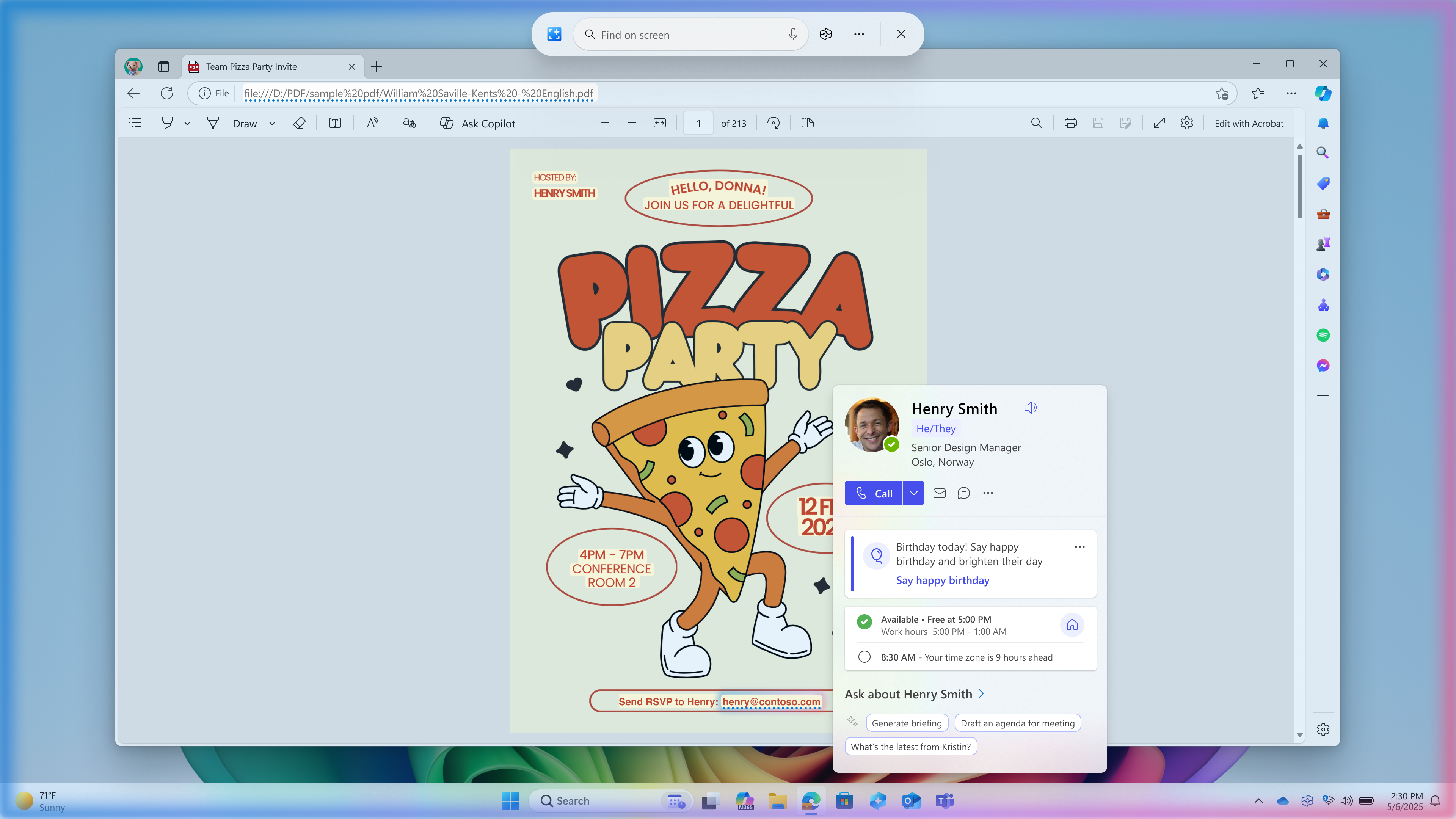
Click to Do showing a Microsoft 365 profile card after clicking on an email address.
You must be signed in to your PC with a work or school account (Entra ID) and have a Microsoft 365 subscription. This change is not yet rolling out to Windows Insiders in the EEA (European Economic Area).
You can learn more about using Click to Do here.
FEEDBACK: Please file feedback in Feedback Hub (WIN + F) under Desktop Environment > Click to Do.
New features gradually being rolled out to the Dev Channel with toggle on*
Get on-screen Braille and text output with Braille viewer
We are adding a new feature in Narrator called Braille viewer that allows you to see on-screen textual and Braille representation of the output shown on a refreshable Braille display. This is a helpful tool for sighted teachers, AT trainers, developers, and testers who do not read Braille or who have limited to no access to a Braille display.Teachers of Students with Visual Impairments (TVIs) can use Braille viewer to help improve student’s Braille skills or follow along in classroom as the teachers can visually see the textual and Braille representation on the screen while the student reads it on their connected Braille display.
Open Braille Viewer in Narrator in Windows 11
This tutorial will show you how to open and use the Braille viewer in Narrator in Windows 11. Narrator is a screen reader included with Windows 11 that describes what's on your screen. Narrator lets you use your PC without a mouse to complete common tasks if you’re blind or have low vision. It...
www.elevenforum.com
On-screen textual and Braille representation shown over a Word document.
To open Braille viewer, start Narrator using Win + Ctrl + Enter and press Narrator key + Alt + B. A new floating window opens – contents of this window are updated as you continue to use Narrator. The number of Braille cells shown on the viewer depends on the size of your refreshable Braille display. If an 80-cell display is connected, the viewer shows 80 cells. If no display is connected, the viewer shows 40 cells by default. You could also change the display size and position of the viewer using settings menu on the viewer.
NOTE: For Braille viewer to work, make sure Narrator is set up to give Braille output. To download and install Braille package, navigate to Settings > Accessibility > Narrator > Use a Braille display with Narrator.
Install or Uninstall Braille Support for Narrator in Windows 11
This tutorial will show you how to install or uninstall braille support for Narrator for all users in Windows 11. Narrator is a screen reader included with Windows 11 that describes what's on your screen. Narrator lets you use your PC without a mouse to complete common tasks if you’re blind or...
www.elevenforum.com
FEEDBACK: Please file feedback in Feedback Hub (WIN + F) under Accessibility > Narrator.
Changes and Improvements gradually being rolled out to the Dev Channel with toggle on*
[Windows Share]
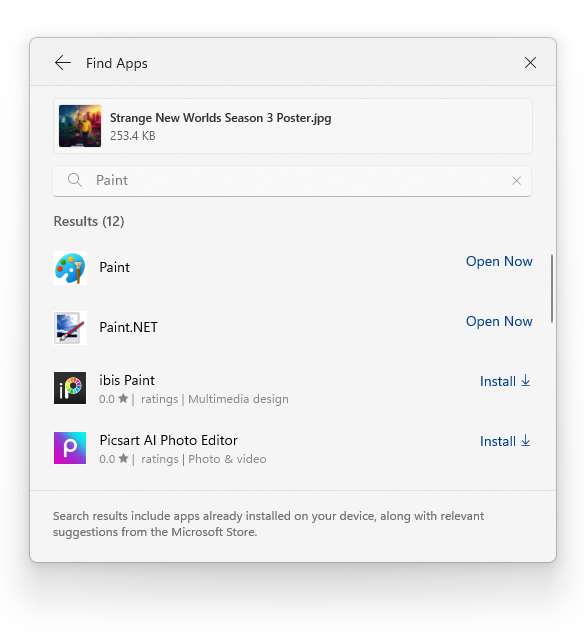
- You can find apps installed on your PC or apps available in the Microsoft Store directly within the Windows share window using “Find Apps” under the “Share using” section.

Share File with App in Windows 11
This tutorial will show you how to share a file with an app in Windows 11. Windows Share in Windows 11 allows you to share file(s) with an app to send from. Starting with Windows 11 build 22631.3810, Microsoft is rolling out the ability to copy files from the Windows share window. Just click...
www.elevenforum.com
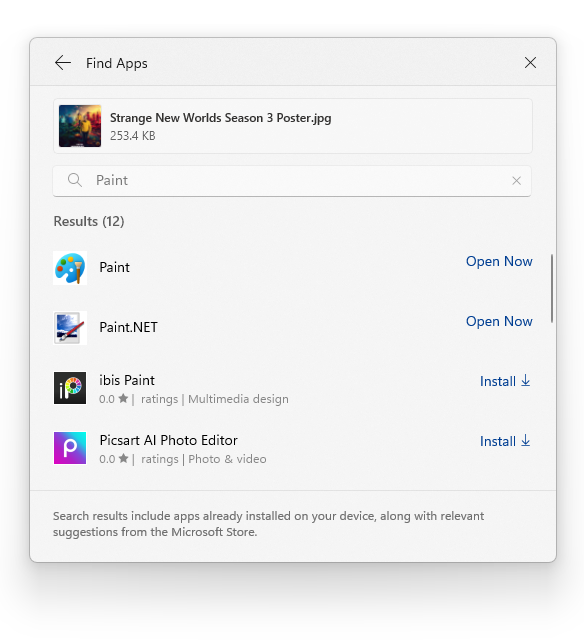
Results shown for searching for Paint directly within the Windows search window using “Find Apps”.
[Other]
- The Windows OS version of Direct3D 12 has been updated to match the Agility SDK 1.616.1 package contents.

Find Direct3D DDI version and Feature Levels in Windows 11
This tutorial will show you how to find the Direct3D DDI version and feature levels supported by your GPU in Windows 10 and Windows 11. DirectX 12 introduces the next version of Direct3D—the 3D graphics API at the heart of DirectX. Direct3D 12 is faster and more efficient than any previous...
www.elevenforum.com
Fixes gradually being rolled out to the Dev Channel with toggle on*
[Taskbar & System Tray]
- Fixed an issue where clicking the date and time on a secondary monitor might open the flyout on your primary monitor.
- Fixed an issue where if you minimized an app and switched back and forth between desktops, you might end up seeing a duplicate preview thumbnail when hovering over the app in the taskbar.
[Windowing]
- Fixed an issue which was causing explorer.exe to crash when using ALT + Tab for some Insiders in the previous flight.
[Display]
- Fixed an issue where the setting to enable HDR under Settings > System > Display might turn off after you turned it on, blocking you from enabling it.
Attachments
Last edited: