Microsoft 365 Insider Blog:
Hi, Microsoft 365 Insiders! I’m Mario Novoselec, a Principal Product Manager on the Teams team. I’m excited to announce screen and window sharing tailored specifically to macOS that improves the Teams meeting experience on Mac.
Native macOS screen sharing in Teams meetings
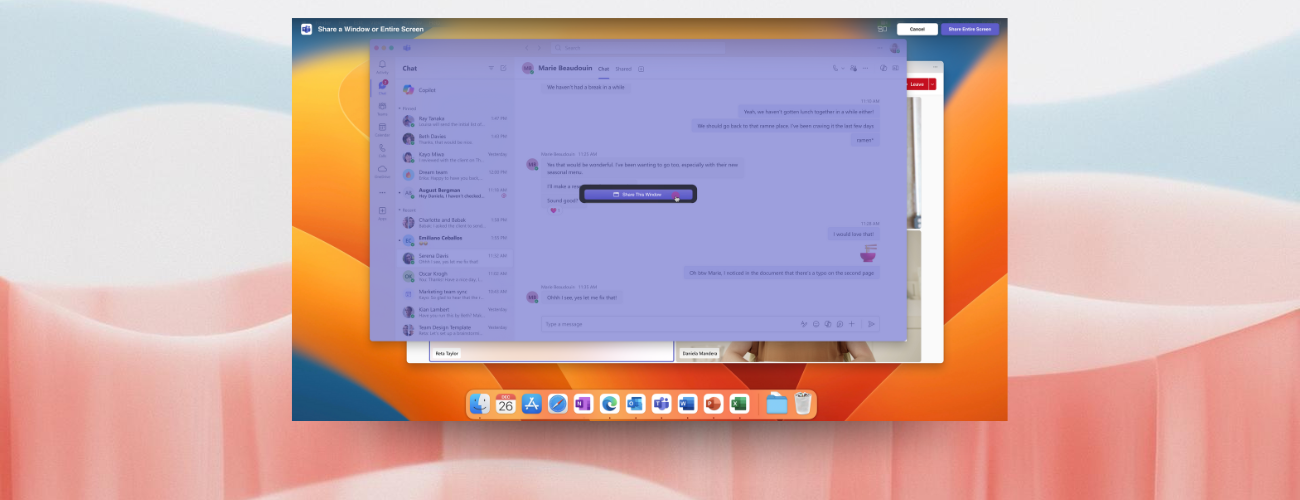
This new opt-in feature allows you to share your screen or window directly from macOS during Teams meetings. By leveraging Apple’s sharing models, we aim to deliver a more polished, welcoming, and intuitive experience for engaged Mac users and new adopters, as well as increase security and streamline workflows.
How it works
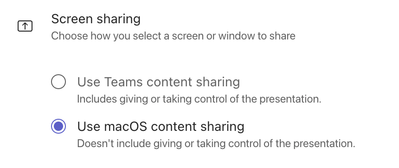
This feature is disabled by default and must be enabled by the user:- In Teams for Mac, select Settings and more > Settings, then select General.
- Under Screen sharing, toggle on Use macOS content sharing.
NOTE: Application restart is not required after enabling.
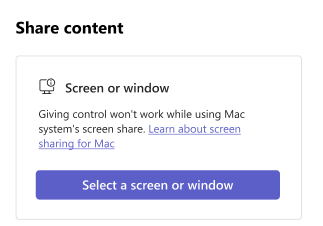
- Once in a meeting, select Share to start a screen share, and then select Select a screen or window to begin using the Mac native experience.
Known limitations
- You cannot Give or Take control when using the Mac native experience for screen sharing.
Availability
To use this feature, you must be a member of the Teams Public Preview or Microsoft 365 Targeted release and use the Teams client for Mac.To enable your Teams client for the Public Preview, IT administrators must enable Show preview features in their update policy. Learn more.
For Targeted release, global admins can go to the Microsoft 365 admin center and give access to a select set of individuals or the entire organization. Learn more.
Feedback
We want to hear from you! Select Settings and more > Feedback in the top right-hand corner of the Teams app, and then select either Report a problem, Give a compliment, or Suggest a feature to share your thoughts. Source:
Native macOS screen sharing in Teams meetings
This new opt-in feature in Teams for Mac delivers a more polished, welcoming, and intuitive experience.
 techcommunity.microsoft.com