

- Local time
- 9:31 AM
- Posts
- 4,796
- OS
- Windows 11 Pro
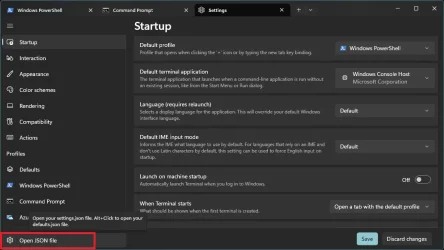
- Open Windows Terminal
- Settings

- Open JSON File (use Notepad or Notepad++, etc)
- Close Terminal
In the settings.JSON file in Top Section after
"$schema": "https://aka.ms/terminal-profiles-schema",
add
"defaultProfile": "{61c54bbd-c2c6-5271-96e7-009a87ff44bf}",
replace this {GUID} with desired console ID for the tab you want on the Far Left (First Tab):
PowerShell = {61c54bbd-c2c6-5271-96e7-009a87ff44bf}
Command Prompt = {0caa0dad-35be-5f56-a8ff-afceeeaa6101}
Azure Cloud Shell = {b453ae62-4e3d-5e58-b989-0a998ec441b8}
Visual Studio Debug Console = {16208362-94fc-5b1f-a491-5b2624d5ab56}
Ubuntu = {408af3d6-f1e3-5595-ac0f-e3a82053ae76}
Python = {d9b9a3f1-8c3e-4e2f-9b1a-2f3a7e5a1c9e}
at bottom of the JSON file, above
"themes": [],
add
"startupActions": "; new-tab -p {GUID}",
to keep adding New Tabs, simply add more
; new-tab -p {GUID}
inside the quotation marks

The Last Tab that you add will be what is focused by default when you launch Windows Terminal (ie - if you have PowerShell as Default and a second tab with Command Prompt, when you launch Windows Terminal, Command Prompt will be the active console by default:

*Python*
Python uses the Command Prompt GUID by default when installed, so to allow it to be its own profile and to use the above GUID for Python, you need to add the following segment to the settings.JSON file as well (anywhere between other profiles is fine):
Code:
{
    "guid": "{d9b9a3f1-8c3e-4e2f-9b1a-2f3a7e5a1c9e}",
    "name": "Python",
    "commandline": "python",
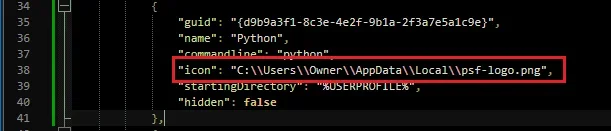
    "icon": "C:\\Users\\Owner\\AppData\\Local\\psf-logo.png",
    "startingDirectory": "%USERPROFILE%",
    "hidden": false
},
*Change "Owner" to your user profile name*
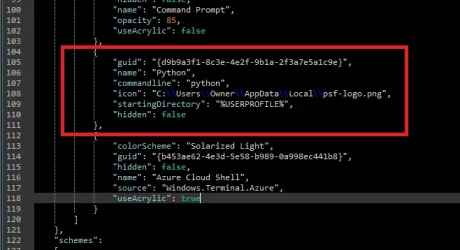
If you install Python and it does not show an icon in the profile dropdown list, you can download the attached icon (png) and place it in %LocalAppData% and modify the JSON profile for Python as shown below (replace "Owner" with your user profile name):
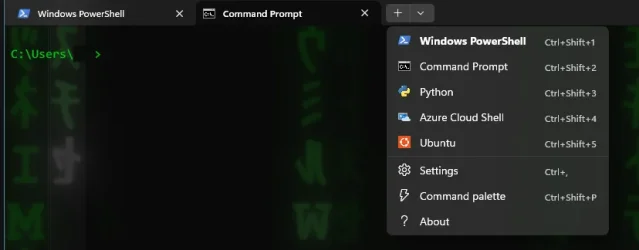
attached icon (png):

Last edited:
My Computer
At a glance
Windows 11 Pro
- OS
- Windows 11 Pro






