Microsoft 365 Insider Blog:
Hello, Microsoft 365 Insiders! I’m Raul Munoz, a Product Manager on the Office Shared Services and Experiences team. I’m excited to share an update to Microsoft Word for Windows that automatically saves new documents to the cloud.
Save new files automatically to the cloud in Word for Windows
We are modernizing the way files are created and stored in Word for Windows! Now you don’t have to worry about saving your documents: Anything new you create will be saved automatically to OneDrive or your preferred cloud destination.From the very start, new Word files will have all the cloud advantages:
- Increased security and compliance: Files saved in the cloud are automatically protected by your company’s security rules and labeling, so you don’t have to take extra steps to keep them safe and compliant.
- Never lose your progress: You don’t have to worry about losing your work – creation in the cloud means your document is automatically saved for you as you go.
- Flexible file control and storage: You’re in charge of your files – you can choose what they’re named, decide where they’re saved, and organize them your way. Store them in OneDrive, SharePoint, or other locations to keep everything just where you want it.
- Access from anywhere: Files you create in Word for Windows are instantly available on your Android or iOS device, or in a web browser. When you make changes on one device, they sync everywhere.
- Easy collaboration: It’s easy to work with others – just share your cloud file to start collaborating right away, add comments, and make changes together. AutoSave keeps your work updated in real time.
- Copilot and Agent support: From the moment you create a file, you can use Copilot and Agent features right away. This lets you get AI-powered help whenever you need it as you create or update your documents (NOTE: A Copilot Chat or Microsoft 365 Copilot license is required).
How it works
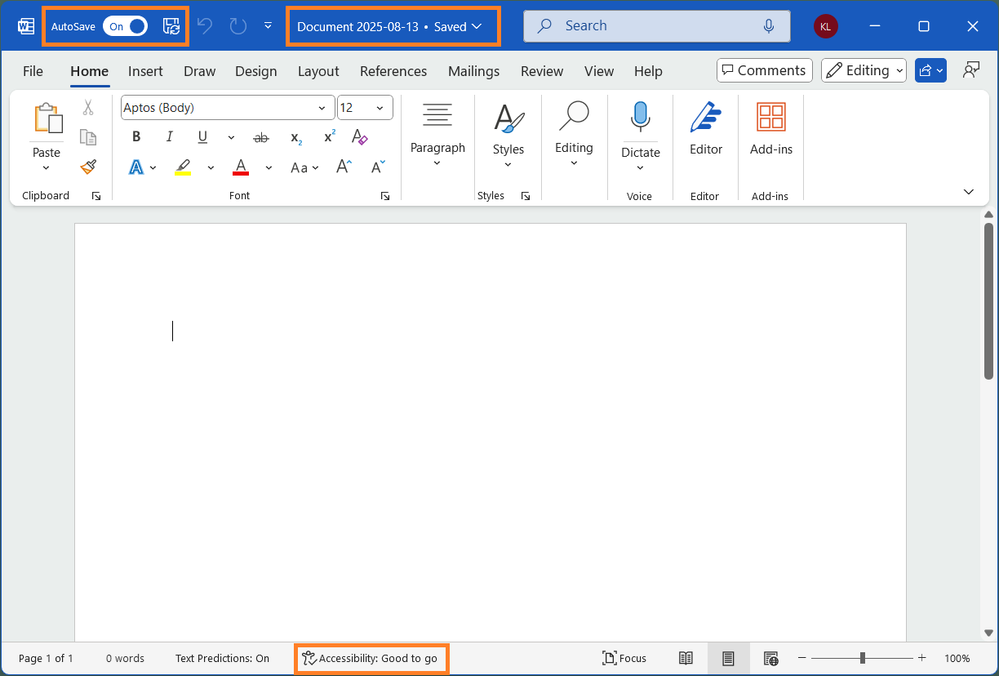
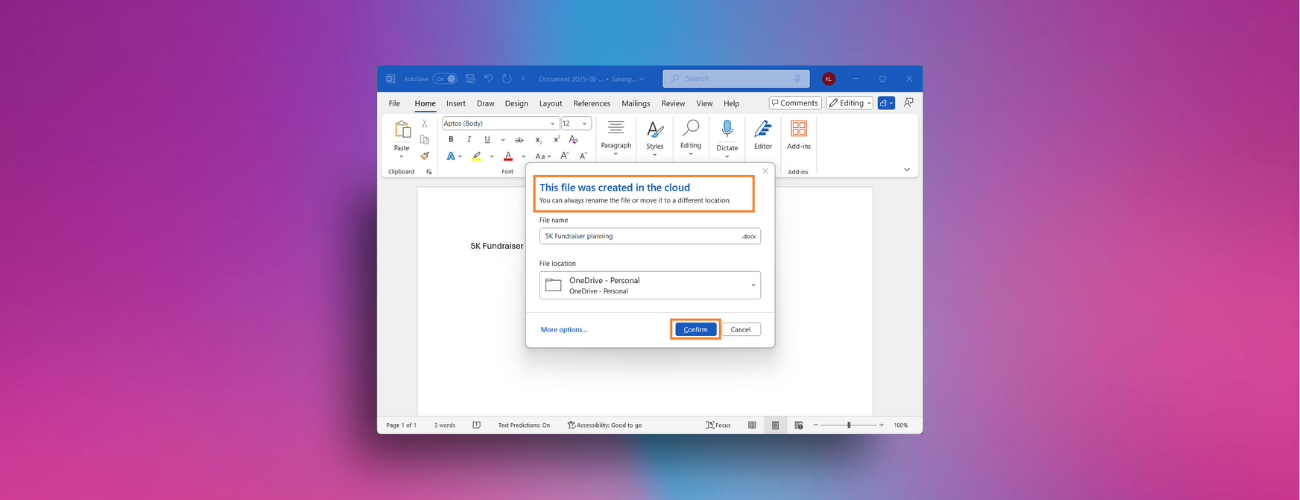
- Create a new document in Word on your Windows device and notice that AutoSave is already toggled on. The new document will be named with a date instead of the traditional DocumentN name.
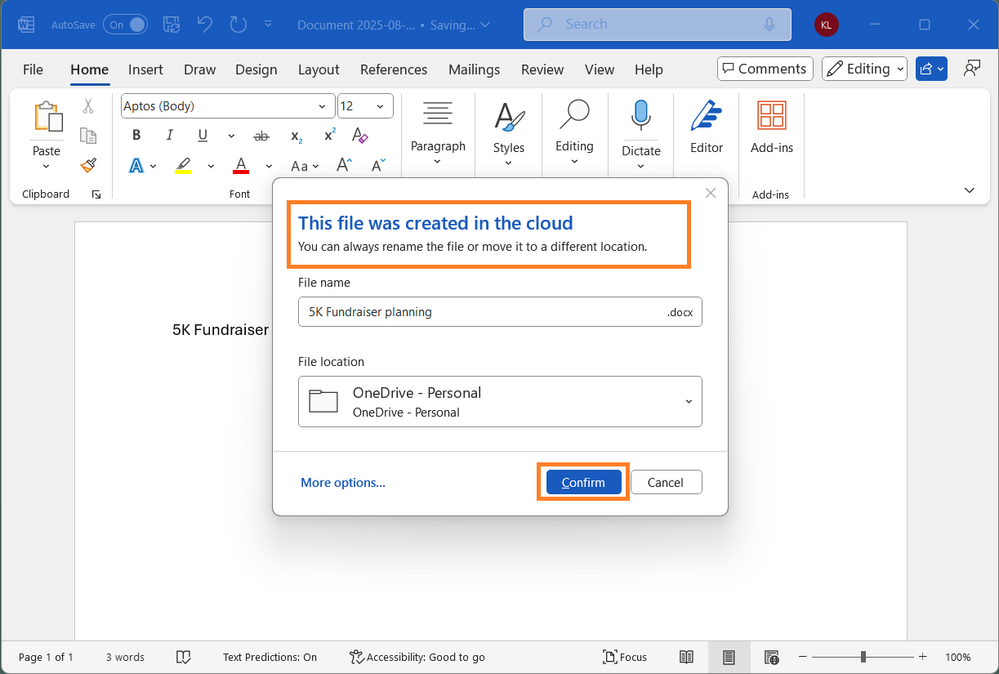
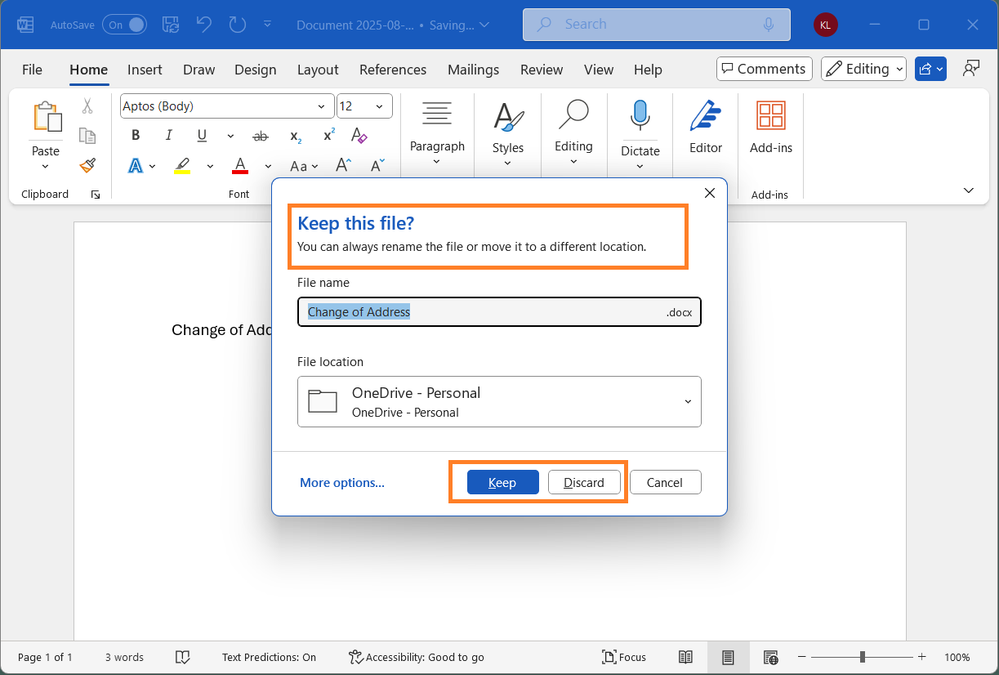
- Select Save (Ctrl + S) to change the file name or file location. Once selected, click Confirm.
Tips and tricks
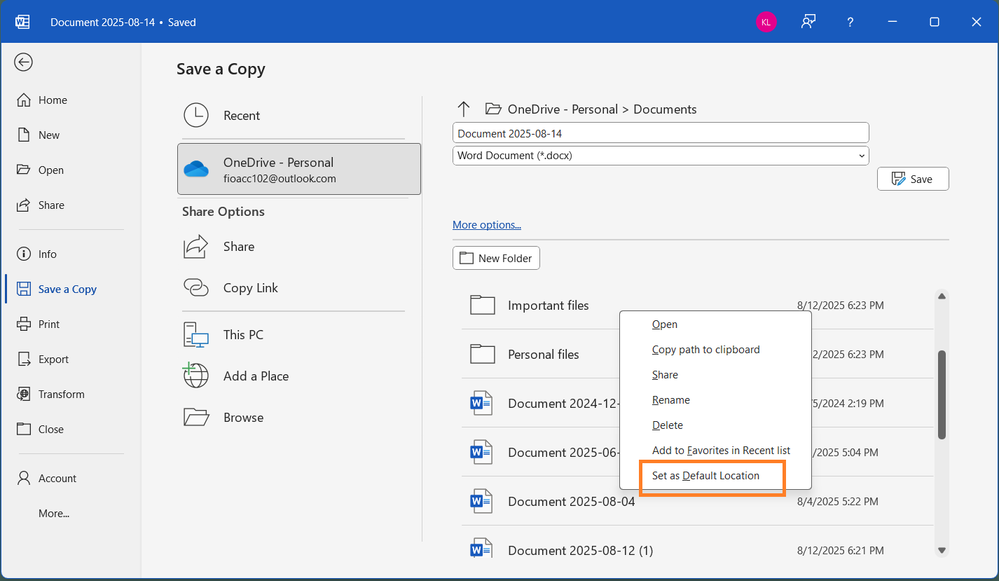
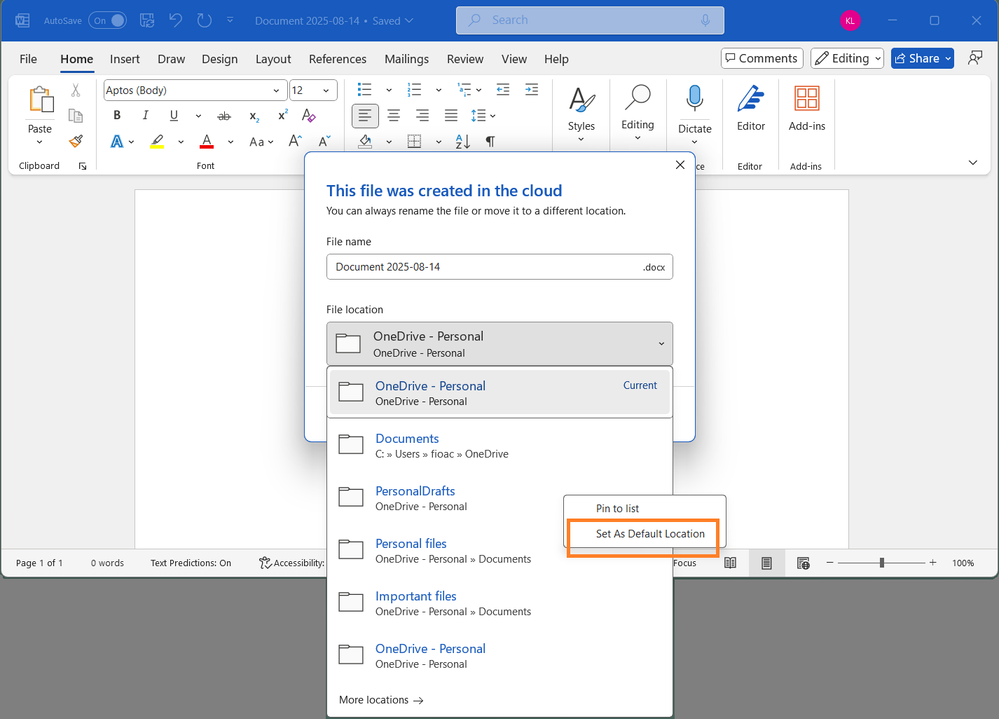
- You can change where new documents are created by right-clicking on any cloud folder and selecting Set as Default Location.
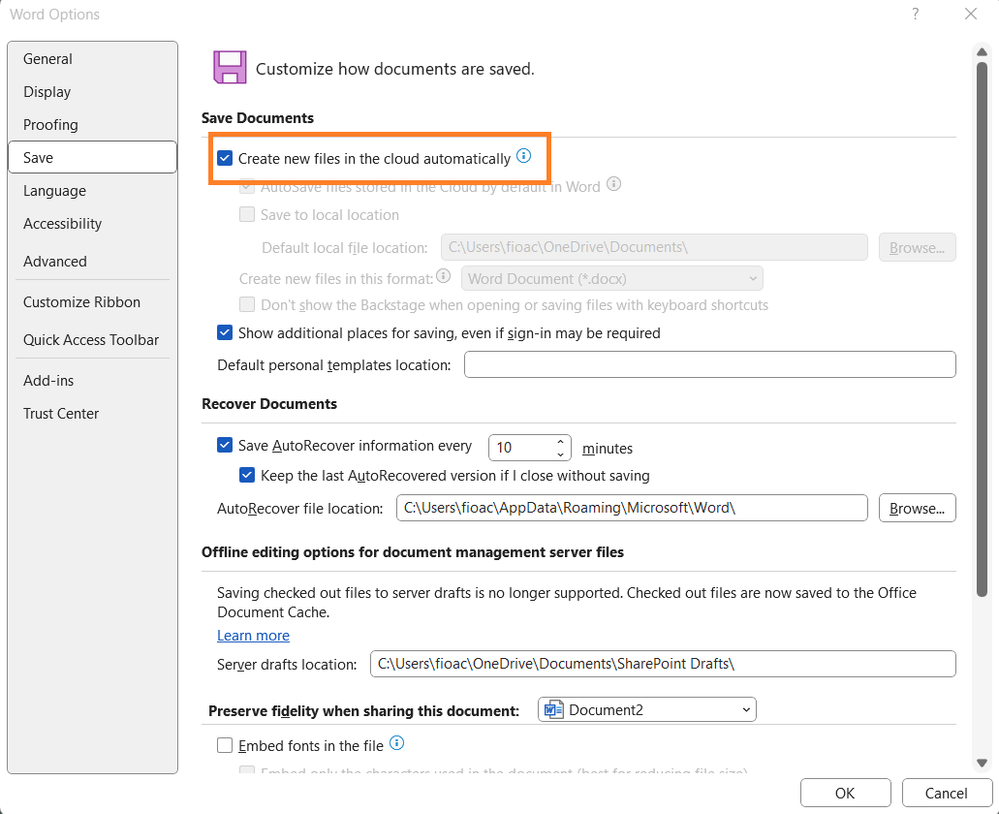
- You can change how new files are created (either automatically in the cloud or in the traditional way) in the Save page of Word Options by selecting or deselecting Create new files in the cloud automatically.
Known issues
- If you start a new Word session while another Word session is running, the new file created is not automatically saved.
- Sometimes, after changing the name of the document, there is a delay to refresh the list of recent files.
- If you have the Show the Start screen when this application starts setting disabled, the first file created after starting Word won’t be automatically saved.
Availability
This feature is available to Word for Windows users running Version 2509 (Build 19221.20000) or later.Similar functionality is coming to Excel for Windows and PowerPoint for Windows later this year.
Feedback
We would love to hear from you! Please submit your comments and feedback by selecting Help > Feedback in the app. Source:
Save new files automatically to the cloud in Word for Windows
Any new document you create in Microsoft Word for Windows will be saved automatically to OneDrive, SharePoint, or your preferred cloud destination.
 techcommunity.microsoft.com