This tutorial will show you how to add or remove "My Apps" in Library of the Xbox app for your account in Windows 11.
The Xbox app for Windows is where you can go to play and manage PC gaming content on your Windows device. Whether you’re an Xbox Game Pass member, or you’ve bought titles from the Microsoft Store, your games await in the app.
New updates are rolling out for Xbox on PC and handheld that make it easier to launch and manage your games and apps – all in one place. Microsoft has introduced several new features to enhance your gaming experience on Windows PCs and handhelds. The aggregated gaming library, cross-device play history, and updated app functionality give you more control over how and where you play, helping you quickly jump back into the games you love.
My apps is a new tab within the Xbox PC app’s library that allows players to locate, view, and download third-party applications and most commonly used storefronts. By consolidating gaming apps in one location, this feature supports the new aggregated gaming library, making it more straightforward to find, download, and launch games from multiple locations.
With “My apps”, you can easily find and download what you need without leaving your library or switching to your desktop. As an Insider, you will initially have access to a tailored selection of apps that you can view and download, and we will expand support to additional apps over time.
My apps enables players on an ROG Xbox Ally or other Windows 11 handhelds to more easily navigate between applications from the Xbox full screen experience, a new feature optimized specifically for handheld gaming. With new modifications that minimize background activity and defer non-essential tasks, more system resources are dedicated specifically to gameplay.
Rolling out, you can now add, remove, edit, and launch any installed game or app directly from the Xbox experience – including games from other PC gaming storefronts and launchers. Using the new “+” button in the library, you can now add custom games and apps directly. Once added, these games and apps launch directly from your library and can be personalized by editing names, images, launch targets, and command-line options. Removing them from the library doesn’t affect the original game or app.
You can turn on or off displaying "My apps" in your library in the Xbox app on your PC.
References:

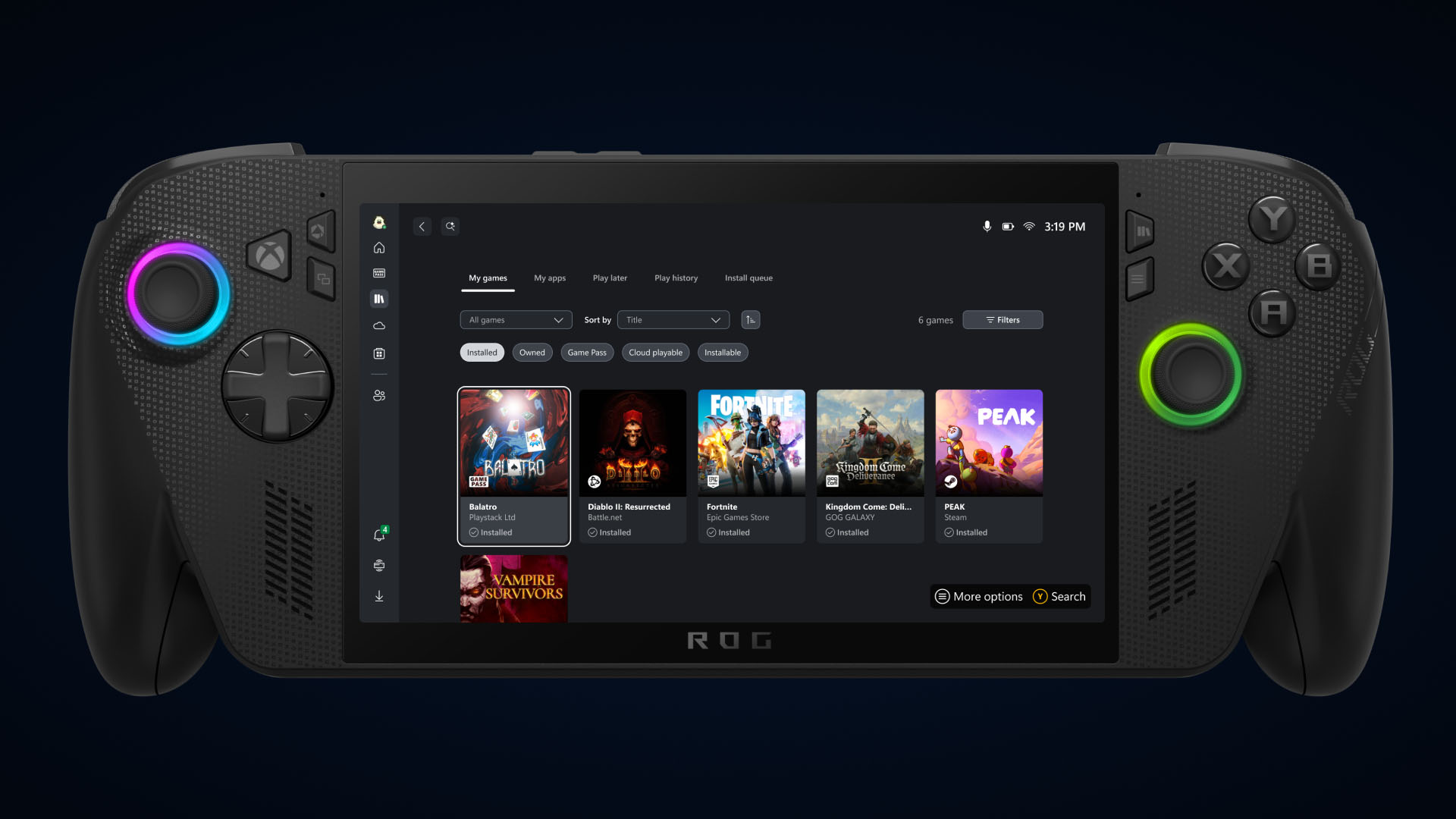
Seamlessly Access Your Gaming Library, Apps, and Play History in One Place with Xbox on Windows PCs and Handheld
Starting today, Xbox is making it easier to find, download, and launch games from your Xbox app, giving you one place for everything you want to play.
 news.xbox.com
EXAMPLE: "My apps" in "My Library" in the Xbox app on a Windows 11 PC
Here's How:
1 Open the Xbox app.
2 Click/tap on the user Profile button, and click/tap on Settings. (see screenshot below)
3 Click/tap on Library & Extensions in the left pane of Settings. (see screenshot below step 4)
4 Under My apps settings, turn on (default) or off Display My apps in Library for what you want. (see screenshot below)
5 You can now close Settings if you like.
That's it,
Shawn Brink
Last edited: