This tutorial will show you how to add or remove the Search button on the taskbar for your account or all users in Windows 11.
The Search button on the taskbar allows you to quickly use Windows Search (Win+S) to search for apps, documents, email, files, folders, music, people, photos, settings, and videos on your device, and to search the web.
Starting with Windows 11 build 26300.8772 (Experimental 26H2) and build 26220.9202 (Beta 25H2) for Insiders, Microsoft is increasing the height of the search box by 4 pixels.
References:
Customize the Taskbar in Windows | Microsoft Support
 support.microsoft.com
Customizing search on the Windows 11 taskbar | Microsoft Community Hub
 techcommunity.microsoft.com
The icon or graphics on the right side of the Search Box is part of the Search Highlights feature that can be removed if wanted.
- Option One: Add or Remove Search Button on Taskbar for Current User in Settings
- Option Two: Add or Remove Search Button on Taskbar for Current User using REG file
- Option Three: Add or Remove Search Button on Taskbar for All Users in Local Group Policy Editor
- Option Four: Add or Remove Search Button on Taskbar for All Users using REG file
EXAMPLE: Search button on taskbar
1 Open Settings (Win+I).
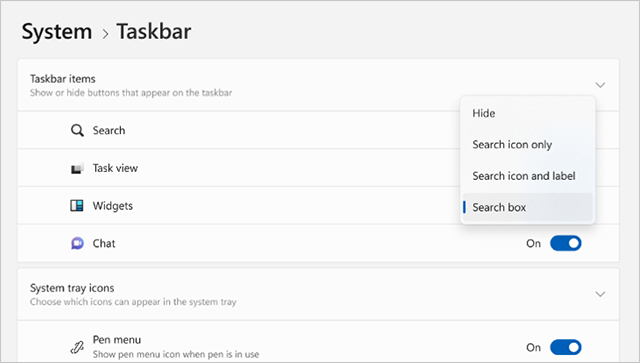
2 Click/tap on Personalization on the left side, and click/tap on Taskbar on the right side. (see screenshot below)
3 Select Hide, Search icon only, Search icon and label, or Search box (default) for what you want. (see screenshot below)
4 You can now close Settings if you like.
1 Do step 2 (hide), step 3 (Search icon only), step 4 (Search box), or step 5 (Search icon and label) below for what you would like to do.
A) Click/tap on the Download button below to download the file below, and go to step 6 below.
(Contents of REG file for reference)
Windows Registry Editor Version 5.00

[HKEY_CURRENT_USER\Software\Microsoft\Windows\CurrentVersion\Search]
"SearchboxTaskbarMode"=dword:00000000This is the default setting.
A) Click/tap on the Download button below to download the file below, and go to step 6 below.
(Contents of REG file for reference)
Windows Registry Editor Version 5.00

[HKEY_CURRENT_USER\Software\Microsoft\Windows\CurrentVersion\Search]
"SearchboxTaskbarMode"=dword:00000001This is only available starting with Windows 11 build 25252.
A) Click/tap on the Download button below to download the file below, and go to step 6 below.
(Contents of REG file for reference)
Windows Registry Editor Version 5.00

[HKEY_CURRENT_USER\Software\Microsoft\Windows\CurrentVersion\Search]
"SearchboxTaskbarMode"=dword:00000002This is only available starting with Windows 11 build 25252.
A) Click/tap on the Download button below to download the file below, and go to step 6 below.
(Contents of REG file for reference)
Windows Registry Editor Version 5.00

[HKEY_CURRENT_USER\Software\Microsoft\Windows\CurrentVersion\Search]
"SearchboxTaskbarMode"=dword:00000003
6 Save the .reg file to your desktop.
7 Double click/tap on the downloaded .reg file to merge it.
8 When prompted, click/tap on Run, Yes (UAC), Yes, and OK to approve the merge.
9 You can now delete the downloaded .reg file if you like.
This option is only available starting with Windows 11 build 25295.
You must be signed in as an administrator to use this option.
Local Group Policy Editor will only be available in the Windows 11 Pro, Enterprise, and Education editions.
All editions can use Option Four below instead for the same policy.
1 Open the Local Group Policy Editor (gpedit.msc).
2 Navigate to the location below in the left pane of Local Group Policy Editor. (see screenshot below)
3 In the right pane of Search in Local Group Policy Editor, double click/tap on the Configures search on the taskbar policy to edit it. (see screenshot above)
4 Do step 5 (specify) or step 6 (default) below for what you want.
This will override and disable (gray out) Option One and Option Two.
This is the default setting to allow users to use Option One and Option Two.
7 You can now close the Local Group Policy Editor if you like.
This option is only available starting with Windows 11 build 25295.
You must be signed in as an administrator to use this option.
1 Do step 2 (Hide), step 3 (Search icon only), step 4 (Search icon and label), step 5 (Search box), or step 6 (default) below for what you want.
This will override and disable (gray out) Option One and Option Two.
A) Click/tap on the Download button below to download the file below, and go to step 7 below.
(Contents of REG file for reference)
Windows Registry Editor Version 5.00

[HKEY_LOCAL_MACHINE\SOFTWARE\Policies\Microsoft\Windows\Windows Search]
"SearchOnTaskbarMode"=dword:00000000This will override and disable (gray out) Option One and Option Two.
A) Click/tap on the Download button below to download the file below, and go to step 7 below.
(Contents of REG file for reference)
Windows Registry Editor Version 5.00

[HKEY_LOCAL_MACHINE\SOFTWARE\Policies\Microsoft\Windows\Windows Search]
"SearchOnTaskbarMode"=dword:00000001This will override and disable (gray out) Option One and Option Two.
A) Click/tap on the Download button below to download the file below, and go to step 7 below.
(Contents of REG file for reference)
Windows Registry Editor Version 5.00

[HKEY_LOCAL_MACHINE\SOFTWARE\Policies\Microsoft\Windows\Windows Search]
"SearchOnTaskbarMode"=dword:00000002This will override and disable (gray out) Option One and Option Two.
A) Click/tap on the Download button below to download the file below, and go to step 7 below.
(Contents of REG file for reference)
Windows Registry Editor Version 5.00

[HKEY_LOCAL_MACHINE\SOFTWARE\Policies\Microsoft\Windows\Windows Search]
"SearchOnTaskbarMode"=dword:00000003This is the default setting to allow users to use Option One and Option Two.
A) Click/tap on the Download button below to download the file below, and go to step 7 below.
(Contents of REG file for reference)
Windows Registry Editor Version 5.00

[HKEY_LOCAL_MACHINE\SOFTWARE\Policies\Microsoft\Windows\Windows Search]
"SearchOnTaskbarMode"=-
7 Save the .reg file to your desktop.
8 Double click/tap on the downloaded .reg file to merge it.
9 When prompted, click/tap on Run, Yes (UAC), Yes, and OK to approve the merge.
10 Either restart the explorer process, sign out and sign in, or restart the computer to apply.
11 You can now delete the downloaded .reg file if you like.
That's it,
Shawn Brink
- Add or Remove Ask Copilot on Taskbar in Windows 11
- Enable or Disable Search on Taskbar and Start Menu in Windows 11
- Turn On or Off Show Recent Searches when Hover over Search Icon in Windows 11
- Using Windows 11 Search
- Enable or Disable Bing Web Suggested Search Results in Windows Search on Windows 11
- Enable or Disable Microsoft Store Suggested Search Results in Windows Search on Windows 11
- Enable or Disable Search Highlights in Windows 11
- Enable or Disable Open Search on Hover in Windows 11
- Reset Windows Search in Windows 11
Attachments
-
Hide_Search_on_taskbar.reg628 bytes · Views: 1,101
-
Show_Search_box_on_taskbar.reg628 bytes · Views: 999
-
Show_Search_icon_only_on_taskbar.reg628 bytes · Views: 1,051
-
Show_Search_icon_and_label_on_taskbar.reg628 bytes · Views: 911
-
Default_user_choice_for_Search_on_taskbar.reg606 bytes · Views: 612
-
Hide_Search_on_taskbar_for_all_users.reg632 bytes · Views: 708
-
Search_box_on_taskbar_for_all_users.reg632 bytes · Views: 571
-
Search_icon_and_label_on_taskbar_for_all_users.reg632 bytes · Views: 557
-
Search_icon_only_on_taskbar_for_all_users.reg632 bytes · Views: 595