Advice Needed - Win-11 - How to set up a new laptop


nkaufman111

New member
Local time
2:15 PM
Posts
3
OS
Windows 11
Hello,
Got a new laptop with Win-11 Pro 25H2.
Have used Kari's tutorial in the past for clean windows installs for win-10 but that was quite a long time back.
Wondering if I can use the same tutorial on Win-11 with one requirement. Can I create a recovery partition that would allow me to get back to base configuration (once I'm done setting up windows and apps) so in case there is an issue I can revert to this base configuration (similar to what Factory reset does in bios)?

Please guide me to any article or tutorial here and excuse this newbie question. It has been years since I had to look at these things, win-10 was running fine till MS pulled the plug :-)

Thanks for your assistance.
 

My Computer

System One

  • OS
    Windows 11
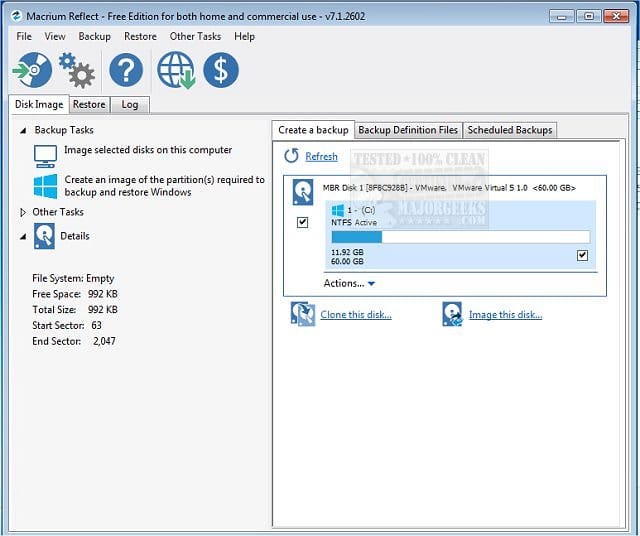
Consider using third party backup imaging software.

Multiple backup images can be made for any Windows installation phase

(Acronis, Aoemi, EaseUS, Hasleo, Macrium, Paragon, etc.)

Macrium is widely used in Ten Forums.

Macrium Software | Your Image is Everything


Backup and Restore with Macrium Reflect
 

My Computer

System One

  • OS
    Windows 10
    Computer type
    Laptop
    Manufacturer/Model
    HP
    CPU
    Intel(R) Core(TM) i7-4800MQ CPU @ 2.70GHz
    Motherboard
    Product : 190A Version : KBC Version 94.56
    Memory
    16 GB Total: Manufacturer : Samsung MemoryType : DDR3 FormFactor : SODIMM Capacity : 8GB Speed : 1600
    Graphics Card(s)
    NVIDIA Quadro K3100M; Intel(R) HD Graphics 4600
    Sound Card
    IDT High Definition Audio CODEC; PNP Device ID HDAUDIO\FUNC_01&VEN_111D&DEV_76E0
    Hard Drives
    Model Hitachi HTS727575A9E364
    Antivirus
    Microsoft Defender
    Other Info
    Mobile Workstation
Thank you @zbook
Am curious if these tools will allow one do something akin to what unit manufacturers do i.e. reset from within the machine without having the need to get image file from backup.
of course I will create a image backup but having this on laptop and readily available would be nice.

Not sure if i explained it clearly. Please let me know if I did not and I will try again
 

My Computer

System One

  • OS
    Windows 11
Consider opening a new thread with the title: How to create a custom reset/recovery partition
 

My Computer

System One

  • OS
    Windows 10
    Computer type
    Laptop
    Manufacturer/Model
    HP
    CPU
    Intel(R) Core(TM) i7-4800MQ CPU @ 2.70GHz
    Motherboard
    Product : 190A Version : KBC Version 94.56
    Memory
    16 GB Total: Manufacturer : Samsung MemoryType : DDR3 FormFactor : SODIMM Capacity : 8GB Speed : 1600
    Graphics Card(s)
    NVIDIA Quadro K3100M; Intel(R) HD Graphics 4600
    Sound Card
    IDT High Definition Audio CODEC; PNP Device ID HDAUDIO\FUNC_01&VEN_111D&DEV_76E0
    Hard Drives
    Model Hitachi HTS727575A9E364
    Antivirus
    Microsoft Defender
    Other Info
    Mobile Workstation
What you are asking for does not exist natively in Windows. Thus the need for creating images.
While one can add most recovery softwares to his boot menu , one still has to have created an image file to external media for that software to have any worth in case of disaster.

The advantage of adding ones Imaging software to the boot menu is it enables direct access to the software's recovery environment without the need of booting from a recovery usb drive. Personally, I do not do this as I deem it unnecessary. I mean, just how often does one have to recover an image? In case of disaster or if I want to make an offline image, I can certainly take the time to boot from a recovery drive.
 

My Computers

System One System Two

  • OS
    Windows 11 Pro 25H2
    Computer type
    PC/Desktop
    Manufacturer/Model
    Dell Optiplex 7080
    CPU
    i9-10900 10 core 20 threads
    Motherboard
    DELL 0J37VM
    Memory
    32 gb
    Graphics Card(s)
    none-Intel UHD Graphics 630
    Sound Card
    Integrated Realtek
    Monitor(s) Displays
    Benq 27
    Screen Resolution
    2560x1440
    Hard Drives
    2x1tb Solidigm m.2 nvme /External drives 512gb Samsung m.2 sata+2tb Kingston m2.nvme
    PSU
    500w
    Case
    MT
    Cooling
    Dell Premium
    Keyboard
    Logitech wired
    Mouse
    Logitech wireless
    Internet Speed
    so slow I'm too embarrassed to tell
    Browser
    #1 Edge #2 Firefox
    Antivirus
    Defender+MWB Premium
  • Operating System
    Windows 11 Pro 24H2 26200.8457
    Computer type
    PC/Desktop
    Manufacturer/Model
    Beelink Mini PC SER5
    CPU
    AMD Ryzen 7 6800U
    Memory
    32 gb
    Graphics card(s)
    integrated
    Sound Card
    integrated
    Monitor(s) Displays
    Benq 27
    Screen Resolution
    2560x1440
    Hard Drives
    1TB Crucial nvme
    Keyboard
    Logitech wired
    Mouse
    Logitech wireless
    Internet Speed
    still too embarrassed to tell
    Browser
    Firefox
    Antivirus
    Defender
    Other Info
    System 3 is non compliant Dell 9020 i7-4770/24gb ram Win11 PRO 26200.8457
Hello,
Got a new laptop with Win-11 Pro 25H2.
Have used Kari's tutorial in the past for clean windows installs for win-10 but that was quite a long time back.
Wondering if I can use the same tutorial on Win-11 with one requirement. Can I create a recovery partition that would allow me to get back to base configuration (once I'm done setting up windows and apps) so in case there is an issue I can revert to this base configuration (similar to what Factory reset does in bios)?

Please guide me to any article or tutorial here and excuse this newbie question. It has been years since I had to look at these things, win-10 was running fine till MS pulled the plug :-)

Thanks for your assistance.

Hi nkaufman111,

Clean install of Windows 11

Kind regards,

tecknot
 

My Computer

System One

  • OS
    Windows 11 Pro 25H2 build 26200.8457
    Computer type
    Laptop
    Manufacturer/Model
    Lenovo ThinkPad Workstation P72
    CPU
    Intel i7 8750H @ 2.2 GHz
    Motherboard
    Lenovo 01YU291
    Memory
    16 GB (all Samsung) DDR4-3200 SODIMM (non-ECC) PCIe 3
    Graphics Card(s)
    Intel UHD Graphics 630 & NVIDIA Quadro P600
    Sound Card
    Realtek ALC3286 & Focusrite Saffire 24 Pro DSP
    Monitor(s) Displays
    17.3"
    Screen Resolution
    3840x2160
    Hard Drives
    1TB SSD Samsung 860 EVO SATA 3
    1TB SSD Samsung 970 EVO M.2 NVMe PCIe 3 x 4
    2TB SSD Samsung 990 PRO M.2 NVMe PCIe 3 x 4
    PSU
    230W
    Cooling
    fan
    Keyboard
    UltraNav
    Mouse
    Kensington wireless Orbit
    Internet Speed
    640Mbps
    Browser
    DuckDuckGo and Firefox
    Antivirus
    Defender
    Other Info
    CM246 Chipset

Latest Support Threads

Back
Top Bottom