Solved Area at top of folder with 'Copy' 'Cut' 'Paste' - Change it back to how it used to look?


Autobahn

Member
Local time
6:03 PM
Posts
87
OS
Windows 11 Home 24H2
Bear with me as I don't know the correct terminology to explain my problem.

I have open-shell 4.4.196 installed.

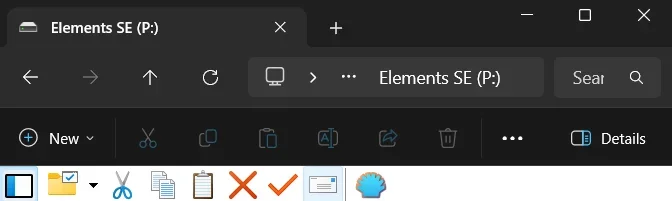
I recently updated to 24H2 from 23H2 and I don't like the look of the folder when I've connected an external harddrive.

Is it possible to get it back to how it used to look?

I've attached an image of what it now looks like which I don't like.
 
Windows Build/Version
Windows 11 Home 24H2

Attachments

  • Screenshot 2025-09-15 164317.webp
    Screenshot 2025-09-15 164317.webp
    8.8 KB · Views: 3

My Computer

System One

  • OS
    Windows 11 Home 24H2
    Computer type
    Laptop
    Manufacturer/Model
    Dell G5 15

My Computers

System One System Two

  • OS
    Windows 11 Pro
    Computer type
    PC/Desktop
    Manufacturer/Model
    ASUS ROG Strix
  • Operating System
    Windows 11 Pro
    Computer type
    Laptop
    Manufacturer/Model
    ASUS VivoBook
What did it used to look like?
I can't remember, but if I see it I'll know.
What did the tools section at the top of folders look like in 23H2 because it's changed with 24H2.
 

My Computer

System One

  • OS
    Windows 11 Home 24H2
    Computer type
    Laptop
    Manufacturer/Model
    Dell G5 15
Hello, :alien:

Did you mean this below?


file_explorer_with_ribbon-png.50979
 

My Computers

System One System Two

  • OS
    Windows 11 Pro for Workstations
    Computer type
    PC/Desktop
    Manufacturer/Model
    Custom self build
    CPU
    Intel i7-8700K 5 GHz
    Motherboard
    ASUS ROG Maximus XI Formula Z390
    Memory
    64 GB (4x16GB) G.SKILL TridentZ RGB DDR4 3600 MHz (F4-3600C18D-32GTZR)
    Graphics Card(s)
    ASUS ROG-STRIX-GTX1080TI-O11G-GAMING (11GB GDDR5X)
    Sound Card
    Integrated Digital Audio (S/PDIF)
    Monitor(s) Displays
    2 x Samsung Odyssey G75 27"
    Screen Resolution
    2560x1440
    Hard Drives
    1TB Samsung 990 PRO M.2,
    4TB Samsung 990 PRO M.2,
    TerraMaster F8 SSD Plus NAS
    PSU
    Seasonic Prime Titanium 850W
    Case
    Thermaltake Core P3 wall mounted
    Cooling
    Corsair Hydro H115i
    Keyboard
    Amazon Basics Wired Full Keyboard MD005
    Mouse
    Logitech MX Master 4
    Internet Speed
    2 Gbps Download and 100 Mbps Upload
    Browser
    Chrome and Edge
    Antivirus
    Microsoft Defender
    Other Info
    Logitech Z625 speaker system,
    Logitech BRIO 4K Pro webcam,
    HP Color LaserJet Pro MFP M477fdn,
    CyberPower CP1500PFCLCD
    Galaxy S23 Plus phone
  • Operating System
    Windows 11 Pro
    Computer type
    Laptop
    Manufacturer/Model
    Surface Laptop 7 Copilot+ PC
    CPU
    Snapdragon X Elite (12 core) 3.42 GHz
    Memory
    16 GB LPDDR5x-7467 MHz
    Monitor(s) Displays
    15" HDR
    Screen Resolution
    2496 x 1664
    Hard Drives
    1 TB SSD
    Internet Speed
    Wi-Fi 7 and Bluetooth 5.4
    Browser
    Chrome and Edge
    Antivirus
    Microsoft Defender
Hello, :alien:

Did you mean this below?


file_explorer_with_ribbon-png.50979
No but thanks anyway.
There again it could be but what would an external harddrive look like when connected?
 
Last edited:

My Computer

System One

  • OS
    Windows 11 Home 24H2
    Computer type
    Laptop
    Manufacturer/Model
    Dell G5 15
All drives in File (Windows) Explorer will have the same view whether it is an internal or external drive.

Did you try a System Restore to a time before the update?
If you take a screenshot of the way you like it and attach it to this thread before doing the update again, we can help.
 

My Computer

System One

  • OS
    Windows 11 Pro Insider 64 bit 25H2 26200.5742
    Computer type
    PC/Desktop
    Manufacturer/Model
    Gigabyte Z390 UD
    CPU
    Intel Core i7 9700K 3.60
    Motherboard
    Gigabyte Z390 UD
    Memory
    16 GB
    Graphics Card(s)
    nVidia GEForce RTX 2060 Super
    Sound Card
    onboard
    Monitor(s) Displays
    Two 27" Dell 4K monitors
    Screen Resolution
    3840 x 2160
    Hard Drives
    M.2 NVME SSD, 500 GB; Two 2TB Mechanical HDD's
    PSU
    850w PSU
    Case
    Cyberpower PC
    Cooling
    Water cooled
    Keyboard
    Backlit Cyberpower gaming keyboard
    Mouse
    Backlit Cyberpower gaming mouse
    Internet Speed
    1 GB mbps
    Browser
    Brave
    Antivirus
    Windows Security
Are you talking about the old Command Bar?
IMG_8137.webp
Or the pre-moment 4 change where the address bar was below the commands?
IMG_8138.webp
 

My Computer

System One

  • OS
    Windows 11 Pro
What did the tools section at the top of folders look like in 23H2 because it's changed with 24H2.
I don't know cuz I don't use that ridiculous Explorer SDK!
I use Windows 7 Explorer, courtesy of StartAllBack...

10529.webp
 

My Computers

System One System Two

  • OS
    Windows 11 Pro
    Computer type
    PC/Desktop
    Manufacturer/Model
    ASUS ROG Strix
  • Operating System
    Windows 11 Pro
    Computer type
    Laptop
    Manufacturer/Model
    ASUS VivoBook
Since my system has been set up a while I rarely do anything but cut, copy, paste, and rename so I just depend on the old full right click context menu, keyboard shortcuts, or Brinks method through Control Panel if I need one of the other drive tools.
To get the full right click context menu

what would an external harddrive look like when connected
Screenshot 2025-09-16 185054.webp
Mine looks like this because I force each drive to use another icon.
I use an autorun,inf file and an 2 different .ico files to differentiate a usb disk drive and a usb flash drive.
Here's how.
Find an icon you like, and give it a name. (If you want I can give you mine. I have a lot.)
Connect the removable drive you want to set a custom icon for.

Using File Explorer, open the removable drive.

Copy the icon file to the root of the drive

At the root of the drive, right-click, select New, and click Text Document.

Copy and paste the following into the text document replacing iconname.ico with the name you gave your icon. Replace the drive-label with whatever name you want for your drive :
[Autorun]
Icon=iconname.ico
Label=drive-label


Save file as autorun.inf
Be sure to click drop arrow and select all files
Restart and voila. Your drives have a new look.
 

My Computers

System One System Two

  • OS
    Windows 11 Pro 25H2
    Computer type
    PC/Desktop
    Manufacturer/Model
    Dell Optiplex 7080
    CPU
    i9-10900 10 core 20 threads
    Motherboard
    DELL 0J37VM
    Memory
    32 gb
    Graphics Card(s)
    none-Intel UHD Graphics 630
    Sound Card
    Integrated Realtek
    Monitor(s) Displays
    Benq 27
    Screen Resolution
    2560x1440
    Hard Drives
    2x1tb Solidigm m.2 nvme /External drives 512gb Samsung m.2 sata+2tb Kingston m2.nvme
    PSU
    500w
    Case
    MT
    Cooling
    Dell Premium
    Keyboard
    Logitech wired
    Mouse
    Logitech wireless
    Internet Speed
    so slow I'm too embarrassed to tell
    Browser
    #1 Edge #2 Firefox
    Antivirus
    Defender+MWB Premium
  • Operating System
    Windows 11 Pro 24H2 26200.8457
    Computer type
    PC/Desktop
    Manufacturer/Model
    Beelink Mini PC SER5
    CPU
    AMD Ryzen 7 6800U
    Memory
    32 gb
    Graphics card(s)
    integrated
    Sound Card
    integrated
    Monitor(s) Displays
    Benq 27
    Screen Resolution
    2560x1440
    Hard Drives
    1TB Crucial nvme
    Keyboard
    Logitech wired
    Mouse
    Logitech wireless
    Internet Speed
    still too embarrassed to tell
    Browser
    Firefox
    Antivirus
    Defender
    Other Info
    System 3 is non compliant Dell 9020 i7-4770/24gb ram Win11 PRO 26200.8457
I've removed Classic Explorer which was installed by open-shell which has tidied things up.
I'll get used to the new look.
Thanks to everyone who replied.
 

My Computer

System One

  • OS
    Windows 11 Home 24H2
    Computer type
    Laptop
    Manufacturer/Model
    Dell G5 15

Latest Support Threads

Back
Top Bottom