
- Local time
- 3:54 PM
- Posts
- 55
- OS
- Windows 11
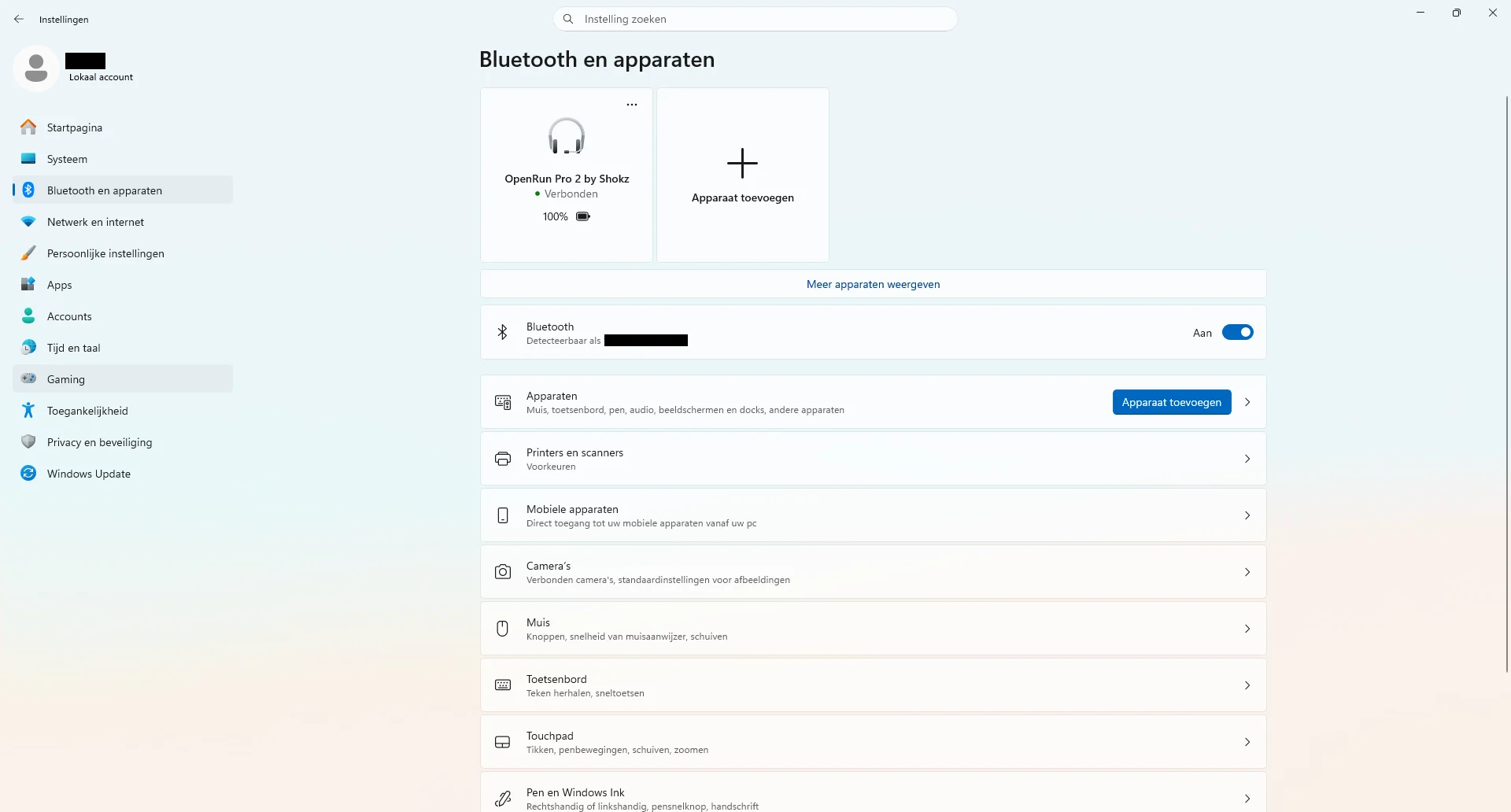
I have a Bluetooth headset that worked without issues with my Windows 11 machine up until recently. However now for reasons unknown the headset has completely stopped playing audio from my Windows 11 machine. When I turn on the headset it still immediately appears as a connected Bluetooth device in Windows Bluetooth and Devices Settings (see screenshot below).
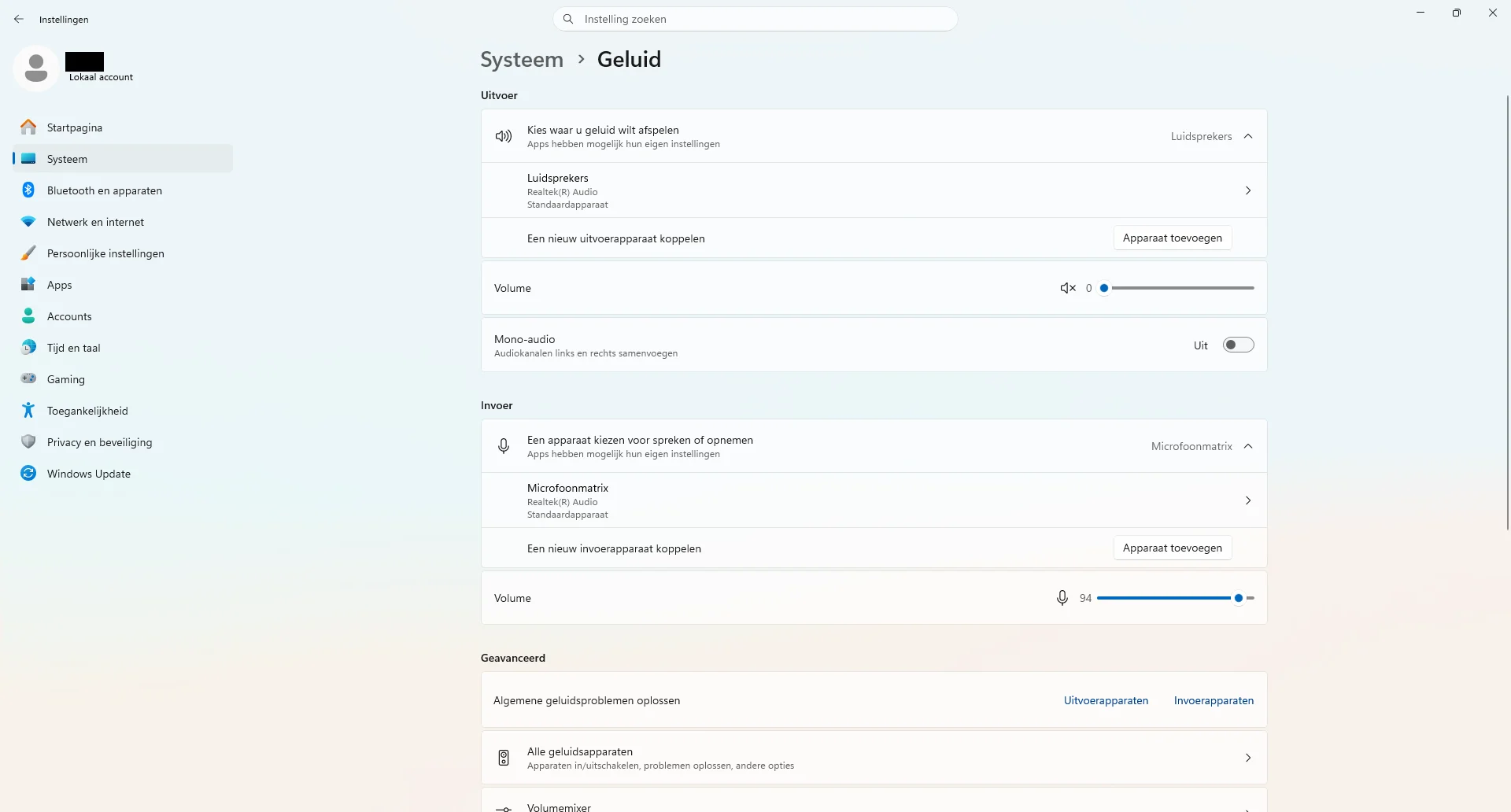
The headset is however completely missing from the audio output devices that I can select from in Windows Audio Settings. Only the machine's built-in speakers (local language "Luidsprekers") are listed as an audio output device (see screenshot below).
And when I try the option "Add device" (local language "Apparaat toevoegen"), then the Bluetooth headset also doesn't appear in the list of devices that I then get.
I have already tried removing the headset as a registered Bluetooth device and then repairing it, but this did not resolve the issue.
Lastly the Bluetooth headset in question is right now still working just fine when I connect it to my Android mobile device.
Does anyone here have any advice?
The headset is however completely missing from the audio output devices that I can select from in Windows Audio Settings. Only the machine's built-in speakers (local language "Luidsprekers") are listed as an audio output device (see screenshot below).
And when I try the option "Add device" (local language "Apparaat toevoegen"), then the Bluetooth headset also doesn't appear in the list of devices that I then get.
I have already tried removing the headset as a registered Bluetooth device and then repairing it, but this did not resolve the issue.
Lastly the Bluetooth headset in question is right now still working just fine when I connect it to my Android mobile device.
Does anyone here have any advice?
- Windows Build/Version
- Windows 11, version 25H2, build 26200.8655
My Computer
At a glance
Windows 11
- OS
- Windows 11
- Computer type
- Laptop
- Manufacturer/Model
- Lenovo






