Both laptops on to share files and folders?


Jayhawk714

Well-known member
Local time
11:34 PM
Posts
32
Location
Featherville, ID.
OS
Windows 11
I have been reading on how to share files/printers between two laptops. The laptop upstairs is the one that will get the most use. One in the basement will be used mostly for my sublimation work using two printers Silhouette Cameo 4 and a coffee mug press. . My question is after I get both laptops talking to each other do both laptops have to be on all the time? Such as if I'm in the basement do I have to have the upstairs laptop on to access different files or folders from it? My thinking is yes, but, hoping for a no.

TYI.

Duane
 

My Computer

System One

  • OS
    Windows 11
    Computer type
    Laptop
    Manufacturer/Model
    Lenovo ThinkPad T15
    Mouse
    wireless
    Browser
    Firefox
    Antivirus
    Norton Security
Yes, any given system has to be on in order to access files on it.

Edit: Actually, I forgot about offline files. This might still work in Windows 11. I haven't used it in ages.


My Computer

System One

  • OS
    Windows 11 Pro 25H2
    Computer type
    PC/Desktop
    Manufacturer/Model
    Intel NUC12WSHi7
    CPU
    12th Gen Core i7-1260P
    Motherboard
    NUC12WSBi7
    Memory
    64 GB Micron PC4-25600
    Graphics Card(s)
    Intel Iris Xe Graphics
    Sound Card
    on-board Realtek HD Audio
    Monitor(s) Displays
    Dell U3219Q
    Screen Resolution
    3840 x 2160
    Hard Drives
    Samsung SSD 990 PRO 1TB
    Crucial MX500 2 TB
    Antivirus
    Microsoft Defender
Yes, devices must be on to share files through file sharing. I truly don't understand what kind of work it is you do, but there are other ways to share files between devices that might suit your situation better. If your router has a usb port, You can connect an external drive as a NAS drive (network attached storage)You could then move files from both devices to the NAS and see them on both devices.. With a NAS drive it would not matter if one of the computers was off .
This is by far the cheapest method, especially if you have a large amount of data and it keps all your data onsite..

Another option is to use a Microsoft account and sync files to Onedrive from both devices. What is on one device shows up on the other. However, you get only 5gb of free Onedrive storage so for anything over that you have to purchase extra cloud storage. If you are an Office365 user, storage would not be an issue since you get 1tb of Onedrive storage with 365

Other cloud providers like Google Drive work basically the same way.
 

My Computers

System One System Two

  • OS
    Windows 11 Pro 25H2
    Computer type
    PC/Desktop
    Manufacturer/Model
    Dell Optiplex 7080
    CPU
    i9-10900 10 core 20 threads
    Motherboard
    DELL 0J37VM
    Memory
    32 gb
    Graphics Card(s)
    none-Intel UHD Graphics 630
    Sound Card
    Integrated Realtek
    Monitor(s) Displays
    Benq 27
    Screen Resolution
    2560x1440
    Hard Drives
    2x1tb Solidigm m.2 nvme /External drives 512gb Samsung m.2 sata+2tb Kingston m2.nvme
    PSU
    500w
    Case
    MT
    Cooling
    Dell Premium
    Keyboard
    Logitech wired
    Mouse
    Logitech wireless
    Internet Speed
    so slow I'm too embarrassed to tell
    Browser
    #1 Edge #2 Firefox
    Antivirus
    Defender+MWB Premium
  • Operating System
    Windows 11 Pro 24H2 26200.8457
    Computer type
    PC/Desktop
    Manufacturer/Model
    Beelink Mini PC SER5
    CPU
    AMD Ryzen 7 6800U
    Memory
    32 gb
    Graphics card(s)
    integrated
    Sound Card
    integrated
    Monitor(s) Displays
    Benq 27
    Screen Resolution
    2560x1440
    Hard Drives
    1TB Crucial nvme
    Keyboard
    Logitech wired
    Mouse
    Logitech wireless
    Internet Speed
    still too embarrassed to tell
    Browser
    Firefox
    Antivirus
    Defender
    Other Info
    System 3 is non compliant Dell 9020 i7-4770/24gb ram Win11 PRO 26200.8457
There are things that you can do to work around this. As an example, I use Wake on LAN (WOL) on all my systems. That way, if I need to access files on a machine that is off, I can turn it on remotely by simply running one tiny batch file that sends the WOL signal to the other machine. After that machine is booted about a minute later, I can access all files.
 

My Computers

System One System Two

  • OS
    Win11 Pro 25H2 (RTM+)
    Computer type
    PC/Desktop
    Manufacturer/Model
    Acemagic
    CPU
    Intel i7-14650HX
    Memory
    32 GB
    Graphics Card(s)
    No GPU - Built-in Intel Graphics
    Sound Card
    Integrated
    Monitor(s) Displays
    Varies as machine will often be moved to locations with different monitors
    Screen Resolution
    Varies
    Hard Drives
    1 x 1TB Gen 4 NVMe SSD
    PSU
    120W Power Brick
    Keyboard
    Corsair K70 Max RGB Magnetic Keyboard
    Mouse
    Logitech MX Master 3
    Internet Speed
    1Gb Up / 1 Gb Down
    Browser
    Edge
    Antivirus
    Windows Defender
  • Operating System
    Win11 Pro 25H2 (RTM+)
    Computer type
    Laptop
    Manufacturer/Model
    Lenovo ThinkBook 13x Gen 2
    CPU
    Intel i7-1255U
    Memory
    16 GB
    Graphics card(s)
    Intel Iris Xe Graphics
    Sound Card
    Realtek® ALC3306-CG codec
    Monitor(s) Displays
    13.3-inch IPS Display
    Screen Resolution
    WQXGA (2560 x 1600)
    Hard Drives
    2 TB 4 x 4 NVMe SSD
    PSU
    USB-C / Thunderbolt 4 Power / Charging
    Keyboard
    Backlit, spill resistant keyboard
    Mouse
    Buttonless Glass Precision Touchpad
    Internet Speed
    1Gb Up / 1Gb Down
    Browser
    Edge
    Antivirus
    Windows Defender
    Other Info
    WiFi 6e / Bluetooth 5.1 / Facial Recognition / Fingerprint Sensor / ToF (Time of Flight) Human Presence Sensor
Do some research into Syncthing. And also SyncTrayzor v2 (also available as a portable). I use SyncTrayzor v2 Portable myself to sync files between my Desktop PC and my laptop. The laptop is mostly just sitting in a cupboard and I only switch it on once a month to do updates. The syncing to the laptop gets done via the Wi-Fi of my router. My Desktop PC is connected to the router via an Ethernet cable, though it could just as soon be connected by Wi-Fi and that would make no difference.

I suppose you could conceptualise Syncthing somewhat by thinking of it being a bit like OneDrive (which I have never used) without some middle-man having access to your own files/data.

The only difficulty I ever came across with Syncthing/SyncTrayzor v2 is if a file is altered/changed on both computers then Syncthing reports a conflict for those two versions of the file and you have to manually choose which file is the 'master', which can be a bit confusing. However, with practice and understanding of what Syncthing/SyncTrayzor v2 are doing you will learn how to keep conflicts to a minimum. And with practice it becomes easier to identify which file version you want to keep.

If you are using SyncTrazor v2 Portable then it automatically updates itself and Syncthing too. And when you download SyncTrayzor v2 Portable it already contains the latest implementation of Syncthing. To use it both computers need to be switched on and each computer needs to have a running implementation of Syncthing/SyncTrayzor v2. However, you don't have to have both computers always running at the same time — once you do have both computers running at the same time Syncthing/Synctrayzor v2 will just pickup the systems when they were last 'linked'/connected.

P.S. Syncthing also allows connecting two or more machines over the internet, so the machines can be very remote from each other. However, I've never used that facility so can't comment further.
 
Last edited:

My Computers

System One System Two

  • OS
    Win 11 Pro. 25H2
    Computer type
    PC/Desktop
    Manufacturer/Model
    Customised "Chillblast Apex Intel Core i7 Office PC"
    CPU
    Intel Core i7-14700 (Raptor Lake)
    Motherboard
    ASUS Prime B760M-A WiFi D4
    Memory
    32GB Corsair Vengeance LPX (DDR4)
    Graphics Card(s)
    Intel UHD 770 — onboard standard as supplied by Intel/Asus
    Monitor(s) Displays
    Dell P2421 24 inch WUXGA (1920x1200) 16:10 Monitor
    Screen Resolution
    1920x1200
    Hard Drives
    First (Boot Drive Only): 2TB Samsung SSD 990 Pro.
    Second (Data Drive) 2TB Samsung SSD 990 Pro.
    PSU
    850W Corsair RM850x 80 Plus Gold
    Cooling
    Just standard fans for both the case and CPU.
    Keyboard
    Unicomp Model M (IBM Style keyboard)
    Mouse
    Wired Mouse
    Internet Speed
    1.6 MB/s
    Browser
    Firefox
    Antivirus
    Microsoft's Defender
  • Operating System
    Win 11 Pro. 25H2
    Computer type
    Laptop
    Manufacturer/Model
    Lenovo Legion Pro 7i Gen 9 (16" Intel)
    CPU
    14th Generation Intel® Core™ i9-14900HX
    Memory
    32 GB DDR5-5600MHz
    Graphics card(s)
    NVIDIA® GeForce RTX™ 4080 Laptop GPU 12GB GDDR6
    Monitor(s) Displays
    16" WQXGA (2560 x 1600), IPS, Anti-Glare, Non-Touch, HDR 40
    Screen Resolution
    2560 x 1600
    Hard Drives
    First (Boot): 1 TB SSD M.2 2280 PCIe Gen4 TLC
    Second (Data): 1 TB SSD M.2 2280 PCIe Gen4 TLC
    Keyboard
    Per-Key RGB-Coloured Backlit - English (UK)
    Mouse
    Wired Mouse
    Internet Speed
    1.6 MB/s
    Browser
    Firefox
    Antivirus
    Microsoft's Defender
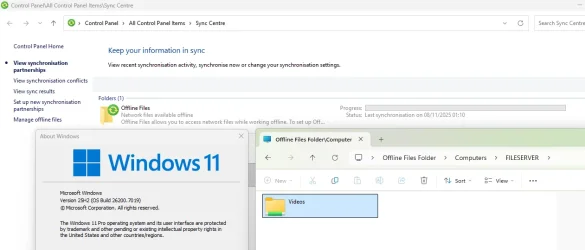
Edit: Actually, I forgot about offline files. This might still work in Windows 11. I haven't used it in ages.
I do - it works. Note: only available in Pro.

1762863742037.webp
 

My Computers

System One System Two

  • OS
    Windows 11 Home
    Computer type
    Laptop
    Manufacturer/Model
    Acer Aspire 3 A315-23-R9VY
    CPU
    AMD Athlon Silver 3050U
    Memory
    8GB
    Graphics Card(s)
    Radeon Graphics
    Monitor(s) Displays
    laptop screen
    Screen Resolution
    1366x768 native resolution, up to 2560x1440 with Radeon Virtual Super Resolution
    Hard Drives
    1TB Samsung EVO 870 SSD (from April 2026: 250GB EVO 850)
    Internet Speed
    150 Mbps
    Browser
    Edge, Firefox
    Antivirus
    Defender
    Other Info
    fully 'Windows 11 ready' laptop. Windows 10 C: partition migrated from my old unsupported 'main machine' then upgraded to 11. A test migration ran Insider builds for 2 months. When 11 was released on 5th October 2021 it was re-imaged back to 10 and was offered the upgrade in Windows Update on 20th October. Windows Update offered the 22H2 Feature Update on 20th September 2022. It got the 23H2 Feature Update on 4th November 2023 through Windows Update, 24H2 on 3rd October 2024 through Windows Update by setting the Target Release Version for 24H2, and 25H2 on 30th September 2025 through Windows Update by setting the Target Release Version for 25H2.

    UPDATE - 11 April 2026: due to mechanical deterioration this PC has been retired from active duty. The OS with all software and files has been migrated to my System Seven below to carry on as my general purpose 'main machine'.

    My SYSTEM THREE is a Dell Latitude 5410, i7-10610U, 32GB RAM, 512GB NVMe ssd, supported device running Windows 11 Pro.

    My SYSTEM FOUR is a 2-in-1 convertible Lenovo Yoga 11e 20DA, Celeron N2930, 8GB RAM, 256GB ssd. Unsupported device: currently running Win10 Pro, plus Win11 Pro RTM and Insider Dev, Beta, and RP 24H2 as native boot vhdx.

    My SYSTEM FIVE is a Dell Latitude 3190 2-in-1, Pentium Silver N5030, 8GB RAM, 1TB NVMe ssd, supported device running Windows 11 Pro, plus Insider Beta, Dev, and Canary builds (and a few others) as a native boot .vhdx.

    My SYSTEM SIX is a Dell Latitude 5550, Core Ultra 7 165H, 64GB RAM, 1TB NVMe SSD, supported device, Windows 11 Pro 24H2, Hyper-V host machine. Updated to 25H2 on 30th September 2025.

    My SYSTEM SEVEN is a Lenovo Thinkpad T580, Intel Core i7-8650U, 16GB RAM, 512GB NVMe SSD + 2nd 512GB NVMe SSD, a supported device for Windows 11. This is my current general purpose 'main machine'. The installed Windows 11 Home from my System One has been migrated to this machine.
  • Operating System
    Windows 11 Pro
    Computer type
    Laptop
    Manufacturer/Model
    Dell Latitude E4310
    CPU
    Intel® Core™ i5-520M
    Motherboard
    0T6M8G
    Memory
    8GB
    Graphics card(s)
    (integrated graphics) Intel HD Graphics
    Screen Resolution
    1366x768
    Hard Drives
    500GB Crucial MX500 SSD
    Browser
    Firefox, Edge
    Antivirus
    Defender
    Other Info
    unsupported machine: Legacy bios, MBR, TPM 1.2, upgraded from W10 to W11 using W10/W11 hybrid install media workaround. In-place upgrade to 22H2 using ISO and a workaround. Feature Update to 23H2 by manually installing the Enablement Package. In-place upgrade to 24H2 using hybrid 23H2/24H2 install media. Upgraded to 25H2 by Enablement Package. Also running Insider Dev, and Canary builds and Windows 10 as native boot .vhdx.

    My SYSTEM THREE is a Dell Latitude 5410, i7-10610U, 32GB RAM, 512GB NVMe ssd, supported device running Windows 11 Pro.

    My SYSTEM FOUR is a 2-in-1 convertible Lenovo Yoga 11e 20DA, Celeron N2930, 8GB RAM, 256GB ssd. Unsupported device: currently running Win10 Pro, plus Win11 Pro RTM and Insider Dev, Beta, and RP 24H2 as native boot vhdx.

    My SYSTEM FIVE is a Dell Latitude 3190 2-in-1, Pentium Silver N5030, 8GB RAM, 1TB NVMe ssd, supported device running Windows 11 Pro, plus Insider Beta, Dev, and Canary builds (and a few others) as a native boot .vhdx.

    My SYSTEM SIX is a Dell Latitude 5550, Core Ultra 7 165H, 64GB RAM, 1TB NVMe SSD, supported device, Windows 11 Pro 24H2, Hyper-V host machine. Updated to 25H2 on 30th September 2025.

    My SYSTEM SEVEN is a Lenovo Thinkpad T580, Intel Core i7-8650U, 16GB RAM, 512GB NVMe SSD + 2nd 512GB NVMe SSD, a supported device for Windows 11. This is my current general purpose 'main machine'. The installed Windows 11 Home from my System One has been migrated to this machine.
Want to Thank each and everyone for your help and guidance. I will use all your input of getting my laptops talking to each other. (y)(y)(y)
 

My Computer

System One

  • OS
    Windows 11
    Computer type
    Laptop
    Manufacturer/Model
    Lenovo ThinkPad T15
    Mouse
    wireless
    Browser
    Firefox
    Antivirus
    Norton Security
Back
Top Bottom