
Can I Reserve the First "Slot" of my Desktop?


win9598xp7

Member
Local time
5:07 PM
Posts
72
OS
Windows 11
I've noticed something while using Windows 11 that wasn't an issue in previous versions of the OS.

Lets say I have two files occupying the top left portion of my desktop. I want these here, and in this order. I like to use the top left spot for "priority" things I need to follow-up on or do. And keeping things Aligned to Grid so they are cleanly sorted.
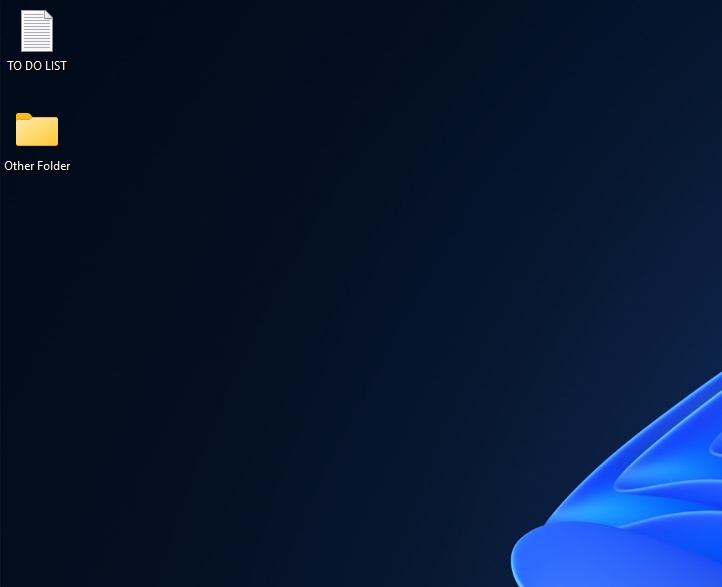
auCgxfD.jpeg


Now lets say I create/save a new file to the desktop. Windows used to do the logical thing, and just place it under these. But now I'm finding it bumps them down, and puts the new file in the first top left slot (which is supremely annoying).
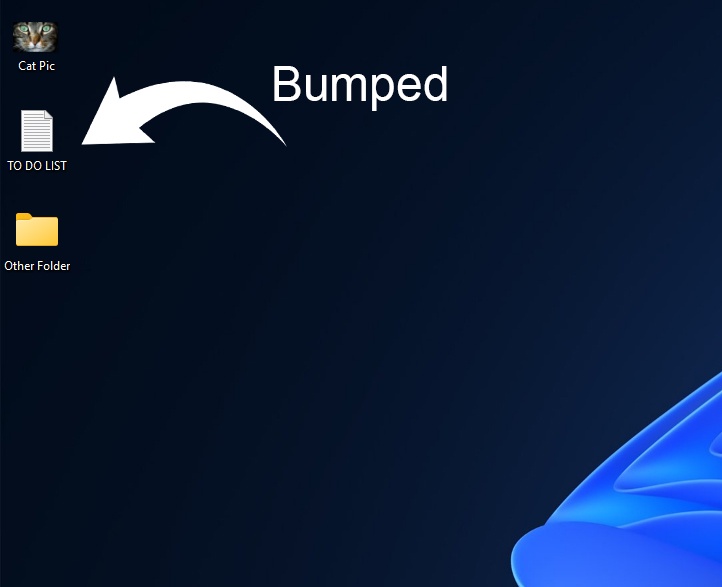
mSfaQri.jpeg


Why is this happening, and is there anything I can do about it?
 
Windows Build/Version
Windows 11 25H2

My Computer

System One

  • OS
    Windows 11
    Computer type
    PC/Desktop
Right Click desktop >Sort
 

My Computers

System One System Two

  • OS
    Windows 11 Enterprise 25H2 26200 7462
    Computer type
    PC/Desktop
    Manufacturer/Model
    Custom Build
    CPU
    Intel XEON E5-2699 v3
    Motherboard
    ASUS X99-A
    Memory
    64GB Teamgroup UD4-3600
    Graphics Card(s)
    NVIDIA GeForce GTX 1080 Ti
    Sound Card
    Integrated
    Monitor(s) Displays
    ACER X34 Predator
    Screen Resolution
    3440 x 1440
    Hard Drives
    Crucial CT1000P 3P SSD8 1TB
    Crucial CT1000 BX500 SSD 1TB
    PSU
    GameMax Pro
    Case
    Fractal Design
    Cooling
    Corsair H110iGT + 6 140mm Fans
    Keyboard
    Corsair K4
    Mouse
    G-Skill G502
    Internet Speed
    300MBs
    Browser
    Chrome
    Antivirus
    OEM
    Other Info
    ASUS RT-AC87U Router
  • Operating System
    25H2 26200.5074
    Computer type
    Laptop
    Manufacturer/Model
    ASUS X555LA
    Memory
    8GB
    Browser
    Chrome
    Antivirus
    OEM
Windows is better these days at honoring your choice of icon placement when you drag it where you want on the desktop, but every once in a while it acts up. Sometimes hitting F5 after placing an icon's position will "lock" it in place.
For @Rollback_Jockey suggestion you do NOT want anything checked under "sort by".
If your icons still won't stay where you put them, I recommend a neat portable app called DesktopOK. I've used it for years. It saves your icon placement and you easily restore that placement with 2 clicks. It's especially helpful for me since I have a number of icons organized in a method of madness that works for me.
 

My Computers

System One System Two

  • OS
    Windows 11 Pro 25H2 26200.8655
    Computer type
    PC/Desktop
    Manufacturer/Model
    Dell Optiplex 7080
    CPU
    i9-10900 10 core 20 threads
    Motherboard
    DELL 0J37VM
    Memory
    32 gb
    Graphics Card(s)
    none-Intel UHD Graphics 630
    Sound Card
    Integrated Realtek
    Monitor(s) Displays
    Benq 27
    Screen Resolution
    2560x1440
    Hard Drives
    2x1tb Solidigm m.2 nvme /External drives 512gb Samsung m.2 sata+2tb Kingston m2.nvme
    PSU
    500w
    Case
    MT
    Cooling
    Dell Premium
    Keyboard
    Logitech wired
    Mouse
    Logitech wireless
    Internet Speed
    so slow I'm too embarrassed to tell
    Browser
    #1 Edge #2 Firefox
    Antivirus
    Defender+MWB Premium
  • Operating System
    Windows 11 Pro 24H2 26200.8457
    Computer type
    PC/Desktop
    Manufacturer/Model
    Beelink Mini PC SER5
    CPU
    AMD Ryzen 7 6800U
    Memory
    32 gb
    Graphics card(s)
    integrated
    Sound Card
    integrated
    Monitor(s) Displays
    Benq 27
    Screen Resolution
    2560x1440
    Hard Drives
    1TB Crucial nvme
    Keyboard
    Logitech wired
    Mouse
    Logitech wireless
    Internet Speed
    still too embarrassed to tell
    Browser
    Firefox
    Antivirus
    Defender
    Other Info
    System 3 is non compliant Dell 9020 i7-4770/24gb ram Win11 PRO 26200.8457

My Computer

System One

  • OS
    Windows 11 Home x64 Version 25H2 Build 26200.8037
If your icons still won't stay where you put them, I recommend a neat portable app called DesktopOK.
If we're naming apps, then I use AlomWare Toolbox for that, because it can save an unlimited number of desktop icon layouts by name. So I use one layout when I'm using App A, and another layout when using App B. The layouts get done automatically when those apps start, so I don't even need to hit a hotkey to switch them.
 

My Computer

System One

  • OS
    Windows 11 Pro
I know exactly what you mean as currently I have 3-4 columns on the left, 1st column is full so any created Icon is fitted to a left aligned space nearest to the top.

That has been broadly similar going back 25 years thru various Windows versions.
The bottom line is always moving the created Icon to a chosen area. For me Priority is centre bottom. It is only a simple drag and drop so no problem.
Seems Windows is doing closer to your placement requirements as is.

That arrangement has never changed in 2 years, actually Windows 11 seems pretty good at maintaining those positions.

I always use Shortcuts to Apps/Folders/Files on the Desktop, when deleted it is the Desktop Shortcut rather than the actual File/Folder.
 

My Computer

System One

  • OS
    Windows 11
Back
Top Bottom




