This tutorial will show you how to change the right click region/zone size on a Precision Haptic Touchpad for your account in Windows 11.
Starting with Windows 11 build 26100.8737 (24H2), build 26200.8737 (25H2), and build 2800.2608 (26H1), Microsoft is adding a new setting in Settings > Bluetooth & Devices > Touchpad so you can choose how large the right-click zone size is (this is the portion in the bottom-right of your touchpad where pressing a single finger will result in a right-click), between default, small, medium, and large. Note – this setting only appears for touchpads that have a pressable surface for this. Some manufacturers may provide customization for this in their own apps – if you’ve customized your setting using an app like this, a Custom entry will be added to the dropdown, which preserves that value.
You can configure the size of the right click region on your touchpad to large, medium, or small.
References:

Precision touchpad tuning (touchpad-tuning-guidelines)
This topic presents information about touchpad tuning capabilities in Windows 10 and beyond
learn.microsoft.com
Precision touchpad tuning (touchpad-tuning-guidelines)
This topic presents information about touchpad tuning capabilities in Windows 10 and beyond
learn.microsoft.com
If you don't have Right-click zone size in Settings in the builds above yet and would like to try it now, then you can enable it using the ViVeTool command below.
vivetool/exe /enable /id:58429068

Enable or Disable Hidden Feature Flags in Windows 11
This tutorial will show you how to enable or disable hidden experimental feature flags in Windows 11. ViVeTool is an open source tool that can be used to enable hidden features that are part of controlled feature roll-outs or A/B testing in Insider builds of Windows 11. Windows Insider builds...
 www.elevenforum.com
Contents
- Option One: Change Touchpad Right Click Zone Size in Settings
- Option Two: Change Touchpad Right Click Zone Size using REG file
- Option Three: Change Touchpad Right Click Zone Size in Surface app
1 Open Settings (Win+I).
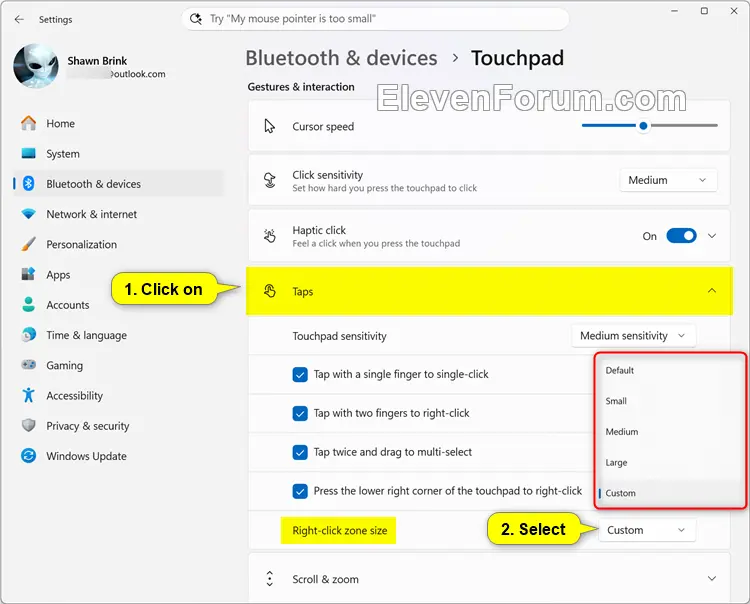
2 Click/tap on Bluetooth & devices on the left side, and click/tap on Touchpad on the right side. (see screenshot below)
3 Under Gestures & interaction, click/tap on Taps to expand it open. (see screenshot below step 4)
4 Select Default, Small, Medium, Large, or Custom in the Right-click zone size drop menu for the size you want. (see screenshot below)
Some manufacturers may provide customization for this in their own apps – if you’ve customized your setting using an app like this, a Custom entry will be added to the dropdown, which preserves that value.
[
5 You can now close Settings if you like.
1 Do step 2 (default), step 3 (small), step 4 (medium), or step 5 (large) below for the size you want.
2 Use Default Touchpad Right Click Zone Size
This is the default setting.
A) Click/tap on the Download button below to download the file below, and go to step 6 below.
Touchpad_right_click_zone_size=default.reg
Download
(Contents of REG file for reference)
Code:
Windows Registry Editor Version 5.00

[HKEY_CURRENT_USER\Software\Microsoft\Windows\CurrentVersion\PrecisionTouchPad]
"RightClickZoneWidth"=dword:00000000
"RightClickZoneHeight"=dword:00000000
3 Use Small Touchpad Right Click Zone Size
A) Click/tap on the Download button below to download the file below, and go to step 6 below.
Touchpad_right_click_zone_size=small.reg
Download
(Contents of REG file for reference)
Code:
Windows Registry Editor Version 5.00

[HKEY_CURRENT_USER\Software\Microsoft\Windows\CurrentVersion\PrecisionTouchPad]
"RightClickZoneWidth"=dword:00000019
"RightClickZoneHeight"=dword:0000000a
4 Use Medium Touchpad Right Click Zone Size
A) Click/tap on the Download button below to download the file below, and go to step 6 below.
Touchpad_right_click_zone_size=medium.reg
Download
(Contents of REG file for reference)
Code:
Windows Registry Editor Version 5.00

[HKEY_CURRENT_USER\Software\Microsoft\Windows\CurrentVersion\PrecisionTouchPad]
"RightClickZoneWidth"=dword:00000019
"RightClickZoneHeight"=dword:00000021
5 Use Large Touchpad Right Click Zone Size
A) Click/tap on the Download button below to download the file below, and go to step 6 below.
Touchpad_right_click_zone_size=large.reg
Download
(Contents of REG file for reference)
Code:
Windows Registry Editor Version 5.00

[HKEY_CURRENT_USER\Software\Microsoft\Windows\CurrentVersion\PrecisionTouchPad]
"RightClickZoneWidth"=dword:00000021
"RightClickZoneHeight"=dword:00000032
6 Save the .reg file to your desktop.
7 If you have Smart App Control turned on, you will need to unblock the downloaded REG file.
8 Double click/tap on the downloaded .reg file to merge it.
9 When prompted, click/tap on Run, Yes (UAC), Yes, and OK to approve the merge.
10 Restart the computer to apply.
11 You can now delete the downloaded .reg file if you like.
This option is only available on supported Microsoft Surface devices.
1 Open the Surface app.
2 Click/tap on Touchpad settings to expand it open. (see screenshot below)
3 Select (dot) Large, Medium, or Small for the Right click region size you want. (see screenshot below)
4 You can now close the Surface app if you like.
That's it,
Shawn Brink
Related Tutorials
- Enable or Disable Touchpad in Windows 11
- Adjust Touchpad Sensitivity in Windows 11
- Enable or Disable Adaptive Touch Mode for Touchpad on Microsoft Surface Devices
- Change Touchpad Double Click Speed on Microsoft Surface Devices
- Enable or Disable Touchpad Haptic Click Feedback in Windows 11
- Change Touchpad Haptic Click Intensity in Windows 11
- Change Touchpad Click Sensitivity on Microsoft Surface Devices
Attachments
Last edited: