
Completely get rid of "Group By" anywhere in File Explorer


WIN11User

Well-known member
Local time
2:05 AM
Posts
31
OS
Windows 11 Pro
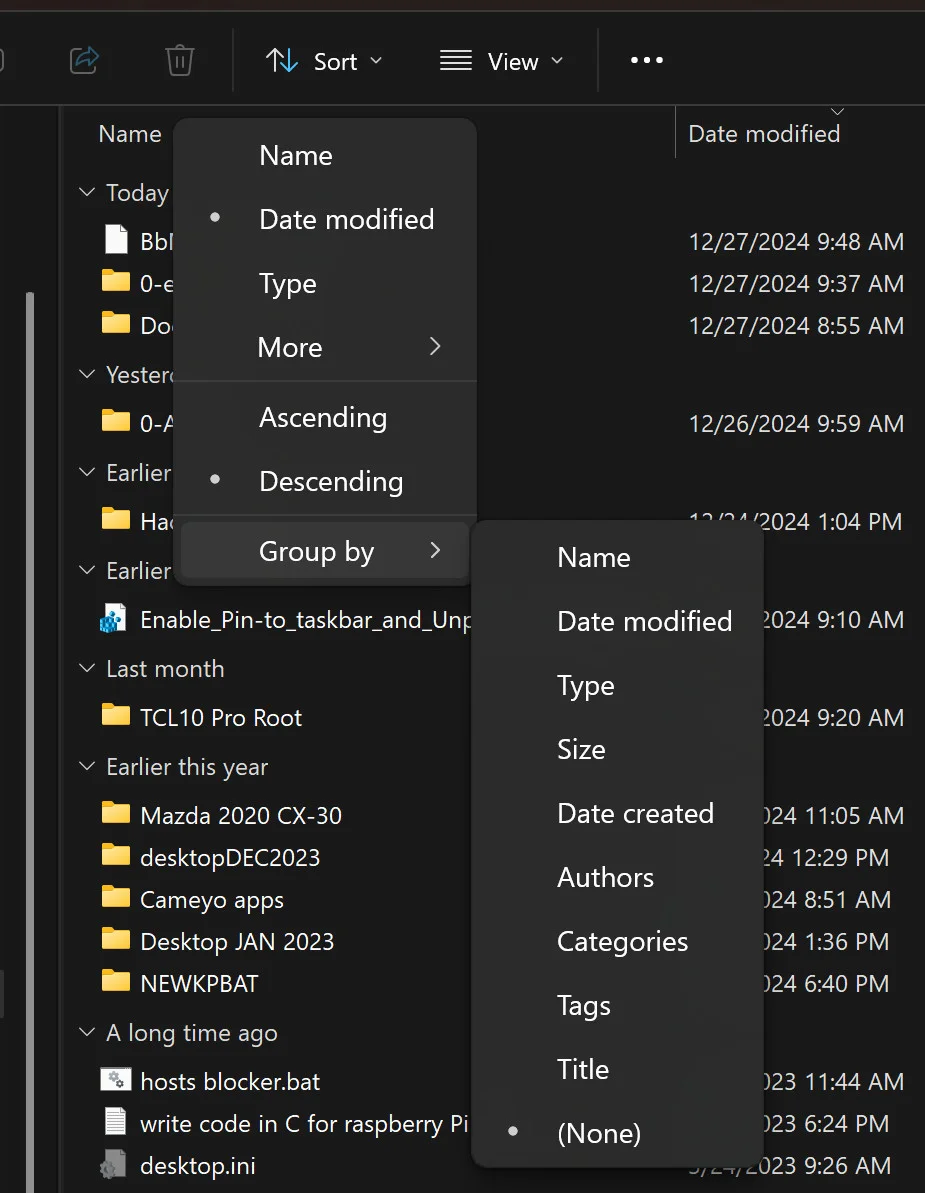
As my title says I wish to Completely get rid of "Group By" anywhere in File Explorer. I've tried many things but to no avail. At the moment I am noticing one folder inparticular that constantly resets to a group by date, even though it displays (None) as selected. This folder is my download folder whose path was changed to a folder on an alternate drive. Is there a way to DISABLE Group by for any file/folder on the computer? I have Windows 11 Pro (24H2) updated to present.
group by.webp

Thanks
Brian
 

My Computers My Computers

  • At a glance

    Windows 11 ProAMD RYZEN 7 5800X(2) GSkill 32GBNVIDIA GeForce RTX 3060
    OS
    Windows 11 Pro
    Computer type
    PC/Desktop
    Manufacturer/Model
    Self-Built
    CPU
    AMD RYZEN 7 5800X
    Motherboard
    ASUS ROG STRIX X570-I Gaming
    Memory
    (2) GSkill 32GB
    Graphics Card(s)
    NVIDIA GeForce RTX 3060
    Sound Card
    NVIDIA GM206(On-Board)
    Monitor(s) Displays
    NEC EA244UHD
    Screen Resolution
    3840 x 2160
    Hard Drives
    Sabrent 500GB Rocket NVMe PCIe 4.0 M.2 2280
    SAMSUNG 980 PRO M.2 2280 1TB PCI-Express Gen 4.0 x4, NVMe 1.3c
    PSU
    CORSAIR 1000W etc...
    Case
    Thermaltake Tower 100
    Cooling
    NZXT Kracken M22 120mm
    Keyboard
    TMI
    Mouse
    TMI
    Internet Speed
    TMI
    Browser
    TMI
    Antivirus
    TMI
  • At a glance

    Windows 11 Pro (24H2)OctalCore AMD Ryzen 7 5800X, 4841 MHz (48.5 x...GSKill - 32678 MBPCI Express 4.0 x16: Asus RTX 3060 LHR
    Operating System
    Windows 11 Pro (24H2)
    Computer type
    PC/Desktop
    CPU
    OctalCore AMD Ryzen 7 5800X, 4841 MHz (48.5 x 100)
    Motherboard
    Asus ROG Strix X570-I Gaming
    Memory
    GSKill - 32678 MB
    Graphics card(s)
    PCI Express 4.0 x16: Asus RTX 3060 LHR
    Monitor(s) Displays
    NEC MultiSync EA244UHD (DisplayPort)
    Screen Resolution
    3840 x 2160 - Pixel Clock: 262.75 MHz
    Hard Drives
    Mostly NVMe SSD
    Cooling
    NZXT
    Internet Speed
    ~300MB/s
It may be hard to do in File Explorer, it's part of the app. I predominately use the Details view but there's other choices. Might have to use a third-party file manager add-in but be aware that a future Version Upgrade or Build update may set things back to their defaults, after all we only get a License to use Windows, not buying the actual program. The license provides access to the software to go with it. But do look in Folder Options, may be a setting that could be useful. Some changes can be made in Sort, Group by, I have nothing chosen there.
 

My Computers My Computers

  • At a glance

    Win11 Pro RTM Version 24H2 Build 26100.4202Intel Core i5 11th Gen. 2.40GHz12GB
    OS
    Win11 Pro RTM Version 24H2 Build 26100.4202
    Computer type
    Laptop
    Manufacturer/Model
    Dell Vostro 3400
    CPU
    Intel Core i5 11th Gen. 2.40GHz
    Memory
    12GB
    Hard Drives
    256GB SSD NVMe M.2
  • At a glance

    Win11 Pro RTM Version 24H2 Build 26100.4202Intel Core i5 10th Gen. 2.90GHz16GBOnboard, no VGA, using a DisplayPort-to-VGA a...
    Operating System
    Win11 Pro RTM Version 24H2 Build 26100.4202
    Computer type
    PC/Desktop
    Manufacturer/Model
    Dell Vostro 5890
    CPU
    Intel Core i5 10th Gen. 2.90GHz
    Memory
    16GB
    Graphics card(s)
    Onboard, no VGA, using a DisplayPort-to-VGA adapter
    Monitor(s) Displays
    24" Dell
    Hard Drives
    512GB SSD NVMe, 4TB Seagate HDD
    Browser
    Firefox, Edge
    Antivirus
    Windows Defender/Microsoft Security
You can use this:

For more details see:
Completely disable file grouping, always, everywhere, in all windows, dialogs, everything!
I like the little program, WinSetView, but it did not work for this specific folder.
I can use the "sort" drop-down menu in file explorer to select (None) and it de-groups the folder contents, but if I select a different folder and then select this particular folder, the "group by" returns sorted by Date Modified. Bizarre stuff!

I'm going to restore the default Download folder location and see what happens!

Brian
 

My Computers My Computers

  • At a glance

    Windows 11 ProAMD RYZEN 7 5800X(2) GSkill 32GBNVIDIA GeForce RTX 3060
    OS
    Windows 11 Pro
    Computer type
    PC/Desktop
    Manufacturer/Model
    Self-Built
    CPU
    AMD RYZEN 7 5800X
    Motherboard
    ASUS ROG STRIX X570-I Gaming
    Memory
    (2) GSkill 32GB
    Graphics Card(s)
    NVIDIA GeForce RTX 3060
    Sound Card
    NVIDIA GM206(On-Board)
    Monitor(s) Displays
    NEC EA244UHD
    Screen Resolution
    3840 x 2160
    Hard Drives
    Sabrent 500GB Rocket NVMe PCIe 4.0 M.2 2280
    SAMSUNG 980 PRO M.2 2280 1TB PCI-Express Gen 4.0 x4, NVMe 1.3c
    PSU
    CORSAIR 1000W etc...
    Case
    Thermaltake Tower 100
    Cooling
    NZXT Kracken M22 120mm
    Keyboard
    TMI
    Mouse
    TMI
    Internet Speed
    TMI
    Browser
    TMI
    Antivirus
    TMI
  • At a glance

    Windows 11 Pro (24H2)OctalCore AMD Ryzen 7 5800X, 4841 MHz (48.5 x...GSKill - 32678 MBPCI Express 4.0 x16: Asus RTX 3060 LHR
    Operating System
    Windows 11 Pro (24H2)
    Computer type
    PC/Desktop
    CPU
    OctalCore AMD Ryzen 7 5800X, 4841 MHz (48.5 x 100)
    Motherboard
    Asus ROG Strix X570-I Gaming
    Memory
    GSKill - 32678 MB
    Graphics card(s)
    PCI Express 4.0 x16: Asus RTX 3060 LHR
    Monitor(s) Displays
    NEC MultiSync EA244UHD (DisplayPort)
    Screen Resolution
    3840 x 2160 - Pixel Clock: 262.75 MHz
    Hard Drives
    Mostly NVMe SSD
    Cooling
    NZXT
    Internet Speed
    ~300MB/s
This did the trick for me, removing saved folder settings, setting Explorer to NotSpecified and then applying it.
Code:
reg delete "HKCU\Software\Classes\Local Settings\Software\Microsoft\Windows\Shell\Bags" /f
reg delete "HKCU\Software\Classes\Local Settings\Software\Microsoft\Windows\Shell\BagMRU" /f
reg delete "HKCU\Software\Classes\Wow6432Node\Local Settings\Software\Microsoft\Windows\Shell\Bags" /f
reg delete "HKCU\Software\Classes\Wow6432Node\Local Settings\Software\Microsoft\Windows\Shell\BagMRU" /f
reg delete "HKCU\Software\Microsoft\Windows\Shell\Bags" /f
reg delete "HKCU\Software\Microsoft\Windows\Shell\BagMRU" /f
reg delete "HKCU\Software\Microsoft\Windows\ShellNoRoam\Bags" /f
reg delete "HKCU\Software\Microsoft\Windows\ShellNoRoam\BagMRU" /f
reg add "HKCU\Software\Classes\Local Settings\Software\Microsoft\Windows\Shell\Bags\AllFolders\Shell" /v "FolderType" /t REG_SZ /d "NotSpecified" /f
rem Open Explorer - Choose the desired View - View - Options - View - Apply to Folders - OK - Close/Restart Explorer ASAP
 

My Computer My Computer

At a glance

Home26H2CanAMD Ryzen 5 8600G (07/24)2x32GB Kingston FURY DDR5 5600 MHz CL36 @5200...ASROCK Radeon RX 6600 Challenger D 8G @48FPS ...
OS
Home26H2Can
Computer type
PC/Desktop
CPU
AMD Ryzen 5 8600G (07/24)
Motherboard
ASROCK B650M-HDV/M.2 (07/24) BIOS 4.21 AGESA ComboAM5 1.3.0.1 (04/26)
Memory
2x32GB Kingston FURY DDR5 5600 MHz CL36 @5200 CL36 (07/24)
Graphics Card(s)
ASROCK Radeon RX 6600 Challenger D 8G @48FPS (08/24)
Sound Card
Creative Sound BlasterX AE-5 Plus (05/24)
Monitor(s) Displays
24" Philips 24M1N3200ZS/00 (05/24)
Screen Resolution
1920×1080@165Hz via DP1.4
Hard Drives
Kingston KC3000 NVMe 2TB (05/24)
ADATA XPG GAMMIX S11 Pro 512GB (07/19)
PSU
Seasonic Core GM 550 Gold (04/24)
Case
Fractal Design Define 7 Mini with 3x Noctua NF-P14s/12@555rpm (04/24)
Cooling
Noctua NH-U12S with Noctua NF-P12 (04/24)
Keyboard
HP Pavilion Wired Keyboard 300 (07/24) + Rabalux 76017 Parker (01/24)
Mouse
Logitech M330 Silent Plus (01/26)
Internet Speed
500/100 Mbps via RouterOS (05/21) & TCP Optimizer
Browser
Edge, Brave for YouTube, LibreWolf for FB
Antivirus
NextDNS blocking 1/3 Traffic
Other Info
Phone: Motorola Moto G86 (02/26)
Backup: Hasleo Backup Suite (PreOS)
Headphones: Sennheiser RS170 (09/10)
Chair: Huzaro Force 4.4 Grey Mesh (05/24)
Notifier: Xiaomi Mi Band 9 Milanese (10/24)
FlexCore USB-C 3.2 Gen 1 (M) to LAN (F) (08/25)
I like the little program, WinSetView, but it did not work for this specific folder.
I can use the "sort" drop-down menu in file explorer to select (None) and it de-groups the folder contents, but if I select a different folder and then select this particular folder, the "group by" returns sorted by Date Modified. Bizarre stuff!
The only instance where I've seen grouping not turned off is in a file open/save dialog for an app that was still open when WinSetView was run.

In order to better understand what you're describing (and possibly get a clue as to the cause) please show us screenshots of the issue. Thanks!
 

My Computer My Computer

At a glance

Windows 10/11
OS
Windows 10/11
Computer type
Laptop
Manufacturer/Model
Acer
This did the trick for me, removing saved folder settings, setting Explorer to NotSpecified and then applying it.
Code:
reg delete "HKCU\Software\Classes\Local Settings\Software\Microsoft\Windows\Shell\Bags" /f
reg delete "HKCU\Software\Classes\Local Settings\Software\Microsoft\Windows\Shell\BagMRU" /f
reg delete "HKCU\Software\Classes\Wow6432Node\Local Settings\Software\Microsoft\Windows\Shell\Bags" /f
reg delete "HKCU\Software\Classes\Wow6432Node\Local Settings\Software\Microsoft\Windows\Shell\BagMRU" /f
reg delete "HKCU\Software\Microsoft\Windows\Shell\Bags" /f
reg delete "HKCU\Software\Microsoft\Windows\Shell\BagMRU" /f
reg delete "HKCU\Software\Microsoft\Windows\ShellNoRoam\Bags" /f
reg delete "HKCU\Software\Microsoft\Windows\ShellNoRoam\BagMRU" /f
reg add "HKCU\Software\Classes\Local Settings\Software\Microsoft\Windows\Shell\Bags\AllFolders\Shell" /v "FolderType" /t REG_SZ /d "NotSpecified" /f
rem Open Explorer - Choose the desired View - View - Options - View - Apply to Folders - OK - Close/Restart Explorer ASAP

It should be noted that these steps will return all folder views to Windows defaults, set all folders to be type "General items", and disable automatic folder type discovery. Then, as per the "rem" comment, the selected view using "Apply to Folders" will be applied globally. As long as you really don't want different views for different folder types, this approach works well.
 

My Computer My Computer

At a glance

Windows 10/11
OS
Windows 10/11
Computer type
Laptop
Manufacturer/Model
Acer
The only instance where I've seen grouping not turned off is in a file open/save dialog for an app that was still open when WinSetView was run.

In order to better understand what you're describing (and possibly get a clue as to the cause) please show us screenshots of the issue. Thanks!
The image I posted in the initial post is the behavior I was questioning. Even though the "Group by" is selected from the drop-down, the files/folders are sorted.

I found a workaround for the grouping issue, not a real fix, but does the trick for me...

P.S. I hate the Automatic folder type discovery as the category headings and lateral placement of the category headings is never how I want them to be.
It doesn't seem to allow for permanent change of each default category settings.
 

My Computers My Computers

  • At a glance

    Windows 11 ProAMD RYZEN 7 5800X(2) GSkill 32GBNVIDIA GeForce RTX 3060
    OS
    Windows 11 Pro
    Computer type
    PC/Desktop
    Manufacturer/Model
    Self-Built
    CPU
    AMD RYZEN 7 5800X
    Motherboard
    ASUS ROG STRIX X570-I Gaming
    Memory
    (2) GSkill 32GB
    Graphics Card(s)
    NVIDIA GeForce RTX 3060
    Sound Card
    NVIDIA GM206(On-Board)
    Monitor(s) Displays
    NEC EA244UHD
    Screen Resolution
    3840 x 2160
    Hard Drives
    Sabrent 500GB Rocket NVMe PCIe 4.0 M.2 2280
    SAMSUNG 980 PRO M.2 2280 1TB PCI-Express Gen 4.0 x4, NVMe 1.3c
    PSU
    CORSAIR 1000W etc...
    Case
    Thermaltake Tower 100
    Cooling
    NZXT Kracken M22 120mm
    Keyboard
    TMI
    Mouse
    TMI
    Internet Speed
    TMI
    Browser
    TMI
    Antivirus
    TMI
  • At a glance

    Windows 11 Pro (24H2)OctalCore AMD Ryzen 7 5800X, 4841 MHz (48.5 x...GSKill - 32678 MBPCI Express 4.0 x16: Asus RTX 3060 LHR
    Operating System
    Windows 11 Pro (24H2)
    Computer type
    PC/Desktop
    CPU
    OctalCore AMD Ryzen 7 5800X, 4841 MHz (48.5 x 100)
    Motherboard
    Asus ROG Strix X570-I Gaming
    Memory
    GSKill - 32678 MB
    Graphics card(s)
    PCI Express 4.0 x16: Asus RTX 3060 LHR
    Monitor(s) Displays
    NEC MultiSync EA244UHD (DisplayPort)
    Screen Resolution
    3840 x 2160 - Pixel Clock: 262.75 MHz
    Hard Drives
    Mostly NVMe SSD
    Cooling
    NZXT
    Internet Speed
    ~300MB/s
The image I posted in the initial post is the behavior I was questioning. Even though the "Group by" is selected from the drop-down, the files/folders are sorted.

I found a workaround for the grouping issue, not a real fix, but does the trick for me...

P.S. I hate the Automatic folder type discovery as the category headings and lateral placement of the category headings is never how I want them to be.
It doesn't seem to allow for permanent change of each default category settings.

Oh, I hadn't looked very closely at that screenshot before. What you show there shouldn't be possible. That is, once "(None)" is selected, it normally disappears from the "Group by" list. You should never be able to see a dot beside "(None)". You're running 24H2 with latest updates. Is that regular release channel or are you on any Insider build?

In regards to your "P.S." note... WinSetView should allow you to permanently set your category settings (column headings), including their order and widths. That should just work.

It seems that something very strange is going on with your set up. WinSetView deletes all your current views (just like the script @TairikuOkami posted) so it should clear up any corruption and properly set defaults. The only time I've seen behavior like this was when a user had a program called "WindowManager" (by Desksoft) installed which automatically restored its own backup of the Bags registry keys overriding the new defaults.

To figure out what's going on, we should review any other software you have installed that may be interfering and also you should run some tests with a new local account.
 

My Computer My Computer

At a glance

Windows 10/11
OS
Windows 10/11
Computer type
Laptop
Manufacturer/Model
Acer
Oh, I hadn't looked very closely at that screenshot before. What you show there shouldn't be possible. That is, once "(None)" is selected, it normally disappears from the "Group by" list. You should never be able to see a dot beside "(None)". You're running 24H2 with latest updates. Is that regular release channel or are you on any Insider build?

In regards to your "P.S." note... WinSetView should allow you to permanently set your category settings (column headings), including their order and widths. That should just work.

It seems that something very strange is going on with your set up. WinSetView deletes all your current views (just like the script @TairikuOkami posted) so it should clear up any corruption and properly set defaults. The only time I've seen behavior like this was when a user had a program called "WindowManager" (by Desksoft) installed which automatically restored its own backup of the Bags registry keys overriding the new defaults.

To figure out what's going on, we should review any other software you have installed that may be interfering and also you should run some tests with a new local account.
I will have to read up more on the use of WinSetView. I do not have WindowManager but have used WinAeroTweaker and Ultimate Windows Tweaker.
I am also not using an "insider" build, have enough trouble with MS updates that break things (recently my printer & scanner drivers).
 

My Computers My Computers

  • At a glance

    Windows 11 ProAMD RYZEN 7 5800X(2) GSkill 32GBNVIDIA GeForce RTX 3060
    OS
    Windows 11 Pro
    Computer type
    PC/Desktop
    Manufacturer/Model
    Self-Built
    CPU
    AMD RYZEN 7 5800X
    Motherboard
    ASUS ROG STRIX X570-I Gaming
    Memory
    (2) GSkill 32GB
    Graphics Card(s)
    NVIDIA GeForce RTX 3060
    Sound Card
    NVIDIA GM206(On-Board)
    Monitor(s) Displays
    NEC EA244UHD
    Screen Resolution
    3840 x 2160
    Hard Drives
    Sabrent 500GB Rocket NVMe PCIe 4.0 M.2 2280
    SAMSUNG 980 PRO M.2 2280 1TB PCI-Express Gen 4.0 x4, NVMe 1.3c
    PSU
    CORSAIR 1000W etc...
    Case
    Thermaltake Tower 100
    Cooling
    NZXT Kracken M22 120mm
    Keyboard
    TMI
    Mouse
    TMI
    Internet Speed
    TMI
    Browser
    TMI
    Antivirus
    TMI
  • At a glance

    Windows 11 Pro (24H2)OctalCore AMD Ryzen 7 5800X, 4841 MHz (48.5 x...GSKill - 32678 MBPCI Express 4.0 x16: Asus RTX 3060 LHR
    Operating System
    Windows 11 Pro (24H2)
    Computer type
    PC/Desktop
    CPU
    OctalCore AMD Ryzen 7 5800X, 4841 MHz (48.5 x 100)
    Motherboard
    Asus ROG Strix X570-I Gaming
    Memory
    GSKill - 32678 MB
    Graphics card(s)
    PCI Express 4.0 x16: Asus RTX 3060 LHR
    Monitor(s) Displays
    NEC MultiSync EA244UHD (DisplayPort)
    Screen Resolution
    3840 x 2160 - Pixel Clock: 262.75 MHz
    Hard Drives
    Mostly NVMe SSD
    Cooling
    NZXT
    Internet Speed
    ~300MB/s
I will have to read up more on the use of WinSetView. I do not have WindowManager but have used WinAeroTweaker and Ultimate Windows Tweaker.
I am also not using an "insider" build, have enough trouble with MS updates that break things (recently my printer & scanner drivers).
WinAeroTweaker and Ultimate Windows Tweaker should be no problem at all. WinSetView is pretty straightforward. As per the quick start guide, set your preferred views and options and then click Submit. Grouping should then be gone from everywhere. If not, I'd sure like to see your computer, because that would be a first for me.
 

My Computer My Computer

At a glance

Windows 10/11
OS
Windows 10/11
Computer type
Laptop
Manufacturer/Model
Acer
WinAeroTweaker and Ultimate Windows Tweaker should be no problem at all. WinSetView is pretty straightforward. As per the quick start guide, set your preferred views and options and then click Submit. Grouping should then be gone from everywhere. If not, I'd sure like to see your computer, because that would be a first for me.
Well, after reading the manual for WinSetView I figured out how to conquer not only the Grouping issue, but the issue of fine tuning both the column widths and column placements for specific categories (Music, Pictures, etc...). It's the App I've been looking for, for about ever!

Thanks for the help!

P.S. I no longer have Group By anywhere, just as the App claims.
:thumbsup:
 

My Computers My Computers

  • At a glance

    Windows 11 ProAMD RYZEN 7 5800X(2) GSkill 32GBNVIDIA GeForce RTX 3060
    OS
    Windows 11 Pro
    Computer type
    PC/Desktop
    Manufacturer/Model
    Self-Built
    CPU
    AMD RYZEN 7 5800X
    Motherboard
    ASUS ROG STRIX X570-I Gaming
    Memory
    (2) GSkill 32GB
    Graphics Card(s)
    NVIDIA GeForce RTX 3060
    Sound Card
    NVIDIA GM206(On-Board)
    Monitor(s) Displays
    NEC EA244UHD
    Screen Resolution
    3840 x 2160
    Hard Drives
    Sabrent 500GB Rocket NVMe PCIe 4.0 M.2 2280
    SAMSUNG 980 PRO M.2 2280 1TB PCI-Express Gen 4.0 x4, NVMe 1.3c
    PSU
    CORSAIR 1000W etc...
    Case
    Thermaltake Tower 100
    Cooling
    NZXT Kracken M22 120mm
    Keyboard
    TMI
    Mouse
    TMI
    Internet Speed
    TMI
    Browser
    TMI
    Antivirus
    TMI
  • At a glance

    Windows 11 Pro (24H2)OctalCore AMD Ryzen 7 5800X, 4841 MHz (48.5 x...GSKill - 32678 MBPCI Express 4.0 x16: Asus RTX 3060 LHR
    Operating System
    Windows 11 Pro (24H2)
    Computer type
    PC/Desktop
    CPU
    OctalCore AMD Ryzen 7 5800X, 4841 MHz (48.5 x 100)
    Motherboard
    Asus ROG Strix X570-I Gaming
    Memory
    GSKill - 32678 MB
    Graphics card(s)
    PCI Express 4.0 x16: Asus RTX 3060 LHR
    Monitor(s) Displays
    NEC MultiSync EA244UHD (DisplayPort)
    Screen Resolution
    3840 x 2160 - Pixel Clock: 262.75 MHz
    Hard Drives
    Mostly NVMe SSD
    Cooling
    NZXT
    Internet Speed
    ~300MB/s
OOPS!
Only issue is the views are sorting ascending and I can't figure how to reverse this for all folders/files. I don't see this option in WinSetView.
Also, I asume the settings are stored in the Win10-Microsoft-Defaults-No-Groups.ini file?? And the *reg files are the new current settings defined by WinSetView??
 
Last edited:

My Computers My Computers

  • At a glance

    Windows 11 ProAMD RYZEN 7 5800X(2) GSkill 32GBNVIDIA GeForce RTX 3060
    OS
    Windows 11 Pro
    Computer type
    PC/Desktop
    Manufacturer/Model
    Self-Built
    CPU
    AMD RYZEN 7 5800X
    Motherboard
    ASUS ROG STRIX X570-I Gaming
    Memory
    (2) GSkill 32GB
    Graphics Card(s)
    NVIDIA GeForce RTX 3060
    Sound Card
    NVIDIA GM206(On-Board)
    Monitor(s) Displays
    NEC EA244UHD
    Screen Resolution
    3840 x 2160
    Hard Drives
    Sabrent 500GB Rocket NVMe PCIe 4.0 M.2 2280
    SAMSUNG 980 PRO M.2 2280 1TB PCI-Express Gen 4.0 x4, NVMe 1.3c
    PSU
    CORSAIR 1000W etc...
    Case
    Thermaltake Tower 100
    Cooling
    NZXT Kracken M22 120mm
    Keyboard
    TMI
    Mouse
    TMI
    Internet Speed
    TMI
    Browser
    TMI
    Antivirus
    TMI
  • At a glance

    Windows 11 Pro (24H2)OctalCore AMD Ryzen 7 5800X, 4841 MHz (48.5 x...GSKill - 32678 MBPCI Express 4.0 x16: Asus RTX 3060 LHR
    Operating System
    Windows 11 Pro (24H2)
    Computer type
    PC/Desktop
    CPU
    OctalCore AMD Ryzen 7 5800X, 4841 MHz (48.5 x 100)
    Motherboard
    Asus ROG Strix X570-I Gaming
    Memory
    GSKill - 32678 MB
    Graphics card(s)
    PCI Express 4.0 x16: Asus RTX 3060 LHR
    Monitor(s) Displays
    NEC MultiSync EA244UHD (DisplayPort)
    Screen Resolution
    3840 x 2160 - Pixel Clock: 262.75 MHz
    Hard Drives
    Mostly NVMe SSD
    Cooling
    NZXT
    Internet Speed
    ~300MB/s
Click the Sort column heading button to cycle between ascending and descending sort order. For details, see the "Columns" section of the manual and scroll down to "Sort 1, Sort 2, Sort 3".

Of course, nothing changes in Explorer until "Submit" is clicked again.

Your current settings are stored in the file "Win10.ini" (whether running Windows 10 or 11). The file you noted is just an example settings file.

I'm not sure what reg files you're referring to, but WinSetView applies your selections to the user part of the registry (HKCU). There are temp reg files left over in the temp folder that can be safely deleted.
 

My Computer My Computer

At a glance

Windows 10/11
OS
Windows 10/11
Computer type
Laptop
Manufacturer/Model
Acer
Click the Sort column heading button to cycle between ascending and descending sort order. For details, see the "Columns" section of the manual and scroll down to "Sort 1, Sort 2, Sort 3".

Of course, nothing changes in Explorer until "Submit" is clicked again.

Your current settings are stored in the file "Win10.ini" (whether running Windows 10 or 11). The file you noted is just an example settings file.

I'm not sure what reg files you're referring to, but WinSetView applies your selections to the user part of the registry (HKCU). There are temp reg files left over in the temp folder that can be safely deleted.
Thanks, got the column sort order as I desire.
The *.reg files are located in a backup folder inside the AppData folder of the portable version and as you said, can be deleted.
 

My Computers My Computers

  • At a glance

    Windows 11 ProAMD RYZEN 7 5800X(2) GSkill 32GBNVIDIA GeForce RTX 3060
    OS
    Windows 11 Pro
    Computer type
    PC/Desktop
    Manufacturer/Model
    Self-Built
    CPU
    AMD RYZEN 7 5800X
    Motherboard
    ASUS ROG STRIX X570-I Gaming
    Memory
    (2) GSkill 32GB
    Graphics Card(s)
    NVIDIA GeForce RTX 3060
    Sound Card
    NVIDIA GM206(On-Board)
    Monitor(s) Displays
    NEC EA244UHD
    Screen Resolution
    3840 x 2160
    Hard Drives
    Sabrent 500GB Rocket NVMe PCIe 4.0 M.2 2280
    SAMSUNG 980 PRO M.2 2280 1TB PCI-Express Gen 4.0 x4, NVMe 1.3c
    PSU
    CORSAIR 1000W etc...
    Case
    Thermaltake Tower 100
    Cooling
    NZXT Kracken M22 120mm
    Keyboard
    TMI
    Mouse
    TMI
    Internet Speed
    TMI
    Browser
    TMI
    Antivirus
    TMI
  • At a glance

    Windows 11 Pro (24H2)OctalCore AMD Ryzen 7 5800X, 4841 MHz (48.5 x...GSKill - 32678 MBPCI Express 4.0 x16: Asus RTX 3060 LHR
    Operating System
    Windows 11 Pro (24H2)
    Computer type
    PC/Desktop
    CPU
    OctalCore AMD Ryzen 7 5800X, 4841 MHz (48.5 x 100)
    Motherboard
    Asus ROG Strix X570-I Gaming
    Memory
    GSKill - 32678 MB
    Graphics card(s)
    PCI Express 4.0 x16: Asus RTX 3060 LHR
    Monitor(s) Displays
    NEC MultiSync EA244UHD (DisplayPort)
    Screen Resolution
    3840 x 2160 - Pixel Clock: 262.75 MHz
    Hard Drives
    Mostly NVMe SSD
    Cooling
    NZXT
    Internet Speed
    ~300MB/s
Thanks, got the column sort order as I desire.
The *.reg files are located in a backup folder inside the AppData folder of the portable version and as you said, can be deleted.
Ahh, those Reg files. They're a backup to allow rollback to previous view settings. They're safe to delete as well and you can prevent their creation by unchecking the "Backup" checkbox on the main screen.
 

My Computer My Computer

At a glance

Windows 10/11
OS
Windows 10/11
Computer type
Laptop
Manufacturer/Model
Acer
Back
Top Bottom




