Planner Blog:
Turn any basic plan in Microsoft Planner into a reusable, shareable template to speed up planning and ensure consistency across plans. Custom templates capture key plan elements such as tasks, goals, buckets, labels, notes, attachments, and checklists to help teams plan faster and stay consistent.
To publish a template, create and customize a basic plan to fit your needs. When you're ready, select Share and choose Publish as Template. Enter a template name and description, pick the Microsoft 365 group to share it with, choose which parts of the plan to include, and select Publish.
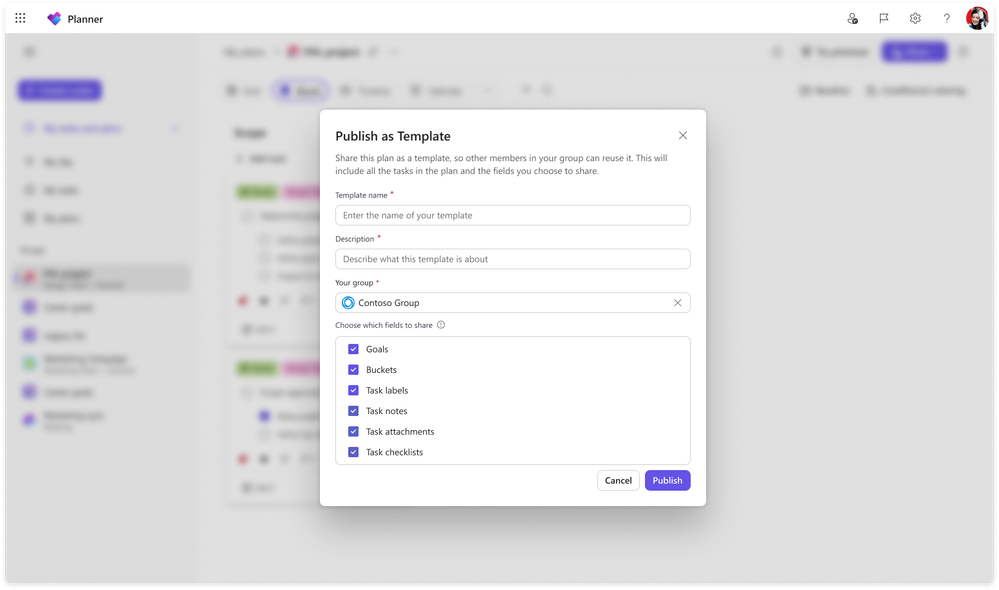
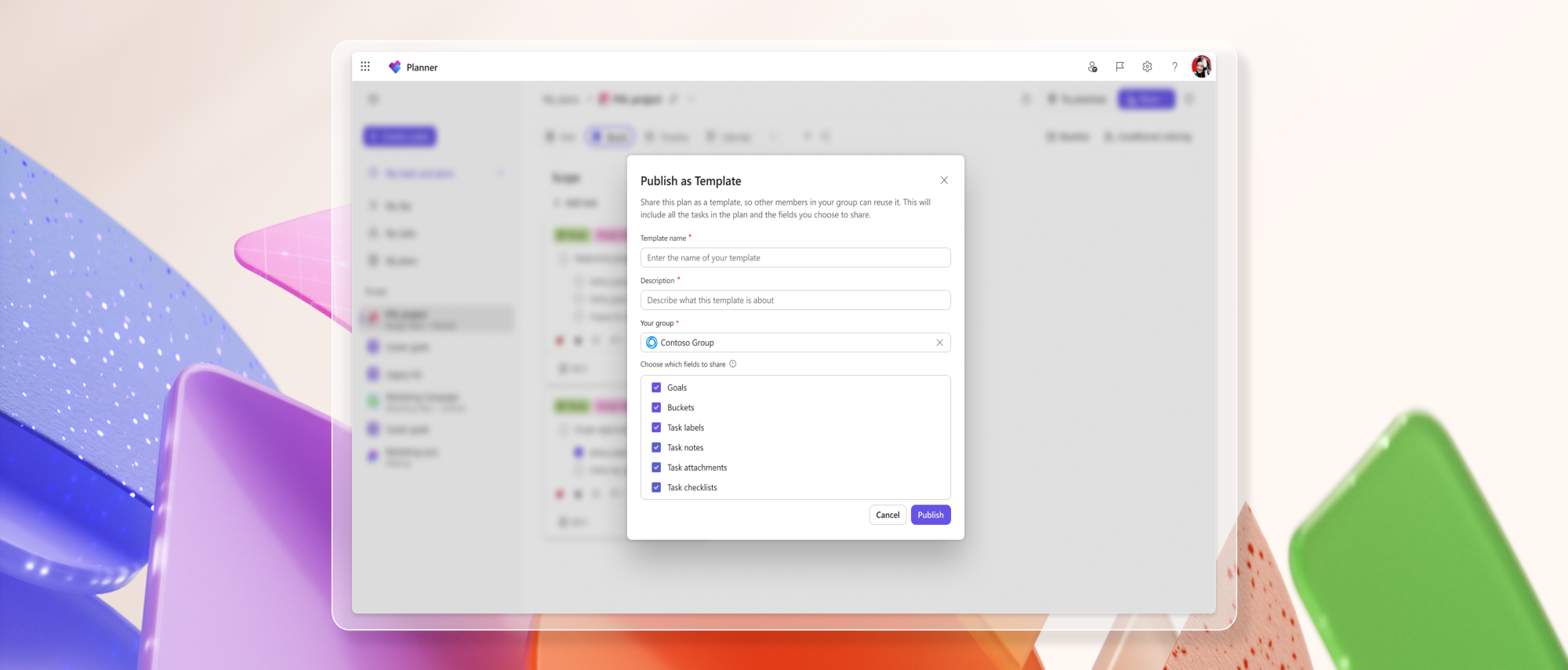
A screenshot of Planner for the web shows the “Publish as Template” window with respective fields selected.
Once published, the template can be reused to create new basic plans. To create a plan from a template, click Create a plan, then go to either Shared or Created by me and select a template to use.
How teams use custom templates
Standardized onboarding processesAn HR team onboarding new hires each month can use a custom template to create plans with the right tasks, buckets, and checklists already in place, helping ensure each onboarding follows the same process.
Fast project setup with templates
A marketing team launches frequent campaigns and uses a custom template to spin up new plans instantly. With pre-filled tasks, attachments, and checklists built in, they save time and stay aligned on key details.
Addressing your feedback
Tell us what you think about custom templates by selecting the Feedback icon (person with a chat bubble) in the top right corner of the app, then select Feedback from the dropdown menu. We also encourage you to share any feature requests by adding your ideas to the Planner Feedback Portal. Your feedback helps inform our feature updates, and we look forward to hearing from you. Source:
Create reusable plans faster with custom templates in Planner | Microsoft Community Hub
Turn any basic plan in Microsoft Planner into a reusable, shareable template to speed up planning and ensure consistency across plans. Custom templates...
 techcommunity.microsoft.com