
Desktop icons change location because of temporal files


James9095

New member
Local time
5:51 PM
Posts
2
OS
Win11
Hi, I have an issue on the desktop where, when editing a file, a temporary file appears in its place and pushes the actual file to the next available spot. Is there any way to stop this?

Auto-arrange is off. Align to grid is on. Sorting is off (none selected).

Also, when downloading from the internet to the desktop, files and folders sometimes get relocated. My guess is that the temporary file created during the download is the cause. When downloading multiple files, gaps often appear on the desktop (temporary file – actual file – temporary file – actual file…), because the temporary files get deleted when each download finishes.

Both behaviors are very annoying and seem buggy. The root cause appears to be the same. How to solve this?
 
Windows Build/Version
Version 10.0.26100 Build 26100

Attachments
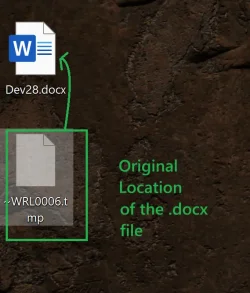
  • Untitled.webp
    Untitled.webp
    46.2 KB · Views: 2

My Computer

System One

  • OS
    Win11
    Computer type
    Laptop
    Manufacturer/Model
    msi
I know exactly what you mean. My settings are the same and have been for decades.
Where would you expect them to put a new Icon. My new Icons take a spare location on the Left probably because that's where most Icons are or it is left justifying.

The answer is not to use the Desktop for files, folders, downloads. The reason for that is the Desktop is a special system location. Over the decades has proven to be not a good idea, and now potential involvement of OneDrive syncing.

I always use Desktop Shortcuts(pointers) to those Locations like working folders etc. The reason being that deletion just removes the Shortcut not the actual Files/Folders.

The behaviour is certainly not a bug, just a default programming decision.
 

My Computer

System One

  • OS
    Windows 11
To reduce the chance of data loss and provide rollback capabilities, Word does not overwrite the original file when saving. It always writes to a temporary file while you're editing. I agree with @Helmut recommendations.
 

My Computer

System One

  • OS
    Windows 10/11
    Computer type
    Laptop
    Manufacturer/Model
    Acer
I’ll try using shortcuts for the files I have on the desktop. I understand that the temporary file will be created in the folder and not on the desktop itself, which should prevent this behavior.

I still don’t see a solution for the downloads. There’s no way to track the download order when this happens. Is there any way to apply this setting to the Desktop only? Folder Options > View > Don’t show hidden files, folders, or drives?
 

My Computer

System One

  • OS
    Win11
    Computer type
    Laptop
    Manufacturer/Model
    msi
Is there any way to apply this setting to the Desktop only? Folder Options > View > Don’t show hidden files, folders, or drives?
No.

My solution is to keep hidden files hidden as designed and just have a quick way to toggle Hidden (and, in my case, also System) between shown and not shown.

I have a right-click option for that (via my Right-click Tools) but you could also assign a hot key for that via a shortcut linked to a script or by using AHK.
 

My Computer

System One

  • OS
    Windows 10/11
    Computer type
    Laptop
    Manufacturer/Model
    Acer
The answer is not to use the Desktop for files, folders, downloads. The reason for that is the Desktop is a special system location.

For programs, I typically use shortcuts. For a few folders and documents, I use the desktop. Not too many, but a few. I have lots of blank wallpaper space on my right.

Been doing it that way since Windows 95.

Over the decades has proven to be not a good idea, and now potential involvement of OneDrive syncing.

OneDrive is deleted on my system so that's not a factor.

I always use Desktop Shortcuts(pointers) to those Locations like working folders etc. The reason being that deletion just removes the Shortcut not the actual Files/Folders.

When I'm done with the folder, then I delete it. Folders on the desktop, for the most part, are temporary for me. If there's something I want to keep, I use File Explorer to store them. Or even better, external HDs

The behaviour is certainly not a bug, just a default programming decision.

Oh, I've seen some people go crazy with their desktops. It's a wonder how they find anything with a couple of hundred icons on there, but somehow they do. 😕

Thing is even with what I do, I don't see the temporal folders appearing and moving things around my desktop. Why would that not be the case? Is there a setting I have set that the original OP isn't using?
 

My Computers

System One System Two

  • OS
    Windows 11 Pro 25H2 build: (26200.7623)
    Computer type
    Laptop
    Manufacturer/Model
    Microsoft Surface Pro
    Memory
    32GB
  • Operating System
    Microsoft 25H2 Pro
    Computer type
    Laptop
    Manufacturer/Model
    Dell Pro 14 - PC14250
    CPU
    Intel Core Ultra 7
    Memory
    64GB
    Graphics card(s)
    Intel Integrated Graphics
    Hard Drives
    Micron 1TB SSD
Downloads:
Again the Desktop is a poor location for the same reasons. Why people say use the Desktop is beyond logic.

The standard Downloads folder can appear on the Start, there are choices.
Settings > Personalisation > Start > Folders > Downloads > ON.

Then it is easy with that on the Start panel at the bottom.

You can also alter the Default Downloads Folder location.
Edge > Settings > Downloads > Change.
 

My Computer

System One

  • OS
    Windows 11
Downloads:
Again the Desktop is a poor location for the same reasons. Why people say use the Desktop is beyond logic.

25 years of habit. -- I don't get why some people keep 500+ browser tabs open, either, but somehow they do. 😉
 

My Computers

System One System Two

  • OS
    Windows 11 Pro 25H2 build: (26200.7623)
    Computer type
    Laptop
    Manufacturer/Model
    Microsoft Surface Pro
    Memory
    32GB
  • Operating System
    Microsoft 25H2 Pro
    Computer type
    Laptop
    Manufacturer/Model
    Dell Pro 14 - PC14250
    CPU
    Intel Core Ultra 7
    Memory
    64GB
    Graphics card(s)
    Intel Integrated Graphics
    Hard Drives
    Micron 1TB SSD
Bad habits die hard...
I've been through this with friends for some decades (Win 3 at that time) and I agree with Helmut. Sorry :)
Just follow his advice and specify separate download folders (e.g. \downloads, and possibly \documents , \archives, \programs, etc, under \downloads).
Then put shortcuts to the new folders (or just the downloads top level) on the desktop. You can access everything in those folders and never leave the desktop.
 

My Computer

System One

  • OS
    Windows 11 Pro for Workstations 25H2 26200.8524
    Computer type
    PC/Desktop
    Manufacturer/Model
    ASRock
    CPU
    6C+4c Intel 13th Gen Intel(R) Core(TM) i5-13400, 4100 M
    Motherboard
    ASRock B660M-HDV
    Memory
    64 GB
    Graphics Card(s)
    NVIDIA GeForce RTX 4060, Intel UHD Graphics 730
    Sound Card
    Realtek
    Monitor(s) Displays
    AOC 24V2W1G5
    Screen Resolution
    1920x1080
    Hard Drives
    Samsung SSD 990 Pro with Heatsink
    Keyboard
    Logitech
    Mouse
    Logitech
    Internet Speed
    1GB
    Antivirus
    Windows Defender

Latest Support Threads

Back
Top Bottom




