Have you backed up your system?
I have spent time prompting for these scripts to be made but have not had an opportunity to sit at a PC to try them
This following script should show you any USB/HID devices that have Allow Wake enabled.
Afterward, the next script will assist you in disabling or leaving allow wake enabled for all but Mouse/Keyboard. The Y or N is to ensure your not disabling a USB or HID device you don’t want to prevent Allow wake on
First to Identify Devices
Run Powershell as Admin and copy paste the following, press enter.
This script should:
1. List all USB and HID devices
2. Show their friendly names and device IDs
3. Indicate if they're HID devices (keyboard/mouse)
4. Display their current wake settings (Enabled/Disabled)
5. Use color coding to make it easier to read:
- Yellow for device names
- Green for enabled wake settings
- Red for disabled wake settings
- Green for HID device identification
Powershell:
# Run as administrator
$devices = Get-WmiObject MSPower_DeviceWakeEnable -Namespace root\wmi
$deviceInstancePaths = Get-PnpDevice | Where-Object { $_.InstanceId -like "USB*" -or $_.InstanceId -like "HID*" }

Write-Host "Current USB and HID Device Wake Settings:" -ForegroundColor Cyan
Write-Host "=======================================" -ForegroundColor Cyan

foreach ($device in $deviceInstancePaths) {
    $friendlyName = (Get-PnpDeviceProperty -InstanceId $device.InstanceId -KeyName 'DEVPKEY_Device_FriendlyName').Data
    $deviceClass = (Get-PnpDeviceProperty -InstanceId $device.InstanceId -KeyName 'DEVPKEY_Device_Class').Data

    # Skip if no friendly name
    if (-not $friendlyName) { continue }

    $isHID = $deviceClass -eq "HIDClass" -or $device.Class -eq "Mouse" -or $device.Class -eq "Keyboard"

    Write-Host "`nDevice: $friendlyName" -ForegroundColor Yellow
    Write-Host "Device ID: $($device.InstanceId)"
    Write-Host "Type: $($device.Class)"
    if ($isHID) {
        Write-Host "HID Device: Yes (Keyboard/Mouse)" -ForegroundColor Green
    } else {
        Write-Host "HID Device: No" -ForegroundColor Gray
    }

    $deviceInstance = Get-WmiObject MSPower_DeviceWakeEnable -Namespace root\wmi |
        Where-Object { $_.InstanceName -like "*$($device.InstanceId)*" }

    if ($deviceInstance) {
        $wakeStatus = if ($deviceInstance.Enable) { "Enabled" } else { "Disabled" }
        Write-Host "Wake Status: $wakeStatus" -ForegroundColor $(if ($deviceInstance.Enable) { "Green" } else { "Red" })
    } else {
        Write-Host "Wake Status: Not Configurable" -ForegroundColor Gray
    }
}

Write-Host "`nVerification complete. Check Device Manager for additional details." -ForegroundColor Cyan
To Follow Up
You could try this. It will search all USB/HID devices (It should exclude mouse & keyboard) and asks for a Y or N input for if you want to disable or enable wake for each device found.
This script:
1. Initial Setup:
- Gathers all devices capable of wake functionality
- Identifies all USB and HID devices in your system
- Prepares to manage their wake settings
2. Device Processing:
- Gets the friendly name for each device (the name you see in Device Manager)
- Determines the device type/class
- Skips any device without a proper name
3. Device Identification:
- Identifies if each device is a keyboard or mouse (HID device)
- Shows a special warning for HID devices since they're often needed for wake functionality
4. User Interface:
- Shows each device one at a time
- Displays the device name and type
- Highlights HID devices with a warning message
- Asks you Yes/No for each device about allowing wake capability
5. Wake Settings Management:
- For "Yes" responses: Enables wake capability
- For "No" responses: Disables wake capability
- Shows success message when settings are changed
6. Safety Features:
- Warns about HID devices to prevent accidentally disabling important wake functions
- Includes error handling to prevent script crashes
- Shows clear feedback for each action taken
- Requires administrator rights for safety
7. Visual Feedback:
- Uses color coding for different messages:
- Yellow for HID device warnings
- Green for successful changes
- Red for errors
8. Final Confirmation:
- Shows a completion message when all devices have been processed
- Run PowerShell as Administrator
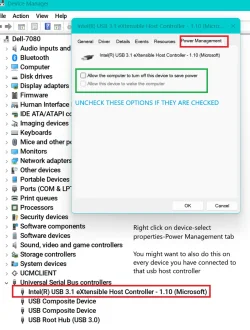
- Review the changes in Device Manager after running (Device Manager > right-click device > Properties > Power Management)
- Test wake functionality after making changes
Powershell:
# Run as administrator
$devices = Get-WmiObject MSPower_DeviceWakeEnable -Namespace root\wmi
$deviceDetails = Get-WmiObject MSPower_DeviceEnable -Namespace root\wmi
$deviceInstancePaths = Get-PnpDevice | Where-Object { $_.InstanceId -like "USB*" -or $_.InstanceId -like "HID*" }

# Get friendly names for devices
foreach ($device in $deviceInstancePaths) {
    $friendlyName = (Get-PnpDeviceProperty -InstanceId $device.InstanceId -KeyName 'DEVPKEY_Device_FriendlyName').Data
    $deviceClass = (Get-PnpDeviceProperty -InstanceId $device.InstanceId -KeyName 'DEVPKEY_Device_Class').Data

    # Skip if no friendly name
    if (-not $friendlyName) { continue }

    # Check if it's a keyboard or mouse (HID device)
    $isHID = $deviceClass -eq "HIDClass" -or $device.Class -eq "Mouse" -or $device.Class -eq "Keyboard"

    Write-Host "`nDevice: $friendlyName"
    Write-Host "Type: $($device.Class)"
    if ($isHID) {
        Write-Host "This is a HID device (keyboard/mouse) - Recommended to keep wake enabled" -ForegroundColor Yellow
    }

    $response = Read-Host "Do you want to allow this device to wake the computer? (Y/N)"

    if ($response.ToUpper() -eq 'Y') {
        try {
            $deviceInstance = Get-WmiObject MSPower_DeviceWakeEnable -Namespace root\wmi |
                Where-Object { $_.InstanceName -like "*$($device.InstanceId)*" }
            if ($deviceInstance) {
                $deviceInstance.Enable = $true
                $deviceInstance.Put()
                Write-Host "Wake enabled for $friendlyName" -ForegroundColor Green
            }
        }
        catch {
            Write-Host "Could not modify wake settings for $friendlyName" -ForegroundColor Red
        }
    }
    elseif ($response.ToUpper() -eq 'N') {
        try {
            $deviceInstance = Get-WmiObject MSPower_DeviceWakeEnable -Namespace root\wmi |
                Where-Object { $_.InstanceName -like "*$($device.InstanceId)*" }
            if ($deviceInstance) {
                $deviceInstance.Enable = $false
                $deviceInstance.Put()
                Write-Host "Wake disabled for $friendlyName" -ForegroundColor Green
            }
        }
        catch {
            Write-Host "Could not modify wake settings for $friendlyName" -ForegroundColor Red
        }
    }
}

Write-Host "`nDevice wake settings have been updated." -ForegroundColor Green