Time and Language Find Device Setup Country or Region Geographic Location (GeoID) in Windows 11

  • Thread starter Thread starter Brink
  • Start date Published: Start date Updated Updated:

Region_banner.webp

This tutorial will show you how to find out which country or region was selected during device setup (OOBE) for Windows 11.

The country or region home location in Windows, referred to as geographic location (GeoID), indicates the country or region you are in.

The device region is the country or region that was selected during Windows Setup.

Users can change the country or region used for their account instead of the device setup region, but the device setup region cannot be changed unless going through OOBE again.

Starting with Windows 11 build 26100.4484, the country or region selected during device setup now appears under Settings > Time & language > Language & region.


Contents

  • Option One: Find Device Setup Country or Region Geographic Location (GeoID) in Settings
  • Option Two: Find Device Setup Country or Region Geographic Location (GeoID) in Registry Editor
  • Option Three: Find Device Setup Country or Region Geographic Location (GeoID) in PowerShell


EXAMPLE: Selecting country or region during Windows Setup (OOBE)

Select_Country_or_Region_during_Windows_Setup.webp


Option One

Find Device Setup Country or Region Geographic Location (GeoID) in Settings


1 Open Settings (Win+I).

2 Click/tap on Time & language on the left side, and click/tap on Language & region on the right side. (see screenshot below)


Device_Setup_Region_Settings-1.webp

3 Under the Region section, you will see the Device setup region (ex: "United Kingdom"). (see screenshot below)

Device_Setup_Region_Settings-2.webp

4 You can now close Settings if you like.


Option Two

Find Device Setup Country or Region Geographic Location (GeoID) in Registry Editor


1 Open Registry Editor (regedit.exe).

2 Navigate to the key below in the left pane of Registry Editor. (see screenshot below step 3)

HKEY_LOCAL_MACHINE\SOFTWARE\Microsoft\Windows\CurrentVersion\Control Panel\DeviceRegion

3 In the right pane of the DeviceRegion key, look at the DeviceRegion DWORD decimal Data value (ex: "242"). (see screenshot below)

Device_Setup_Region_regedit.webp

4 Look up this decimal Data value (ex: "242") under the Geographical location identifier (decimal) column in the Microsoft table linked below to see which country or region (ex: "United Kingdom") it's for.


5 You can now close Registry Editor if you like.


Option Three

Find Device Setup Country or Region Geographic Location (GeoID) in PowerShell


1 Open Windows Terminal, and select Windows PowerShell.

2 Copy and paste the command below into Windows Terminal, and press Enter. (see screenshot below)

Get-ItemProperty -Path "HKLM:\SOFTWARE\Microsoft\Windows\CurrentVersion\Control Panel\DeviceRegion" | Select-Object DeviceRegion

Device_Setup_Region_command.webp

3 Look up the DeviceRegion output (ex: "242") under the Geographical location identifier (decimal) column in the Microsoft table linked below to see which country or region (ex: "United Kingdom") it's for.


4 You can now close Windows Terminal if you like.


That's it,
Shawn Brink


Last edited:
Option Three can be replaced by Get-WinHomeLocation:

Code:
PS C:\Users\GARLIN\Downloads> Get-WinHomeLocation

GeoId HomeLocation
----- ------------
  244 United States

PS C:\Users\GARLIN\Downloads> Get-WinHomeLocation | Select GeoId

GeoId
-----
  244
 

My Computer My Computer

At a glance

Windows 7
OS
Windows 7
Option Three can be replaced by Get-WinHomeLocation:

Code:
PS C:\Users\GARLIN\Downloads> Get-WinHomeLocation

GeoId HomeLocation
----- ------------
  244 United States

PS C:\Users\GARLIN\Downloads> Get-WinHomeLocation | Select GeoId

GeoId
-----
  244

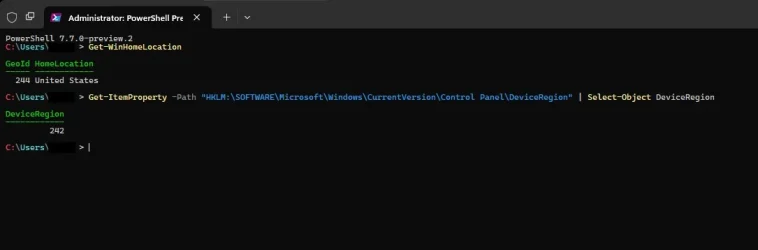
Nope, it's not the same:


Code:
Get-WinHomeLocation

GeoId HomeLocation
----- ------------
  244 United States

Get-ItemProperty -Path "HKLM:\SOFTWARE\Microsoft\Windows\CurrentVersion\Control Panel\DeviceRegion" | Select-Object DeviceRegion

DeviceRegion
------------
         242
 

Attachments

  • 1.webp
    1.webp
    14.7 KB · Views: 1

My Computer My Computer

At a glance

Win 11
OS
Win 11
Option Three can be replaced by Get-WinHomeLocation:

Thank you, but unfortunately that only shows the currently set Region which is not always the same as the device setup region.
 

My Computers My Computers

  • At a glance

    Windows 11 Pro for WorkstationsIntel i7-8700K 5 GHz64 GB (4x16GB) G.SKILL TridentZ RGB DDR4 3600...ASUS ROG-STRIX-GTX1080TI-O11G-GAMING (11GB GD...
    OS
    Windows 11 Pro for Workstations
    Computer type
    PC/Desktop
    Manufacturer/Model
    Custom self build
    CPU
    Intel i7-8700K 5 GHz
    Motherboard
    ASUS ROG Maximus XI Formula Z390
    Memory
    64 GB (4x16GB) G.SKILL TridentZ RGB DDR4 3600 MHz (F4-3600C18D-32GTZR)
    Graphics Card(s)
    ASUS ROG-STRIX-GTX1080TI-O11G-GAMING (11GB GDDR5X)
    Sound Card
    Integrated Digital Audio (S/PDIF)
    Monitor(s) Displays
    2 x Samsung Odyssey G75 27"
    Screen Resolution
    2560x1440
    Hard Drives
    1TB Samsung 990 PRO M.2,
    4TB Samsung 990 PRO M.2,
    TerraMaster F8 SSD Plus NAS
    PSU
    Seasonic Prime Titanium 850W
    Case
    Thermaltake Core P3 wall mounted
    Cooling
    Corsair Hydro H115i
    Keyboard
    Amazon Basics Wired Full Keyboard MD005
    Mouse
    Logitech MX Master 4
    Internet Speed
    2 Gbps Download and 100 Mbps Upload
    Browser
    Chrome and Edge
    Antivirus
    Microsoft Defender
    Other Info
    Logitech Z625 speaker system,
    Logitech BRIO 4K Pro webcam,
    HP Color LaserJet Pro MFP M477fdn,
    CyberPower CP1500PFCLCD
    Galaxy S23 Plus phone
  • At a glance

    Windows 11 ProSnapdragon X Elite (12 core) 3.42 GHz16 GB LPDDR5x-7467 MHz
    Operating System
    Windows 11 Pro
    Computer type
    Laptop
    Manufacturer/Model
    Surface Laptop 7 Copilot+ PC
    CPU
    Snapdragon X Elite (12 core) 3.42 GHz
    Memory
    16 GB LPDDR5x-7467 MHz
    Monitor(s) Displays
    15" HDR
    Screen Resolution
    2496 x 1664
    Hard Drives
    1 TB SSD
    Internet Speed
    Wi-Fi 7 and Bluetooth 5.4
    Browser
    Chrome and Edge
    Antivirus
    Microsoft Defender

Latest Support Threads

Back
Top Bottom