This tutorial will show you how to start vertical scrolling with a single-finder near the left or right side of the touchpad for your account in Windows 11.
Starting with Windows 11 build 26100.9550 (24H2), build 26200.9550 (25H2), and build 26300.9550 (26H2), Microsoft is adding new gesturing-related functionality to precision touchpads in Settings. The new features should be widely available across applications, with the exception that WinUI3-based UI requires new WinAppSDK versions for complete functionality - Microsoft is in the process of bringing the necessary changes to versions 1.8 and 2.0.
If your Windows 11 device (ex: laptop) has a built-in precision touchpad, you can disable or change single-finger scrolling. You can perform a vertical scroll with a single finger starting from the left or right side of the touchpad, or disable single-finger scrolling.
Contents
- Option One: Disable or Change Single-finger Scrolling Side on Touchpad in Settings
- Option Two: Disable or Change Single-finger Scrolling Side on Touchpad using REG file
1 Open Settings (Win+I).
2 Click/tap on Bluetooth & devices on the left side, and click/tap on Touchpad on the right side. (see screenshot below)
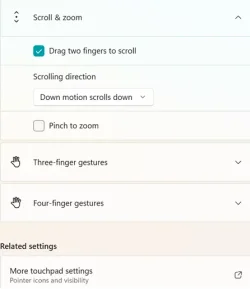
3 Under Gestures & interaction, click/tap on Scroll & zoom to expand it open. (see screenshot below step 4)
4 Select Disabled, Left Side, or Right Side (default) in the Single-finger scrolling drop menu for what you want. (see screenshot below)
5 You can now close Settings if you like.
1 Do step 2 (disable), step 3 (left side), or step 4 (right side) below for what you want.
2 Disable "Single-finger scrolling"
A) Click/tap on the Download button below to download the file below, and go to step 5 below.
Single-finger_scrolling_disabled_on_touchpad.reg
Download
(Contents of REG file for reference)
Code:
Windows Registry Editor Version 5.00

[HKEY_CURRENT_USER\Software\Microsoft\Windows\CurrentVersion\PrecisionTouchPad]
"SingleFingerPanningMode"=dword:00000000
3 "Single-finger scrolling" on Left Side
A) Click/tap on the Download button below to download the file below, and go to step 5 below.
Single-finger_scrolling_on_left_side_of_touchpad.reg
Download
(Contents of REG file for reference)
Code:
Windows Registry Editor Version 5.00

[HKEY_CURRENT_USER\Software\Microsoft\Windows\CurrentVersion\PrecisionTouchPad]
"SingleFingerPanningMode"=dword:00000001
4 "Single-finger scrolling" on Right Side
This is the default setting.
A) Click/tap on the Download button below to download the file below, and go to step 5 below.
Single-finger_scrolling_on_right_side_of_touchpad.reg
Download
(Contents of REG file for reference)
Code:
Windows Registry Editor Version 5.00

[HKEY_CURRENT_USER\Software\Microsoft\Windows\CurrentVersion\PrecisionTouchPad]
"SingleFingerPanningMode"=dword:00000002
5 Save the .reg file to your desktop.
6 If you have Smart App Control turned on, you will need to unblock the downloaded REG file.
7 Double click/tap on the downloaded .reg file to merge it.
8 When prompted, click/tap on Run, Yes (UAC), Yes, and OK to approve the merge.
9 Restart the computer to apply.
10 You can now delete the downloaded .reg file if you like.
That's it,
Shawn Brink
Related Tutorials
- Reset Touchpad Settings and Gestures to Default in Windows 11
- Turn On or Off Drag Two Fingers to Scroll on Touchpad in Windows 11
- Turn On or Off Automatic Scrolling at Edge on Touchpad in Windows 11
- Turn On or Off Automatic Scrolling with Pressure on Touchpad in Windows 11
- Turn On or Off Accelerated Scrolling on Touchpad in Windows 11
- Change Touchpad Scroll Speed in Windows 11
- Change Touchpad Scrolling Direction in Windows 11
- Turn On or Off Pinch to Zoom on Touchpad in Windows 11
- Change Touchpad Zoom Speed in Windows 11
Attachments
Last edited: