This tutorial will show you how to use the free TranslucentTB app to have a clear transparent taskbar for your account in Windows 10 and Windows 11.
TranslucentTB is a lightweight (uses a few MB of RAM and almost no CPU) utility that makes the Windows taskbar translucent/transparent on Windows 10 and Windows 11.
Features
- Advanced color picker supporting alpha and live preview to change the taskbar's color.
- Taskbar states (choose one - color can be customized on every state except Normal):
- Normal: Regular Windows style. (as if TranslucentTB was not running)
- Opaque: Tinted taskbar, without transparency.
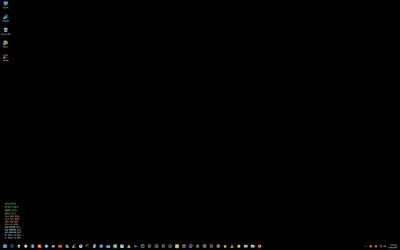
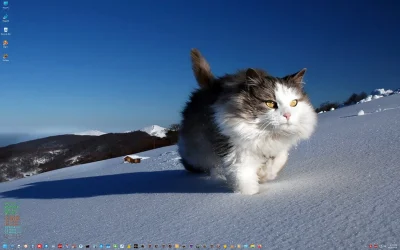
- Clear: Clear transparent taskbar.
- Blur: Will make the taskbar slightly blurred. Windows 10 and Windows 11 build 22000 only.
- Acrylic: Will give the taskbar an appearance similar to Microsoft's Fluent Design guidelines.
- Dynamic modes (these can be used together and each of them provides a taskbar state and color you can customize):
- Visible window: Will change the taskbar to a different appearance if a window is currently open on the desktop.
- Maximized window: Will change the taskbar to a different appearance if a window is currently maximized.
- Start opened: Will change the taskbar appearance when the start menu is opened.
- Search opened: Will change the taskbar appearance when the search menu (previously Cortana) is open.
- Task View opened: Will change the taskbar appearance when the Task View (previously Timeline) is open.
- On Windows 10, ability to show or hide the Aero Peek button depending on the currently active dynamic mode.
- On Windows 11, ability to show or hide the taskbar line depending on the currently active dynamic mode.
- Compatible with RoundedTB!
- Compatible with ExplorerPatcher!
EXAMPLE: Clear transparent taskbar
Here's How:
1 Download and install the free TranslucentTB app from the Microsoft Store or Github.
2 Open the TranslucentTB app if not already.
3 Click/tap on Continue the first time you run the TranslucentTB app. (see screenshot below)
4 The taskbar will be clear by default, but you can click/tap on the TranslucentTB icon in the taskbar notification area, click/tap on Desktop, and select an option to customize the taskbar. (see screenshot below)
You can click/tap on Exit in the menu to close and exit the TranslucentTB app.
That's it,
Shawn Brink
Related Tutorials
- Enable or Disable Transparency Effects in Windows 11
- Enable or Disable Automatically Hide Taskbar in Windows 11
- Change Taskbar Position on Screen in Windows 11
- Change Taskbar Icon Alignment in Windows 11
- Change Taskbar Size in Windows 11
- Change Size of Taskbar Icons in Windows 11
- Enable or Disable Show Taskbar on All Displays in Windows 11
- Change Which Taskbar to Show Apps on for Multiple Displays in Windows 11
Attachments
Last edited:






 Clean Windows install or not, this seems to happen a lot when I go from full screen to minimize.