Excel Blog:
Project trackers, surveys, inventory lists, and customer databases often contain related information that belongs together: multiple owners, tags, locations, or responses.
For years, organizing that information in Excel meant spreading it across additional rows and columns or combining everything into text that was difficult to work with.
Available today in Insiders Beta, lists, arrays in cells, and nested arrays introduce new ways to store and organize related information, helping you keep data together without sacrificing filtering, calculations, or analysis.
Let's explore these new functionalities in the context of a project tracker.
Start with lists
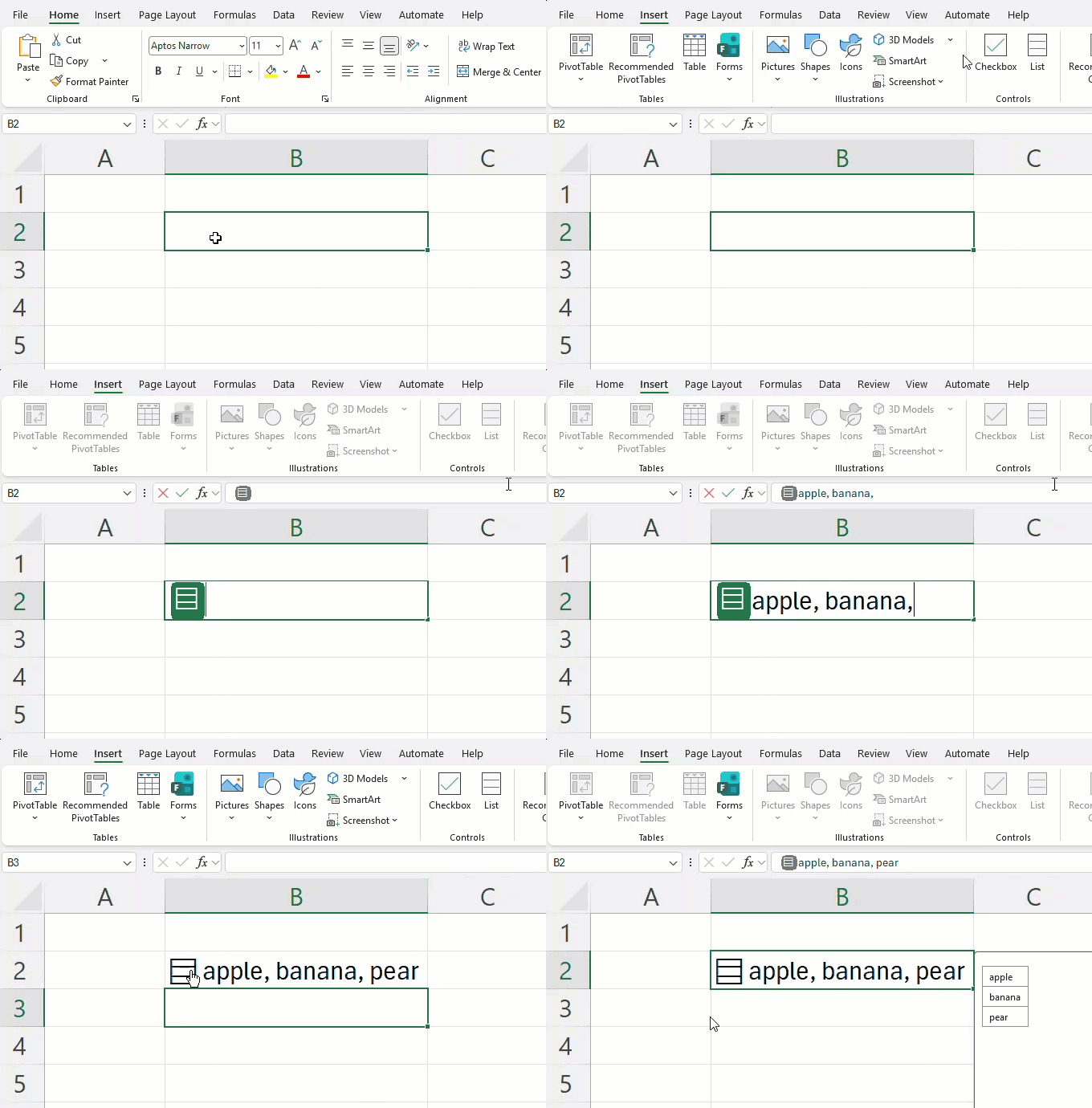
You can create a list with Insert > List or Ctrl+J, then type or paste items separated by commas or semicolons, depending on your regional settings. Selecting the icon in the cell shows the individual values.
Each project may have multiple owners, workstreams, and milestones. Traditionally, you'd need separate columns, helper tables, or text like "Carlos, Henrietta, Jacob" packed into a single cell.
With lists, you can keep those values together in one cell while still working with each item individually. Project owners stay connected to the project they belong to, while remaining available for filtering, calculations, and analysis.
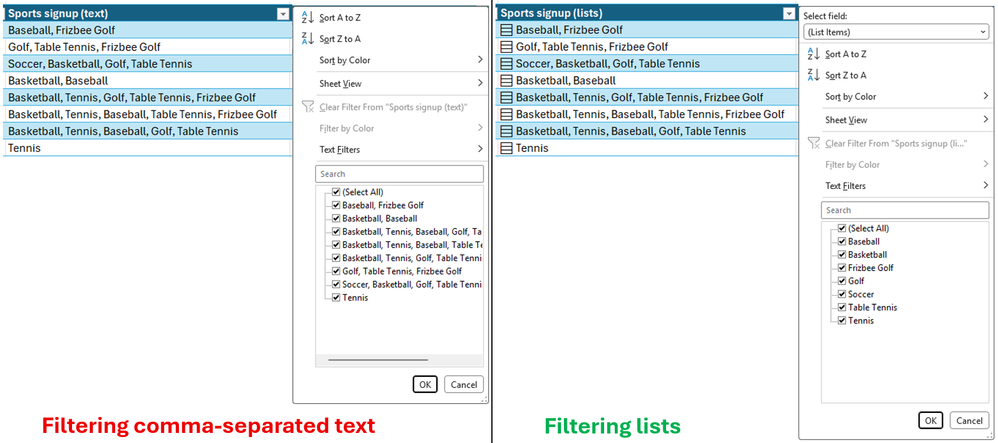
On the left, comma-separated text only allows filtering by whole text entries. On the right, lists allows for filtering by individual list items.
Take calculations further with arrays in cells

Keep the result of any spilling formula in a single cell by 'wrapping' the formula body with braces { }.
Keeping project owners together is just the beginning.
Projects often contain other groups of related information, such as milestone dates, deployment locations, or open risks. Often, that information is generated by formulas rather than entered manually.
Traditionally, formulas that returned multiple results would spill those results across multiple cells. With arrays in cells, those results can remain together in a single cell while still being available for calculations and analysis.
Handle more complex data with nested arrays

In the example above, you can see how TEXTSPLIT behaves with and without nested arrays. Without nested arrays, Excel only returns the first item for each row. With nested arrays, the result spills, one array per row.
Sometimes the information associated with a project has structure of its own.
For example, a website launch may include separate design, development, and testing workstreams, each with its own set of milestones. Nested arrays help preserve those relationships, keeping milestone groups tied to the workstream they belong to rather than combining everything into a single list.
This creates a more natural way to organize and work with complex information in Excel.
New functions for working with arrays
We've also added new functions designed to help you search, validate, and reorganize this data.- Need a simple list of all milestones across every workstream? Use FLATTEN to consolidate nested results.
- Want to find projects owned by a specific person? Use HAS.
- Need to identify projects that involve any member of a leadership team? Use HASANY.
- Want to find projects that include every required stakeholder before launch? Use HASALL.
Build more flexible spreadsheets
Together, these capabilities expand the kinds of information Excel can represent and work with, making it easier to model real-world data while keeping related information organized. Whether you're managing projects, analyzing survey responses, tracking certifications, or organizing product data, you can keep related information together without giving up the flexibility to filter, calculate, and analyze it.For more in-depth information about lists, arrays in cells, nested arrays, and the new functions, learn more here: Put multiple values in one cell with lists and arrays in Excel | Microsoft Community Hub
Learn more about joining Insiders Beta to get access to these tools today here >
Known limitations
As this feature rolls out to Beta Channel, the following limitations apply:- Conditional formatting doesn't inspect array contents unless you use a formula
- Data validation can't use a list or array as dropdown items
- Charts don't expand an array into data points
- PivotTables don't read array values as source data
- Power Query doesn't load or emit array-valued columns
- Find & Replace can't replace list/array items
Availability
These improvements are rolling out to Beta Channel users running:- Windows: Version 2610 (Build 20520.20000) or later
- Mac: Version 16.114 (Build 26092111) or later
Source:
Excel now supports multiple values in a single cell | Microsoft Community Hub
Lists, arrays in cells, and nested arrays introduce new ways to store and organize related information, helping you keep data together without sacrificing...
 techcommunity.microsoft.com
Put multiple values in one cell with lists and arrays in Excel | Microsoft Community Hub
Throughout Excel's 40-year history, you've only been able to put one value per cell. In this announcement, we're excited to share how that's changing with...
techcommunity.microsoft.com