File Explorer Search Not Working And Drive Isn't Showing Up in Index Locations


edoWin11Forums

Well-known member
Local time
4:50 AM
Posts
23
OS
Windows 11
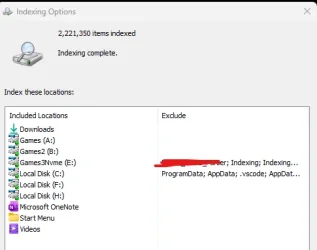
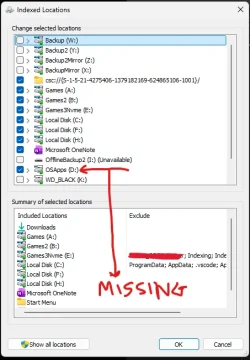
Hi all, I am trying to index my computer, I have multiple SSDs I was indexing. So far all of them seem to be index and it seems explorer search is working on these drives. However my D drive despite being selected to be index is not showing up in the Index locations. And File Explorer search is not working on the drive either.

It should be noted that my index location is on my D drive. The same drive that is not showing up on the indexed locations. The same drive where file explorer search is not working. My C D and H "drives" are all part of the same 4TB 990 Pro SSD. I partitioned it to have two dual boot windows and of course bigger applications storage and games. Could this be why the D indexing isn't working?

It also seems the D drive keeps asking me permissions to copy stuff and move stuff in my D's Program Files folder where I install apps even though I am the only user on the computer and the sole administrator. Why?
ExcludedINincludedIndexLocations.webp includedIndexLocations.webp
 
Windows Build/Version
Windows 11 25H2

My Computer

System One

  • OS
    Windows 11
    Computer type
    PC/Desktop
    Manufacturer/Model
    Gigabyte x870e Aorus Elite Wifi 7 Ice
    CPU
    AMD Ryzen 9 9950X3D
    Motherboard
    Gigabyte x870e Aorus Elite Wifi 7 Ice
    Memory
    Crucial Pro Overclocking 32GB CL36 6000MHz
    Graphics Card(s)
    Asus TUF RTX 4090
    Screen Resolution
    3840x2160
    Hard Drives
    Samsung 990 Pro 4 TB, SK Hynix Gold P31 1TB, Samsung 870 QVO 2TB, ADATA SU800 1TB, 2 x Seagate Exos X24 24GB, 2x Ultrastar DC HC530 14TB
Sorry no one has answered your question. I didn't know the answer so I asked co-pilot. The given answer about the problem makes sense. Below is the answer. While viewing this thread, you can ask co-pilot the same question worded exactly like mine, and you will get the same answer. You will then be able to finish the chat. The answers you give will get further assistance from co-pilot. Hope you can use it to work through your problem. Either way, I have bumped your thread so others will notice it.

My question to co-pilot WAS THE EXACT TITLE OF YOUR POST: File Explorer Search Not Working And Drive Isn't Showing Up in Index Locations

Your File Explorer search and indexing issue lines up with a very specific Windows 11 behavior: a drive cannot be indexed properly if the index itself is stored on that same drive and the drive’s permissions or mount configuration are even slightly off. The page you’re viewing describes exactly that scenario — the user’s D: drive is both the index location and the drive that refuses to appear in “Index Locations” and won’t return search results.

Let’s break down what’s going on and how to fix it cleanly.

Co-Pilot's answer:

Why your D: drive isn’t showing up in Index Locations

Three conditions commonly cause this:

1)​

When the index database lives on a drive, Windows applies special permissions to that drive’s root and ProgramData folder. If those permissions don’t propagate correctly, Windows Search treats the drive as not indexable.

This matches the symptoms:

  • Drive selected for indexing
  • Drive not appearing in the list
  • Search on that drive returns nothing
  • Drive repeatedly asks for admin permission to copy/move files (permission inheritance broken)

2)​

You mentioned C:, D:, and H: are all partitions of the same 4TB 990 Pro SSD.When multiple Windows installations exist on the same physical disk, each OS may apply different ACLs (permissions) to the shared partitions. That can break indexing on one or more partitions.

3)​

If you install apps to D:\Program Files, Windows may lock that folder with “TrustedInstaller” ownership. If the root of D: inherits those permissions incorrectly, the entire drive becomes partially restricted — enough to break indexing.


What to fix first (in order of impact)​

1)​

This is the most reliable fix.

  1. Open Settings → Privacy & Security → Searching Windows
  2. Scroll to Advanced indexing options
  3. In the Indexing Options window, select Advanced
  4. Under Index Location, choose Select new
  5. Move it to:
    • C:\ProgramData\Microsoft\Search (recommended)
    • or any other always‑online NTFS partition
After moving the index:

  • Restart Windows Search service
  • Reboot
  • Re-open Indexing Options → Modify
  • D: should now appear normally

2)​

If D: keeps asking for admin permission, inheritance is broken.

Fix:

  1. Right‑click D: → Properties → Security → Advanced
  2. Ensure:
    • Owner = SYSTEM or Administrators
    • Enable inheritance is ON
  3. Apply to This folder, subfolders, and files
If Windows warns about replacing permissions, accept it — this is required for indexing.

3)​

After the above:

  1. Settings → Searching Windows → Advanced indexing options
  2. Advanced → Rebuild
This forces Windows to re-scan the drive with corrected permissions.


Additional factors to consider​

Multiple Windows installations​

If you dual‑boot, the other Windows installation may be modifying permissions on shared partitions.If so, you may need to:

  • Disable indexing on the other OS
  • Ensure both OSes use the same index location (not recommended)
  • Or keep the shared partitions as data-only, not app-install partitions

Program Files on D:​

Installing apps to D:\Program Files is fine, but Windows treats that folder as system‑protected.If you want fewer permission prompts, create a folder like:

D:\Apps

and install non-system software there.


Quick test to confirm the root cause​

Before doing anything major, check this:

  1. Open Indexing Options → Advanced
  2. Look at the Current index location
  3. If it shows D:\…, that is almost certainly the cause.

If you want, tell me:

  • Whether your index is currently stored on D:
  • Whether D: shows “Enable inheritance: Off”
  • Whether you dual‑boot two Windows installations on that SSD
I can give you the exact steps tailored to your setup.
HERE IS WHERE YOU HAVE TO ANSWER CO-PILOT'S QUESTION
 

My Computers

System One System Two

  • OS
    Windows 11 Pro 25H2
    Computer type
    PC/Desktop
    Manufacturer/Model
    Dell Optiplex 7080
    CPU
    i9-10900 10 core 20 threads
    Motherboard
    DELL 0J37VM
    Memory
    32 gb
    Graphics Card(s)
    none-Intel UHD Graphics 630
    Sound Card
    Integrated Realtek
    Monitor(s) Displays
    Benq 27
    Screen Resolution
    2560x1440
    Hard Drives
    2x1tb Solidigm m.2 nvme /External drives 512gb Samsung m.2 sata+2tb Kingston m2.nvme
    PSU
    500w
    Case
    MT
    Cooling
    Dell Premium
    Keyboard
    Logitech wired
    Mouse
    Logitech wireless
    Internet Speed
    so slow I'm too embarrassed to tell
    Browser
    #1 Edge #2 Firefox
    Antivirus
    Defender+MWB Premium
  • Operating System
    Windows 11 Pro 24H2 26200.8457
    Computer type
    PC/Desktop
    Manufacturer/Model
    Beelink Mini PC SER5
    CPU
    AMD Ryzen 7 6800U
    Memory
    32 gb
    Graphics card(s)
    integrated
    Sound Card
    integrated
    Monitor(s) Displays
    Benq 27
    Screen Resolution
    2560x1440
    Hard Drives
    1TB Crucial nvme
    Keyboard
    Logitech wired
    Mouse
    Logitech wireless
    Internet Speed
    still too embarrassed to tell
    Browser
    Firefox
    Antivirus
    Defender
    Other Info
    System 3 is non compliant Dell 9020 i7-4770/24gb ram Win11 PRO 26200.8457

Similar threads

Back
Top Bottom