Solved File explorer this pc all of a sudden looks weird


GerryPeters

Well-known member
Member
Local time
2:27 AM
Posts
169
OS
WIN 11 PRO
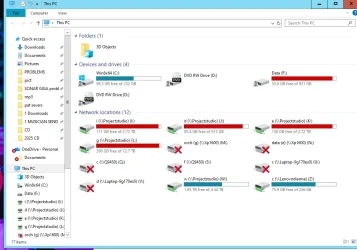
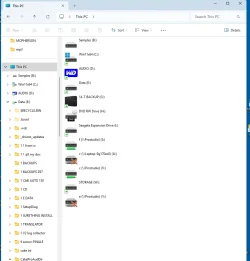
I'm not sure how it happened, but I'd like to change This PC in file explorer back to the default way it looked. I'm showing This PC on my Win 10, since Win 11 used to look just like it. I want to see the HD's, size, free space, etc
 
Windows Build/Version
11

Attachments

  • WIN 10 THIS PC.webp
    WIN 10 THIS PC.webp
    62.1 KB · Views: 5
  • WIN 11 THIS PC.webp
    WIN 11 THIS PC.webp
    40.6 KB · Views: 4

My Computers

System One System Two

  • OS
    WIN 11 PRO
    Computer type
    PC/Desktop
    Manufacturer/Model
    Custom built - WIN 11 PRO 64-bit ,
    CPU
    Intel(R) Core(TM) i5-14400 2.50 Ghz,
    Motherboard
    ACER Z790 motherboard
    Memory
    32 Gigs
    Hard Drives
    256 gig M2 SSD boot HD, 3 internal HD's, 2 USB
  • Operating System
    Win 10 PRO
    Computer type
    PC/Desktop
    Manufacturer/Model
    CUSTOM
    CPU
    Haswell CPU 4790k @ 4.4GHz,
    Motherboard
    AsRock Z97 motherboard,
    Memory
    16 Gigs
    Hard Drives
    OS drive 250GB SSD,

The Windows 10 one looks like it's in the Tiles view, while the 11 one looks like Medium Icons. Hit the View menu right below the address bar, and pick Tiles.
 

My Computer

System One

  • OS
    Windows 11 Pro 25H2
    Computer type
    PC/Desktop
    Manufacturer/Model
    Intel NUC12WSHi7
    CPU
    12th Gen Core i7-1260P
    Motherboard
    NUC12WSBi7
    Memory
    64 GB Micron PC4-25600
    Graphics Card(s)
    Intel Iris Xe Graphics
    Sound Card
    on-board Realtek HD Audio
    Monitor(s) Displays
    Dell U3219Q
    Screen Resolution
    3840 x 2160
    Hard Drives
    Samsung SSD 990 PRO 1TB
    Crucial MX500 2 TB
    Antivirus
    Microsoft Defender
The Windows 10 one looks like it's in the Tiles view, while the 11 one looks like Medium Icons. Hit the View menu right below the address bar, and pick Tiles.
all the tiles did was make the icons in a vertical line. each HD on top of the other
 

My Computers

System One System Two

  • OS
    WIN 11 PRO
    Computer type
    PC/Desktop
    Manufacturer/Model
    Custom built - WIN 11 PRO 64-bit ,
    CPU
    Intel(R) Core(TM) i5-14400 2.50 Ghz,
    Motherboard
    ACER Z790 motherboard
    Memory
    32 Gigs
    Hard Drives
    256 gig M2 SSD boot HD, 3 internal HD's, 2 USB
  • Operating System
    Win 10 PRO
    Computer type
    PC/Desktop
    Manufacturer/Model
    CUSTOM
    CPU
    Haswell CPU 4790k @ 4.4GHz,
    Motherboard
    AsRock Z97 motherboard,
    Memory
    16 Gigs
    Hard Drives
    OS drive 250GB SSD,
all the tiles did was make the icons in a vertical line. each HD on top of the other

sounds like disabled the indicator bars. use that to restore them. but @pseymour is correct. it has to be in details or tiles view to see the indicator bars.

if you are referring to the user folders missing above the drives:
 

My Computer

System One

  • OS
    Windows 11 Pro
I'm not familiar with the term indicator bars. Here's my WIN 11 Titles view that I just changed to. Where are the indicator bars? I'm pretty sure my WIN 11 This PC in file explorer looked like Win 10
Folders
3D objects
Devices and Drives
Network Locations
 

Attachments

  • win 11 TILES.webp
    win 11 TILES.webp
    41.5 KB · Views: 2

My Computers

System One System Two

  • OS
    WIN 11 PRO
    Computer type
    PC/Desktop
    Manufacturer/Model
    Custom built - WIN 11 PRO 64-bit ,
    CPU
    Intel(R) Core(TM) i5-14400 2.50 Ghz,
    Motherboard
    ACER Z790 motherboard
    Memory
    32 Gigs
    Hard Drives
    256 gig M2 SSD boot HD, 3 internal HD's, 2 USB
  • Operating System
    Win 10 PRO
    Computer type
    PC/Desktop
    Manufacturer/Model
    CUSTOM
    CPU
    Haswell CPU 4790k @ 4.4GHz,
    Motherboard
    AsRock Z97 motherboard,
    Memory
    16 Gigs
    Hard Drives
    OS drive 250GB SSD,
Seems you don't have any grouping option selected. Sort | Group By | Type, I think is the default.
 

My Computer

System One

  • OS
    Windows 11 Pro 25H2
    Computer type
    PC/Desktop
    Manufacturer/Model
    Intel NUC12WSHi7
    CPU
    12th Gen Core i7-1260P
    Motherboard
    NUC12WSBi7
    Memory
    64 GB Micron PC4-25600
    Graphics Card(s)
    Intel Iris Xe Graphics
    Sound Card
    on-board Realtek HD Audio
    Monitor(s) Displays
    Dell U3219Q
    Screen Resolution
    3840 x 2160
    Hard Drives
    Samsung SSD 990 PRO 1TB
    Crucial MX500 2 TB
    Antivirus
    Microsoft Defender
Yes Sort | Group By | Type, helps. Now I do see the groups, but still don't see the HD icons, free space, etc like my WIN 10 view. I'm not even sure how this changed. It wasn't something I did on purpose
 

My Computers

System One System Two

  • OS
    WIN 11 PRO
    Computer type
    PC/Desktop
    Manufacturer/Model
    Custom built - WIN 11 PRO 64-bit ,
    CPU
    Intel(R) Core(TM) i5-14400 2.50 Ghz,
    Motherboard
    ACER Z790 motherboard
    Memory
    32 Gigs
    Hard Drives
    256 gig M2 SSD boot HD, 3 internal HD's, 2 USB
  • Operating System
    Win 10 PRO
    Computer type
    PC/Desktop
    Manufacturer/Model
    CUSTOM
    CPU
    Haswell CPU 4790k @ 4.4GHz,
    Motherboard
    AsRock Z97 motherboard,
    Memory
    16 Gigs
    Hard Drives
    OS drive 250GB SSD,
I’m finally back in town and I just tried the Dacrone link with Brink

Add or Remove Drive Space Indicator Bar in Windows 11​

I downloaded the Reg file, but also this Setup.exe and ran it. It was for this App named Fast. I then ran the Reg file and even with Tiles or Content it didn't' change anything. I rebooted and tried again - same thing. I uninstalled the Fast App and the App store that got installed. I then ran the Reg file again - same. Then I ran the remove Reg file - same. Then I again ran the Reg fie, same result.

Thanks everyone for trying. Any ideas?


My Computers

System One System Two

  • OS
    WIN 11 PRO
    Computer type
    PC/Desktop
    Manufacturer/Model
    Custom built - WIN 11 PRO 64-bit ,
    CPU
    Intel(R) Core(TM) i5-14400 2.50 Ghz,
    Motherboard
    ACER Z790 motherboard
    Memory
    32 Gigs
    Hard Drives
    256 gig M2 SSD boot HD, 3 internal HD's, 2 USB
  • Operating System
    Win 10 PRO
    Computer type
    PC/Desktop
    Manufacturer/Model
    CUSTOM
    CPU
    Haswell CPU 4790k @ 4.4GHz,
    Motherboard
    AsRock Z97 motherboard,
    Memory
    16 Gigs
    Hard Drives
    OS drive 250GB SSD,
You might want to try this:


The folder no longer automatically appears in Windows 11, but you can add them back
 

My Computers

System One System Two

  • OS
    Windows 11 25H2
    Computer type
    PC/Desktop
    Manufacturer/Model
    Custom Built
    CPU
    Intel i9 14900KF
    Motherboard
    ASUS Z790 ProArt Creator WiFi
    Memory
    64GB Corsair Vengeance RGB
    Graphics Card(s)
    MSI 4090 Suprim X
    Sound Card
    Onboard
    Monitor(s) Displays
    1 x Asus 24". 1 x Asus 32"
    Screen Resolution
    1920 x 1080 & 2560 x 1440
    Hard Drives
    Multiple
    PSU
    Corsair 1200HX
    Case
    Corsair 7000D RGB
    Cooling
    Corsair H150I Capellix XT
    Keyboard
    Corsair K70 RGB PRO
    Mouse
    Corsair M55 RGB Pro
    Internet Speed
    1000Mbps
    Browser
    Edge
    Antivirus
    Windows Default
  • Operating System
    Windows 11 25H2
    Computer type
    PC/Desktop
    Manufacturer/Model
    Custom Built
    CPU
    Intel i7 6800K
    Motherboard
    ASUS Z99 Deluxe
    Memory
    32GB DDR4 (Corsair)
    Graphics card(s)
    ASUS GTX 1080ti
    Sound Card
    Onboard
    Monitor(s) Displays
    1x Viewsonic 24" 1x LG 19"
    Screen Resolution
    1920 x 1080 & 1600 x 900
    Hard Drives
    3 x SATA SSD
    PSU
    650W Gigabyte Bronze
    Case
    Coolermaster HAF-X
    Cooling
    Noctua NH-15 Chroma black
    Keyboard
    Generic RGB
    Mouse
    Microsoft Basic
    Internet Speed
    1000Mbps
    Browser
    Edge
    Antivirus
    Windows Default
Well, I'm sure if you use WinSetView to set your folder view preferences, your "This PC" view will return to normal. If you like Microsoft's defaults, you can select "Reset Views to Windows Defaults" and then click "Submit". Be sure to click "Help" and follow the "How to Use" steps.
 

My Computer

System One

  • OS
    Windows 10/11
    Computer type
    Laptop
    Manufacturer/Model
    Acer
WinSetView did it - thanks
 

My Computers

System One System Two

  • OS
    WIN 11 PRO
    Computer type
    PC/Desktop
    Manufacturer/Model
    Custom built - WIN 11 PRO 64-bit ,
    CPU
    Intel(R) Core(TM) i5-14400 2.50 Ghz,
    Motherboard
    ACER Z790 motherboard
    Memory
    32 Gigs
    Hard Drives
    256 gig M2 SSD boot HD, 3 internal HD's, 2 USB
  • Operating System
    Win 10 PRO
    Computer type
    PC/Desktop
    Manufacturer/Model
    CUSTOM
    CPU
    Haswell CPU 4790k @ 4.4GHz,
    Motherboard
    AsRock Z97 motherboard,
    Memory
    16 Gigs
    Hard Drives
    OS drive 250GB SSD,

Latest Support Threads

Back
Top Bottom