Insider Full screen experience expands to more Windows 11 PC form factors for Windows Insiders


 Windows Insider Blog:

Hello Windows Insiders! We appreciate the excitement around the latest Windows handhelds and have heard feedback (and seen the creativity!) from those wanting this experience on more devices. Today, we’re excited to begin previewing a new experience for gaming on Windows 11 PCs.

Alongside today’s general availability of full screen experience on more Windows handhelds currently in market, today’s Windows Insider Preview Build 26220.7271 offered to the Dev and Beta Channels expands the Xbox full screen experience such as laptops, desktops, and tablets.

Windows has long been the foundation for innovation with its open platform—one that has defined PC gaming. In partnership with Xbox, we’re creating experiences designed for when, where, and how, people play. Full and adds another way to enjoy games on your PC, delivering an immersive experience for players who want a console-like feel—while keeping the flexibility and choice that PC players value.

Designed with console-style navigation in mind, the Xbox full screen experience offers a clean, distraction-free interface for controller-first gaming. When it’s time to take a break from , grab your controller and dive into the immersive, simplified Xbox full screen experience on your PC. When you’re done gaming, switch back to your desktop and pick up right where you left off.

We’ve tailored the full screen experience for PCs to make switching in and out of the desktop as streamlined as possible. Xbox full screen experience, hover over the Task View icon on your taskbar and choose Xbox full screen experience. You can also open Task View by pressing Win + Tab.
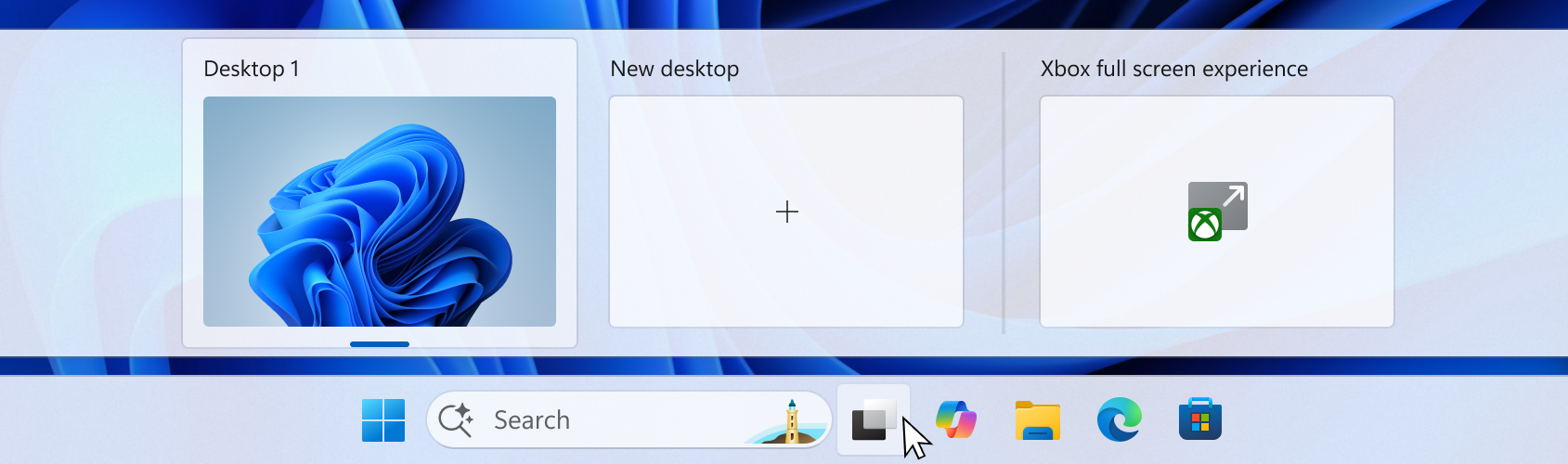
UI of the task view interface showing the option to access Xbox full screen experience.

You can also open Xbox full screen experience in Game Bar > Settings or by pressing Win + F11 to toggle the experience. These entry points can be managed in Windows Settings under Gaming > Full screen experience, where you can turn off the experience entirely if you prefer.

Once you’ve entered the Xbox full screen experience, you’ll see the Xbox home screen and can access your games, including Xbox, Game Pass, Xbox Play Anywhere, and your installed games from other popular storefronts.
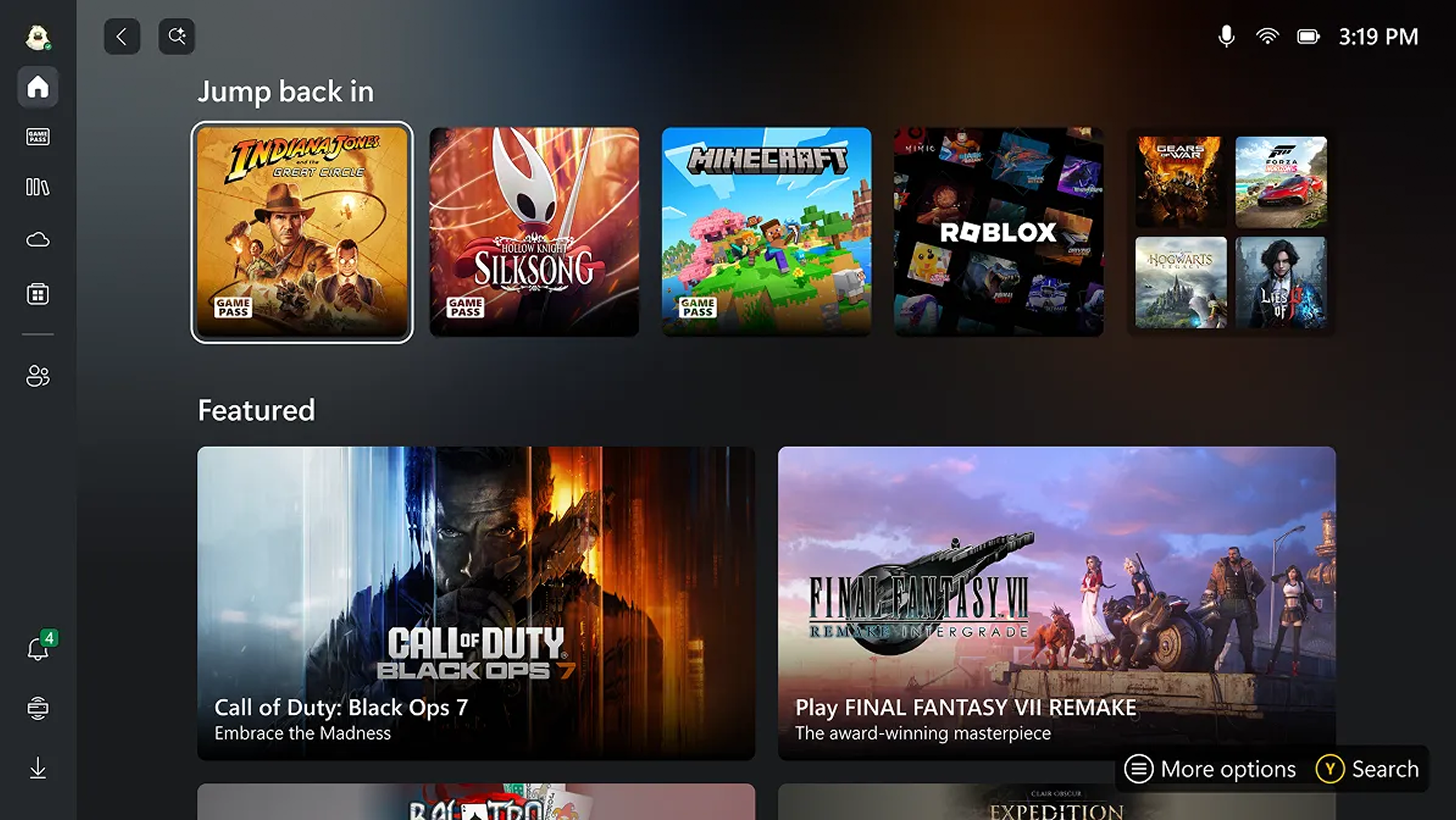
UI of the Xbox full screen experience home screen.

It’s easy to switch between your open apps and games with just a long press on the Xbox button on your controller or on your keyboard.
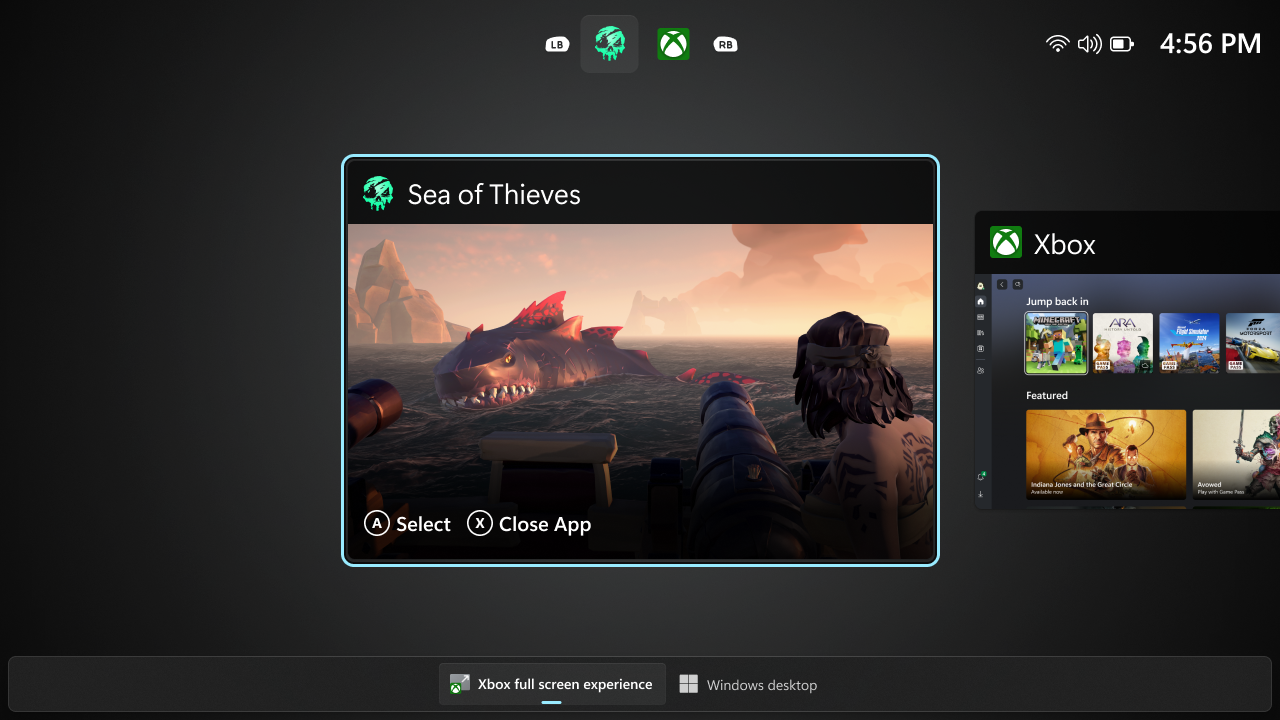
UI showing the Task View in Xbox full screen experience on PC.

Some keyboard shortcuts, like those that show desktop or search, intentionally behave differently in Xbox full screen experience than they do on the standard desktop to keep the experience focused on gaming. When you’re ready to switch back to your desktop, you can either choose the Windows desktop option from Task View, exit from Game Bar settings, , or simply hit the Windows key on your keyboard—no reboot required.

Availability:

Starting today, the Xbox full screen experience is gradually rolling out with the Windows Insider Preview Build (26220.7271) to the Dev and Beta channels. This feature requires the Xbox app from the Microsoft Store.

The rollout is phased, so not all Insiders will receive the update right away. To be among the first to try these new features on your Windows 11 PC, join the Xbox Insiders Program and opt into the PC Gaming preview through the Xbox Insiders Hub. We’ll continue adding new Xbox Insiders to the rollout over time.

We are committed to delivering a seamless experience and look forward to hearing thoughts and suggestions from the Windows and Xbox Insider communities.

FEEDBACK: Share your thoughts in Feedback Hub (WIN + F) under Gaming and Xbox > Gaming Full Screen Experience.

Thanks,
Ian LeGrow, CVP, Windows + Devices


 Source:

 
Last edited:

 Xbox Wire:

Today the full screen experience (FSE) is generally available on Windows 11 handhelds currently in market, bringing performance optimizations and the ability to boot directly into Xbox for a smoother, more seamless way to play. Designed to minimize friction and get players into their games faster, this update helps deliver a console-like experience on handheld devices. For more information on how to set up, check out the full screen experience support page.

In addition to handhelds, the Xbox full screen experience is now available in preview for more Windows 11 PC form factors, such as laptops, desktops, and tablets, tailored for the PC experience.

The Xbox full screen experience introduces a controller-navigable UI that brings an immersive, console-like experience to Windows 11 PC form factors. Designed for controller-first navigation, it provides a gaming-first, full-screen environment where players can easily browse and launch titles from across their game libraries- including most popular PC storefronts. A powerful Task Switcher enables quick movement between games and apps, delivering a seamless experience.

How to Get Access to the PC Preview: Join Xbox Insider and Windows Insider Program

  1. Join the Xbox Insider Program if you haven’t already: Xbox Insider Home | Xbox Support
    • Install/Launch the Xbox Insider Hub app
    • Navigate to Previews > PC Gaming Preview
    • Select Join
  2. Join the Windows Insider Program Join the Windows Insider Program and manage Insider settings – Microsoft Support
    • Join Beta or Dev channels

Once you’ve joined – how to enter FSE:

For more information about the Xbox full screen experience, including details about how to be among the first to try it out, visit Extending Xbox full screen experience to Windows 11 PC form factors.

How to Provide Feedback

Share your thoughts in Feedback Hub, accessible via keyboard shortcut (WIN + F) or via the Xbox PC App (by selecting “Report a Problem”). Be sure to submit your Feedback under Gaming and Xbox > Gaming Full Screen Experience.

How to Get Xbox Insider Support and Share Your Feedback

We want to thank all the Xbox Insiders for the feedback you share with us. If you’re an Xbox Insider looking for support, please join our community on the Xbox Insider subreddit, where official Xbox staff, moderators, and fellow Xbox Insiders are there to help. We recommend adding to threads with the same topic before posting a brand new one. This helps us support you the best we can! We’re grateful to our Insider community for the helpful feedback you provide, it continues to shape the future of Xbox.


 Source:

 
Last edited:

My Computers

System One System Two

  • OS
    Windows 11 Pro for Workstations
    Computer type
    PC/Desktop
    Manufacturer/Model
    Custom self build
    CPU
    Intel i7-8700K 5 GHz
    Motherboard
    ASUS ROG Maximus XI Formula Z390
    Memory
    64 GB (4x16GB) G.SKILL TridentZ RGB DDR4 3600 MHz (F4-3600C18D-32GTZR)
    Graphics Card(s)
    ASUS ROG-STRIX-GTX1080TI-O11G-GAMING (11GB GDDR5X)
    Sound Card
    Integrated Digital Audio (S/PDIF)
    Monitor(s) Displays
    2 x Samsung Odyssey G75 27"
    Screen Resolution
    2560x1440
    Hard Drives
    1TB Samsung 990 PRO M.2,
    4TB Samsung 990 PRO M.2,
    TerraMaster F8 SSD Plus NAS
    PSU
    Seasonic Prime Titanium 850W
    Case
    Thermaltake Core P3 wall mounted
    Cooling
    Corsair Hydro H115i
    Keyboard
    Amazon Basics Wired Full Keyboard MD005
    Mouse
    Logitech MX Master 4
    Internet Speed
    2 Gbps Download and 100 Mbps Upload
    Browser
    Chrome and Edge
    Antivirus
    Microsoft Defender
    Other Info
    Logitech Z625 speaker system,
    Logitech BRIO 4K Pro webcam,
    HP Color LaserJet Pro MFP M477fdn,
    CyberPower CP1500PFCLCD
    Galaxy S23 Plus phone
  • Operating System
    Windows 11 Pro
    Computer type
    Laptop
    Manufacturer/Model
    Surface Laptop 7 Copilot+ PC
    CPU
    Snapdragon X Elite (12 core) 3.42 GHz
    Memory
    16 GB LPDDR5x-7467 MHz
    Monitor(s) Displays
    15" HDR
    Screen Resolution
    2496 x 1664
    Hard Drives
    1 TB SSD
    Internet Speed
    Wi-Fi 7 and Bluetooth 5.4
    Browser
    Chrome and Edge
    Antivirus
    Microsoft Defender
If you have a Windows 11 gaming handheld, you can try out the Xbox full screen experience, now available for a smoother, more seamless way to play. Designed to minimize friction and get players into their games faster, this update helps deliver a console-like experience on handheld devices.

That experience is also now available in preview for more Windows 11 PC form factors, such as laptops, desktops and tablets, tailored for the PC experience.

Find out more on Xbox Wire.


My Computers

System One System Two

  • OS
    Windows 11 Pro for Workstations
    Computer type
    PC/Desktop
    Manufacturer/Model
    Custom self build
    CPU
    Intel i7-8700K 5 GHz
    Motherboard
    ASUS ROG Maximus XI Formula Z390
    Memory
    64 GB (4x16GB) G.SKILL TridentZ RGB DDR4 3600 MHz (F4-3600C18D-32GTZR)
    Graphics Card(s)
    ASUS ROG-STRIX-GTX1080TI-O11G-GAMING (11GB GDDR5X)
    Sound Card
    Integrated Digital Audio (S/PDIF)
    Monitor(s) Displays
    2 x Samsung Odyssey G75 27"
    Screen Resolution
    2560x1440
    Hard Drives
    1TB Samsung 990 PRO M.2,
    4TB Samsung 990 PRO M.2,
    TerraMaster F8 SSD Plus NAS
    PSU
    Seasonic Prime Titanium 850W
    Case
    Thermaltake Core P3 wall mounted
    Cooling
    Corsair Hydro H115i
    Keyboard
    Amazon Basics Wired Full Keyboard MD005
    Mouse
    Logitech MX Master 4
    Internet Speed
    2 Gbps Download and 100 Mbps Upload
    Browser
    Chrome and Edge
    Antivirus
    Microsoft Defender
    Other Info
    Logitech Z625 speaker system,
    Logitech BRIO 4K Pro webcam,
    HP Color LaserJet Pro MFP M477fdn,
    CyberPower CP1500PFCLCD
    Galaxy S23 Plus phone
  • Operating System
    Windows 11 Pro
    Computer type
    Laptop
    Manufacturer/Model
    Surface Laptop 7 Copilot+ PC
    CPU
    Snapdragon X Elite (12 core) 3.42 GHz
    Memory
    16 GB LPDDR5x-7467 MHz
    Monitor(s) Displays
    15" HDR
    Screen Resolution
    2496 x 1664
    Hard Drives
    1 TB SSD
    Internet Speed
    Wi-Fi 7 and Bluetooth 5.4
    Browser
    Chrome and Edge
    Antivirus
    Microsoft Defender
Back
Top Bottom