Solved garlin's PowerShell scripts for updating Secure Boot CA 2023


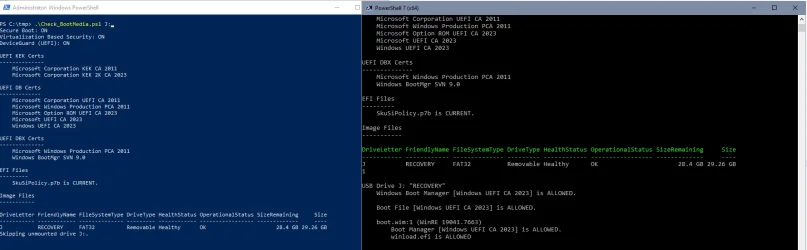
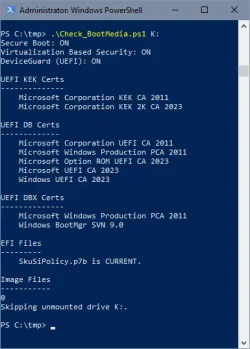
On my previous check your zipped version produces an error, but your most recent standalone version works. Here's the output:
Most recent standalone:
EFI Files
---------
SkuSiPolicy.p7b is CURRENT.

Image Files
-----------
Skipping "": File not found.

USB Drive g: "RECOVERY"
Windows Boot Manager [Windows UEFI CA 2023] is ALLOWED.

boot.wim:1 (WinRE 26100.1)
Boot Manager [Windows UEFI CA 2023] is ALLOWED.
winload.efi is ALLOWED
From the .ZIP file, I have to laugh: my output is exactly the same. I bet you switched something out on me!
Have to laugh. Keep up the good work. This is a real adventure. I've been blogging about this a lot lately. FYI, it's a lot easier to generate new bootable media to meet Secure Boot requirements than it is to fix old ones!
Cheers,
--Ed--
 

My Computers My Computers

  • At a glance

    Windows 11i7-8650U (8th Gen/Kaby Lake)16 GBIntel UHD Graphics 620
    OS
    Windows 11
    Computer type
    Laptop
    Manufacturer/Model
    Lenovo X380 Yoga
    CPU
    i7-8650U (8th Gen/Kaby Lake)
    Motherboard
    20LH000MUS (U3E1)
    Memory
    16 GB
    Graphics Card(s)
    Intel UHD Graphics 620
    Sound Card
    Integrated Conexant SmartAudio HD
    Monitor(s) Displays
    FlexView Display
    Screen Resolution
    1920x1080
    Hard Drives
    Toshiba 1 TB PCIe x3 NVMe SSD
    external 5TB Seagate USB-C attached HDD
    PSU
    Lenovo integrated 65W power brick
    Case
    Laptop
    Cooling
    Laptop
    Keyboard
    Integrated Lenovo ThinkPad keyboard
    Mouse
    touchscreen, touchpad
    Internet Speed
    GbE (Spectrum/Charter)
    Browser
    all of em
    Antivirus
    Defender
    Other Info
    Purchased early 2019 as Windows Insider test PC
  • At a glance

    Windows 11Ryzen 5800X128 GB (4x32 DDR5-5600)NVIDIA 3070Ti
    Operating System
    Windows 11
    Computer type
    PC/Desktop
    Manufacturer/Model
    DIY
    CPU
    Ryzen 5800X
    Motherboard
    Asrock B550 Extreme4
    Memory
    128 GB (4x32 DDR5-5600)
    Graphics card(s)
    NVIDIA 3070Ti
    Sound Card
    built-in
    Monitor(s) Displays
    2xDell 2707
    Screen Resolution
    1980x1200
    Hard Drives
    2XNVMe, multiple HDDs from 3 to 12 TB
    PSU
    Seasonic 650
    Case
    NZXT Flo 6
    Cooling
    dual-fan air cooler
    Keyboard
    Logitech Wave
    Mouse
    Logitech Logi
    Internet Speed
    GbE
    Browser
    all of 'em
    Antivirus
    Defender
    Other Info
    temperamental UEFI
I created a Recovery Drive, and here's my observations:

1. boot.wim is hidden, but otherwise it's a WinRE image (which is expected).

2. There are several WIM files for recovery data, named \sources\Reconstruct.WIM, Reconstruct.WIM2, and Reconstruct.WIM3. Maybe more files if your restore image is larger.

3. Since the formatted drive is FAT32, each WIM is under 4 GB in size. What is unusual, is MS doesn't use a split WIM, but creates multiple standalone WIM files with the different file extensions.

4. Recovery Drive doesn't intend to restore Windows in the traditional method (copying individual files to the \Windows\ folder). Rather it wants to restore the \Windows\WinSxS component folders, and run some DISM repair mechanism to recreate file hard links from WinSxS. This presumes your WinSxS is healthy before you started running the tool.

5. winload.efi can be found in Reconstruct.WIM, but not bootmgfw.efi. The boot manager is there, hidden inside the WinSxS component folders, but it can't be easily scanned since there's multiple WIM's and if you applied multiple Monthly Updates on the system, older versions of bootmgfw.efi can be lurking inside the WinSxS folders. You would have to track down the highest version of bootmgfw.efi

While the script can check if this USB drive is bootable, it cannot verify if your restore image is out of date or not.
From a AI search re IFW Recovery Media:
the IFW-Create Recovery Boot Disk shortcut (part of the TeraByte suite) is used to create a TBWinRE (TeraByte Recovery Environment) build, which is based on a Windows WIM (Windows Imaging Format) file.

According to the documentation, this tool:
  • Creates a TBWinRE WIM (specifically boot.wim) that can be used as a bootable recovery disc or USB flash drive.
  • Can be configured to directly boot the WIM file from a standard build, allowing the system to restart into the recovery environment without external media.
  • Allows for the inclusion of custom drivers and scripts within the WIM build for automated imaging operations
 

My Computer My Computer

At a glance

Windows11Intel(R) N97, 2000 Mhz, 4 Core(s), 4 Logical16GbIntel(R) UHD Graphics
OS
Windows11
Computer type
PC/Desktop
Manufacturer/Model
Acemagic S1
CPU
Intel(R) N97, 2000 Mhz, 4 Core(s), 4 Logical
Memory
16Gb
Graphics Card(s)
Intel(R) UHD Graphics
Sound Card
(Generic USB Audio)
Monitor(s) Displays
2
Screen Resolution
2560 x 1440 x 59 hertz
Hard Drives
Model KPART512GBC2DVT 512Gb
On my previous check your zipped version produces an error, but your most recent standalone version works. Here's the output:
Thanks. Keep an eye out for any new glitches.

Have to laugh. Keep up the good work. This is a real adventure. I've been blogging about this a lot lately. FYI, it's a lot easier to generate new bootable media to meet Secure Boot requirements than it is to fix old ones!
Honestly the prevailing direction appears to be: Tools that create bootable images should use a copy (or modified copy) of your current WinRE image. They should not depend on providing a static WinPE or WinRE image (looking at you Macrium...) which can get out of date.

The Secure Boot certs are the same no matter what Windows release you're running (W10 22H2, W11, or Server). Once you've installed them, that part is permanently finished (unless you're forced to reset the UEFI to factory defaults).

Other boot-time restrictions like the SVN and SkuSiPolicy don't involve any certs. Instead of tracking each successive change, it's easier to check if WinRE has been properly updated, and copy that image to the USB drive. For booting purposes, it doesn't matter if you use WinPE or WinRE. But if your Windows maintains an up-to-date WinRE, recovery tools should use that version.

You can take a WinPE and apply updates to it, but why bother when WinRE gets that treatment every month?
 

My Computer My Computer

At a glance

Windows 7
OS
Windows 7
Honestly the prevailing direction appears to be: Tools that create bootable images should use a copy (or modified copy) of your current WinRE image. They should not depend on providing a static WinPE or WinRE image (looking at you Macrium...) which can get out of date.
The more you explain all this working, the more I agree with you and can't understand why companies that make recovery software and include mecanisms to build recovery drives or partitions, like Macrium, Hasleo and others, have not incorporated a proper process to build the WinRE / WinPE... !

It's not like the 2023 certificates came has a surprise in the last 6 months and caught them off guard !

Terabyte IFW, which actrually started even before Macrium, stands out and seems to have thought of all these things.
One more reason why I'm seriously considering it as my replacement once my Macrium X licences expire in 2028.
 
Last edited:

My Computer My Computer

At a glance

Windows 11
OS
Windows 11
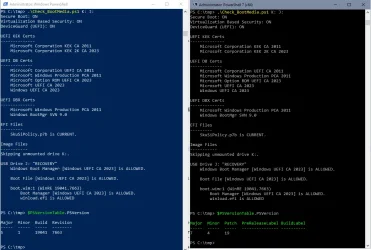
I can't repro this bug. Here's the code snippet:
I just displayed the two variables, it seems to be a PowerShell version thing:

1787289042651.webp

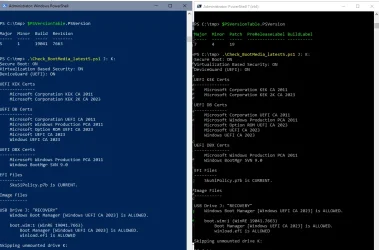
The output of Get-Volume -DriveLetter $DriveLetter seems to be identical, but for Powershell 5.1 $Volume.Count doesn't seem to give any output if it's not zero. For an empty driveletter it works, though:

1787289392561.webp
 

My Computer My Computer

At a glance

W10
OS
W10
The output of Get-Volume -DriveLetter $DriveLetter seems to be identical, but for Powershell 5.1 $Volume.Count doesn't seem to give any output if it's not zero. For an empty driveletter it works, though:
OK. I changed the condition to "-ne $null"
 

Attachments

My Computer My Computer

At a glance

Windows 7
OS
Windows 7
OK, thank you- I'll try your version later.

This worked for me:
Code:
       foreach ($File in $Paths) {
            if ($File -match '^[A-Z]:$') {
                $DriveLetter = $File -replace ':'

                $Counter = $(Get-Volume -DriveLetter $DriveLetter -ErrorAction SilentlyContinue | measure).Count
               
                if ($Counter) {
                    Check-DriveVolume -DriveLetter $DriveLetter
                }
                else {
                    "Skipping unmounted drive $File."
                    $Token = $true
                }

But I'm not a programmer, just fiddled a little with a solution from https://stackoverflow.com/questions/11526285/how-to-count-objects-in-powershell


1787291720205.webp


EDIT

Yes, your version works, too!

1787292261754.webp
 

My Computer My Computer

At a glance

W10
OS
W10
Back
Top Bottom