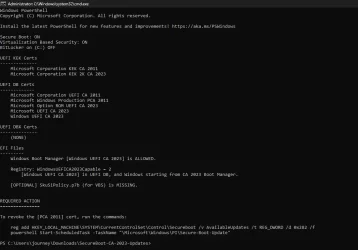
It might feel like a bit of a magic trick — the computer starts up, finds Windows, and launches it, even though the UEFI boot menu looks empty. Usually, Windows creates a specific "Windows Boot Manager" entry in the NVRAM (non-volatile RAM) during installation, but it doesn't actually
need it to function.
Here is how your system manages to boot without that specific pointer.
1. The "Fallback" Path: The Default Boot Loader
UEFI systems are programmed with a standardized search order. If no specific boot entries (like "Windows Boot Manager") are found in the NVRAM, the firmware looks for a "fallback" file on any FAT32 partition marked as an
EFI System Partition (ESP).
The firmware searches for a file at this specific hardcoded path:
\EFI\BOOT\BOOTX64.EFI
When Windows is installed, it places a copy of its bootloader at that location. Even if the firmware "forgets" the formal Windows entry, it will eventually stumble upon this file during its hardware scan and execute it, which then kicks off the Windows startup process.
2. The EFI System Partition
For a GPT disk to be bootable, it must contain an EFI System Partition. This is a small partition — typically 100–500 MB — formatted as FAT32. The UEFI firmware can read FAT32 natively, allowing it to browse the files on the drive before any operating system is loaded.
Inside this partition, Windows stores:
Code:
\EFI\Microsoft\Boot\bootmgfw.efi — Windows Boot Manager
\EFI\Boot\bootx64.efi            — Fallback bootloader
\EFI\Microsoft\Boot\BCD          — Boot Configuration Data (boot settings database)
3. Removable Media Logic
The reason this "fallback" exists is primarily for USB drives and installation media. Since a thumb drive doesn't have a permanent entry in your computer's motherboard memory, the UEFI spec requires that the firmware can find an OS just by looking for that
BOOTX64.EFI file. Windows simply uses this same logic on your internal drive to ensure the system remains bootable even if the NVRAM is cleared (e.g., after a BIOS update or a CMOS battery failure).