Ask the Directory Services Team:
Hello AskDS readers!
Sagi and Adesh here. Today we’re excited to talk about a change that finally closes one of the longest‑standing troubleshooting gaps in Group Policy Preferences (GPP).
GPP has always been a powerful way to manage Files, Folders, Drive Maps, Registry, local users and groups, and more.
Unfortunately, when something fails, diagnostics often boil down to a single event:
Event ID 4098.
If you’ve spent time troubleshooting GPP, you already know what that meant:
- An error code
- No object name
- No path
- No indication of which preference item failed
That experience is now officially behind us.
For background on how Group Policy Preferences work and what each setting is designed for, review the following Microsoft documentation:
Group Policy preferences in Windows | Microsoft Learn
Working with Windows Settings Preference Items Using the GPMC | Microsoft Learn
With this context in mind, the diagnostic improvements introduced in newer Windows versions make it far easier to identify why a specific preference item did not apply.
What Changed and When
Starting with the January 2026 update rollup for Windows 11 24H2 and Windows 11 25H2, Group Policy Preferences now provide much richer diagnostics.Note: When the Server operating system update becomes available, we will update this article accordingly.
These improvements introduce a new event:
Event ID 4117 – Group Policy Preferences Diagnostic Data
Event ID 4117 is logged in addition to the legacy Event ID 4098.While 4098 remains for compatibility, 4117 provides the missing context admins have needed for years.
Importantly, this update does not change how GPP processes policies-it only improves visibility when something goes wrong.
There is no need to set any additional configuration to get the extended information.
Scenario 1 – File Does Not Exist
(“We swear it was there yesterday”)A GPP File preference item attempt to copy a file from SYSVOL to a local destination, but the source file is missing.
Before: Event ID 4098
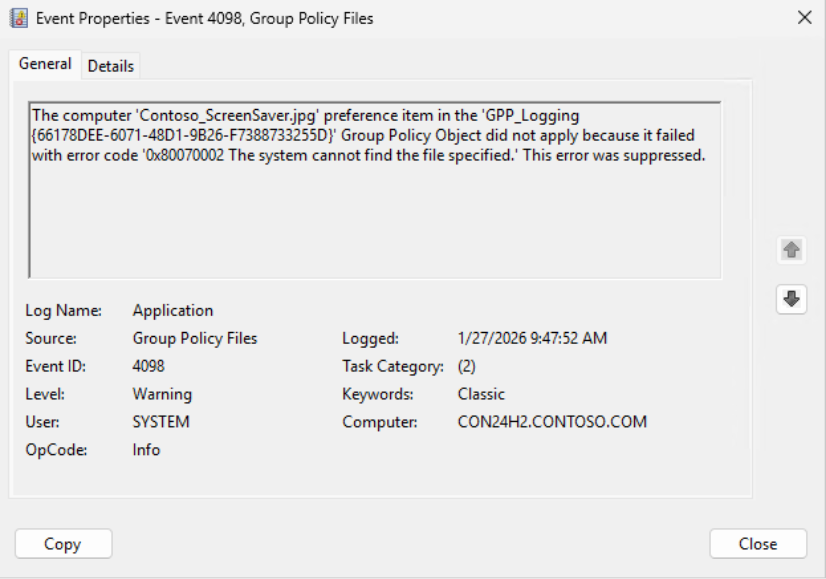
With the old behavior, Event ID 4098 told you something failed-but not much else.
The screenshot below shows a legacy 4098 event for a missing file.
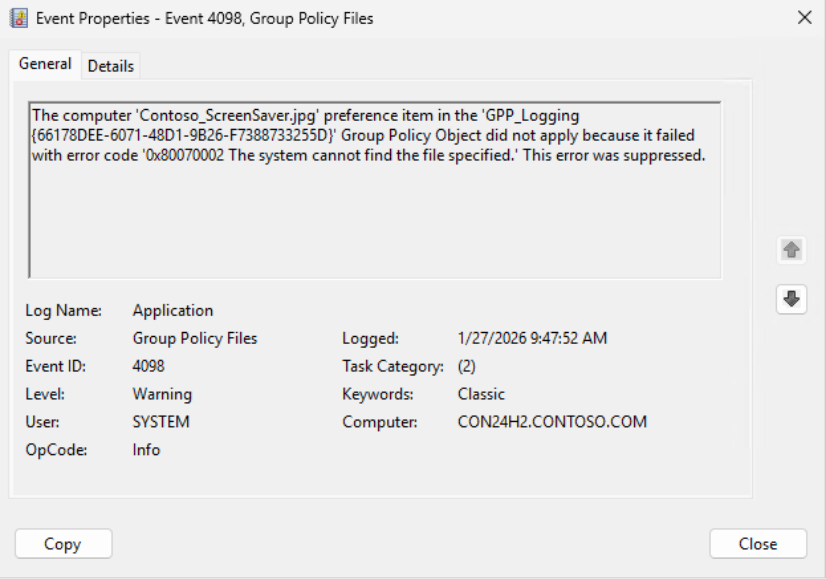
| Log Name: Application Source: Group Policy Files Event ID: 4098 Description: The computer 'Contoso_ScreenSaver.jpg' preference item in the 'GPP_Logging {66178DEE-6071-48D1-9B26-F7388733255D}' Group Policy Object did not apply because it failed with error code '0x80070002 The system cannot find the file specified.' This error was suppressed. |
Which specific file? at which specific path? No idea.
Now: Event ID 4117
Event ID 4117 makes the failure explicit.
The screenshot below shows Event ID 4117 identifying the missing source file and destination.
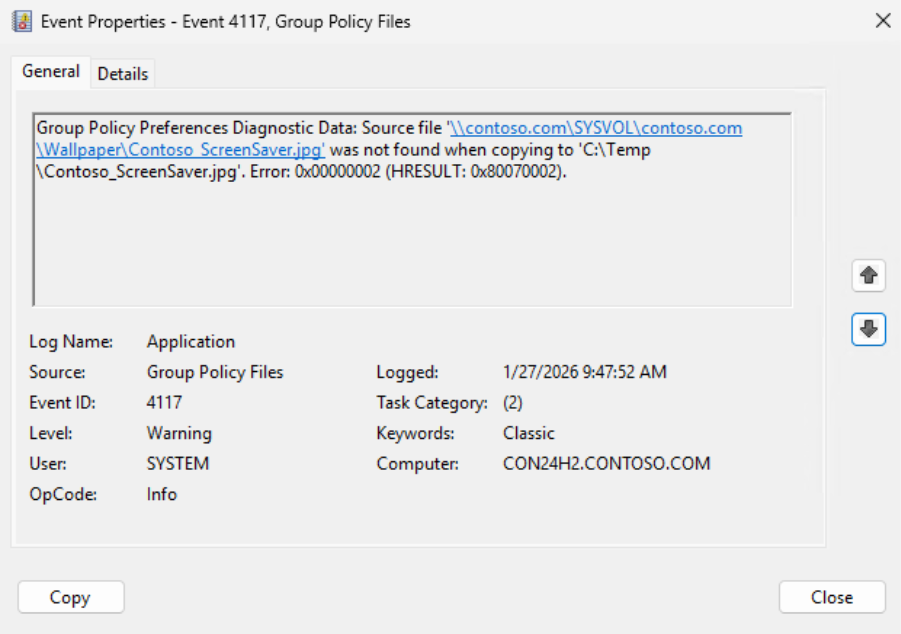
| Log Name: Application Source: Group Policy Files Event ID: 4117 Level: Warning Description: Group Policy Preferences Diagnostic Data: Source file '\\contoso.com\SYSVOL\contoso.com\Wallpaper\Contoso_ScreenSaver.jpg' was not found when copying to 'C:\Temp\Contoso_ScreenSaver.jpg'. Error: 0x00000002 (HRESULT: 0x80070002). |
How to proceed
- Verify the exact source path in the event. Does the file exist there?
- Correct or restore the file or update the GPP item if the setting is no longer required.
Scenario 2 – File Exists, but Access Is Denied
The file is present, but permissions prevent GPP from copying it.Before: Event ID 4098
The screenshot below shows how Event 4098 reported only “Access is denied.”
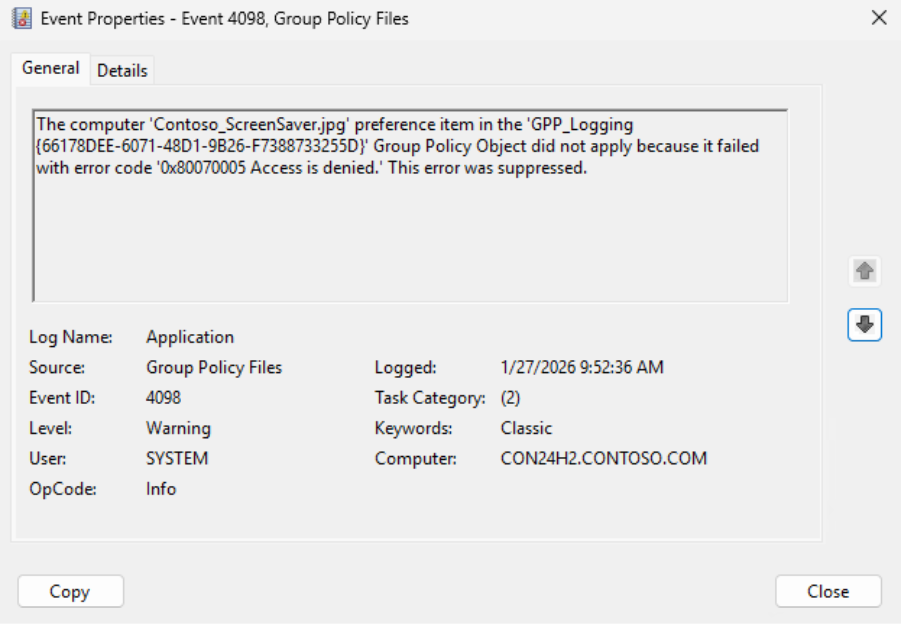
| Log Name: Application Source: Group Policy Files Event ID: 4098 Level: Warning Description: The computer 'Contoso_ScreenSaver.jpg' preference item in the 'GPP_Logging {66178DEE-6071-48D1-9B26-F7388733255D}' Group Policy Object did not apply because it failed with error code '0x80070005 Access is denied.' This error was suppressed. |
Where exactly is this file, again? Source or destination? Still unknown.
Now: Event ID 4117
Event ID 4117 identifies the file and operation.
The screenshot below illustrates Event ID 4117 showing a permission failure during a file copy.
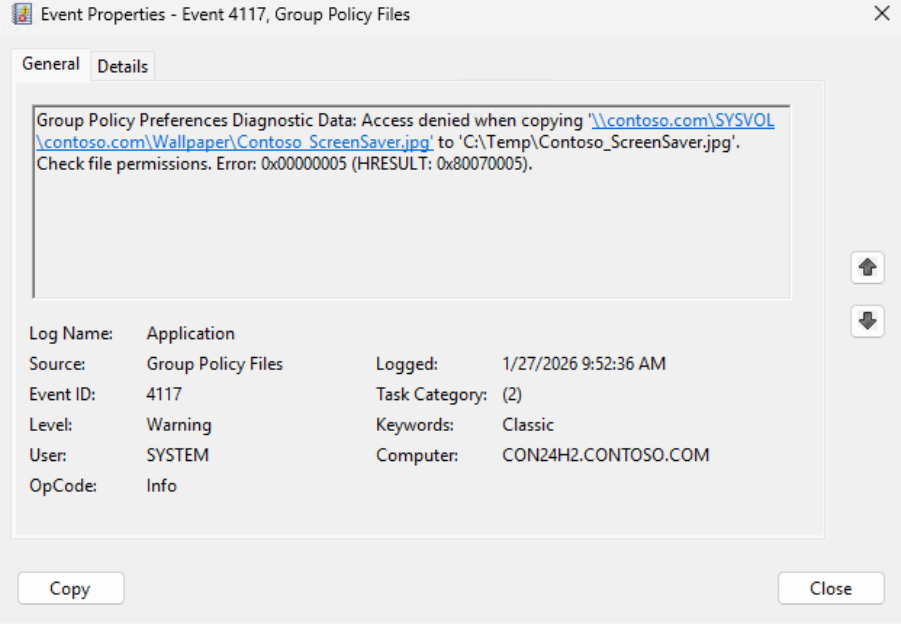
| Log Name: Application Source: Group Policy Files Event ID: 4117 Level: Warning Description: Group Policy Preferences Diagnostic Data: Access denied when copying '\\contoso.com\SYSVOL\contoso.com\Wallpaper\Contoso_ScreenSaver.jpg' to 'C:\Temp\Contoso_ScreenSaver.jpg'. Check file permissions. Error: 0x00000005 (HRESULT: 0x80070005). |
How to proceed
- Identify whether the policy runs as SYSTEM or user by identifying if it is in the Computer Configuration or User Configuration section, respectively.
- Validate NTFS and share permissions of the corresponding file.
Scenario 3 – Folder Delete Fails Due to Permissions
A GPP Folder preference item attempt to delete C:\temp1.Before: Event ID 4098
Event ID 4098 reported a failure but did not identify which folder caused it.
Legacy events provided no target folder information.
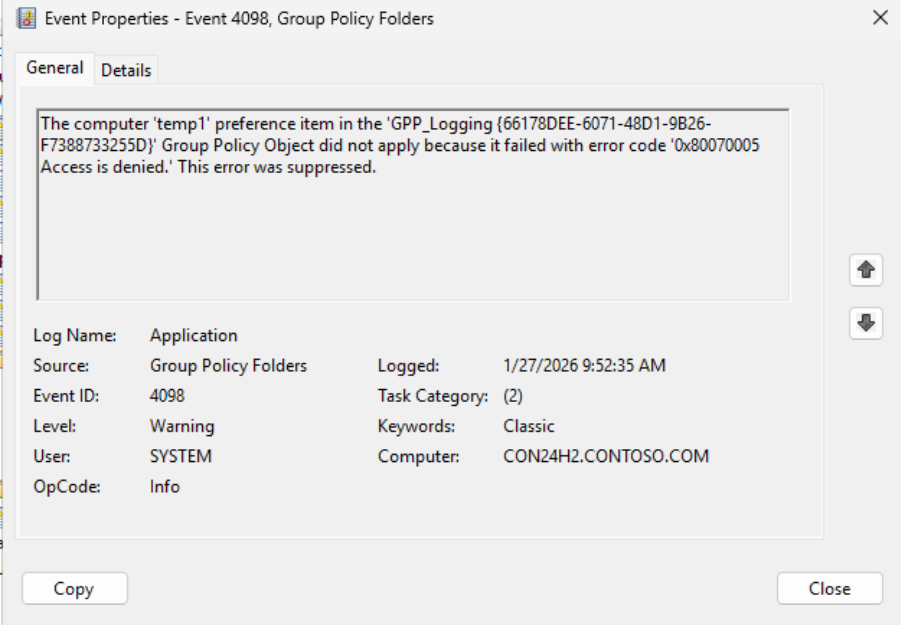
| Log Name: Application Source: Group Policy Folders Event ID: 4098 Description: The computer 'temp1' preference item in the 'GPP_Logging {66178DEE-6071-48D1-9B26-F7388733255D}' Group Policy Object did not apply because it failed with error code '0x80070005 Access is denied.' This error was suppressed. |
Now: Event ID 4117
The screenshot below shows Event ID 4117 identifying the exact folder that failed deletion.
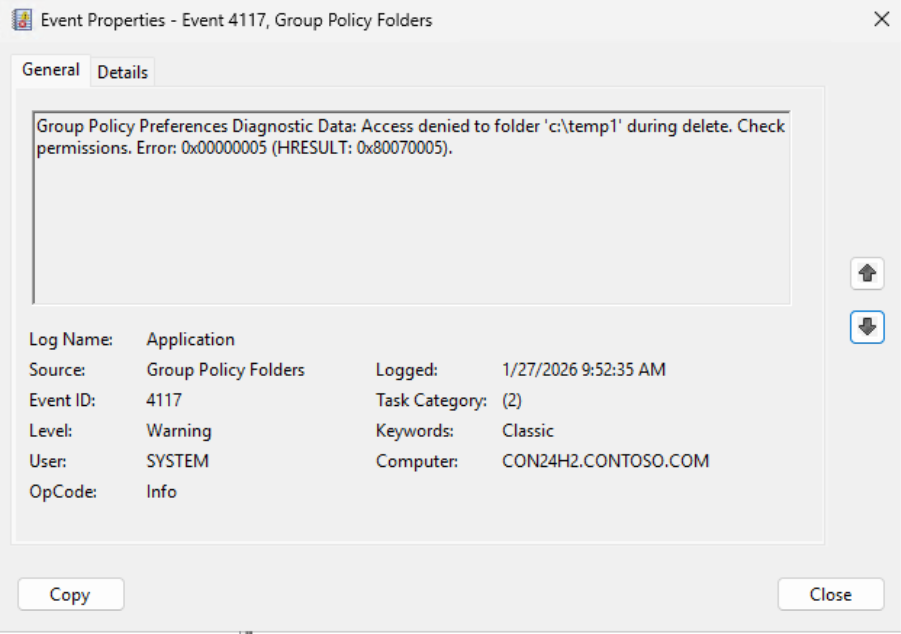
| Log Name: Application Source: Group Policy Folders Event ID: 4117 Level: Warning Description: Group Policy Preferences Diagnostic Data: Access denied to folder 'c:\temp1' during delete. Check permissions. Error: 0x00000005 (HRESULT: 0x80070005). |
How to proceed
- Check NTFS permissions and ownership
- Confirm no locks or AV interference
Scenario 4 – Drive Map with Invalid Network Path
A GPP Drive Map attempts to map a drive to an invalid UNC path.Before: Event ID 4098
The screenshot below shows Event 4098 reporting only a network error.
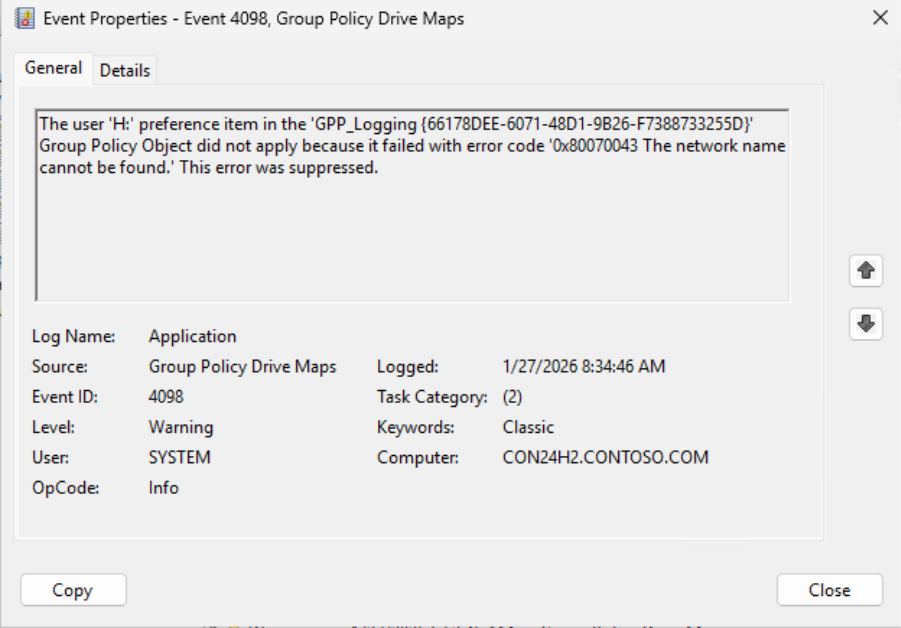
| Log Name: Application Source: Group Policy Drive Maps Event ID: 4098 Level: Warning Description: The user 'H:' preference item in the 'GPP_Logging {66178DEE-6071-48D1-9B26-F7388733255D}' Group Policy Object did not apply because it failed with error code '0x80070043 The network name cannot be found.' This error was suppressed. |
Which path? Still unclear.
Now: Event ID 4117
Event ID 4117 removes all ambiguity.
The screenshot below shows Event ID 4117 identifying the invalid UNC path and drive letter.
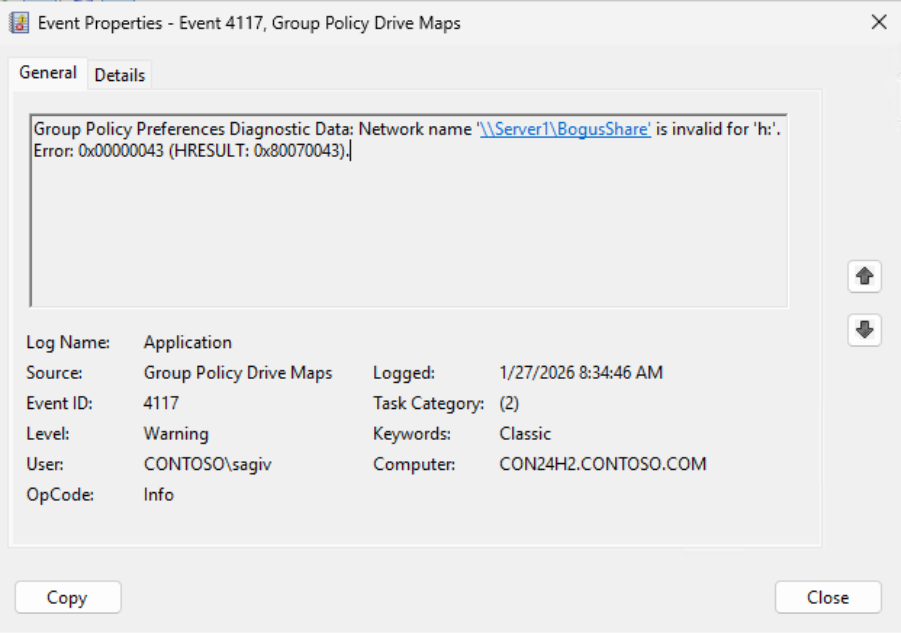
| Log Name: Application Source: Group Policy Drive Maps Event ID: 4117 Level: Warning Description: Group Policy Preferences Diagnostic Data: Network name '\\Server1\BogusShare' is invalid for 'h:'. Error: 0x00000043 (HRESULT: 0x80070043). |
How to proceed
- Test the UNC path from the client
- Validate DNS and name resolution
Summary: Event ID → Action Decision Table
| Legacy Event | New Event | Diagnostic Meaning | Recommended Action |
|---|---|---|---|
| 4098 | 4117 | Source file missing | Make sure the file exist and match the name and path as in the GPP settings |
| 4098 | 4117 | Access denied (file) | Fix NTFS/share permissions for policy context |
| 4098 | 4117 | Folder delete failed | Correct permissions, ownership, or locks |
| 4098 | 4117 | Drive Map path invalid | Fix UNC, DNS, targeting, or remove obsolete map |
Why This Is a Big Deal
Previously:- 4098 told you something failed
- Determining details on the failure was sometimes difficult
- 4117 tells you exactly what, where, and why
- Troubleshooting becomes deterministic
- Resolution time may decrease in situations where clarity is needed.
Final Thoughts
Event ID 4117 finally brings Group Policy Preferences diagnostics in line with modern troubleshooting expectations-without changing how policies apply.If you’ve ever stared at Event 4098 wondering “Which one?”, this update is for you.
The silence is officially over.
This is not the end of the story. (Yes - even GPP gets a character development arc.)
If you love these changes, drop us a comment below on how this helped you or if you have additional ideas.
Happy troubleshooting-and as always, we’ll see you in the logs.
-Sagi Vahabi and Adesh Prabhu
Source:
From Guesswork to Clarity: GPP Diagnostics Improve in Windows Server 2025 and Windows 11 24H2 | Microsoft Community Hub
Hello AskDS readers! Sagi and Adesh here. Today we’re excited to talk about a change that finally closes one of the longest‑standing...
 techcommunity.microsoft.com