How to change BitLocker pre-boot authentication display language


fortree

Well-known member
Local time
10:31 PM
Posts
61
OS
Windows 11
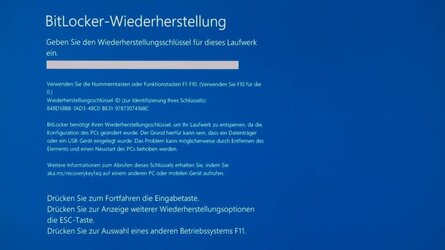
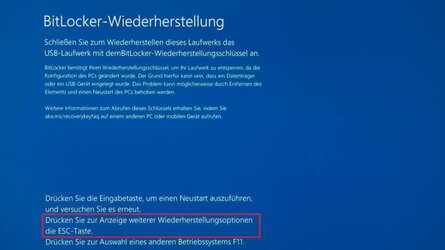
How can I change the BitLocker pre-boot authentication localization / internationalization display language?
I can change the OS language easily but what about the pre-boot environment?

001.jpg
002.jpg
003.jpg
 
Windows Build/Version
22000.918

My Computer My Computer

At a glance

Windows 11
OS
Windows 11
I would suggest using this with caution and maybe doing more research as I have not personally tried this, but from the recovery environment I believe that you can do something like this:

bcdedit /set {current} locale en-US

In the meantime, I think that you will need to first provide the recovery key before you can get to the recovery environment.
 

My Computers My Computers

  • At a glance

    Win11 Pro 25H2 (RTM+)Intel i7-14650HX32 GBNo GPU - Built-in Intel Graphics
    OS
    Win11 Pro 25H2 (RTM+)
    Computer type
    PC/Desktop
    Manufacturer/Model
    Acemagic
    CPU
    Intel i7-14650HX
    Memory
    32 GB
    Graphics Card(s)
    No GPU - Built-in Intel Graphics
    Sound Card
    Integrated
    Monitor(s) Displays
    Varies as machine will often be moved to locations with different monitors
    Screen Resolution
    Varies
    Hard Drives
    1 x 1TB Gen 4 NVMe SSD
    PSU
    120W Power Brick
    Keyboard
    Corsair K70 Max RGB Magnetic Keyboard
    Mouse
    Logitech MX Master 3
    Internet Speed
    1Gb Up / 1 Gb Down
    Browser
    Edge
    Antivirus
    Windows Defender
  • At a glance

    Win11 Pro 25H2 (RTM+)Intel i7-1255U16 GBIntel Iris Xe Graphics
    Operating System
    Win11 Pro 25H2 (RTM+)
    Computer type
    Laptop
    Manufacturer/Model
    Lenovo ThinkBook 13x Gen 2
    CPU
    Intel i7-1255U
    Memory
    16 GB
    Graphics card(s)
    Intel Iris Xe Graphics
    Sound Card
    Realtek® ALC3306-CG codec
    Monitor(s) Displays
    13.3-inch IPS Display
    Screen Resolution
    WQXGA (2560 x 1600)
    Hard Drives
    2 TB 4 x 4 NVMe SSD
    PSU
    USB-C / Thunderbolt 4 Power / Charging
    Keyboard
    Backlit, spill resistant keyboard
    Mouse
    Buttonless Glass Precision Touchpad
    Internet Speed
    1Gb Up / 1Gb Down
    Browser
    Edge
    Antivirus
    Windows Defender
    Other Info
    WiFi 6e / Bluetooth 5.1 / Facial Recognition / Fingerprint Sensor / ToF (Time of Flight) Human Presence Sensor
I would suggest using this with caution and maybe doing more research as I have not personally tried this, but from the recovery environment I believe that you can do something like this:

bcdedit /set {current} locale en-US

In the meantime, I think that you will need to first provide the recovery key before you can get to the recovery environment.

The "locale" option looks undocumented:


My Computer My Computer

At a glance

Windows 11
OS
Windows 11
Tried the command and says "The operation completed successfully" or something like that, however the language is not changed even after a reboot.
 

My Computer My Computer

At a glance

Windows 11
OS
Windows 11
Back
Top Bottom