Solved I Can't eject external drive


It is visible in file explorer, where I can see the disk images done by windosd
I select another drive in file explorer and then I close all aplications
Still when I use the eject disk in task bar I get the message that I cannot eject, even after doing a restart
Nothing better that just doing a shutdown and then eject the external drive?
 

My Computer

System One

  • OS
    Windows 11 home ver 25H2 Build 26200.7840
    Computer type
    Laptop
    Manufacturer/Model
    Asus S5606MA MX095W
    CPU
    Ultra 7 155H
    Motherboard
    S5606MA
    Memory
    16 RAM
    Graphics Card(s)
    Arc 8 cores
    Monitor(s) Displays
    Oled
    Screen Resolution
    3200 x 2000
    Hard Drives
    1, 1 Tera
    Keyboard
    FR- BE
    Internet Speed
    6E
    Browser
    FF
    Antivirus
    Windows security
    Other Info
    HDMI 2.1, 2 USB A 3.2, 2 Thunderbol 4 (1 of them used for power supply)
It is visible in file explorer, where I can see the disk images done by windosd
I select another drive in file explorer and then I close all aplications
Still when I use the eject disk in task bar I get the message that I cannot eject, even after doing a restart
Nothing better that just doing a shutdown and then eject the external drive?
Yes, Windows defender will scan external drives on insertion and keeps them open so you cannot uninstall it. The only way I know around this is either to shut down the computer and eject it, or to add the drive letter to the exclusion list in defender, so it doesn't scan it on insertion.

You exclude through: settings -> Privacy and Security -> virus and treat protections -> manage settings -> exclusions
If it is say the D: drive, you would add "D:\"
 

My Computers

System One System Two

  • OS
    Windows 11 Pro x64
    Computer type
    PC/Desktop
    Manufacturer/Model
    📷🔈🎧 🪛 DIY Photoshop/Audio/Game/tinker
    CPU
    i9 14900K P/E 5.8/4.5 GHz, cache 5.0 GHz
    Motherboard
    Asus ROG Maximus Z790 Dark Hero
    Memory
    🐏 96GB (2x48) G.skill Ripjaws 6800 MT/s
    Graphics Card(s)
    Asus ROG Strix 4070 Ti OC
    Sound Card
    🔊Bowers & Wilkins 606 S3 speakers; Audiolabs 7000a integrated amp; RSL 10S Mk2 sub; Creative Pebble Pro Minimilist
    Monitor(s) Displays
    🖥️🖥️ Eizo CG2730 ColorEdge, ViewSonic VP2768
    Screen Resolution
    🖥️🖥️ 2560 x 1440p x 2
    Hard Drives
    💾 WDC SN850X 4TB nvme, SN850 1TB nvme, SK-Hynix 2 TB P41 nvme,. Sabrent USB-C DS-SC5B 5-bay docking station: 6TB WDC Black, 6TB Ironwolf Pro; 2x 2TB WDC Black HDD
    PSU
    ⚡️ 850W Seasonic Vertex PX-850 ATX 3.0/PCI-E 5.0
    Case
    Fractal Design North XL Mesh, Black Walnut
    Cooling
    ❄️ EK Nucleus black 360 AIO w/Phanteks T30-120 fans, 2 Noctua NF-A14 Chromax case fan, 1 T30-120 fan cooling memory
    Keyboard
    ⌨️ Keychron Q3 Max TKL with custom GMK Redsuns Red Samuri keycaps, TX Stabs
    Mouse
    🖱️ Logitech G305 wireless gaming
    Internet Speed
    ⬇️ 500 Mb/s ⬆️ 12 Mb/s
    Browser
    🔥🦊 Firefox
    Antivirus
    🦺 Defender, Macrium Reflect X 🏆
    Other Info
    Phangkey Amaterasu V2 Desk Mat
  • Computer type
    Laptop
    Manufacturer/Model
    💻 Apple 13" Macbook Pro 2020 (m1)
    CPU
    Apple M1
    Screen Resolution
    2560x1600
    Browser
    Firefox
Yes, Windows defender will scan external drives on insertion and keeps them open so you cannot uninstall it.
Windows defender does a lot but it can't prevent it from ejecting a drive. It only watches for threats when doing a read/write to a device. An antivirus program is capable doing more if you give the command; scan the complete drive. At that moment it will hold the drive. When done it will be free. The drive can be visible under File explorer but the question how Windows classifies this drive. (as I said earlier) Go to Device management - Portable devices. The drive must be under that section. If it isn't there Windows classifies it not as a removable drive. Therefor can't eject it. This the first thing to check when diagnosing.
 

My Computer

System One

  • OS
    Win 11 Pro "25H2" Build 26200.8655, Zorin OS Pro
    Computer type
    PC/Desktop
    Manufacturer/Model
    Self built
    CPU
    Intel® Core™ i7-12700KF 12th Gen.
    Motherboard
    ASUS Prime Z690-A, BIOS v4505
    Memory
    32GB DDR5 5600-36 Vengeance
    Graphics Card(s)
    PCIe4.0 Asus NVIDIA RTX3060Ti
    Sound Card
    Onboard; Realtek
    Monitor(s) Displays
    34" LG 34UC79G-B Curved 21:9 144Hz
    Screen Resolution
    2560x1080 (No HDR)
    Hard Drives
    250Gb Samsung 870PRO NVMe (Win 11 Pro)
    1Tb Samsung 980PRO NVMe
    1Tb Samsung 970EVO NVMe
    2Tb Samsung 990PRO NVMe with heatsink.
    4Tb WDC WD40EZRZ Blue SATA (Int.)
    4Tb WDC WD40EZRZ Blue SATA (Int.)
    3Tb WDC WD30EFRZ Red SATA (Int.)
    256Gb Samsung 840PRO SSD (RHEL 9,5)
    256Gb Samsung 850PRO SSD (Zorin OS Pro 18)
    PSU
    Coolermaster 850W V2 Gold with internal 12cm exaust fan
    Case
    Be-Quiet Pure Base 600.
    Cooling
    3x Be-Quiet! 12/14cm "Silent Wings 4" casefans, 1x Arctic Freezer i35 CPU towerblock with fan.
    Keyboard
    Steelseries APEX 7 keyboard.
    Mouse
    Logitech G-502 Hero
    Internet Speed
    1Gb
    Browser
    Brave
    Antivirus
    F-Secure
    Other Info
    No Noise system.
    256Gb Kingston Travler USB 3.0 drive.
    64Gb Sandisk USB 3.2 drive. (Ventoy)
    8Gb Philips USB 3.0 drive. (Win. Inst.)
    8Gb Philips USB 3.0 drive. (Rescue disk)
    2Tb WD USB 3.0 Passport drive.
    USB Ext. 500Gb WD SATA drive.
    External USB 3.0 C.A. CD/DVD* burner.
A possible suspect is EaseUs which I tried a month or two back.

My notes say amongst other things, 2 processes in Startup apps.
From memory it can be configured from settings to some degree.
There maybe services as well.

You can stop/disable those with the Task Manager or maybe completely remove EaseUs temporarily to test.
 

My Computer

System One

  • OS
    Windows 11
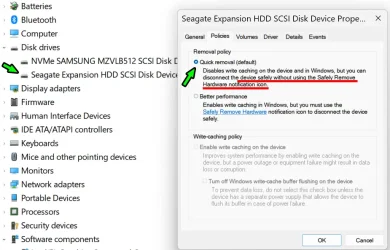
Win Key + X - > select Device Manager -> go to Disk Drivers - > Right Click on your Expansion/External Disk "Samsung T7 (or whatever it's called)" - click on Policies tab -> and check Quick Removal like so:

2025-08-24_155302.webp

And you can safely remove it whenever - without the need of that safety feature. The safely remove feature - is only necessary if it's set to better Performance (using write caching on Disk). For the sake of safety - i prefer Default policy even on a HDD (not much of noticeable difference in practice).
 

My Computer

System One

  • OS
    WinDOS 25H2
    Computer type
    Laptop
    CPU
    Intel & AMD
    Memory
    SO-DIMM SK Hynix 15.8 GB Dual-Channel DDR4-2666 (2 x 8 GB) 1329MHz (19-19-19-43)
    Graphics Card(s)
    nVidia RTX 2060 6GB Mobile GPU (TU106M)
    Sound Card
    Onbord Realtek ALC1220
    Screen Resolution
    1920 x 1080
    Hard Drives
    1x Samsung PM981 NVMe PCIe M.2 512GB / 1x Seagate Expansion ST1000LM035 1TB
Windows defender does a lot but it can't prevent it from ejecting a drive. It only watches for threats when doing a read/write to a device. An antivirus program is capable doing more if you give the command; scan the complete drive. At that moment it will hold the drive. When done it will be free. The drive can be visible under File explorer but the question how Windows classifies this drive. (as I said earlier) Go to Device management - Portable devices. The drive must be under that section. If it isn't there Windows classifies it not as a removable drive. Therefor can't eject it. This the first thing to check when diagnosing.

As soon as you use the USB drive for anything, which I assume that is the reason for inserting it, defender has the drive open thereafter, and you can't eject it.
 

My Computers

System One System Two

  • OS
    Windows 11 Pro x64
    Computer type
    PC/Desktop
    Manufacturer/Model
    📷🔈🎧 🪛 DIY Photoshop/Audio/Game/tinker
    CPU
    i9 14900K P/E 5.8/4.5 GHz, cache 5.0 GHz
    Motherboard
    Asus ROG Maximus Z790 Dark Hero
    Memory
    🐏 96GB (2x48) G.skill Ripjaws 6800 MT/s
    Graphics Card(s)
    Asus ROG Strix 4070 Ti OC
    Sound Card
    🔊Bowers & Wilkins 606 S3 speakers; Audiolabs 7000a integrated amp; RSL 10S Mk2 sub; Creative Pebble Pro Minimilist
    Monitor(s) Displays
    🖥️🖥️ Eizo CG2730 ColorEdge, ViewSonic VP2768
    Screen Resolution
    🖥️🖥️ 2560 x 1440p x 2
    Hard Drives
    💾 WDC SN850X 4TB nvme, SN850 1TB nvme, SK-Hynix 2 TB P41 nvme,. Sabrent USB-C DS-SC5B 5-bay docking station: 6TB WDC Black, 6TB Ironwolf Pro; 2x 2TB WDC Black HDD
    PSU
    ⚡️ 850W Seasonic Vertex PX-850 ATX 3.0/PCI-E 5.0
    Case
    Fractal Design North XL Mesh, Black Walnut
    Cooling
    ❄️ EK Nucleus black 360 AIO w/Phanteks T30-120 fans, 2 Noctua NF-A14 Chromax case fan, 1 T30-120 fan cooling memory
    Keyboard
    ⌨️ Keychron Q3 Max TKL with custom GMK Redsuns Red Samuri keycaps, TX Stabs
    Mouse
    🖱️ Logitech G305 wireless gaming
    Internet Speed
    ⬇️ 500 Mb/s ⬆️ 12 Mb/s
    Browser
    🔥🦊 Firefox
    Antivirus
    🦺 Defender, Macrium Reflect X 🏆
    Other Info
    Phangkey Amaterasu V2 Desk Mat
  • Computer type
    Laptop
    Manufacturer/Model
    💻 Apple 13" Macbook Pro 2020 (m1)

    CPU
    Apple M1
    Screen Resolution
    2560x1600
    Browser
    Firefox
I use Defender and there is no problem with safe removal of USB external drives, SSD enclosures + SSD drives, standalone HDD drives, HDD enclosures + HDDs.
No access to Policies, never needed it, I'm on Windows 11 Home like the OP.

"The problem started before I got Avast optimiser".
I have no system mods, nor use any so-called "Optimiser Apps".
 

My Computer

System One

  • OS
    Windows 11
Win Key + X - > select Device Manager -> go to Disk Drivers - > Right Click on your Expansion/External Disk "Samsung T7 (or whatever it's called)" - click on Policies tab -> and check Quick Removal like so:

View attachment 143252

And you can safely remove it whenever - without the need of that safety feature. The safely remove feature - is only necessary if it's set to better Performance (using write caching on Disk). For the sake of safety - i prefer Default policy even on a HDD (not much of noticeable difference in practice).
Any important reason why(?) we should enable the write cashing , instead the "quick removal " on our portable USB-drives ??
Are our backup-files safe , without the "write cashing "...........?? :unsure:
If my backups are safe , I will set all my portable drives on "quick removal " !
No more problems with ejecting external portable USB-drives ...............:-)
 

My Computer

System One

  • OS
    Windows11 Pro 25H2
    Computer type
    PC/Desktop
    Manufacturer/Model
    Asus
    CPU
    i7
    Motherboard
    z97k
    Memory
    32GB
    Graphics Card(s)
    nVidia
    Sound Card
    Realtek
    Hard Drives
    3
    Cooling
    air
    Browser
    Edge
    Antivirus
    ESET
Any important reason why(?) we should enable the write cashing , instead the "quick removal " on our portable USB-drives ??
Are our backup-files safe , without the "write cashing "...........?? :unsure:
If my backups are safe , I will set all my portable drives on "quick removal " !
No more problems with ejecting external portable USB-drives ...............:-)

A performance boost. Tho, only tested this feature on External HDDs - and other than improved responsiveness - didn't see much difference in speed (while tested with CrystalDiskMark). SSDs are already rather fast - but can't really say for sure how big is the performance boost. So hey, try it: CrystalDiskMark - test it with Write Cache enabled and disabled - and decided for yourself based on results. Personally, i'm satisfied with it disable (the extra speed is not worth the risk for me).
 

My Computer

System One

  • OS
    WinDOS 25H2
    Computer type
    Laptop
    CPU
    Intel & AMD
    Memory
    SO-DIMM SK Hynix 15.8 GB Dual-Channel DDR4-2666 (2 x 8 GB) 1329MHz (19-19-19-43)
    Graphics Card(s)
    nVidia RTX 2060 6GB Mobile GPU (TU106M)
    Sound Card
    Onbord Realtek ALC1220
    Screen Resolution
    1920 x 1080
    Hard Drives
    1x Samsung PM981 NVMe PCIe M.2 512GB / 1x Seagate Expansion ST1000LM035 1TB

Latest Support Threads

Back
Top Bottom