Is it OK to create a modified wim file that contains drivers for ALL my systems?


x509

Well-known member
Member
VIP
Local time
6:00 AM
Posts
675
Location
Western USA
OS
Windows 11 2H25
I like the idea of injecting drivers into the wim file. However, with 3 or maybe 4 active systems, that's a lot of effort and storage. If the modified WIM contrans drivers that are for the hardware of different systems, is that an install issue?

I hope that I have explained myself clearly. If not, please reply and I will clarify
 
Windows Build/Version
26200.8117

My Computer

System One

  • OS
    Windows 11 2H25
    Computer type
    PC/Desktop
    Manufacturer/Model
    DIY
    CPU
    AMD 9900X
    Motherboard
    MSI X870E Carbon
    Memory
    64 GB
    Graphics Card(s)
    AMD 9070 XT
    Sound Card
    built-in
    Monitor(s) Displays
    Dell 24"
    Hard Drives
    Sabrent 1 TB NVMe, 4 x SSD (need to check models), 4 x 3.5" HDD, 8-16 TB, all WD
    PSU
    Seasonic 850
    Case
    Fractal Design North XL (which I likw)
    Cooling
    Corsair AIO for CPU, fans for case
    Keyboard
    Das Keyboard 4
    Mouse
    Corsair M65 (white)
    Internet Speed
    1 TB download
    Browser
    Firefox
    Antivirus
    Bitdefender
    Other Info
    Also have Lenovo T14S laptop (me) and Lenovo Slim 71 (wife)
It's probably okay, but I can tell you that Windows sometimes selects the wrong driver when you give it drivers for multiple systems, especially if the models have similar hardware. I handle different models of PC differently, but if I were going to inject drivers into a WIM for multiple models, I would create three copies of whatever index you're using, and inject the drivers for each model into their own index. Then you're guaranteed that Windows is going to only have drivers for that specific model at installation time.
 

My Computer

System One

  • OS
    Windows 11 Pro 25H2
    Computer type
    PC/Desktop
    Manufacturer/Model
    Intel NUC12WSHi7
    CPU
    12th Gen Core i7-1260P
    Motherboard
    NUC12WSBi7
    Memory
    64 GB Micron PC4-25600
    Graphics Card(s)
    Intel Iris Xe Graphics
    Sound Card
    on-board Realtek HD Audio
    Monitor(s) Displays
    Dell U3219Q
    Screen Resolution
    3840 x 2160
    Hard Drives
    Samsung SSD 990 PRO 1TB
    Crucial MX500 2 TB
    Antivirus
    Microsoft Defender
It's probably okay, but I can tell you that Windows sometimes selects the wrong driver when you give it drivers for multiple systems, especially if the models have similar hardware. I handle different models of PC differently, but if I were going to inject drivers into a WIM for multiple models, I would create three copies of whatever index you're using, and inject the drivers for each model into their own index. Then you're guaranteed that Windows is going to only have drivers for that specific model at installation time.
Not to sound like a WIM file noob, which I am. :( How do I create the index files. How do I use it when loading the OS?

I sometimes get these "what if" ideas, and then I do a post on this wonderful forum. And get genuinely helpful answers
 

My Computer

System One

  • OS
    Windows 11 2H25
    Computer type
    PC/Desktop
    Manufacturer/Model
    DIY
    CPU
    AMD 9900X
    Motherboard
    MSI X870E Carbon
    Memory
    64 GB
    Graphics Card(s)
    AMD 9070 XT
    Sound Card
    built-in
    Monitor(s) Displays
    Dell 24"
    Hard Drives
    Sabrent 1 TB NVMe, 4 x SSD (need to check models), 4 x 3.5" HDD, 8-16 TB, all WD
    PSU
    Seasonic 850
    Case
    Fractal Design North XL (which I likw)
    Cooling
    Corsair AIO for CPU, fans for case
    Keyboard
    Das Keyboard 4
    Mouse
    Corsair M65 (white)
    Internet Speed
    1 TB download
    Browser
    Firefox
    Antivirus
    Bitdefender
    Other Info
    Also have Lenovo T14S laptop (me) and Lenovo Slim 71 (wife)
I like the idea of injecting drivers into the wim file. However, with 3 or maybe 4 active systems, that's a lot of effort and storage. If the modified WIM contrans drivers that are for the hardware of different systems, is that an install issue?

I hope that I have explained myself clearly. If not, please reply and I will clarify
You could make a folder on the root of the wim file named something like PEDRIVERS for example with your drivers in it

then adjust system32 winpeshl.ini to call a .cmd file ( for example Startnet .cmd which is already in system32)

if your original winpeshl.ini is like this

Code:
[LaunchApp]

AppPath = "%SYSTEMDRIVE%\Program Files\Macrium\launch.exe"

change it to this

Code:
[LaunchApps]

Startnet.cmd

"%SYSTEMDRIVE%\Program Files\Macrium\launch.exe"

then change startnet.cmd to this

Code:
wpeinit

@echo off

if exist "%systemdrive%\PEDRIVERS" (

  PNPUTIL /add-driver "%systemdrive%\pedrivers\*.inf" /subdirs /install

  )


you will see the cmd window briefly
 

My Computers

System One System Two

  • OS
    Win7,Win11
    Computer type
    PC/Desktop
    CPU
    i7-9700
    Motherboard
    gigabyte b365m ds3h
    Memory
    2x16gb 3600mhz
    Monitor(s) Displays
    benq gw2480
    PSU
    bequiet pure power 11 400CM
    Cooling
    cryorig m9i
  • Operating System
    win7,win11
    Computer type
    PC/Desktop
    CPU
    i5-8400
    Motherboard
    gigabyte b365m ds3h
    Memory
    2x8gb 3200
    PSU
    xfx pro 450
You can load up the drivers for all your systems but they all get copied to your final installation if you use that media, even if they are not needed. I used to do it that way.

As a workaround, you could use a util like "Driver Store Explorer" after installing Windows to delete all the unnecessary drivers.

But I've settled on doing this differently:

Rather than injecting all the drivers for multiple systems, I inject NO drivers at all. Instead, I use my Windows install media without added drivers and simply drop in a $OEM$ folder with the appropriate drivers. This way I can use the same media for all of my system and just before performing an install I simply add that $OEM$ folder.

Note that your Windows install media can still be customized to your heart's content, just minus the added drivers.

If you need detailed instructions for this, let me know.
 

My Computers

System One System Two

  • OS
    Win11 Pro 25H2 (RTM+)
    Computer type
    PC/Desktop
    Manufacturer/Model
    Acemagic
    CPU
    Intel i7-14650HX
    Memory
    32 GB
    Graphics Card(s)
    No GPU - Built-in Intel Graphics
    Sound Card
    Integrated
    Monitor(s) Displays
    Varies as machine will often be moved to locations with different monitors
    Screen Resolution
    Varies
    Hard Drives
    1 x 1TB Gen 4 NVMe SSD
    PSU
    120W Power Brick
    Keyboard
    Corsair K70 Max RGB Magnetic Keyboard
    Mouse
    Logitech MX Master 3
    Internet Speed
    1Gb Up / 1 Gb Down
    Browser
    Edge
    Antivirus
    Windows Defender
  • Operating System
    Win11 Pro 25H2 (RTM+)
    Computer type
    Laptop
    Manufacturer/Model
    Lenovo ThinkBook 13x Gen 2
    CPU
    Intel i7-1255U
    Memory
    16 GB
    Graphics card(s)
    Intel Iris Xe Graphics
    Sound Card
    Realtek® ALC3306-CG codec
    Monitor(s) Displays
    13.3-inch IPS Display
    Screen Resolution
    WQXGA (2560 x 1600)
    Hard Drives
    2 TB 4 x 4 NVMe SSD
    PSU
    USB-C / Thunderbolt 4 Power / Charging
    Keyboard
    Backlit, spill resistant keyboard
    Mouse
    Buttonless Glass Precision Touchpad
    Internet Speed
    1Gb Up / 1Gb Down
    Browser
    Edge
    Antivirus
    Windows Defender
    Other Info
    WiFi 6e / Bluetooth 5.1 / Facial Recognition / Fingerprint Sensor / ToF (Time of Flight) Human Presence Sensor
hsehse is taking about the $winpedriver$ folder which is a function setup.exe using drvload.exe
 

My Computers

System One System Two

  • OS
    Win7,Win11
    Computer type
    PC/Desktop
    CPU
    i7-9700
    Motherboard
    gigabyte b365m ds3h
    Memory
    2x16gb 3600mhz
    Monitor(s) Displays
    benq gw2480
    PSU
    bequiet pure power 11 400CM
    Cooling
    cryorig m9i
  • Operating System
    win7,win11
    Computer type
    PC/Desktop
    CPU
    i5-8400
    Motherboard
    gigabyte b365m ds3h
    Memory
    2x8gb 3200
    PSU
    xfx pro 450
How do I create the index files.
Index is automatic. When you add an image to an install.wim, the very first image is automatically index 1. The next is index 2, etc. You never have to write an index number. You specify an index just to tell your tools (like DISM) which edition of Windows within the install.wim you want to work with. As an example, on Microsoft Consumer Edition media, Windows 11 Pro is index 6. If you want to manipulate the Pro edition of Windows within the WIM, you specify index 6 in your command lines.
 

My Computers

System One System Two

  • OS
    Win11 Pro 25H2 (RTM+)
    Computer type
    PC/Desktop
    Manufacturer/Model
    Acemagic
    CPU
    Intel i7-14650HX
    Memory
    32 GB
    Graphics Card(s)
    No GPU - Built-in Intel Graphics
    Sound Card
    Integrated
    Monitor(s) Displays
    Varies as machine will often be moved to locations with different monitors
    Screen Resolution
    Varies
    Hard Drives
    1 x 1TB Gen 4 NVMe SSD
    PSU
    120W Power Brick
    Keyboard
    Corsair K70 Max RGB Magnetic Keyboard
    Mouse
    Logitech MX Master 3
    Internet Speed
    1Gb Up / 1 Gb Down
    Browser
    Edge
    Antivirus
    Windows Defender
  • Operating System
    Win11 Pro 25H2 (RTM+)
    Computer type
    Laptop
    Manufacturer/Model
    Lenovo ThinkBook 13x Gen 2
    CPU
    Intel i7-1255U
    Memory
    16 GB
    Graphics card(s)
    Intel Iris Xe Graphics
    Sound Card
    Realtek® ALC3306-CG codec
    Monitor(s) Displays
    13.3-inch IPS Display
    Screen Resolution
    WQXGA (2560 x 1600)
    Hard Drives
    2 TB 4 x 4 NVMe SSD
    PSU
    USB-C / Thunderbolt 4 Power / Charging
    Keyboard
    Backlit, spill resistant keyboard
    Mouse
    Buttonless Glass Precision Touchpad
    Internet Speed
    1Gb Up / 1Gb Down
    Browser
    Edge
    Antivirus
    Windows Defender
    Other Info
    WiFi 6e / Bluetooth 5.1 / Facial Recognition / Fingerprint Sensor / ToF (Time of Flight) Human Presence Sensor
Not to sound like a WIM file noob, which I am. :( How do I create the index files. How do I use it when loading the OS?

I sometimes get these "what if" ideas, and then I do a post on this wonderful forum. And get genuinely helpful answers
It's perfectly okay to be new at something. :)

I think wimlib (wimlib - Main page) is the fastest method I've seen for making copies of images inside a WIM.

Once you know the index of the image you're going to use, the command would be

Code:
wimlib-imagex.exe export [path of the WIM file] [the index or name of the image you're copying] [path of the WIM file again] [the name of the new image]
 

My Computer

System One

  • OS
    Windows 11 Pro 25H2
    Computer type
    PC/Desktop
    Manufacturer/Model
    Intel NUC12WSHi7
    CPU
    12th Gen Core i7-1260P
    Motherboard
    NUC12WSBi7
    Memory
    64 GB Micron PC4-25600
    Graphics Card(s)
    Intel Iris Xe Graphics
    Sound Card
    on-board Realtek HD Audio
    Monitor(s) Displays
    Dell U3219Q
    Screen Resolution
    3840 x 2160
    Hard Drives
    Samsung SSD 990 PRO 1TB
    Crucial MX500 2 TB
    Antivirus
    Microsoft Defender

My Computers

System One System Two

  • OS
    Win11 Pro 25H2 (RTM+)
    Computer type
    PC/Desktop
    Manufacturer/Model
    Acemagic
    CPU
    Intel i7-14650HX
    Memory
    32 GB
    Graphics Card(s)
    No GPU - Built-in Intel Graphics
    Sound Card
    Integrated
    Monitor(s) Displays
    Varies as machine will often be moved to locations with different monitors
    Screen Resolution
    Varies
    Hard Drives
    1 x 1TB Gen 4 NVMe SSD
    PSU
    120W Power Brick
    Keyboard
    Corsair K70 Max RGB Magnetic Keyboard
    Mouse
    Logitech MX Master 3
    Internet Speed
    1Gb Up / 1 Gb Down
    Browser
    Edge
    Antivirus
    Windows Defender
  • Operating System
    Win11 Pro 25H2 (RTM+)
    Computer type
    Laptop
    Manufacturer/Model
    Lenovo ThinkBook 13x Gen 2
    CPU
    Intel i7-1255U
    Memory
    16 GB
    Graphics card(s)
    Intel Iris Xe Graphics
    Sound Card
    Realtek® ALC3306-CG codec
    Monitor(s) Displays
    13.3-inch IPS Display
    Screen Resolution
    WQXGA (2560 x 1600)
    Hard Drives
    2 TB 4 x 4 NVMe SSD
    PSU
    USB-C / Thunderbolt 4 Power / Charging
    Keyboard
    Backlit, spill resistant keyboard
    Mouse
    Buttonless Glass Precision Touchpad
    Internet Speed
    1Gb Up / 1Gb Down
    Browser
    Edge
    Antivirus
    Windows Defender
    Other Info
    WiFi 6e / Bluetooth 5.1 / Facial Recognition / Fingerprint Sensor / ToF (Time of Flight) Human Presence Sensor
what's this

You can load up the drivers for all your systems but they all get copied to your final installation if you use that media, even if they are not needed.

that is sort of what happens when setup calls drvload to install the drivers from $winpedriver$ folder.
 

My Computers

System One System Two

  • OS
    Win7,Win11
    Computer type
    PC/Desktop
    CPU
    i7-9700
    Motherboard
    gigabyte b365m ds3h
    Memory
    2x16gb 3600mhz
    Monitor(s) Displays
    benq gw2480
    PSU
    bequiet pure power 11 400CM
    Cooling
    cryorig m9i
  • Operating System
    win7,win11
    Computer type
    PC/Desktop
    CPU
    i5-8400
    Motherboard
    gigabyte b365m ds3h
    Memory
    2x8gb 3200
    PSU
    xfx pro 450
While it's not a common practice, Windows supports the making of an "universal" install image which can be used for multiple PC's.

The WIM/ESD's size will naturally grow as more driver files are integrated, and each installed Windows system will have a complete set of drivers, even if the PC doesn't need all of them.

Windows will only load into kernel memory, those drivers where it finds a HW ID match. Meaning if your image includes drivers for 4 systems, you get 4 systems worth of drivers installed on disk. But Windows only uses a driver because it detected that HW as present. Some admins will run a script to delete unused drivers from the system, as a post-install task.

The big caveat, as @pseymour points out is potential driver conflicts. If each of the PC's has a differently completely set of HW chips, and none of them share drivers with each other, then you will have zero issues.

A problem comes when two or more systems overlap in drivers. Sometimes they can't share the same driver, because of compatibility issues. Just because one PC wants Intel RAID RST 14 drivers doesn't mean you can bundle RST 16 drivers in the same image. Windows can possibly pick the wrong driver to load into memory, based on its own driver ranking rules.

It's one of those things you can try, but be mindful that driver conflicts are entirely possible. People have had success doing it, but it depends on not having driver conflicts.

The other common alternatives are:

- Start with a base image and make a specific image for each PC which adds the right drivers. This way each PC gets exactly what they need, but adds to your work unless there's some scripted automation. This one is not recommended.

- Start with a base image and write an install script, which runs during the specialize or post-install phases, which applies machine-specific drivers by looking at the PC's model type.

- Adding a driver search path to Windows so it automatically does its own driver loading from a shared folder of drivers. You use the $OEM$ folder on the ISO media to copy over a complete set of folders to the target system disk. This reg value should be integrated into the install image:

Code:
Windows Registry Editor Version 5.00

[HKEY_LOCAL_MACHINE\SOFTWARE\Microsoft\Windows NT\CurrentVersion\UnattendSettings\PnPUnattend\DriverPaths\1]
"Path"="C:\\Drivers"

These alternatives all presume that your boot.wim has the storage driver support in order to read your install disks. If boot.wim needs to have a required driver in order to see the disks, those drivers must be integrated.
 

My Computer

System One

  • OS
    Windows 7
Just to follow up on my response in post #9, just because I use $OEM$ to install all system drivers, that does not mean that you cannot ALSO use a $WinPeDriver$ folder to install the boot critical drivers, where needed. Many systems need no additional boot critical drivers so I simply omit that folder for those systems, but I still use $OEM$ to install all the system drivers.
 

My Computers

System One System Two

  • OS
    Win11 Pro 25H2 (RTM+)
    Computer type
    PC/Desktop
    Manufacturer/Model
    Acemagic
    CPU
    Intel i7-14650HX
    Memory
    32 GB
    Graphics Card(s)
    No GPU - Built-in Intel Graphics
    Sound Card
    Integrated
    Monitor(s) Displays
    Varies as machine will often be moved to locations with different monitors
    Screen Resolution
    Varies
    Hard Drives
    1 x 1TB Gen 4 NVMe SSD
    PSU
    120W Power Brick
    Keyboard
    Corsair K70 Max RGB Magnetic Keyboard
    Mouse
    Logitech MX Master 3
    Internet Speed
    1Gb Up / 1 Gb Down
    Browser
    Edge
    Antivirus
    Windows Defender
  • Operating System
    Win11 Pro 25H2 (RTM+)
    Computer type
    Laptop
    Manufacturer/Model
    Lenovo ThinkBook 13x Gen 2
    CPU
    Intel i7-1255U
    Memory
    16 GB
    Graphics card(s)
    Intel Iris Xe Graphics
    Sound Card
    Realtek® ALC3306-CG codec
    Monitor(s) Displays
    13.3-inch IPS Display
    Screen Resolution
    WQXGA (2560 x 1600)
    Hard Drives
    2 TB 4 x 4 NVMe SSD
    PSU
    USB-C / Thunderbolt 4 Power / Charging
    Keyboard
    Backlit, spill resistant keyboard
    Mouse
    Buttonless Glass Precision Touchpad
    Internet Speed
    1Gb Up / 1Gb Down
    Browser
    Edge
    Antivirus
    Windows Defender
    Other Info
    WiFi 6e / Bluetooth 5.1 / Facial Recognition / Fingerprint Sensor / ToF (Time of Flight) Human Presence Sensor
Fantastic response, @garlin!

Below is the recipe that I use for installing both boot critical and main system drivers. These are simply my notes to myself so that I can easily do this anytime, but I mostly have this automated now. There is some other info in here as well, but you can simply gloss over the parts not of interest to you. Note too that while a lot here is geared toward unattended install, you can still use both or either $WinPeDriver$ / $OEM$ in a fully manual installation as well. Put another way, you don't need to be doing unattended installation for these to work.

I install Windows multiple times every single day and this method works for me every single time.


There are several ways to install Windows, including multiple variations on installing Windows unattended. In this document I present a procedure that will do the following:

- Install Windows 100% unattended. Boot from a flash drive, walk away a while, when you come back Windows will have been fully installed including all drivers.
- Will format and partition the drive to which Windows is to be installed "the right way".
- Includes any boot critical drivers
- Includes all drivers for the system being installed onto
- Bypasses Win 11 requirements for use with systems that do not meet Win 11 requirements
- Prevents quality updates during setup
- Creates a clean Start screen without all the typical bloat
- Setup WiFi networking
- Configure Remote Desktop so that the system can be configured remotely right after setup


Overview

You can create a folder named $OEM$ with a specific structure. Inside of this structure you will place a script and all of the drivers for your system. Files in this folder will automatically get copied to your Windows installation during setup and the script will be executed. We will use the script to install all drivers. Note that no answer file is needed - this will work even with a manual setup of Windows. However, if you do use an answer file, this will still work fine along with the answer file although no changes need to be made to the answer file.

Likewise, we can use a folder named $WinPeDriver$ and drop that onto the UFD to automatically load boot critical drivers. Again, no answer file is needed, but you can use one if you wish with no modifications, and this will work with a manual installation of Windows.


Preparation

Create your bootable Windows disk. Use whatever your normal method is to create a Windows UFD. DO NOT include an autounattend.xml answer file yet since we will boot from this disk and do not want it to start installing Windows yet.

NOTE: If you are undecided on the method to use to create your UFD, I would like to suggest using the utility that I have included here. Use the directions in the section below called "creating UFD with app".

After making your UFD, boot from that it. At the first static screen, press SHIFT + F10 to open a command prompt. From the command prompt, run Diskpart to determine the ID of the disk to which Windows will be installed. Make a note of that ID. Why are we doing this? When booted from your Windows installation media, the disk IDs may be different than they are in a running installation of Windows. We need to be sure to have the correct disk ID as seen by Windows Setup.

IMPORTANT: It is imperative that you obtain the correct disk ID since the ID that you will specify in the steps below will be used to wipe that disk in preparation for the installation of Windows.

Create a folder named $OEM$ and place it on your UFD in the \sources folder. If you use a dual partition UFD (a small FAT32 partition and a larger NTFS partition for installing Windows), then drop this folder into \sources on the 2nd (NTFS) partition. Create a subfolder structure like this:

Within the $OEM$ folder, create two folders named $$ and $1. Within $$ create a folder named Setup, and within Setup create a folder named Scripts. Within the $1 folder create a folder named "Drivers" and another named "WiFi Profile".

The end result should look like this:


$OEM$
+---$$
| \---Setup
| \---Scripts
\---$1
\---Drivers
\---WiFi Profile


In the Scripts folder, create a text file with the contents shown below and name it setupcomplete.cmd.


REM START OF SETUPCOMPLETE.CMD

REM ********************************
REM * Last updated on Nov 21, 2025 *
REM ********************************


@echo off
pushd C:\Drivers


REM *****************************************************************
REM * The Intel Chipset driver should be installed FIRST so we will *
REM * run the setup for it before installing the other drivers on *
REM * systems for which we have this driver. Otherwise, comment out *
REM * that line. *
REM *****************************************************************

REM SetupChipset.exe -s


REM ***************************************************
REM * The lines below install all other drivers aside *
REM * from the chipset driver installed above. *
REM ***************************************************

pnputil /add-driver C:\Drivers\*.inf /subdirs /install
popd


REM ***************************************************************
REM * Install the WiFi profile from the "C:\WiFi Profile" folder. *
REM ***************************************************************

netsh wlan add profile filename="C:\WiFi Profile\Wi-Fi-proper-eero.xml" user=all


REM ***********************************************
REM * Remove the drivers and WiFi profile folders *
REM ***********************************************

RD "C:\Drivers" /S /Q
RD "C:\WiFi Profile" /S /Q


REM ***********************************************************************
REM * Delete this batch file and the scripts folder from where it is run. *
REM ***********************************************************************

del %0 & RD "C:\Windows\Setup\Scripts" /S /Q

REM END OF SETUPCOMPLETE.CMD


While your system is still working (prior to starting a clean installation of Windows), we should export all the drivers so that we can later re-import them into our new installation.

OPTIONAL (STRONGLY RECOMMENDED)

Before we export drivers, you may want to clean out all your old, unused drivers.
As new drivers are installed onto Windows, the driver store becomes larger and larger because the old drivers are not cleaned up. If you wish to perform a cleanup, do this:

Download Driver Store Explorer (RAPR) and run it. Chose the option to select old drivers and then delete drivers. Exit Driver Store Explorer.

END OPTIONAL STEP

Export all of your drivers by running the two commands below from a command prompt:

md c:\drivers
pnputil /export-driver * c:\drivers

NOTE: For both commands, you can use any folder in place of C:\drivers. Just make sure to specify the same folder for both commands.

Copy (or move) the contents of c:\drivers to \sources\$OEM$\$1\drivers. After doing this, you can delete C:\drivers (or whatever location you used).


Handling Boot Critical Drivers

Boot Critical drivers are drivers that are necessary for Windows Setup to function. For example, if you have a RAID controller for which Windows has no driver, a driver will need to be loaded to allow Windows Setup to see the drives attached to that controller. Likewise, many laptops require a driver to be loaded i order for the touchpad or touchscreen to function. For touchpads and touchscreens, it is often necessary to load an I2C and/or GPIO driver.

Create a folder on the root of your UFD named $WinPEDriver$.

NOTE: If you are using a dual partition UFD with a small FAT32 partition and a larger NTFS partition for installing Windows, you can drop this folder onto either partition. My preference is to drop it on the second partition since it has more room. Inside this folder, drop your Boot Critical driver(s). Each driver should be in it's own folder and the drivers should be extracted with a .INF file available. These drivers will automatically be loaded by Windows Setup.

Setting Up WiFi

To make WiFi available right after setup, we can load a network profile from the SetupComplete.cmd. This profile is stored in a single .XML file. You will need to create this profile from a machine that is on the WiFi network that you wish to use. Note that if you already have a running copy of Windows on the machine that you will be performing the clean install on then you can use this machine while it still has Windows on it.

IMPORTANT: I strongly suggest doing this from the same machine that you will be installing Windows on or at least a machine with the same WiFi adapter. The first time I tried this, I exported the profile from a machine with a WiFi 7 adapter and tried to use it on a machine with a WiFi 5 adapter only to discover that the WiFi 5 adapter did not support WPA3 as the WiFi 7 adapter does. This caused WiFi to not work after setup on that system.


To create this network profile make a temporary folder to save it in. In this example I will assume "C:\WiFi Profile". Now run this command:

netsh wlan export profile name="YourSSID" folder="C:\WiFi Profile"


Now, just copy or move the file created in "C:\WiFi Profile" to the "WiFi Profile" folder that you created within the $OEM$ folder.

 

My Computers

System One System Two

  • OS
    Win11 Pro 25H2 (RTM+)
    Computer type
    PC/Desktop
    Manufacturer/Model
    Acemagic
    CPU
    Intel i7-14650HX
    Memory
    32 GB
    Graphics Card(s)
    No GPU - Built-in Intel Graphics
    Sound Card
    Integrated
    Monitor(s) Displays
    Varies as machine will often be moved to locations with different monitors
    Screen Resolution
    Varies
    Hard Drives
    1 x 1TB Gen 4 NVMe SSD
    PSU
    120W Power Brick
    Keyboard
    Corsair K70 Max RGB Magnetic Keyboard
    Mouse
    Logitech MX Master 3
    Internet Speed
    1Gb Up / 1 Gb Down
    Browser
    Edge
    Antivirus
    Windows Defender
  • Operating System
    Win11 Pro 25H2 (RTM+)
    Computer type
    Laptop
    Manufacturer/Model
    Lenovo ThinkBook 13x Gen 2
    CPU
    Intel i7-1255U
    Memory
    16 GB
    Graphics card(s)
    Intel Iris Xe Graphics
    Sound Card
    Realtek® ALC3306-CG codec
    Monitor(s) Displays
    13.3-inch IPS Display
    Screen Resolution
    WQXGA (2560 x 1600)
    Hard Drives
    2 TB 4 x 4 NVMe SSD
    PSU
    USB-C / Thunderbolt 4 Power / Charging
    Keyboard
    Backlit, spill resistant keyboard
    Mouse
    Buttonless Glass Precision Touchpad
    Internet Speed
    1Gb Up / 1Gb Down
    Browser
    Edge
    Antivirus
    Windows Defender
    Other Info
    WiFi 6e / Bluetooth 5.1 / Facial Recognition / Fingerprint Sensor / ToF (Time of Flight) Human Presence Sensor
If you are talikng about installation media

as @pseymour suggested you could export several images into one new install.wim each containing different drivers.

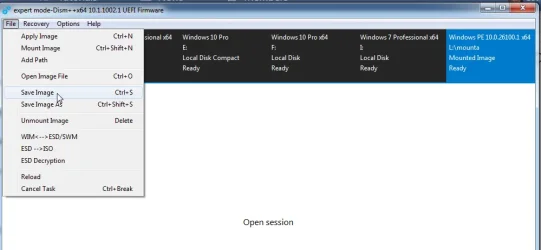
another way to do it is mount the original image with dism++

get dism++ to install the drivers for machine 1 or copy the $oem$ folder for machine 1 to the mounted image

( dble click the mounted image in the top pane to open it in explorer if you want to copy something into it.

or

click "open session" then click DRIVERS in the left pane if you want to install drivers )

save image

disam++-save-1.webp


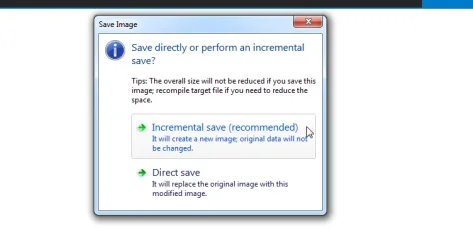
select Incremental


dism++save-2-incremental.webp


unmount

mount the original image again

install drivers for machine 2 or copy the $oem$ folder for machine 2 into the mounted image

save it select Incremental

unmount

etc

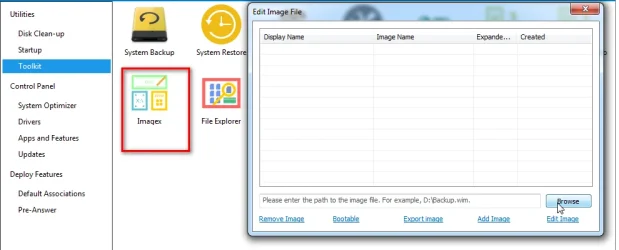
you can browse to the install.wim afterwards with the Toolkit>Imagex and add any comments to help you identify which image is for is which machine


dism++-toold-imagexjpg.webp
 
Last edited:

My Computers

System One System Two

  • OS
    Win7,Win11
    Computer type
    PC/Desktop
    CPU
    i7-9700
    Motherboard
    gigabyte b365m ds3h
    Memory
    2x16gb 3600mhz
    Monitor(s) Displays
    benq gw2480
    PSU
    bequiet pure power 11 400CM
    Cooling
    cryorig m9i
  • Operating System
    win7,win11
    Computer type
    PC/Desktop
    CPU
    i5-8400
    Motherboard
    gigabyte b365m ds3h
    Memory
    2x8gb 3200
    PSU
    xfx pro 450
In this informative video, i will guide you through the process of adding device drivers to your Windows installation. Join me as we explore step-by-step methods to seamlessly integrate drivers into your Windows setup, ensuring your hardware functions flawlessly.
 

My Computer

System One

  • OS
    Windows 11
    Computer type
    PC/Desktop
    Manufacturer/Model
    HP Pavilion
    CPU
    AMD Ryzen 7 5700G
    Motherboard
    Erica6
    Memory
    Micron Technology DDR4-3200 16GB
    Graphics Card(s)
    NVIDIA GeForce RTX 3060
    Sound Card
    Realtek ALC671
    Monitor(s) Displays
    Samsung SyncMaster U28E590
    Screen Resolution
    3840 x 2160
    Hard Drives
    SAMSUNG MZVLQ1T0HALB-000H1

Latest Support Threads

Back
Top Bottom