UPDATE 12/13:
 www.elevenforum.com
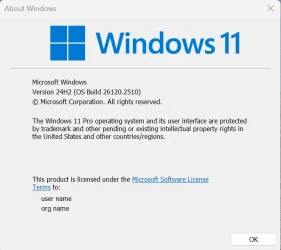
Hello Windows Insiders, today we are releasing Windows 11 Insider Preview Build 26120.2510 (KB5048780) to the Dev Channel. With this update, we are previewing new experiences for AMD and Intel-powered Copilot+ PCs including Recall and more and expanding Click to Do (Preview) beyond Recall in Windows.
 www.elevenforum.com
 www.elevenforum.com
If you’d like to test the latest driver versions available directly from our partners before they get to Windows Update, you can download them directly here:
 www.elevenforum.com
 www.elevenforum.com
 www.elevenforum.com

Recall with timeline control to go back in time to find something you did in the past on your PC.
We continue to invite you to try out Recall and share feedback, issues, or suggestions for improvement through in-experience links or the Feedback Hub. We also want to recognize the contributions of researchers and the security community in shaping Recall. If you’re an Insider also in this group, we additionally invite feedback on Recall’s updated security and privacy architecture through participation in our Windows Insider Preview Bug Bounty Program.
To get started, check out this blog post which highlights all the steps required to opt-in to using Recall and saving snapshots on your Copilot+ PC.
As we gradually roll out Recall in preview, Recall is supported on select languages including Chinese (simplified), English, French, German, Japanese, and Spanish. Content-based and storage limitations apply. See here for more details. Recall is not yet available in all regions, with expanded availability coming over time. As part of today’s update, we’re expanding the roll out of Recall (Preview) through the Windows Insider Program to the European Economic Area (EEA).
As a reminder for when we first preview new features with Windows Insiders, you may encounter some known issues listed at the bottom of this blog post we highly recommend you read.
FEEDBACK: Please file feedback in Feedback Hub (WIN + F) under Desktop Environment > Recall or through in-experience links.
 www.elevenforum.com

Cocreator in the Microsoft Paint app allows you to create amazing artwork with the help of AI.
We are beginning to roll out Cocreator to AMD and Intel-powered Copilot+ PCs, so it may not be available on your PC just yet.
FEEDBACK: Please file feedback in Feedback Hub (WIN + F) under Apps > Paint.
Image Creator lets you generate brand-new images from simple text prompts. For example, you can type “a serene lake at sunset” or “a vibrant city skyline at night,” and the AI will transform your idea into a feed of images. Whether you’re seeking inspiration or crafting the perfect visual, Image Creator delivers endless possibilities for creativity.
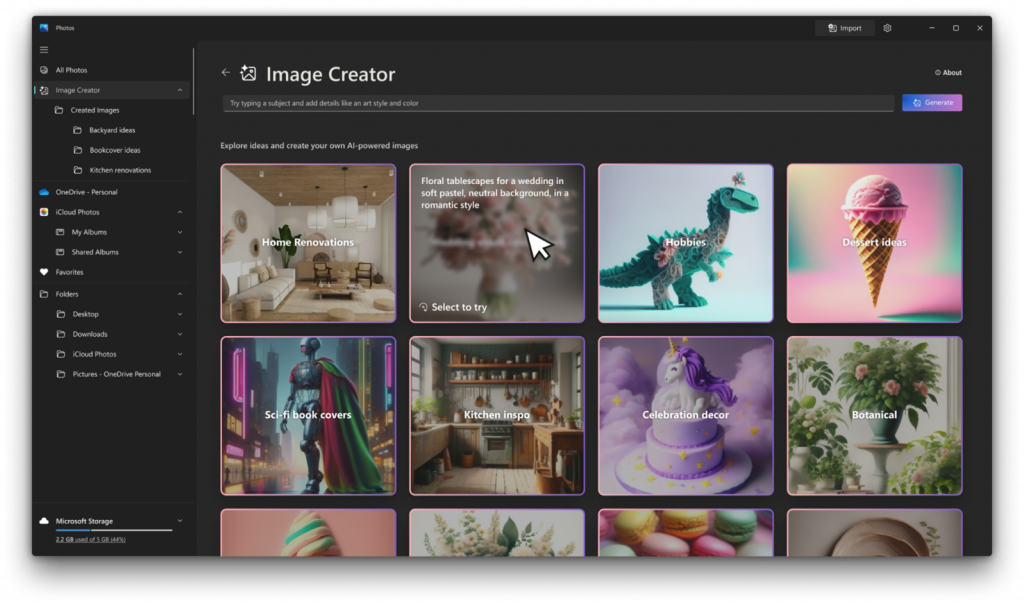
Image Creator in the Microsoft Photos app leverages the AI capabilities of your Copilot+ PC to transform a text prompt into a stunning gallery of diverse, uniquely crafted images.
Restyle Image allows you to take an existing photo and apply a variety of artistic styles. Whether you want to give your vacation photos a vintage aesthetic or turn a casual snapshot into a bold modern artwork, Restyle Image makes it effortless.
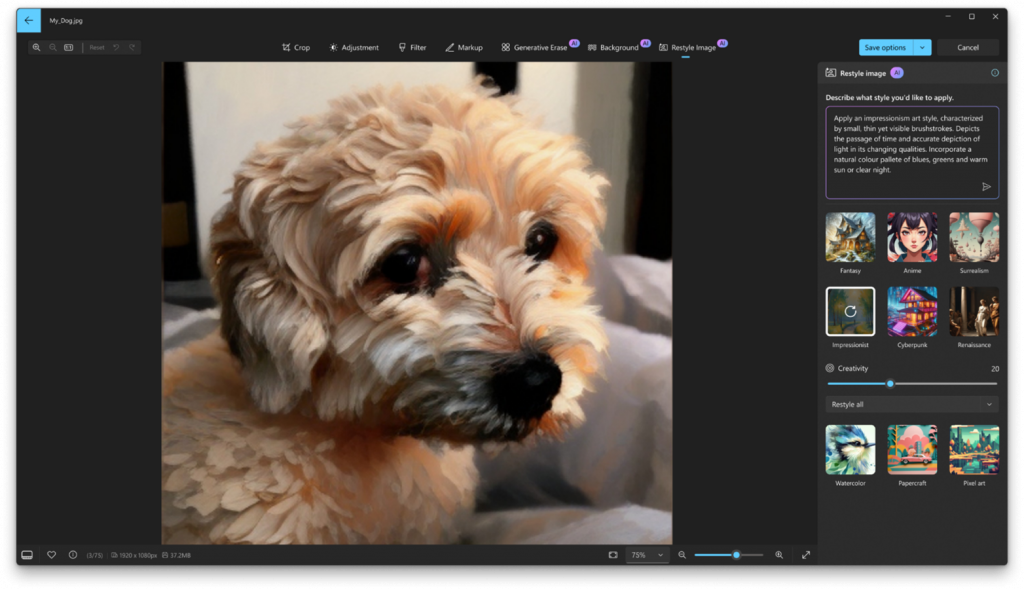
Restyle Image uses AI on your Copilot+ PC to give your photos a creative twist. You can choose from pre-made style ideas, like ‘fantasy’ or ‘impressionist’, or create your own to give your photo a new artistic effect.
To get these new features, update your Photos app to version 2024.11120.1001.0 or higher via the Microsoft Store. This update is currently rolling out, so it may not be available right away. Don’t forget to share your creations with us!
FEEDBACK: Please file feedback in Feedback Hub (Win + F) under Apps > Photos.
 www.elevenforum.com

Animated GIF showing WIN ley + click in action with visual effects.
We’re also working on introducing more intelligent text actions to enhance your Click to Do experience even further. Use WIN key + mouse-click or WIN + Q to select a text block and then drag to select the text that you want. You’ll see options to Summarize or to help you Rewrite your text, so it sounds more causal or more formal.
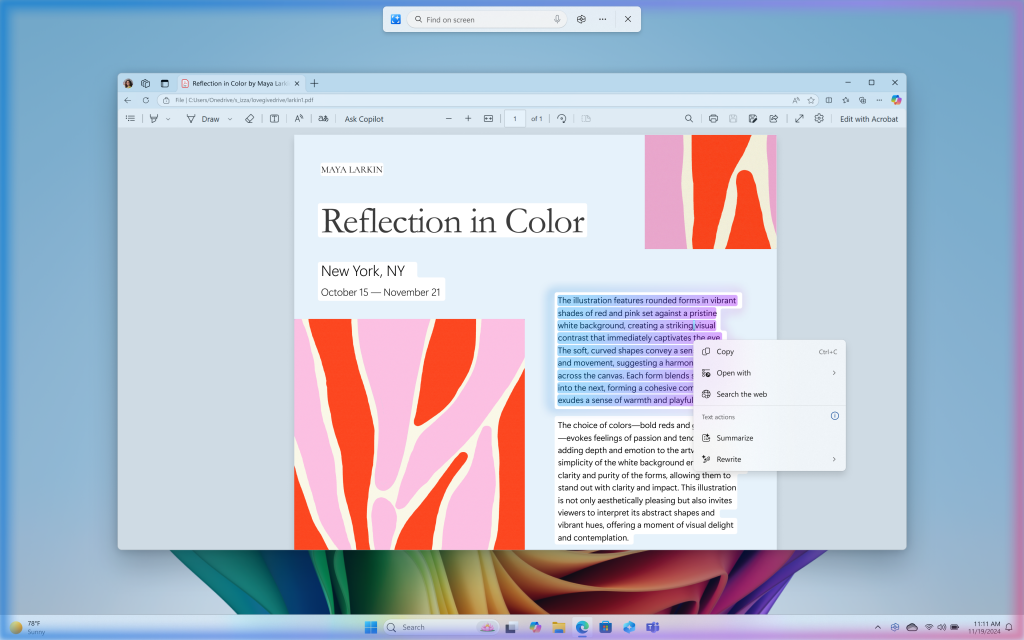
More intelligent text actions in Click to Do with options to Summarize or Rewrite.
Click to Do is the first experience to leverage the capabilities of Phi Silica, the on-device Small Language Model (SLM) that is built right into Windows. Results from our local model will show directly inline and if you’re happy with the rewrites you can copy them directly to your clipboard for use anywhere. These more intelligent text actions are available on Snapdragon-powered Copilot+ PCs today when your language is set to English with support for AMD and Intel-powered Copilot+ PCs coming soon.
The intelligent text actions leverage the power of Microsoft’s secure cloud to improve your text results by ensuring prompts and responses are safe and appropriate. This data is automatically deleted. The analysis of your screen is always performed locally on your device. Content is only shared out of Click to Do if you choose to complete an action, like copying text to your clipboard, for use in another app, or sharing an image with Bing for a visual search.
You can continue to use the same image and text actions you saw for the Click to Do in the Recall experience we released two weeks ago as well including on AMD or Intel-powered Copilot+ PCs too. Click to Do in Recall will recognize text and images in snapshots and offers AI powered actions you can take on these. Just press the Windows logo key and left mouse-click on any image in a snapshot in Recall to get options like Copy, Save, Share, Visual Search with Bing, Blur background with Photos, or Remove background with Paint. And by pressing the WIN key and left mouse-click on any text in a snapshot will give you options to Copy, Search the web, or send email or open a website if an email or URL is recognized.
To use Click to Do, you will need to have Recall enabled on your Copilot+ PC but do not have to opt in to having snapshots saved.
You can learn more about using Click to Do here.
FEEDBACK: Please file feedback in Feedback Hub (WIN + F) under Desktop Environment > Click to Do.
ALT-TEXT: Image showing new Windows Hello iconography.
Modernized Windows Hello Visual Communication: The updated Windows Hello visuals are designed to facilitate fast and clear communication and appear on the Windows Sign-in screen as well as other authentication flows such as passkey, Recall, Microsoft Store and many more.
ALT-TEXT: Image of the Windows 11 login screen depicting new Windows Hello iconography.
Revamped Windows Hello credential user experience for passkeys and the new administrator protection experience: We redesigned Windows security credential user experience for passkey by creating a cleaner experience that supports secured and quick authentication. Users will now be able to switch between authentication options and select passkey/devices more intuitively.
ALT-TEXT: Image of new passkey sign-in flow screens.
This experience will also apply for the new administrator protection feature coming to Windows 11, version 24H2 and higher and currently in preview with Windows Insiders in the most recent Canary Channel builds. For more information on administrator protection – you can check out this blog post that highlights our investments in adminless experiences in Windows from Microsoft Ignite.
FEEDBACK: Please file feedback in Feedback Hub (WIN + F) under Security and Privacy > Passwordless experience.
KB5048761 Windows 11 Insider Dev build 26120.2702 (24H2) - Dec. 13
Windows Blogs: Source: Check Windows Updates UUP Dump: 64-bit ISO download: https://uupdump.net/selectlang.php?id=3567214b-53e7-445b-96a3-37b3dc2b6638 ARM64 ISO download: x https://www.elevenforum.com/t/uup-dump-download-windows-insider-iso.344/
www.elevenforum.com
Windows Blogs:
Hello Windows Insiders, today we are releasing Windows 11 Insider Preview Build 26120.2510 (KB5048780) to the Dev Channel. With this update, we are previewing new experiences for AMD and Intel-powered Copilot+ PCs including Recall and more and expanding Click to Do (Preview) beyond Recall in Windows.
Join the Dev Channel on your Copilot+ PC
Here is how you can join the Dev Channel on your Copilot+ PC today (we have a video too!):- Register for the Windows Insider Program here via our website with your Microsoft account or Microsoft Entra ID. This should be the same account you use to sign into your Copilot+ PC with.
- After you have registered, go to Settings > Windows Update > Windows Insider Program on your PC and select the Get Started button.
- When asked to link an account, choose the account you’re signed into Windows with and be sure that it is the same account you registered for the program with.
- Choose the Dev Channel and reboot.
- After rebooting and signing into your Copilot+ PC, go to Settings > Windows Update and check for updates and Build 26120.2510 should be offered.
- Your PC will download the update and reboot to finish the update process.
Start Getting Insider Preview Builds on Windows 11 PC
This tutorial will show you how to get and install Insider preview builds of Windows 11 on your Windows 11 PC. Flighting is the process of running Windows Insider Preview Builds on your device. When you run these early versions of Windows and give Microsoft feedback, you can help Microsoft...
www.elevenforum.com
Change Windows Insider Program Channel in Windows 11
This tutorial will show you how to change your Windows Insider Program channel to the Beta, Experimental, or Release Preview channel to get Insider preview builds of Windows 11 on your PC. Flighting is the process of running Windows Insider Preview Builds on your device. When you run these...
www.elevenforum.com
New experiences for AMD and Intel-powered Copilot+ PCs
The following experiences are rolling out to Windows Insiders in the Dev Channel on AMD and Intel-powered Copilot+ PCs. Please install all the latest driver updates available from Windows Update to ensure the following experiences, like Recall, work correctly on your PC. To ensure you have the latest drivers for your Copilot+ PC, make sure the “Get the latest updates as soon as they’re available” toggle is on under Settings > Windows Update. Just click the “Check for updates” button and install any new drivers that Windows Update delivers to you.If you’d like to test the latest driver versions available directly from our partners before they get to Windows Update, you can download them directly here:
- Latest AMD graphics driver for Ryzen™ chipset.
- Latest Intel NPU driver for the Intel® Core™ Ultra 200V Series processor.
Recall (Preview)
After previewing Recall with our Windows Insider community on Snapdragon-powered Copilot+ PCs, we are expanding the preview of Recall to Windows Insiders on AMD and Intel-powered Copilot+ PCs. This includes Click to Do in Recall as well. With the AI capabilities of Copilot+ PCs, it’s now possible to quickly find and get back to apps, website, image, or document just by describing its content.
Enable or Disable Recall Feature in Windows 11
This tutorial will show you how to enable or disable the Recall feature for all users in Windows 11 on home (personal) or managed (work or school) Copilot+ PCs. You can use the Recall feature on Snapdragon-powered Copilot+ PCs. Recall is an optional feature for Windows 11. It is available by...
www.elevenforum.com
Uninstall or Reinstall Recall in Windows 11
This tutorial will show you how to uninstall or reinstall the Recall feature for all users in Windows 11 on Copilot+ PCs. Recall is an experience exclusive to Copilot+ PCs that will help you easily find and remember things you've seen using natural language. To help provide you with that...
www.elevenforum.com
Turn On or Off Click to Do in Recall in Windows 11
This tutorial will show you how to turn on or off Click to Do in Recall for your account in Windows 11. Recall is an experience exclusive to Copilot+ PCs that will help you easily find and remember things you've seen using natural language. To help provide you with that "photographic" memory...
www.elevenforum.com
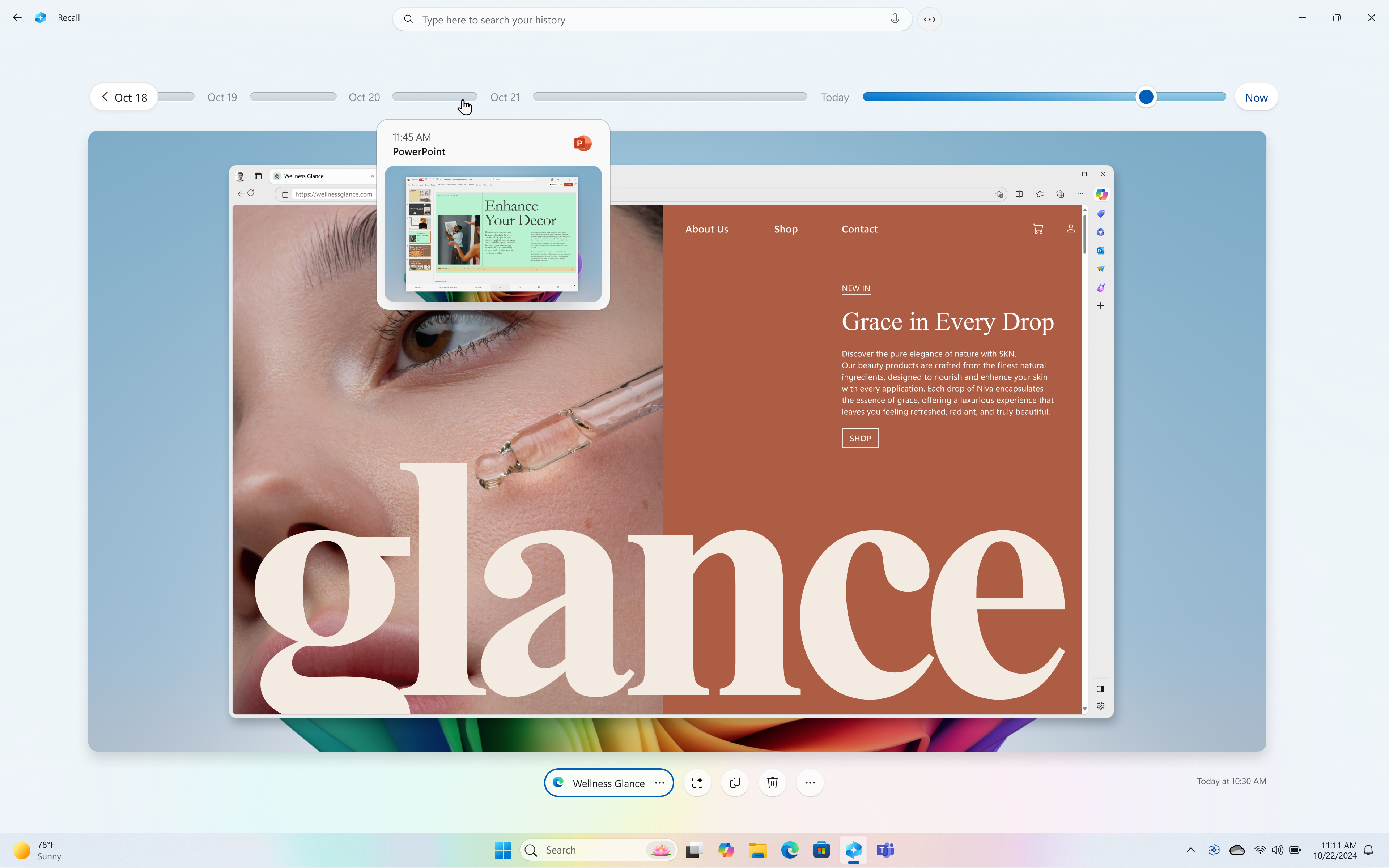
Recall with timeline control to go back in time to find something you did in the past on your PC.
We continue to invite you to try out Recall and share feedback, issues, or suggestions for improvement through in-experience links or the Feedback Hub. We also want to recognize the contributions of researchers and the security community in shaping Recall. If you’re an Insider also in this group, we additionally invite feedback on Recall’s updated security and privacy architecture through participation in our Windows Insider Preview Bug Bounty Program.
To get started, check out this blog post which highlights all the steps required to opt-in to using Recall and saving snapshots on your Copilot+ PC.
As we gradually roll out Recall in preview, Recall is supported on select languages including Chinese (simplified), English, French, German, Japanese, and Spanish. Content-based and storage limitations apply. See here for more details. Recall is not yet available in all regions, with expanded availability coming over time. As part of today’s update, we’re expanding the roll out of Recall (Preview) through the Windows Insider Program to the European Economic Area (EEA).
As a reminder for when we first preview new features with Windows Insiders, you may encounter some known issues listed at the bottom of this blog post we highly recommend you read.
FEEDBACK: Please file feedback in Feedback Hub (WIN + F) under Desktop Environment > Recall or through in-experience links.
Cocreator in Paint
Microsoft Paint is your creative companion, making it effortless to bring your visions to life. The latest update to the Paint app (version 11.2410.1002.0 and higher) brings Cocreator to AMD and Intel-powered Copilot+ PCs. Paint Cocreator allows you to create amazing artwork with the help of AI. You can enter a text prompt and start drawing on the Paint canvas, and Cocreator will generate beautiful artwork based on your input, all for free and without the need for a subscription.
Use Cocreator in Paint app in Windows 11
This tutorial will show you how to use the Cocreator feature in the Microsoft Paint app on a Windows 11 Copilot+ PC. The Paint app included in Windows 11 is a simple and powerful graphics editor with a range of uses. You can edit images quickly or create masterpieces with the tools in this app...
www.elevenforum.com
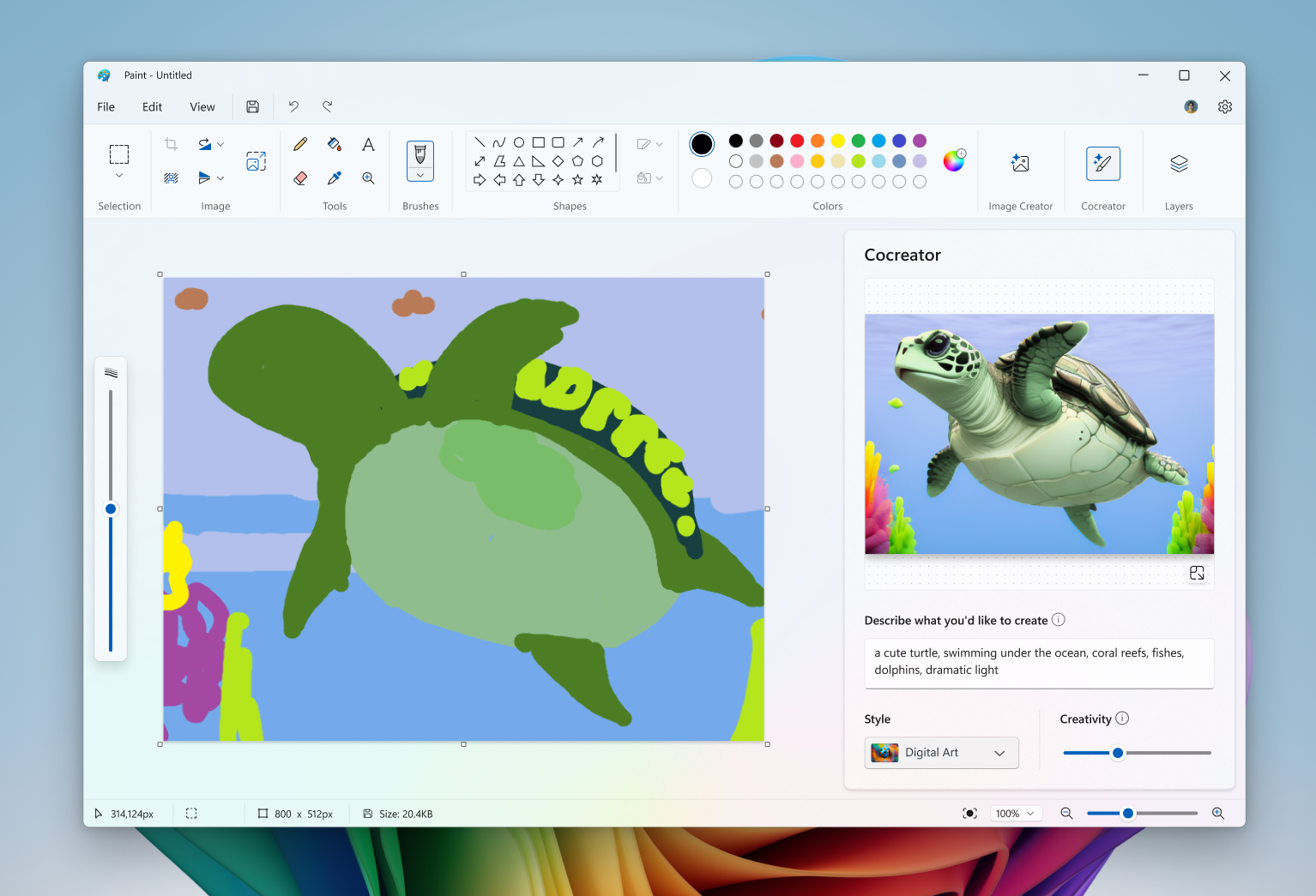
Cocreator in the Microsoft Paint app allows you to create amazing artwork with the help of AI.
We are beginning to roll out Cocreator to AMD and Intel-powered Copilot+ PCs, so it may not be available on your PC just yet.
FEEDBACK: Please file feedback in Feedback Hub (WIN + F) under Apps > Paint.
Restyle Image and Image Creator in the Photos app
In the latest update to the Microsoft Photos app, we are introducing Image Creator and Restyle Image to AMD and Intel Copilot+ PCs. These advanced AI-powered features are designed to unlock new creative possibilities—all powered locally on your device for fast and seamless performance.Image Creator lets you generate brand-new images from simple text prompts. For example, you can type “a serene lake at sunset” or “a vibrant city skyline at night,” and the AI will transform your idea into a feed of images. Whether you’re seeking inspiration or crafting the perfect visual, Image Creator delivers endless possibilities for creativity.
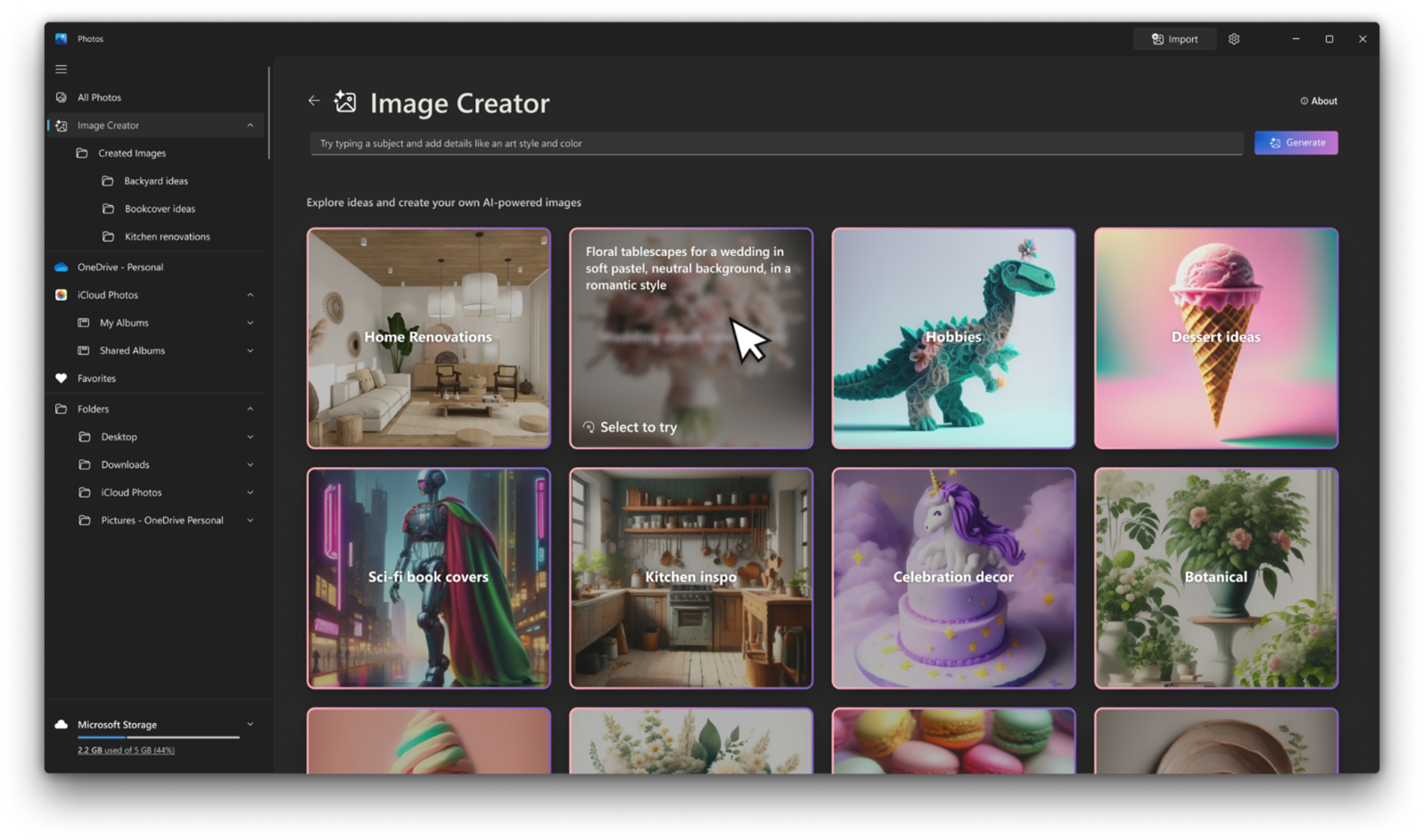
Image Creator in the Microsoft Photos app leverages the AI capabilities of your Copilot+ PC to transform a text prompt into a stunning gallery of diverse, uniquely crafted images.
Restyle Image allows you to take an existing photo and apply a variety of artistic styles. Whether you want to give your vacation photos a vintage aesthetic or turn a casual snapshot into a bold modern artwork, Restyle Image makes it effortless.
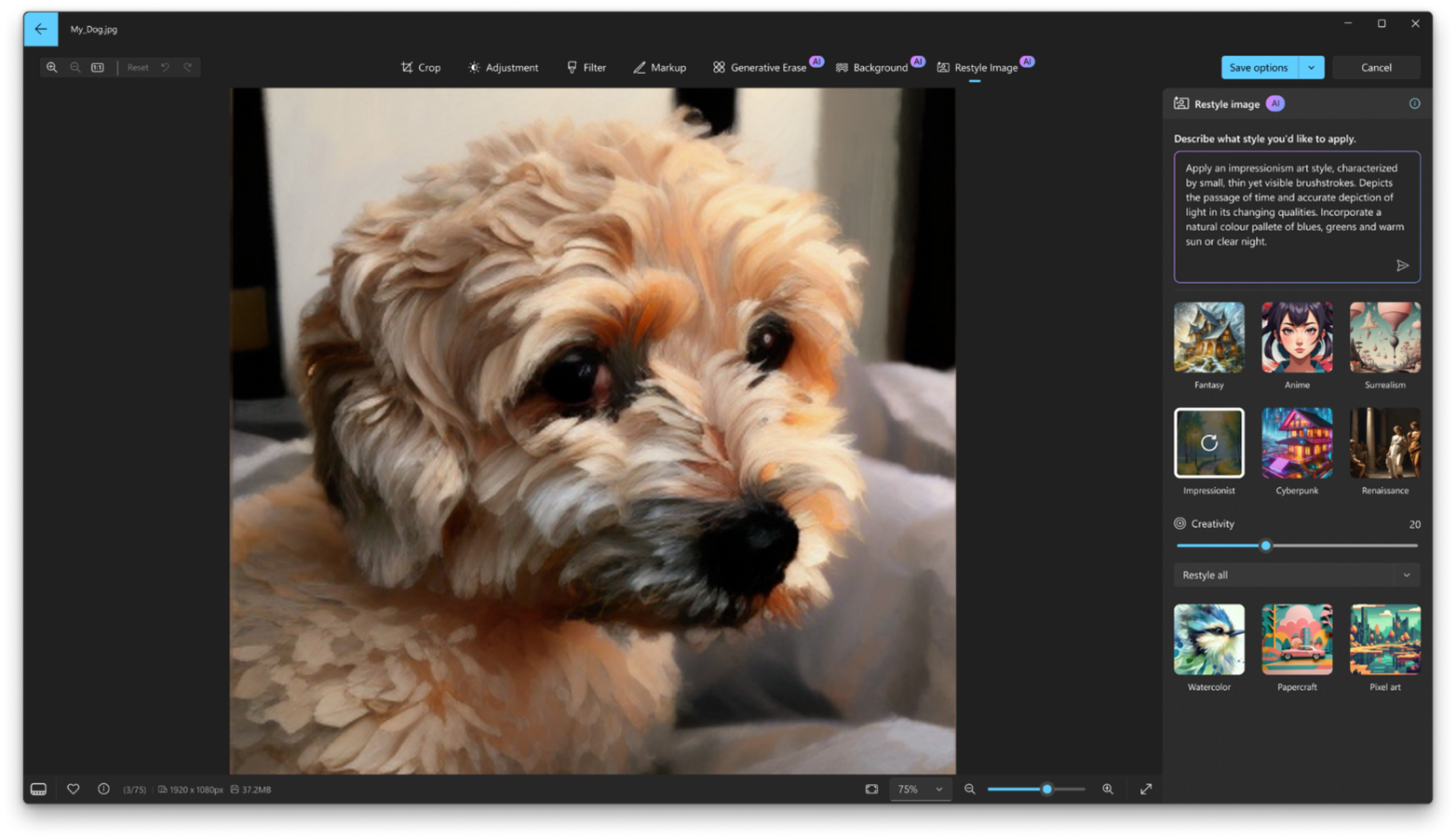
Restyle Image uses AI on your Copilot+ PC to give your photos a creative twist. You can choose from pre-made style ideas, like ‘fantasy’ or ‘impressionist’, or create your own to give your photo a new artistic effect.
To get these new features, update your Photos app to version 2024.11120.1001.0 or higher via the Microsoft Store. This update is currently rolling out, so it may not be available right away. Don’t forget to share your creations with us!
FEEDBACK: Please file feedback in Feedback Hub (Win + F) under Apps > Photos.
New ways to engage with Click to Do (Preview)
In addition to expanding support for Click to Do with Recall to AMD and Intel-powered Copilot+ PCs, today’s update also introduces new ways for you to effortlessly engage with Click to Do outside of Recall on Copilot+ PCs. You can now engage with Click to Do by simply pressing WIN key + mouse-click, WIN + Q, through the Snipping Tool menu and print screen, or searching “Click to Do” through the search box on the Windows taskbar. These methods will make it easier than ever to take immediate action on whatever catches your eye on-screen.
Use Click to Do in Recall in Windows 11
This tutorial will show you how to use Click to Do in Recall for your account on a Windows 11 Copilot+ PC. Recall is an experience exclusive to Copilot+ PCs that will help you easily find and remember things you've seen using natural language. To help provide you with that "photographic"...
www.elevenforum.com
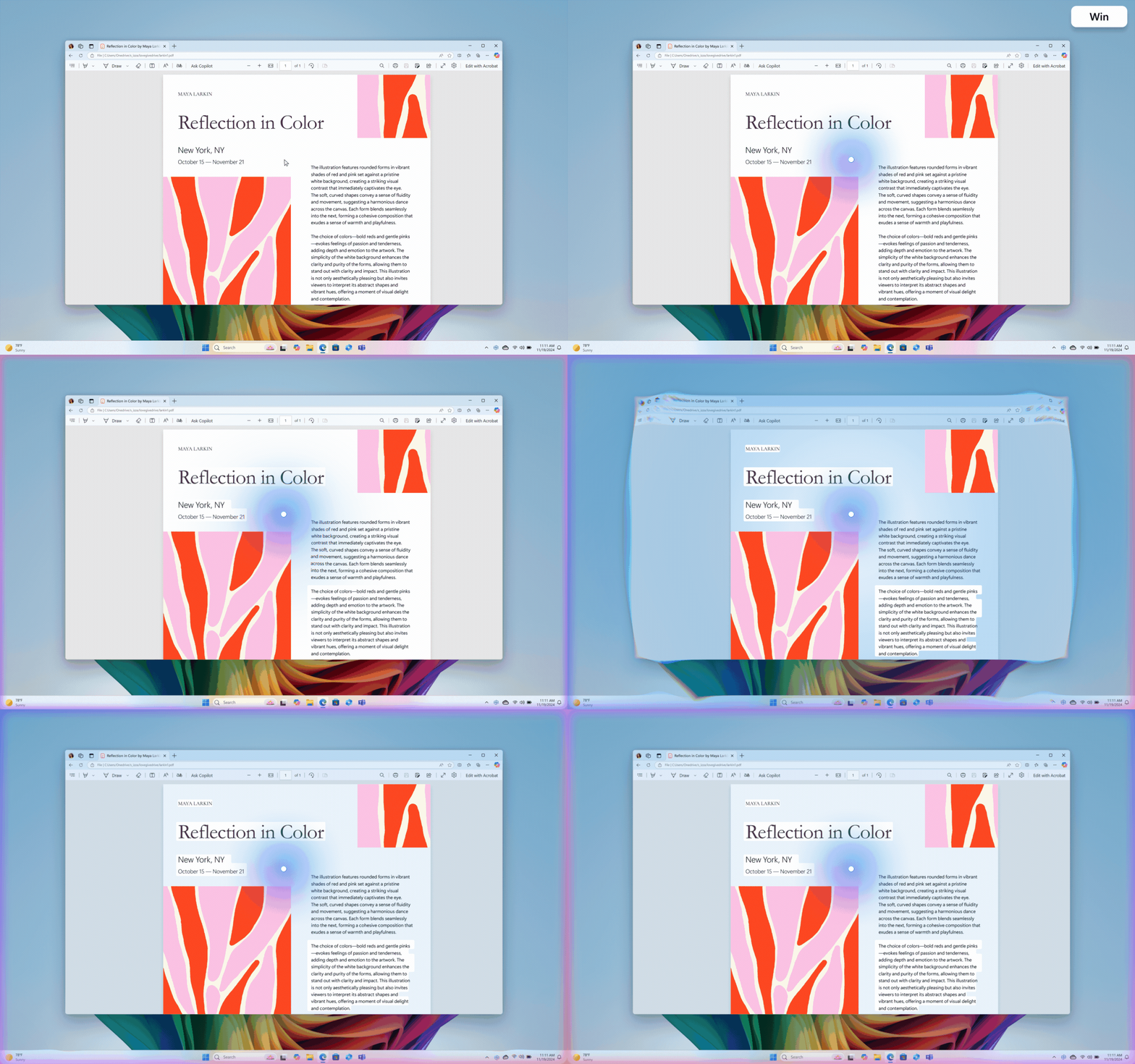
Animated GIF showing WIN ley + click in action with visual effects.
We’re also working on introducing more intelligent text actions to enhance your Click to Do experience even further. Use WIN key + mouse-click or WIN + Q to select a text block and then drag to select the text that you want. You’ll see options to Summarize or to help you Rewrite your text, so it sounds more causal or more formal.
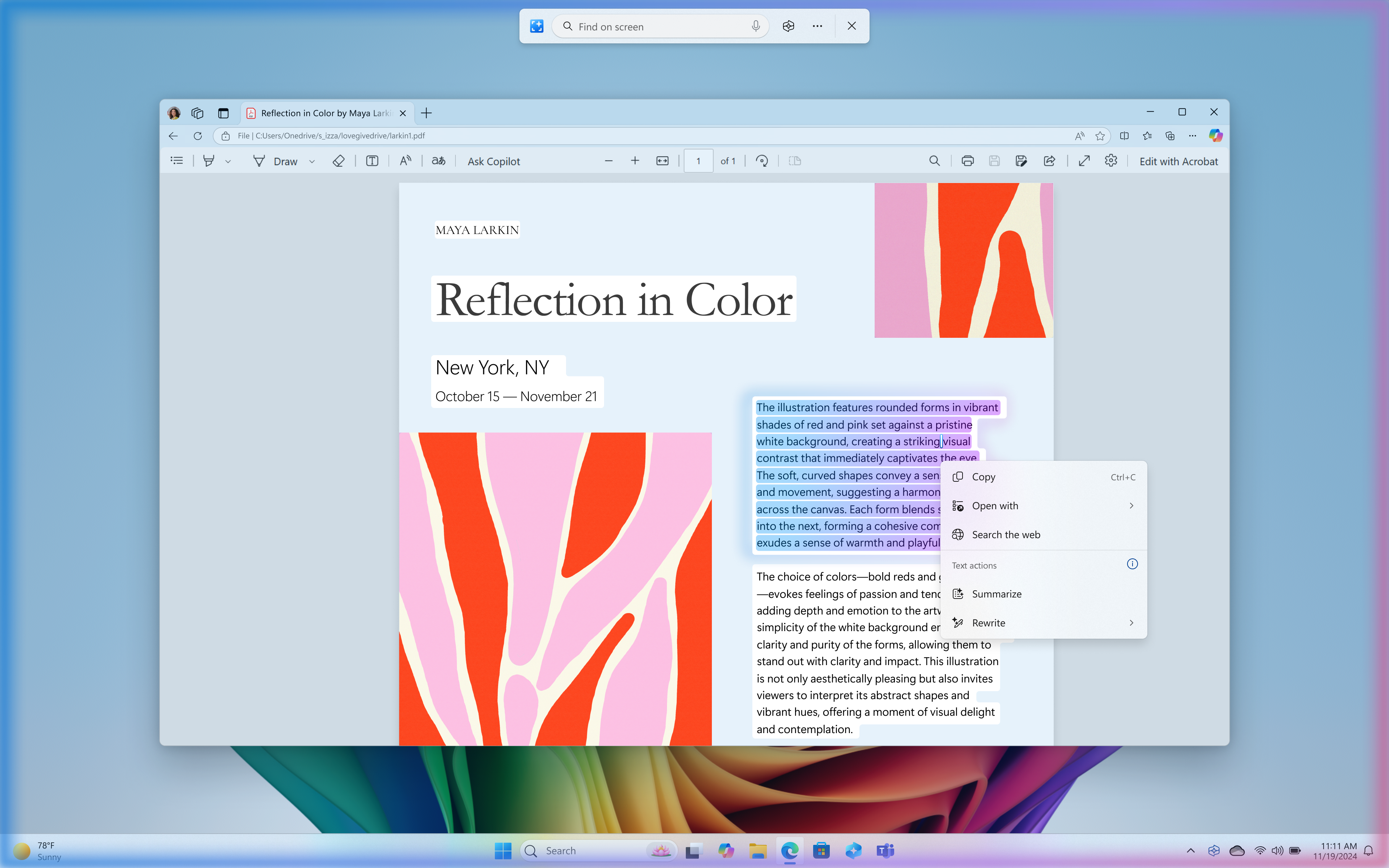
More intelligent text actions in Click to Do with options to Summarize or Rewrite.
Click to Do is the first experience to leverage the capabilities of Phi Silica, the on-device Small Language Model (SLM) that is built right into Windows. Results from our local model will show directly inline and if you’re happy with the rewrites you can copy them directly to your clipboard for use anywhere. These more intelligent text actions are available on Snapdragon-powered Copilot+ PCs today when your language is set to English with support for AMD and Intel-powered Copilot+ PCs coming soon.
The intelligent text actions leverage the power of Microsoft’s secure cloud to improve your text results by ensuring prompts and responses are safe and appropriate. This data is automatically deleted. The analysis of your screen is always performed locally on your device. Content is only shared out of Click to Do if you choose to complete an action, like copying text to your clipboard, for use in another app, or sharing an image with Bing for a visual search.
You can continue to use the same image and text actions you saw for the Click to Do in the Recall experience we released two weeks ago as well including on AMD or Intel-powered Copilot+ PCs too. Click to Do in Recall will recognize text and images in snapshots and offers AI powered actions you can take on these. Just press the Windows logo key and left mouse-click on any image in a snapshot in Recall to get options like Copy, Save, Share, Visual Search with Bing, Blur background with Photos, or Remove background with Paint. And by pressing the WIN key and left mouse-click on any text in a snapshot will give you options to Copy, Search the web, or send email or open a website if an email or URL is recognized.
To use Click to Do, you will need to have Recall enabled on your Copilot+ PC but do not have to opt in to having snapshots saved.
You can learn more about using Click to Do here.
FEEDBACK: Please file feedback in Feedback Hub (WIN + F) under Desktop Environment > Click to Do.
Other changes included in this Dev Channel update
This update (Build 26120.2510) includes other changes and improvements available to Windows Insiders across all Windows 11 PCs in addition to the features noted above that are exclusive to Copilot+ PCs. These changes are documented below in two buckets:- New features, improvements, and fixes that are being gradually rolled out for Insiders who have turned on the toggle to get the latest updates as they are available (via Settings > Windows Update*).
Enable or Disable Get Latest Updates as soon as available in Windows 11
This tutorial will show you how to turn on or off "Get the latest updates as soon as they are available" in Windows 11. Starting with Windows 11 build 22621.1635, Microsoft added a new "Get the latest updates as soon as they are available" toggle under Settings > Windows Update. When you turn...
www.elevenforum.com
- New features, improvements, and fixes rolling out to everyone in the Dev Channel.
New features gradually being rolled out to the Dev Channel with toggle on*
Modernized Windows Hello
At Microsoft, we are committed to security and enhancing user experiences. As part of this commitment, we launched enhanced passkey features in September 2023 and are now revamping the Windows Hello user experience. This represents a significant update to Windows Hello, aligning it with contemporary Windows visual design standards. The primary focus is on making authentication intuitive and seamless.ALT-TEXT: Image showing new Windows Hello iconography.
Modernized Windows Hello Visual Communication: The updated Windows Hello visuals are designed to facilitate fast and clear communication and appear on the Windows Sign-in screen as well as other authentication flows such as passkey, Recall, Microsoft Store and many more.
ALT-TEXT: Image of the Windows 11 login screen depicting new Windows Hello iconography.
Revamped Windows Hello credential user experience for passkeys and the new administrator protection experience: We redesigned Windows security credential user experience for passkey by creating a cleaner experience that supports secured and quick authentication. Users will now be able to switch between authentication options and select passkey/devices more intuitively.
ALT-TEXT: Image of new passkey sign-in flow screens.
This experience will also apply for the new administrator protection feature coming to Windows 11, version 24H2 and higher and currently in preview with Windows Insiders in the most recent Canary Channel builds. For more information on administrator protection – you can check out this blog post that highlights our investments in adminless experiences in Windows from Microsoft Ignite.
FEEDBACK: Please file feedback in Feedback Hub (WIN + F) under Security and Privacy > Passwordless experience.
Changes and Improvements gradually being rolled out to the Dev Channel with toggle on*
[Taskbar & System Tray]
- The more simplified system tray with shortened form date/time we began rolling out with Build 26120.1843 is being temporarily disabled to address a few issues. Thanks to all the Insiders who gave us feedback on this experience.

Enable or Disable Show Shortened Time and Date on Taskbar in Windows 11
This tutorial will show you how to turn on or off show shortened (abbreviated) time and date on the taskbar system tray clock for your account in Windows 11. The clock on the taskbar system tray shows the system time and date by default. The Show abbreviated time and date setting in this...
www.elevenforum.com
Fixes gradually being rolled out to the Dev Channel with toggle on*
[Taskbar & System Tray]
- Fixed a few issues impacting taskbar and explorer.exe reliability.
Last edited: