Microsoft Support:
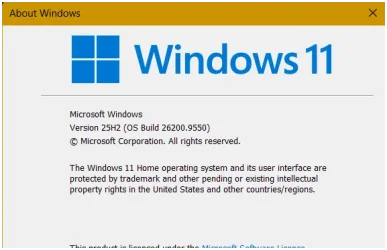
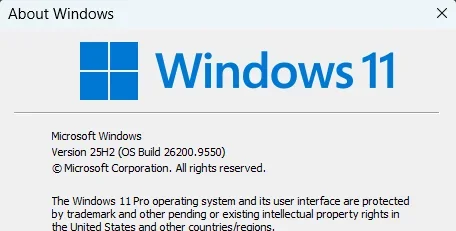
This cumulative update for Windows 11, version 25H2 and 24H2 (KB5124010), includes production-quality improvements.
Announcements and messages
This section provides key notifications related to this release, including announcements, change logs, and end-of-support notices.Windows Secure Boot certificate expiration
Important: Secure Boot certificates used by most Windows devices started to expire in June 2026. Microsoft has been updating these certificates on consumer and non-managed business devices over the past several months. Devices that haven’t received the newer certificates will continue to start and operate normally, and standard Windows updates will continue to install. Updated certificates will continue to be delivered through Windows Update in the coming months. For more information, see Windows Secure Boot certificate expiration and CA updates.
End of updates
Windows 11, version 24H2 Home and Pro editions will reach end of updates on October 13, 2026. Devices running these editions will no longer receive fixes for known issues, time zone updates, technical support, or monthly security and preview updates containing protections from the latest security threats. Enterprise and Education editions remain supported until October 12, 2027.
To stay protected and up to date, we recommend you upgrade to the latest version of Windows 11.
Highlights
This update is available through two release phases: gradual rollout and normal rollout. A gradual rollout delivers an update in phases, so features reach devices over time instead of all at once, meaning availability varies by device. A normal rollout is the broad release to all eligible devices at the same time, usually when it reaches general availability (GA).Note If you installed earlier updates, your device downloads and installs only the new updates contained in this package.
Gradual rollout
The following summary outlines new Windows 11 PC experiences, along with improvements and fixes. The bold text within the brackets indicates the item or area of the change.
- [File Explorer]
- New! This update adjusts how the preview pane handles files downloaded from the web. For HTML files, a new Preview anyway button lets you acknowledge the warning and preview the file. Non-HTML files, such as PDFs, are now previewed automatically.
- New! File Explorer Home now preserves the state of sections (expanded or collapsed), so you can pick up where you left off.
- New! This update improves the reliability of thumbnail previews for cloud files in the Details pane. The pane has also been reorganized so file properties are easier to find and review at a glance.
- New! The update addresses an issue that could clear the address bar contents when entering edit mode by clicking near the right side of the address bar.
- [Emoji]
- New! This update adds support for Emoji 17.0, including new emoji such as distorted face, fight cloud, and hairy creature. To insert them, press Windows + . to open the emoji panel.
- New! This update also refines the design of several existing emoji for better consistency across platforms, including saluting face, face with peeking eye, goose, lotus, and kissing cat.

Open Emoji Panel in Windows 11
This tutorial will show you how to open the Emoji Panel in Windows 11. An emoji is a pictogram, logogram, ideogram or smiley embedded in text. Windows 11 includes 3D Fluent emoji you can use from the Emoji Panel. Starting with Windows 11 build 22631.3810, Microsoft is adding support for Emoji... www.elevenforum.com
- [Widgets] New! This update introduces the Tips widget, which provides short, helpful guidance about Windows features. To add it to your Widgets board, open the board, select Add widgets, and then choose Tips. To add it to your lock screen, go to Settings > Personalization > Lock screen and add Tips to your lock screen widgets.

Add or Remove Widgets on Widgets Board in Windows 11
This tutorial will show you how to add (pin) or remove (unpin) widgets on the Widgets board for your account in Windows 11. Widgets in Windows are interactive elements that display dynamic content and provide quick access to various apps and features. You can view your location's current...
www.elevenforum.com

Add and Remove Widgets on Lock Screen in Windows 11
This tutorial will show you how to add and remove widgets on the lock screen for your account in Windows 11. You can stay informed and efficient with dynamic updates that bring weather, finance, sports, traffic, and app notifications right to your lock screen. Starting with Windows 11 build...
www.elevenforum.com
- [Personalization] This update includes a variety of improvements to desktop background experiences.
- This update improves the reliability of the Personalization > Background page in Settings.
- This update adds support for using DIB image files as desktop backgrounds.
- This update improves reliability of desktop slideshow transitions on newly created accounts.
- This update improves resolution of previews when selecting a desktop background in Personalization > Background.
- This update improves desktop background preview display in Settings for users with portrait mode monitors.
- This update improves reliability of processing desktop wallpaper changes when they happen in quick succession.
- This update adds support for using slideshow wallpapers with multiple desktops, so that it won’t automatically switch you back to Picture.

Change Desktop Background to Spotlight, Picture, Solid Color, or Slideshow in Windows 11
This tutorial will show you different ways to change the desktop background to a picture, solid color, slideshow, or Windows Spotlight image for your account in Windows 11. You can change your desktop background in Windows 11 to be a picture, solid color, a slideshow, or Windows Spotlight...
www.elevenforum.com
- [Bluetooth]
- This update contains several enhancements to improve reliability and experience when connecting to and using Bluetooth devices:
- During voice calls, the Windows shell volume flyout now appears when adjusting the volume of a Bluetooth Classic Audio accessory via the volume controls on the accessory, providing visual feedback of the new volume level.
- This update improves the accuracy of the connection state displayed by Windows for accessories that have disconnected from the PC.
- This update improves stability of the Bluetooth and devices page in Settings when managing Bluetooth and audio devices.
- This update resolves an issue where the Bluetooth radio could be turned off, but the state of the radio control toggle in the Bluetooth and devices page in Settings shows as on.
- This update improves Bluetooth audio stability and compatibility:
- This update improves microphone compatibility with certain Bluetooth Classic audio accessories.
- This update resolves an issue that could result in a crash (error code 0x139) while streaming Bluetooth audio.
- This update improves reliability and performance with LE Audio accessories.
- This update improves the reliability of shared audio.
- This update contains several enhancements to improve reliability and experience when connecting to and using Bluetooth devices:
- [Accessibility]
- New! This update introduces Open apps maximized, an accessibility setting that automatically maximizes app windows as they open. It removes a bit of everyday friction whether you use a screen reader or magnification, work in tablet mode, or simply prefer a consistent, full-screen workspace. To turn it on, go to Settings > Accessibility > Visual effects and turn on Open apps maximized.

Enable or Disable Open Apps Maximized by Default in Windows 11
This tutorial will show you how to turn on or off always open apps maximized by default for your account in Windows 11. You can manually maximize an app window in Windows 11 to "fit to screen" or "fill the screen" with the window. Starting with Windows 11 build 26340.9233 (Experimental 26H2)...
www.elevenforum.com
- This update improves navigation of the Bluetooth quick settings page when using keyboard input, gamepad input, or Narrator.
- New! This update introduces Open apps maximized, an accessibility setting that automatically maximizes app windows as they open. It removes a bit of everyday friction whether you use a screen reader or magnification, work in tablet mode, or simply prefer a consistent, full-screen workspace. To turn it on, go to Settings > Accessibility > Visual effects and turn on Open apps maximized.
- [Magnifier]
- New! This update brings a modernized visual refresh to the Magnifier taskbar.
- Updated icons Magnifier's toolbar icons align with Windows 11 visual design, giving the tool a cleaner, more modernized feel.
- Refined spacing and padding The padding is adjusted with spacing across the toolbar for a more polished, consistent layout.
- Views, zoom controls, keyboard shortcuts, and Read Aloud all behave exactly as they did in earlier versions.
- New! This update brings a modernized visual refresh to the Magnifier taskbar.
- [Settings]
- This update improves the reliability of Settings when interacting with the contents of the Settings > Bluetooth & Devices > Printers & Scanners page.
- This update updates Settings > Apps > Installed apps to show the version number at the top level for packaged apps, as it already does for other apps.

Find Version of Installed Apps in Windows 11
This tutorial will show you how to find the current version of installed apps in Windows 11. Option One: Find Version of Installed Apps in Settings Option Two: Find Version of Installed Apps in Control Panel Option Three: Find Version of Installed Apps in Microsoft Store Option Four: Find...
www.elevenforum.com
- This update improves the time picker control in Settings so that it reflects your preferred time format when you switch between 12-hour and 24-hour time. This applies in places such as setting active hours and scheduling Night light.
- This update improves persistence of the Allow multiple apps to use camera at the same time option in Settings > Bluetooth & Devices > Camera settings.

Enable or Disable Multiple Apps to Use Camera in Windows 11
This tutorial will show you how to turn on or off allowing multiple apps to use camera at the same time for your account or all users in Windows 11. Starting with build 26100.8524 (24H2), build 26200.8524 (25H2), and build 28000.2340 (26H1), Microsoft added a new Advanced camera options section...
www.elevenforum.com
- [Touchpad]
- New! Additional gesture controls for precision touchpads are available in Settings > Bluetooth & devices > Touchpad:
- Single-finger scrolling — Scroll vertically with one finger starting from the left or right side of the touchpad.

Disable or Change Single-finger Scrolling Side on Touchpad in Windows 11
This tutorial will show you how to start vertical scrolling with a single-finder near the left or right side of the touchpad for your account in Windows 11. Starting with Windows 11 build 26300.8376 (Experimental), build 26100.9539 (24H2 RP), build 26200.9535 (25H2 RP), and build 26300.9539...
www.elevenforum.com
- Automatic scrolling — Keep scrolling without lifting your fingers by moving them near the edge of your touchpad while scrolling.

Turn On or Off Automatic Scrolling with Pressure on Touchpad in Windows 11
This tutorial will show you how to turn on or off automatic scrolling with pressure on the touchpad for your account in Windows 11. Starting with Windows 11 build 26300.8376 (Experimental), build 26100.9539 (24H2 RP), build 26200.9535 (25H2 RP), and build 26300.9539 (26H2 RP) for Insiders...
www.elevenforum.com

Turn On or Off Automatic Scrolling at Edge on Touchpad in Windows 11
This tutorial will show you how to turn on or off automatic scrolling at edge on the touchpad for your account in Windows 11. Starting with Windows 11 build 26300.8376 (Experimental), build 26100.9539 (24H2 RP), build 26200.9535 (25H2 RP), and build 26300.9539 (26H2 RP) for Insiders, Microsoft...
www.elevenforum.com
- Single-finger scrolling — Scroll vertically with one finger starting from the left or right side of the touchpad.
- Previously, gesture controls for scroll and zoom speed and accelerate scrolling were released in the July 2026 update (KB5101684).

Change Touchpad Scroll Speed in Windows 11
This tutorial will show you how to change touchpad scroll speed for your account in Windows 11. Starting with Windows 11 build 26100.8973 (24H2), build 26200.8973 (25H2), and build 28000.2804 (26H1), Microsoft is adding new gesturing-related functionality to precision touchpads in Settings. The...
www.elevenforum.com

Change Touchpad Zoom Speed in Windows 11
This tutorial will show you how to change touchpad zoom speed for your account in Windows 11. Starting with Windows 11 build 26100.8973 (24H2), build 26200.8973 (25H2), and build 28000.2804 (26H1), Microsoft is adding new gesturing-related functionality to precision touchpads in Settings. The...
www.elevenforum.com

Turn On or Off Accelerated Scrolling on Touchpad in Windows 11
This tutorial will show you how to turn on or off accelerated scrolling on the touchpad for your account in Windows 11. Starting with Windows 11 build 26100.8973 (24H2), build 26200.8973 (25H2), and build 28000.2804 (26H1), Microsoft is adding new gesturing-related functionality to precision...
www.elevenforum.com
- New! Additional gesture controls for precision touchpads are available in Settings > Bluetooth & devices > Touchpad:
- [Copilot key] New! This update introduces a new Windows 11 setting that lets you remap the Copilot key to function as the Right Ctrl or Context Menu key, helping preserve familiar keyboard shortcuts and accessibility workflows. For more information, see Understand updates to the Copilot key on Windows devices.
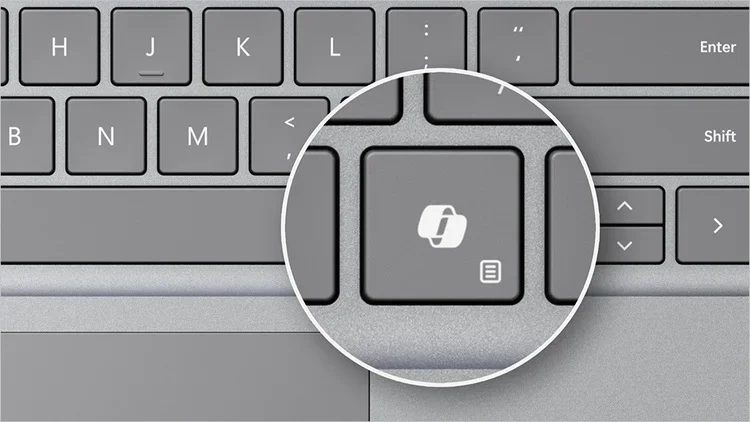
Customize what Copilot Key on Keyboard or Win+C Opens in Windows 11
This tutorial will show you how to change (remap) the action or which app opens when you press the hardware Copilot key or Windows :win: + C keys for your account or all users in Windows 11. If you have a Windows 11 Copilot+ PC, it will have a Copilot key on the keyboard. When you press this...
www.elevenforum.com
- [Camera roll]1 New! This update introduces Camera roll backup in Settings, helping eligible users protect their photos with OneDrive. You can turn on the feature from the Settings Home or Accounts page and complete setup on a mobile phone using a QR code.
- [Fonts]
- New! This update adds support for the Garay and Beria Erfe scripts to the Ebrima font, the first Microsoft font to support both. Garay was encoded in Unicode 16.0 and Beria Erfe in Unicode 17.0.
- New! This update also refines the Adlam glyph designs in Ebrima to align with the current Unicode standard and improve consistency.
- [Windows Recovery (WinRE)]
- New! This update enables WinRE to automatically reuse eligible Wi-Fi profiles already saved in Windows, including supported certificate-based networks. Devices can now get online automatically during recovery scenarios such as quick machine recovery or cloud rebuild, without preconfiguring Wi-Fi credentials in WinRE. This capability is on by default, and IT admins can disable it. For more information, see Windows Recovery Environment (Windows RE).
- New! This update adds a recovery remote management plug-in for extending WinRE management capabilities for MDM providers. For more information, see Recovery Remote Management Overview.
- [Kiosk mode]
- The Windows + Tab keyboard shortcut is now disabled when using a restricted UX kiosk.
- The Windows + A and Windows + C keyboard shortcuts are now disabled when using single-app kiosk mode.
- [Windows Backup]
- PC-to-PC Migration is no longer available. This feature, introduced through a phased rollout, previously allowed you to transfer files and settings directly from your previous PC when setting up a new Windows PC. To back up and restore your files, settings, and other supported items when moving to a new PC, use Windows Backup. For more information, see Backup and restore with Windows Backup.

Transfer Files and Settings to New Windows 11 PC using Windows Backup app
This tutorial will show you how to transfer your files, settings, and preferences from your previous (old) Windows 10/11 PC to your new Windows 11 PC during Windows Setup. Starting with Windows 11 build 26100.9539 (24H2 RP), build 26200.9535 (25H2 RP), and build 26300.9539 (26H2 RP) for...
www.elevenforum.com
- PC-to-PC Migration is no longer available. This feature, introduced through a phased rollout, previously allowed you to transfer files and settings directly from your previous PC when setting up a new Windows PC. To back up and restore your files, settings, and other supported items when moving to a new PC, use Windows Backup. For more information, see Backup and restore with Windows Backup.
- [Power and battery] This update improves display and performance in certain scenarios where a plugged-in laptop incorrectly detects a transition from AC power to battery power.
- Feature availability depends on your device and market.
Normal rollout
This non-security update includes quality improvements. The following summary outlines key issues addressed by the KB update after you install it. Also, included are available new features. The bold text within the brackets indicates the item or area of the change.
- [Camera] This update addresses an issue where the built-in camera might stop working in the Camera app and other apps that use the camera.
- [File History] This update addresses an issue where File History might fail to back up or restore files to an external drive or network location. Affected devices might incorrectly display a “Reconnect your drive” message even when a compatible backup drive is connected and working properly.
- [System Monitor (Sysmon)]
- This update fixes an issue with header validation for executable files. Truncated or malformed files could cause unpredictable memory use and result in unreliable tampering detection.
- This update fixes an issue with the Sysmon file system filter driver. If the archive directory failed to open during file monitoring, closing an uninitialized handle could cause a stop error.
- This update fixes an issue with process tampering detection. Sysmon incorrectly generated Event ID 25 alerts for the Windows Session Manager (smss.exe) process.
Components updates
AI componentsThis release updates the following AI components to version 1.2608.951.0: Image Search, Content Extraction, Semantic Analysis, and Settings Model.
To learn more, see Release information for AI components.
Servicing stack update (SSU)
Includes KB5124009 (Build 26100.9539), which improves the reliability of the Windows update installation process. To learn more about SSUs, see Simplifying on-premises deployment of servicing stack updates.
Known issues in this update
Symptoms
After installing the September 8, 2026, Windows security update (KB5124008), or later updates, some Credential Guard protected machine accounts might lose their secure channel with an on-premises Active Directory (AD) domain. Users might then be unable to sign in interactively with valid domain credentials and might receive a message stating that the trust relationship between the device and the domain failed. Offline sign-in using previously cached credentials might continue to work. AD replication and AD services on the domain controllers are not affected.
This issue occurs because KB5124008 and later updates enable the Machine Identity Isolation feature. While the update does not directly enable Machine Identity Isolation enforcement, it does cause Windows to begin honoring any existing or policy-provisioned settings that enabled Machine Identity Isolation enforcement. However, this feature is only supported for environments connected to domain controllers running at a Windows Server 2025 Domain Functional Level (DFL) and above. The feature should be disabled elsewhere. Any devices previously configured to use Machine Identity Isolation that are not connected to Windows Server 2025 domain controllers will experience this issue and will need to disable the feature.
Workaround
Important: This section contains information about modifying the registry. Before you modify the registry, back it up and make sure that you know how to restore it if a problem occurs. For more information, see How to back up and restore the registry in Windows.
To work around this issue, disable Machine Identity Isolation using the same management method that was used to enable it. Choose the applicable option below:
Then reset the secure channel using the following command:
Test-ComputerSecureChannel -Repair -Credential (Get-Credential)
Resolution
Microsoft plans to resolve this issue in a future Windows update by temporarily preventing Machine Identity Isolation enforcement while improvements are made to the feature.
After installing the September 8, 2026, Windows security update (KB5124008), or later updates, some Credential Guard protected machine accounts might lose their secure channel with an on-premises Active Directory (AD) domain. Users might then be unable to sign in interactively with valid domain credentials and might receive a message stating that the trust relationship between the device and the domain failed. Offline sign-in using previously cached credentials might continue to work. AD replication and AD services on the domain controllers are not affected.
This issue occurs because KB5124008 and later updates enable the Machine Identity Isolation feature. While the update does not directly enable Machine Identity Isolation enforcement, it does cause Windows to begin honoring any existing or policy-provisioned settings that enabled Machine Identity Isolation enforcement. However, this feature is only supported for environments connected to domain controllers running at a Windows Server 2025 Domain Functional Level (DFL) and above. The feature should be disabled elsewhere. Any devices previously configured to use Machine Identity Isolation that are not connected to Windows Server 2025 domain controllers will experience this issue and will need to disable the feature.
Workaround
Important: This section contains information about modifying the registry. Before you modify the registry, back it up and make sure that you know how to restore it if a problem occurs. For more information, see How to back up and restore the registry in Windows.
To work around this issue, disable Machine Identity Isolation using the same management method that was used to enable it. Choose the applicable option below:
- If Machine Identity Isolation was enabled by Intune policy, disable Machine Identity Isolation with Intune.
- If Machine Identity Isolation was enabled by Group Policy, disable Machine Identity Isolation with Group Policy.
- If Machine Identity Isolation was enabled directly in the registry, use these steps to disable it:
- On the Windows 11, version 24H2 or 25H2 device, locate the following registry paths:
HKEY_LOCAL_MACHINE\SYSTEM\CurrentControlSet\Control\Lsa\MachineIdentityIsolation
HKEY_LOCAL_MACHINE\SOFTWARE\Policies\Microsoft\Windows\DeviceGuard\MachineIdentityIsolation - For either of these registry keys, if the value of MachineIdentityIsolation is set to 2, change it to:
MachineIdentityIsolation = 0
- On the Windows 11, version 24H2 or 25H2 device, locate the following registry paths:
Then reset the secure channel using the following command:
Test-ComputerSecureChannel -Repair -Credential (Get-Credential)
Resolution
Microsoft plans to resolve this issue in a future Windows update by temporarily preventing Machine Identity Isolation enforcement while improvements are made to the feature.
Symptoms
After installing the September 8, 2026, Windows security update, some USB Audio Class 1.0 devices might fail to start or produce audio. Affected devices might experience one or more of the following symptoms:
Resolution
Microsoft is working on a resolution and will update this documentation when more information is available.
After installing the September 8, 2026, Windows security update, some USB Audio Class 1.0 devices might fail to start or produce audio. Affected devices might experience one or more of the following symptoms:
- The device displays an error in Device Manager: "This device cannot start (Code 10)."
- No audio output.
- Volume controls are unresponsive or remain at zero.
- Sound settings are unresponsive or unavailable.
Resolution
Microsoft is working on a resolution and will update this documentation when more information is available.
How to get this update
Before you install this update
Microsoft combines the latest servicing stack update (SSU) for your operating system with the latest cumulative update (LCU). For general information about SSUs, see Servicing stack updates.Deployment
If you deploy dynamic updates such as this update to an existing Windows image, ensure the boot.stl file is included as part of the installation media. Failure to include the file might prevent devices from successfully starting from the installation media and can result in error code 0xc0430001.Note: The boot.stl file is used during Secure Boot validation and must match the Windows version and architecture of the image you are updating.
To ensure the boot.stl file is included as part of the installation media, do one of the following:
- Use the Update WinPE script to update an existing Windows image. (Recommended)
- Manually copy the boot.stl file from the device Windows\Boot\EFI folder to the corresponding folder on your installation media before deploying the update.
Install this update
To install this update, use one of the following Windows and Microsoft release channels.| Available | Next Step |
|---|---|

| Open Start 

Check for optional updates |
|
| To install this update, download the standalone package(s) for this update from the Microsoft Update Catalog. This update contains MSU files that require installation in a specific order. Follow the Arm64 installation instructions or x64 installation instructions, as appropriate. If you install additional Dynamic Update packages, use versions from the same release month as this update. If a Safe OS Dynamic Update or Setup Dynamic Update is not available for the same release month, use the most recently released version. Note This latest cumulative update includes updates for AI components. AI components are applicable only to Copilot+ PCs and will not install on other Windows client PCs or Windows Server. |
File information
For a list of the files provided in this update, download the file information for cumulative update KB5124010.For a list of the files provided in the servicing stack update, download the file information for the SSU (KB5124009) - version 26100.9539.
Source:
September 22, 2026—KB5124010 (OS Builds 26200.9550 and 26100.9550) Preview | Microsoft Support
September 22, 2026—KB5124010 (OS Builds 26200.9550 and 26100.9550) Preview
 support.microsoft.com
Check Windows Updates
UUP Dump:
64-bit ISO download:

Select language for Windows 11, version 24H2 (26100.9550) amd64
Select language for Windows 11, version 24H2 (26100.9550) amd64 on UUP dump. UUP dump lets you download Unified Update Platform files, like Windows Insider updates, directly from Windows Update.
uupdump.net
Select language for Windows 11, version 25H2 (26200.9550) amd64
Select language for Windows 11, version 25H2 (26200.9550) amd64 on UUP dump. UUP dump lets you download Unified Update Platform files, like Windows Insider updates, directly from Windows Update.
uupdump.net
Select language for Windows 11, version 26H2 (26300.9550) amd64
Select language for Windows 11, version 26H2 (26300.9550) amd64 on UUP dump. UUP dump lets you download Unified Update Platform files, like Windows Insider updates, directly from Windows Update.
uupdump.net
ARM64 ISO download:
Select language for Windows 11, version 24H2 (26100.9550) arm64
Select language for Windows 11, version 24H2 (26100.9550) arm64 on UUP dump. UUP dump lets you download Unified Update Platform files, like Windows Insider updates, directly from Windows Update.
uupdump.net
Select language for Windows 11, version 25H2 (26200.9550) arm64
Select language for Windows 11, version 25H2 (26200.9550) arm64 on UUP dump. UUP dump lets you download Unified Update Platform files, like Windows Insider updates, directly from Windows Update.
uupdump.net
Select language for Windows 11, version 26H2 (26300.9550) arm64
Select language for Windows 11, version 26H2 (26300.9550) arm64 on UUP dump. UUP dump lets you download Unified Update Platform files, like Windows Insider updates, directly from Windows Update.
uupdump.net

UUP Dump - Download Windows Insider ISO
UUP Dump is the most practical and easy way to get ISO images of any Insider Windows 10 or Windows 11 version, as soon as Microsoft has released a new build. UUP Dump creates a download configuration file according to your choices, downloads necessary files directly from Microsoft servers, and...
www.elevenforum.com
Last edited:











 although 2 restore healths were needed to run...I have also the classic 2 reclaimable packages as everyone and the 190mbs windows update leftovers...just ignore these bugs..