Make My Device Hibernate After - Missing In Home Computer


Caxtin

Well-known member
Member
Local time
6:09 PM
Posts
117
OS
Windows 11 Pro 64-bit / 24H2 / Build 26100.6584
Hello folks,

In my home computer, I would like to be able to hibernate my computer at a set time, however, I could not find the option to do so, compared to my office computer. Both are Dell desktops, and running Windows 11 Pro, and both are Windows 2H24 Build 260100.6899.
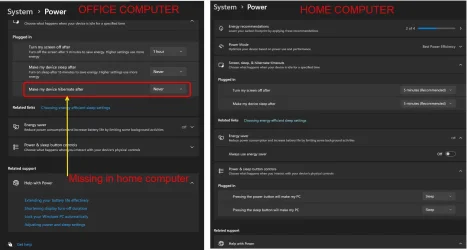
Hibernate01.webpHibernate02.webp
 

My Computers

System One System Two

  • OS
    Windows 11 Pro 64-bit / 24H2 / Build 26100.6584
    Computer type
    PC/Desktop
    Manufacturer/Model
    Dell XPS 8960
    CPU
    Intel(R) Core(TM) i7-13700, 16 Core(s)
    Motherboard
    Dell Inc. Base Board.
    Memory
    Total: 64.00 GB
    Graphics Card(s)
    NVIDIA GeForce RTX 4060 Ti
    Sound Card
    Realtek Audio & Integrated NVIDIA High Definition Audio
    Monitor(s) Displays
    Three Dell Monitors
    Screen Resolution
    1920 x 1080
    Hard Drives
    1TB ATA
    1TB ATA
    2TB ATA
    2TB ATA
    Keyboard
    Dell Keyboard
    Mouse
    Wireless Mouse
    Internet Speed
    935 Mbs (Down) 31 Mbs (Up)
    Browser
    Google Chrome. Firefox. Opera.
    Antivirus
    Windows Defender
    Other Info
    TP-Link Gigabit PCI Express Adapter (Ethernet 802.3)
    Sophos TAP Adapter Provider (Ethernet 802.3)
  • Operating System
    Microsoft Windows 11 Home 64-bit. 22631 Multiprocessor Free
    Computer type
    Laptop
    Manufacturer/Model
    Dell Inspiron 15-3530
    CPU
    13th Gen Intel(R) Core(TM) i7-1355U
    Motherboard
    Dell Inc. 0122F5
    Memory
    Total Memory: 16.00 GB Usable Memory: 15.69 GB
    Graphics card(s)
    Intel(R) Iris(R) Xe Graphics
    Sound Card
    (1) Intel® Smart Sound Technology for Bluetooth® Audio (2) Intel® Smart Sound Technology for USB Audio (3) Realtek Audio
    Monitor(s) Displays
    Integrated
    Screen Resolution
    1920 x 1080
    Hard Drives
    NVMe PC SN740 NVMe WD 512GB
    PSU
    Integrated
    Keyboard
    Integrated
    Mouse
    Integrated
    Internet Speed
    143 Mbs Down / 43 Mbs Up
    Browser
    Google Chrome . Firefox
    Antivirus
    Windows Defender
First: Turn OFF Fast Startup


  • Re-check power config
    • Open Control Panel > Power Options > “Choose what the power buttons do”
    • Click “Change settings that are currently unavailable”
    • Under “Shutdown settings,” check Hibernate

  • If still not available:
    • Investigate all options in both tutorials. Some you have tried, some you haven’t said you tried.


Last edited:

My Computers

System One System Two

  • OS
    Windows 11 Pro 25H2 Build 26200.8524
    Computer type
    PC/Desktop
    Manufacturer/Model
    Sin-built 2013
    CPU
    Intel(R) Core(TM) i7-4770K CPU @ 3.50GHz
    Motherboard
    ASUS ROG Maximus VI Formula
    Memory
    32.0 GB of I forget and the box is in storage.
    Graphics Card(s)
    Gigabyte nVidia GeForce GTX 1660 Super OC 6GB
    Sound Card
    Onboard thingy
    Monitor(s) Displays
    5 x LG 25MS500-B - 1 x 24MK430H-B - 1 x Wacom Pro 22" Touch Screen Tablet
    Screen Resolution
    All over the place
    Hard Drives
    Too many to list.
    OS on Samsung 1TB 870 QVO SATA
    PSU
    Silverstone 1500
    Case
    NZXT Phantom 820 Full-Tower Case
    Cooling
    Noctua NH-D15 Elite Class Dual Tower CPU Cooler / 6 x EziDIY 120mm / 2 x Corsair 140mm somethings / 1 x 140mm Thermaltake something / 2 x 200mm Corsair.
    Keyboard
    Corsair K95 / Logitech diNovo Edge Wireless
    Mouse
    Logitech: G402 / G502 / Mx Masters / Mx Air Cordless
    Internet Speed
    2000/500Mbps
    Browser
    All sorts
    Antivirus
    Kaspersky Premium
    Other Info
    ㅤㅤㅤㅤㅤㅤㅤㅤㅤㅤㅤㅤㅤㅤㅤㅤㅤㅤㅤㅤㅤㅤㅤㅤㅤㅤㅤㅤㅤㅤㅤㅤㅤㅤㅤㅤㅤㅤㅤㅤ⠀⠀⠀⠀⠀⠀⠀⠀⠀⠀
    TP-Link BE9300 WiFi 7 Bluetooth 5.4 (Archer TBE550E)
    TP-Link TX201 V1 2.5GB Lan

    Grandstream HT812 - VoIP
    ASUS DSL-AX82U - Mesh
    ASUS RT-AC68U - Mesh
    ASUS RT-BE88U Router

    Brother MFC-L2880DW Printer

    I’m on a horse.
  • Operating System
    Windows 11 Pro 25H2 Build 26200.8524
    Computer type
    Laptop
    Manufacturer/Model
    LENOVO Yoga 7 14IRL8 - 7i EVO OLED 14" Touchscreen i5 12 Core 16GB/512GB
    CPU
    Intel Core 12th Gen i5-1240P Processor (1.7 - 4.4GHz)
    Memory
    16GB LPDDR5 RAM
    Graphics card(s)
    Intel Iris Xe Graphics Processor
    Sound Card
    Optimized with Dolby Atmos®
    Screen Resolution
    QHD 2880 x 1800 OLED
    Hard Drives
    M.2 512GB
    Antivirus
    Defender / Malwarebytes
    Other Info
    …still on a horse.
unlock all power options


My Computer

System One

  • OS
    Windows 11 Pro
Perhaps this Win10 method also works in Win11
Add or Remove "Hibernate after" from Power Options - TenForumsTutorial
There doesn't seem to be an ElevenForumTutorial yet.


Denis
First: Turn OFF Fast Startup


  • Re-check power config
    • Open Control Panel > Power Options > “Choose what the power buttons do”
    • Click “Change settings that are currently unavailable”
    • Under “Shutdown settings,” check Hibernate

  • If still not available:
    • Investigate all options in both tutorials. Some you have tried, some you haven’t said you tried.


It is so tiring to be manually putting my system to Hibernate when leaving the PC; neither Sleep nor Hibernate would work. The Dell XPS configuration seems to be the culprit. First computer ever I would own and can't be automatic from it's settings. :mad:
 

Attachments

  • Windows 11 Sleep 01.webp
    Windows 11 Sleep 01.webp
    27 KB · Views: 1
  • Windows 11 Sleep 02.webp
    Windows 11 Sleep 02.webp
    39.1 KB · Views: 1

My Computers

System One System Two

  • OS
    Windows 11 Pro 64-bit / 24H2 / Build 26100.6584
    Computer type
    PC/Desktop
    Manufacturer/Model
    Dell XPS 8960
    CPU
    Intel(R) Core(TM) i7-13700, 16 Core(s)
    Motherboard
    Dell Inc. Base Board.
    Memory
    Total: 64.00 GB
    Graphics Card(s)
    NVIDIA GeForce RTX 4060 Ti
    Sound Card
    Realtek Audio & Integrated NVIDIA High Definition Audio
    Monitor(s) Displays
    Three Dell Monitors
    Screen Resolution
    1920 x 1080
    Hard Drives
    1TB ATA
    1TB ATA
    2TB ATA
    2TB ATA
    Keyboard
    Dell Keyboard
    Mouse
    Wireless Mouse
    Internet Speed
    935 Mbs (Down) 31 Mbs (Up)
    Browser
    Google Chrome. Firefox. Opera.
    Antivirus
    Windows Defender
    Other Info
    TP-Link Gigabit PCI Express Adapter (Ethernet 802.3)
    Sophos TAP Adapter Provider (Ethernet 802.3)
  • Operating System
    Microsoft Windows 11 Home 64-bit. 22631 Multiprocessor Free
    Computer type
    Laptop
    Manufacturer/Model
    Dell Inspiron 15-3530
    CPU
    13th Gen Intel(R) Core(TM) i7-1355U
    Motherboard
    Dell Inc. 0122F5
    Memory
    Total Memory: 16.00 GB Usable Memory: 15.69 GB
    Graphics card(s)
    Intel(R) Iris(R) Xe Graphics
    Sound Card
    (1) Intel® Smart Sound Technology for Bluetooth® Audio (2) Intel® Smart Sound Technology for USB Audio (3) Realtek Audio
    Monitor(s) Displays
    Integrated
    Screen Resolution
    1920 x 1080
    Hard Drives
    NVMe PC SN740 NVMe WD 512GB
    PSU
    Integrated
    Keyboard
    Integrated
    Mouse
    Integrated
    Internet Speed
    143 Mbs Down / 43 Mbs Up
    Browser
    Google Chrome . Firefox
    Antivirus
    Windows Defender

Latest Support Threads

Back
Top Bottom