Windows Blogs:
Hello Windows Insiders,
Search is one of the most familiar ways to get around a Windows PC. It is how you may open an app, find a file, change a setting, or simply look for information. As Insiders, you have also been clear about what you expect from it: search should be fast, focused, and help you find what you need without friction.
In July, we shared how we are improving the Windows Search Box with less clutter and more control. We introduced a calmer home screen, removed promotional content from web results, and gave you more choice over whether web and Microsoft Store suggestions appear.
Today, we’re carrying those investments forward with a new Windows Search experience built on WinUI 3. This modern foundation makes Windows Search faster and more efficient with resources, while delivering an even more streamlined and focused design.
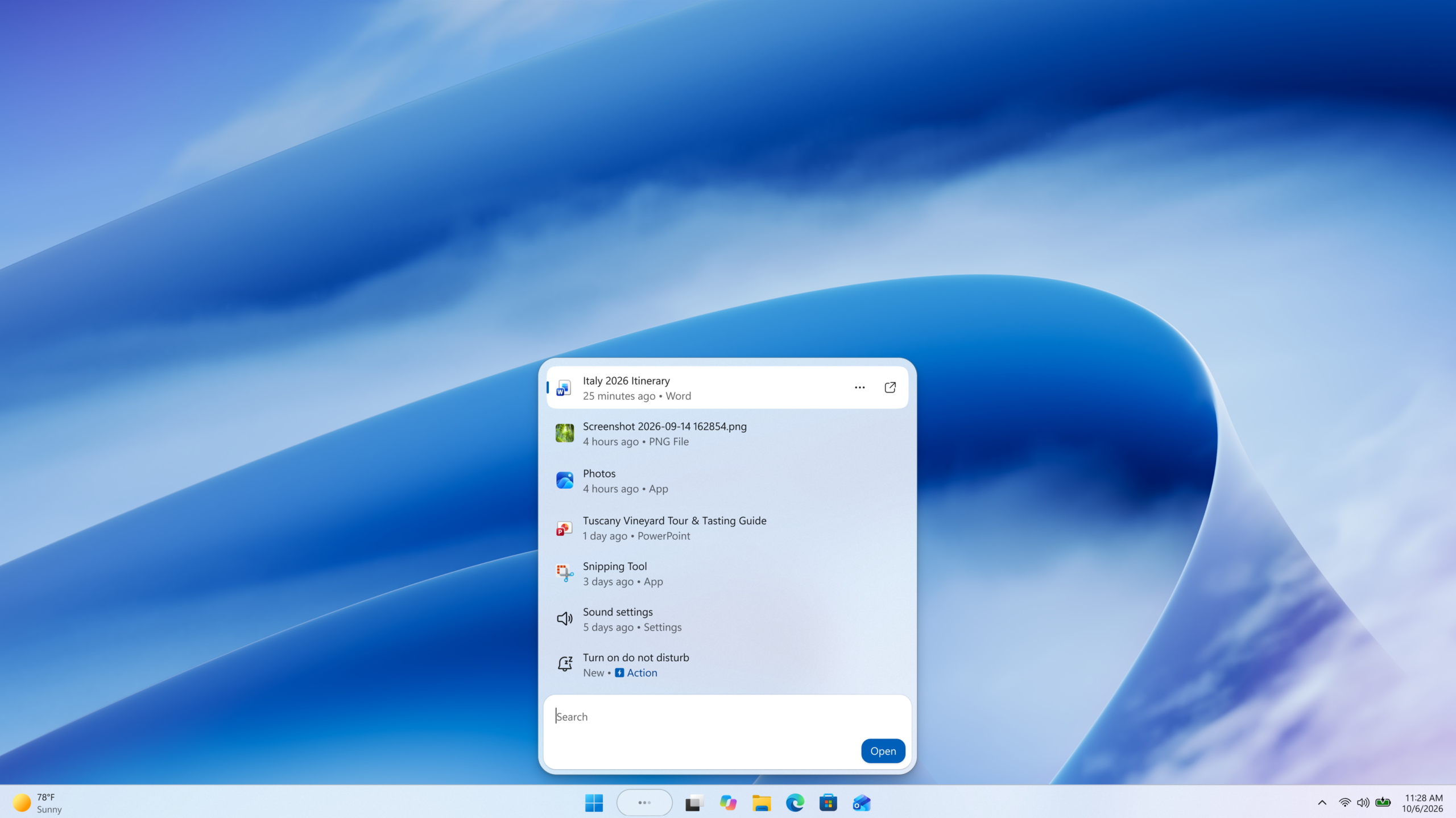
Windows Search showing recent files, apps, settings, and an inline action to turn on Do not disturb
Beginning 10/7, we’re rolling out this new experience on the taskbar for Windows Insiders. We are sharing this version early and intentionally so your feedback can help us fine-tune the experience, improve result relevance, identify stability issues across real-world hardware and workflows, and shape the UX before we expand the preview. Below, we’ll share what you can try today in the Experimental channel, what’s coming later this year, and what we’re building toward in the year ahead.
First, this new Windows Search experience is built for speed. It’s built on WinUI 3 and is part of our broader investment in modernizing our core Windows experiences. Early testing shows substantial improvements in performance and memory usage, so it feels faster and more efficient from the moment you open it.
Next, we’ve streamlined the UI into a single list to make it easier to scan and focus on what matters. Data shows that nearly all clicks in the current UX come from the results list on the left, rather than the large preview pane on the right. Informed by this behavior and your feedback, the new design brings results together in a single, easy-to-scan view that reduces visual clutter and puts the information you need in one place.
We’re also improving how Windows Search understands what you’re looking for, including better matching for typos and synonyms. We’ll continue fine-tuning these improvements over the coming weeks.
Later this year, inline previews and richer file details will make it easier to differentiate similar results and give you more context before opening a file.
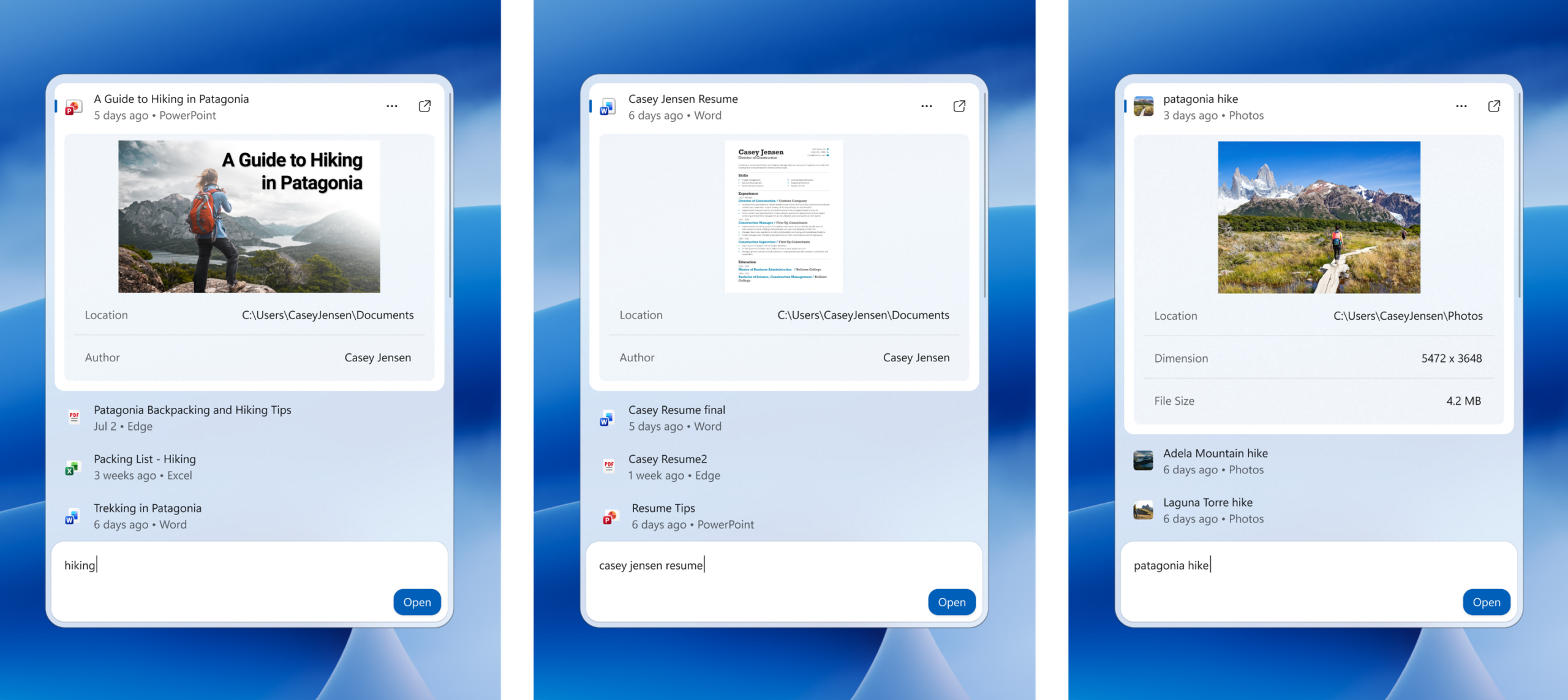
Windows Search showing inline previews for a PowerPoint presentation, a Word document, and a photo directly in search results
Rich inline web previews will bring answers to queries like “weather in San Diego” or “How tall is the Eiffel Tower?” directly into Windows Search, helping you get useful information without leaving the experience.
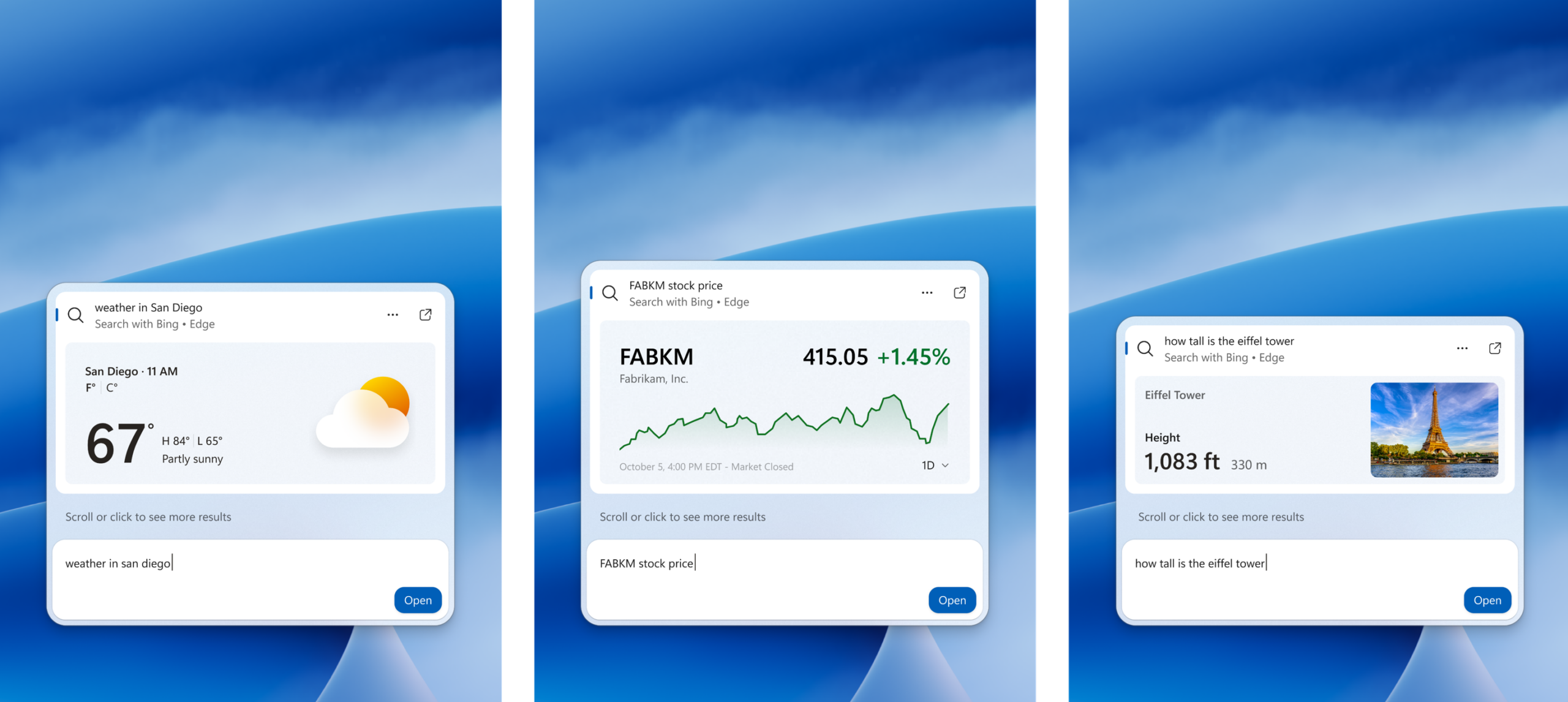
Windows Search showing rich web previews for weather in San Diego, a stock price, and the height of the Eiffel Tower
You’ll also be able to narrow results with filters when exploring a category like files. These are experiences you may already be familiar with today but will be brought together in a more streamlined, single-pane layout.
Lastly, we are expanding what search can help you accomplish. Search has always been about quickly helping you find what you need, and we’re turning Windows Search into a more capable starting point for getting things done in Windows with inline actions.
Actions: From finding to doing
We’re introducing inline actions to help you finish tasks right where you started, without opening another app or navigating through additional screens. We’re starting with familiar tasks where saving a few steps can make a meaningful difference in everyday use.Here are a few things to try:
- Turn something on or off. Try phrases such as “switch to dark mode”, “turn on night light,” or “turn on Bluetooth.”
- Make a quick adjustment. Try “dim my screen” or “mute.”
- Manage your workspace. Try “minimize all my windows,” or “arrange windows on screen.”
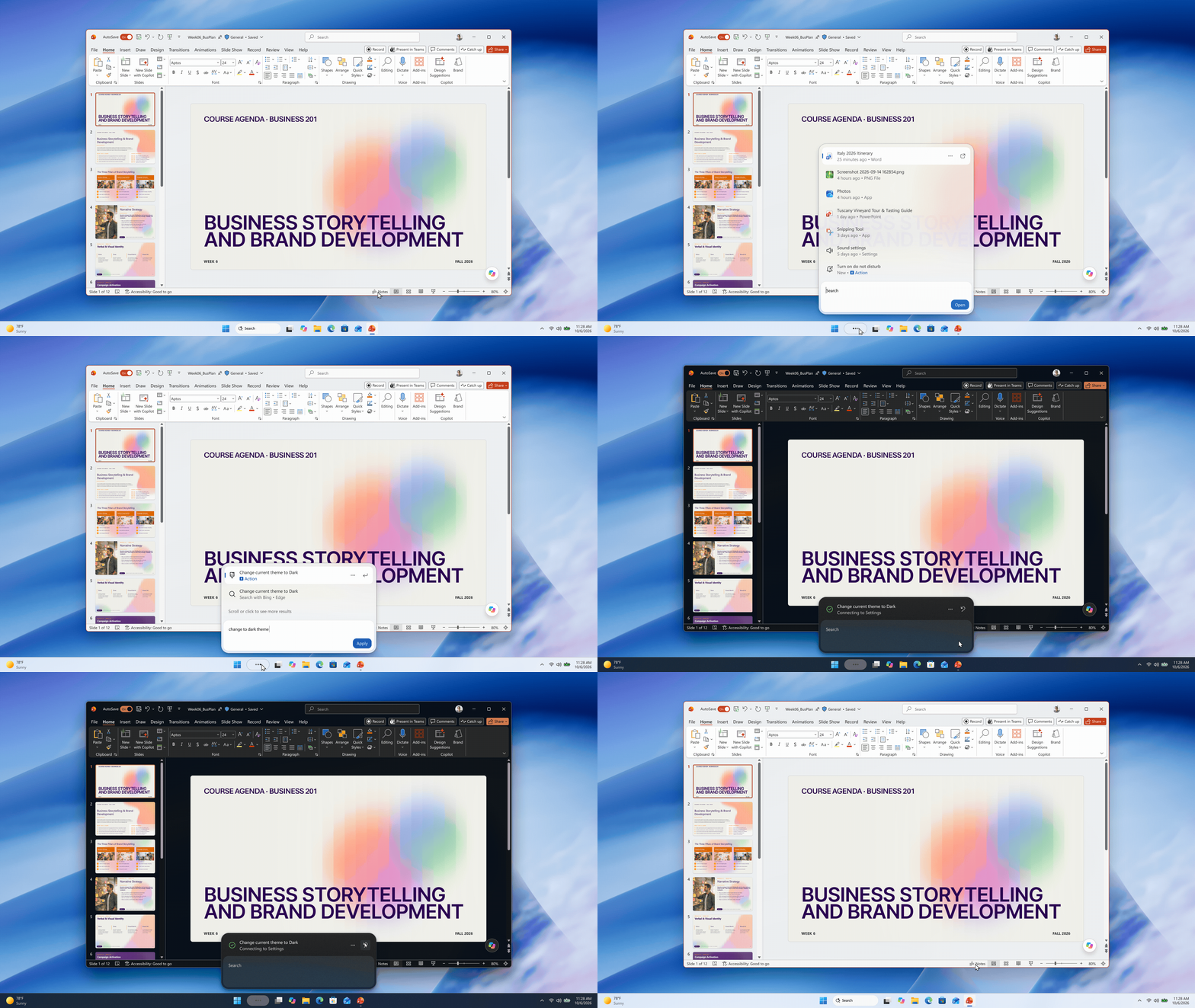
Windows Search demonstrating an inline action to change the system theme to dark mode.
Coming soon, you’ll also see phone actions to complete quick tasks with your Phone Link connected device.
 Windows Search demonstrating an inline action to send a text on a Phone Link connected device
We’re starting with the actions people rely on most and will continue building on that foundation over time.
Every piece of feedback helps us improve how search understands intent and expand the range of tasks you can complete directly from Windows Search.
What’s ahead
Looking to next year, work is already underway to bring the new Windows Search experience to the Start menu and have it adapt naturally to different taskbar positions and Windows configurations. In our initial previews, you’ll continue to see the existing search experience when searching from the Start menu while we learn and refine the new experience with your feedback.Our goal is to make Windows Search more capable, with more natural ways to express what you need, richer information in context, and more ways to get things done directly from search – including thoughtful integrations with experiences like Copilot. Together, these improvements will help reduce the distance between finding something and getting it done, while preserving the speed and familiarity you expect today.
Try the new Windows Search and give us feedback
This search experience with inline actions is gradually rolling out to Windows Insiders starting today in the Experimental channel, with English as the supported language for this initial release.If you’d like to preview it sooner, you can also enable this experience in Settings > Windows Update > Windows Insider Program > Feature flags. After upgrading to build 26340.9616 in the Experimental channel, or build 28120.3181 in the Experimental (26H1) channel, you’ll need to click the “Check for updates” button in Windows Update, and restart your device before the ‘New Windows Search Experience’ feature flag is visible.
Share your feedback in Feedback Hub (WIN + F) under Desktop Environment > Search. Your feedback will help us tune the experience and shape what comes next.
Anshul
Source:
From searching to doing: Building a faster, more streamlined Windows Search
Hello Windows Insiders, Search is one of the most familiar ways to get around a Windows PC. It is how you may open an app, find a file, change a setting, or simply look for information. As Insiders, you have also been clear about what you expect fro
 blogs.windows.com