Windows Experience Blog:
Today, we announced some new Copilot and agentic experiences that make every Windows 11 PC an AI PC with Copilot at the center. You can read all about these new experiences. We are also currently rolling out new features and improvements that make Windows 11 more intuitive, more secure, more accessible and more reliable for everyone. We continue to boost productivity in File Explorer with Microsoft 365 integrations, make accessibility and gaming better, protect you from phishing attacks and malware, and improve AI experiences on Copilot+ PCs.
File Explorer
AI actions
With AI actions in File Explorer1, you can interact more deeply with your files by right-clicking to quickly take actions like editing images or summarizing documents. Just right-click (or press Shift + F10) on the file and select AI actions.
Use AI Actions in File Explorer in Windows 11
This tutorial will show you how to use AI actions in File Explorer for your account in Windows 11. Starting with Windows 11 build 262100.6725 (24H2), Microsoft is introducing AI actions in File Explorer. With AI actions in File Explorer, you can interact more deeply with your files by...
 www.elevenforum.com

Enable or Disable Recommended Actions from Apps in Windows 11
This tutorial will show you how to turn on or off showing recommended AI Actions from apps as contextual suggestions for your account in Windows 11. Starting with Windows 11 build 26100.3915 (24H2) Microsoft is beginning to introduce a new settings page under Settings > Apps > Actions for...
www.elevenforum.com
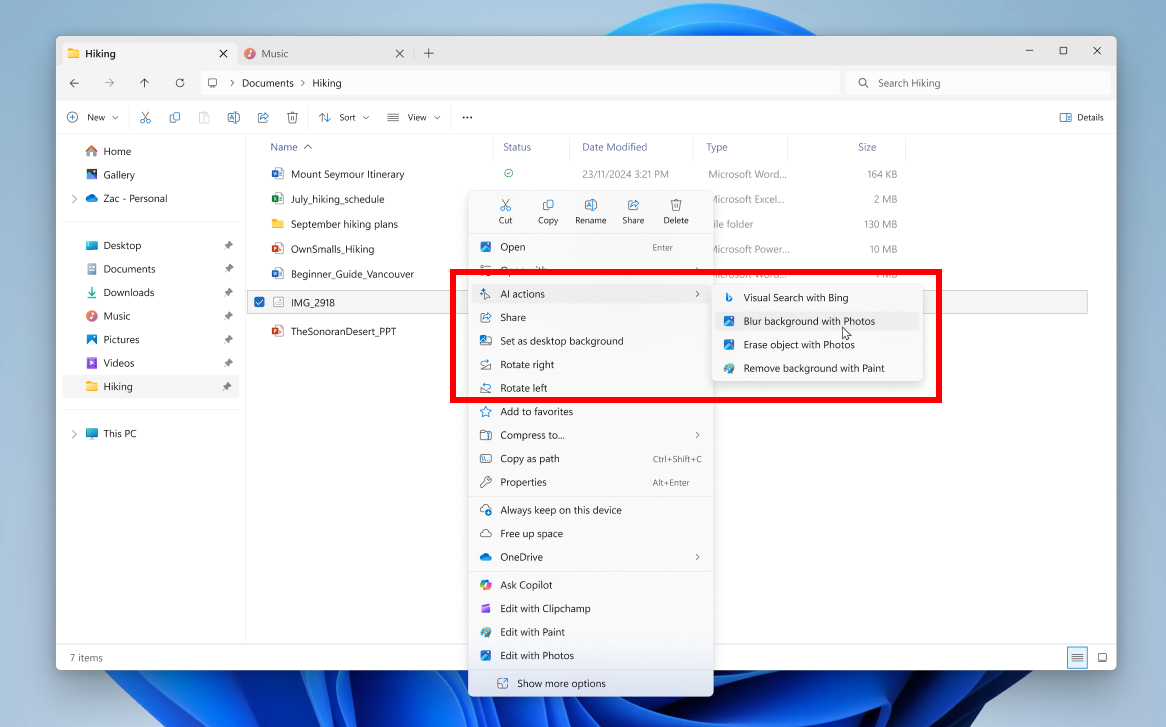
File Explorer with context menu expanded on a file showing new AI actions highlighted in a red box.
You can use these four AI-powered image actions with .jpg, .jpeg, and .png files:
- Bing Visual Search: Allows you to search the web using an image instead of text with Bing Visual Search. Find similar images and products, get details about sites using the image, and identify landmarks, plants and famous faces. From searching what you see on your screen, to shopping your preferred style, getting help with that homework problem or translating text, getting answers is more intuitive than ever.
- Blur background: Opens the Photos app which automatically finds the background in the photo, and with a single click, instantly highlights your subject and blurs out the background. You can also customize the effect by adjusting the Blur Intensity or use the Brush Tool to modify the areas being blurred.
- Erase objects: With Photos, by selecting or highlighting an unwanted element in your photo and Generative Erase makes it disappear. It allows you to fix and remove distractions from your photos.
- Remove background: With Paint allows you to alter any image automatically in just one click leaving a smooth cutout of the subject. Background removal can detect the subject from the entire canvas or using the selection tool.
And Microsoft 365 subscribers can also get more out of their OneDrive files in File Explorer with Copilot too.
Microsoft 365 People cards
For commercial customers who are signed in with their work or school account (Entra ID), File Explorer will now display people icons in the Activity column and the Recommended section at the top of File Explorer Home. When you hover over or select a person’s icon, it opens their Microsoft 365 People card which shows who they are and how they’re connected to the file. Click here to read more on the latest OneDrive changes.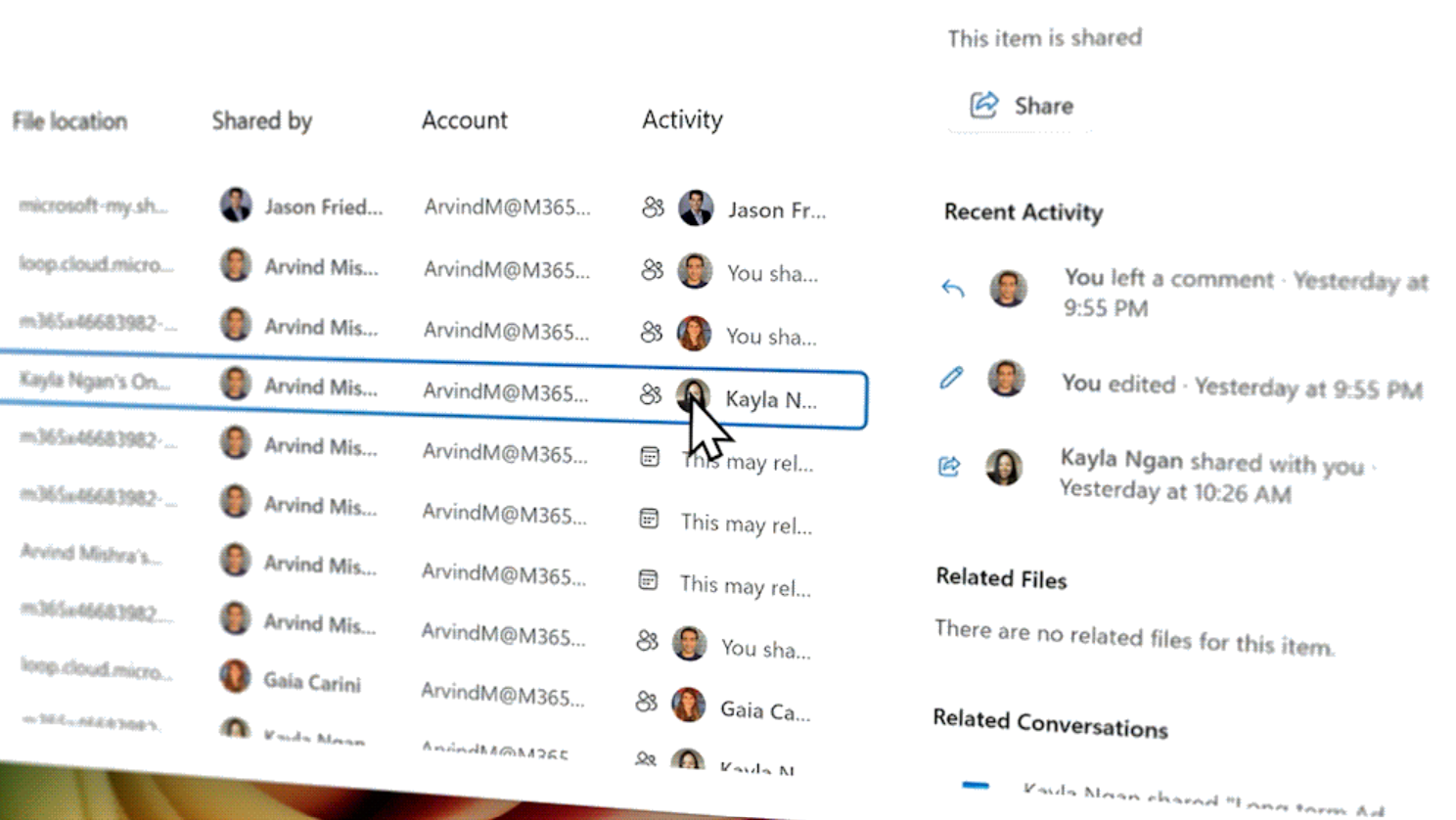
Activity column under File Explorer Home showing people icons and the People card opening.
Widgets
New visual experience for Discover feed
Discover feed has been updated with a new visual experience on your Widgets board. The layout is more organized, personalized and engaging. Copilot-curated stories are now included, offering a well-rounded view of each topic with summaries, videos and images from trusted MSN premium publishers. To customize your feed, go to Widgets > Discover dashboard > Personalization settings.
Enable or Disable Copilot Discover on Widgets Board in Windows 11
This tutorial will show you how to turn on or off the Copilot Discover experience on the Widgets board for your account in Windows 11. Widgets in Windows are interactive elements that display dynamic content and provide quick access to various apps and features. You can view your location's...
www.elevenforum.com
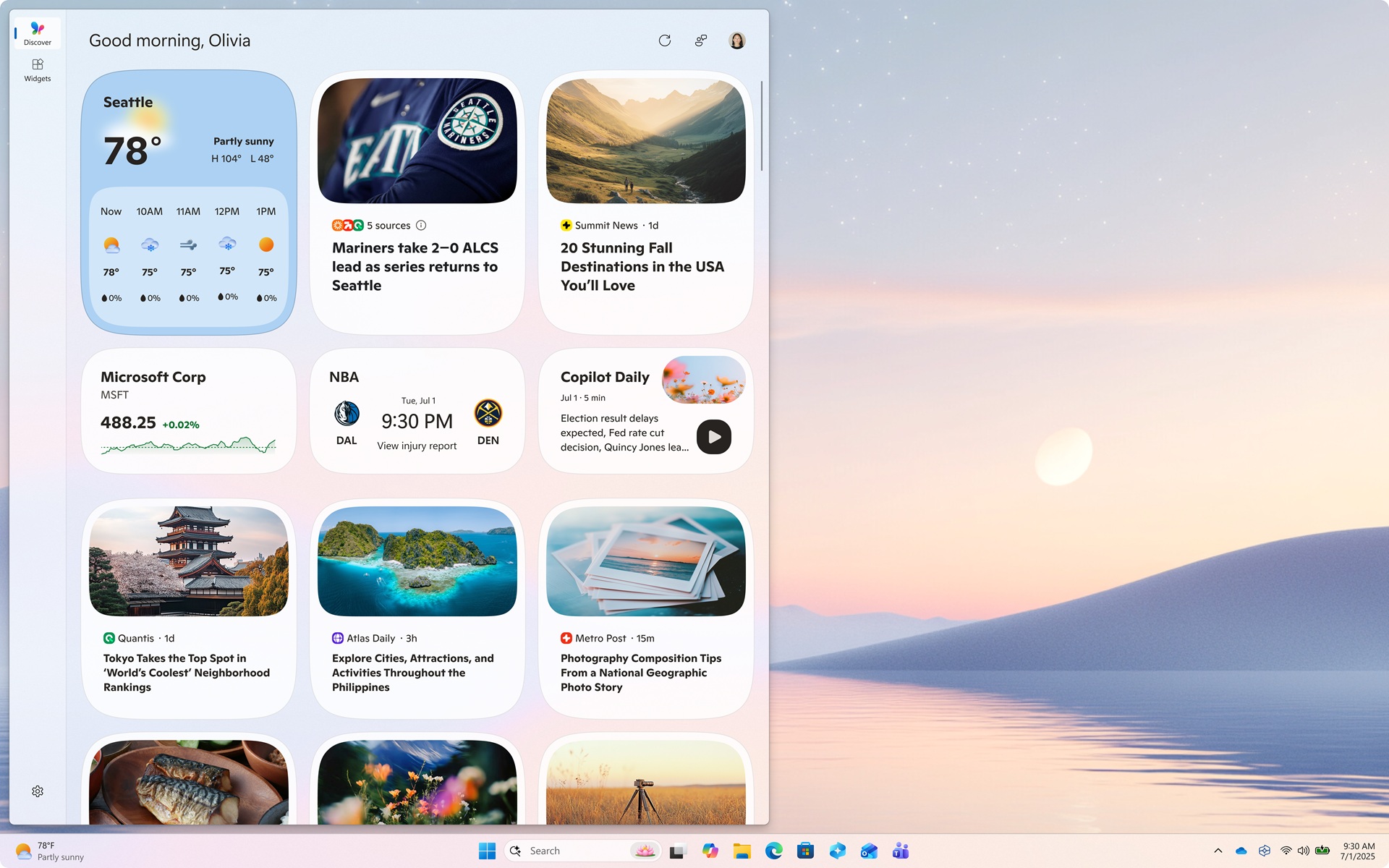
New visual experience for the Discover feed on your widgets board.
Multiple dashboards for your Widgets board
Multiple dashboards for your Widgets board give you more space for your favorite widgets and help you stay informed with a feed that connects you to current events. A new navigation bar on the left side makes it easy to switch between your widget’s dashboard and other views like the Discover feed.
Switch Between Dashboards on Widgets Board in Windows 11
This tutorial will show you how to switch between dashboards in Widgets for your account in Windows 11. Widgets in Windows are interactive elements that display dynamic content and provide quick access to various apps and features. You can view your location's current weather conditions...
www.elevenforum.com
Widgets on the lock screen
We have updated the widgets experience for your lock screen, replacing what was previously referred to as “Weather and more.” You can add, remove and rearrange lock screen widgets such as Weather, Watchlist, Sports and more. We also provide suggested widgets on the lock screen to help you discover more widgets. Any widget that supports the small sizing option can be added. To customize your lock screen widgets, go to Settings > Personalization > Lock screen.
Enable or Disable Widgets on Lock Screen in Windows 11
This tutorial will show you how to enable or disable showing widgets on the lock screen for your account or all users in Windows 11. You can stay informed and efficient with dynamic updates that bring weather, finance, sports, traffic, and app notifications right to your lock screen. Starting...
www.elevenforum.com

Add and Remove Widgets on Lock Screen in Windows 11
This tutorial will show you how to add and remove widgets on the lock screen for your account in Windows 11. You can stay informed and efficient with dynamic updates that bring weather, finance, sports, traffic, and app notifications right to your lock screen. Starting with Windows 11 build...
www.elevenforum.com

Rearrange Widgets on Lock Screen in Windows 11
This tutorial will show you how to rearrange widgets on the lock screen for your account in Windows 11. You can stay informed and efficient with dynamic updates that bring weather, finance, sports, traffic, and app notifications right to your lock screen. Starting with Windows 11 build...
www.elevenforum.com

Enable or Disable Widget Suggestions on Lock Screen in Windows 11
This tutorial will show you how to turn on or off discover widgets for showing widget suggestions on the lock screen for your account in Windows 11. You can stay informed and efficient with dynamic updates that bring weather, finance, sports, traffic, and app notifications with widgets on your...
www.elevenforum.com
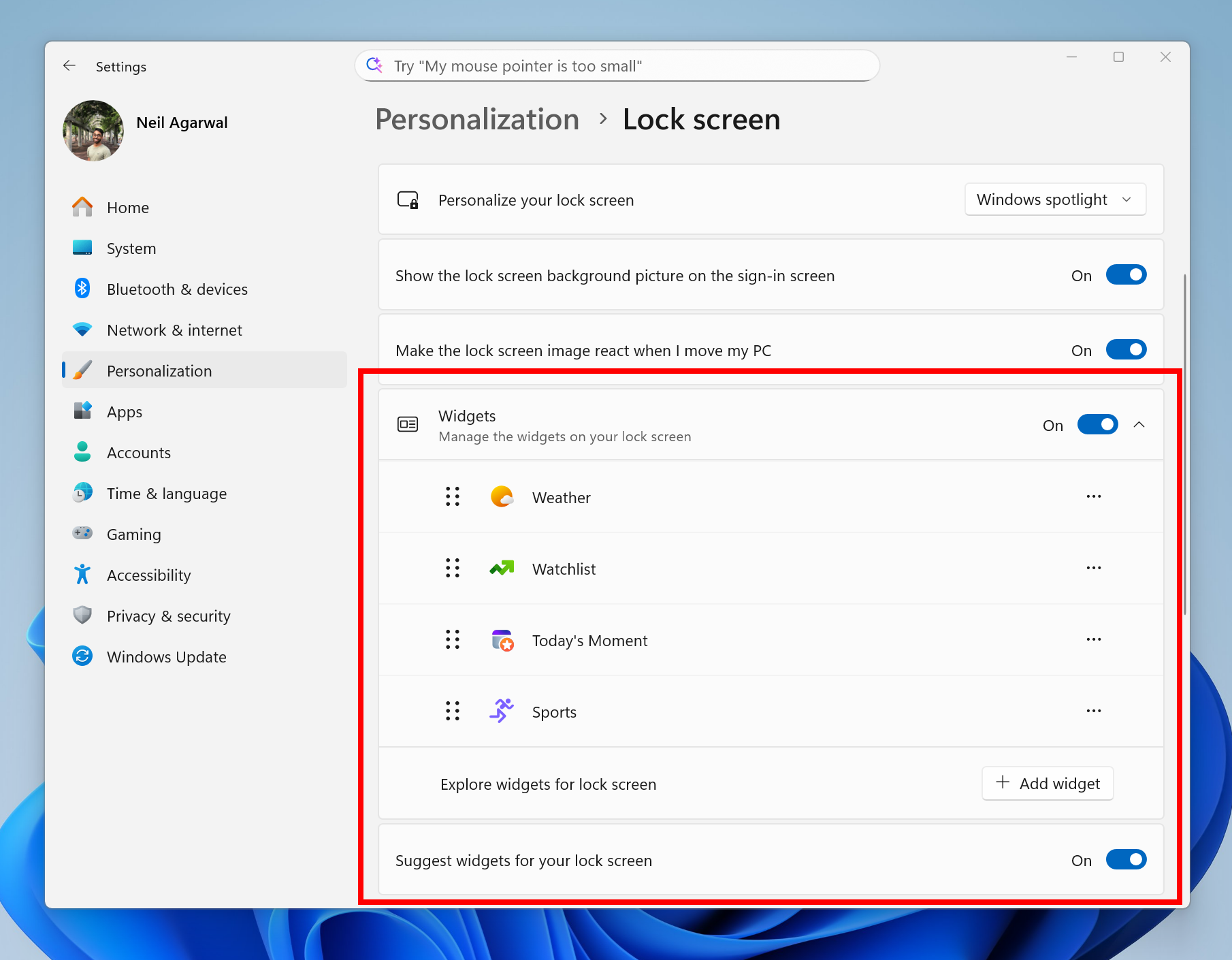
Customization settings for lock screen widgets shown in Settings and highlighted in a red box.
Narrator
Braille viewer
Narrator now includes Braille viewer, which shows both on-screen text and its Braille equivalent on a refreshable Braille display. Teachers of Students with Visual Impairments (TVIs) can use Braille viewer to help improve student’s Braille skills or follow along in classroom as the teachers can visually see the textual and Braille representation on the screen while the student reads it on their connected Braille display. To open Braille viewer and start Narrator, press the Windows logo key + Ctrl + Enter, press Narrator key + Alt + B. A new floating window opens and updates dynamically as you navigate with Narrator. Before using Braille viewer, you must set up Narrator for Braille. To download and install the Braille support package, go to Settings > Accessibility > Narrator > Use a Braille display with Narrator.
Enable or Disable Braille Support for Narrator in Windows 11
This tutorial will show you how to turn on or off braille display support for Narrator for your account in Windows 11. Narrator is a screen reader included with Windows 11 that describes what's on your screen. Narrator lets you use your PC without a mouse to complete common tasks if you’re...
www.elevenforum.com

Install or Uninstall Braille Support for Narrator in Windows 11
This tutorial will show you how to install or uninstall braille support for Narrator for all users in Windows 11. Narrator is a screen reader included with Windows 11 that describes what's on your screen. Narrator lets you use your PC without a mouse to complete common tasks if you’re blind or...
www.elevenforum.com

Open Braille Viewer in Narrator in Windows 11
This tutorial will show you how to open and use the Braille viewer in Narrator in Windows 11. Narrator is a screen reader included with Windows 11 that describes what's on your screen. Narrator lets you use your PC without a mouse to complete common tasks if you’re blind or have low vision. It...
www.elevenforum.com
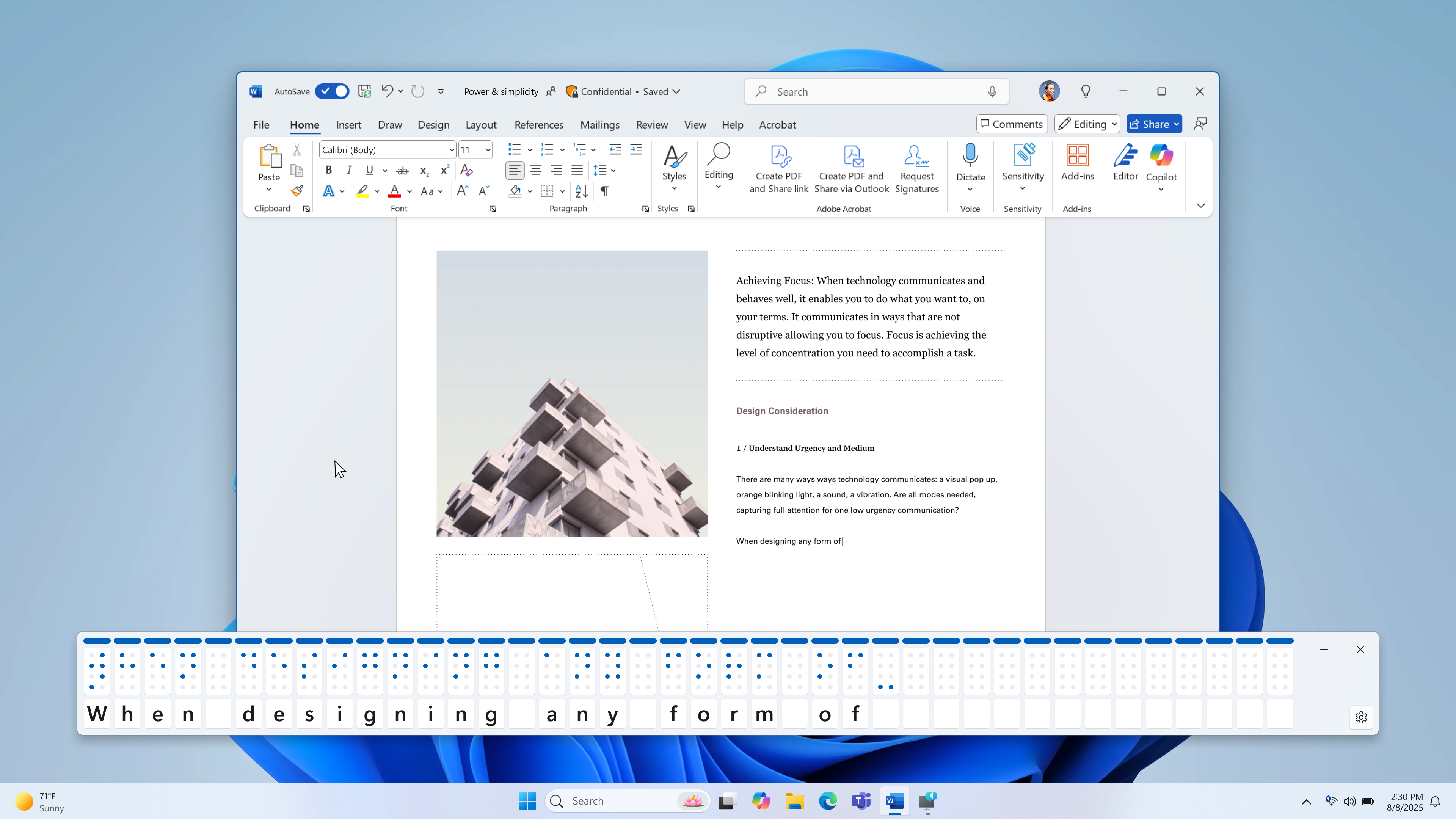
On-screen textual and Braille representation shown over a Word document.
Narrator + Microsoft Word
Narrator offers a smoother, more natural experience in Microsoft Word, with improved voice feedback, reliable continuous reading, and better navigation for footnotes, comments, lists and tables. Enhancements include consistent list announcements, clearer table boundaries and intuitive selection feedback.PC Gaming
Gaming Copilot (Beta), your personal gaming sidekick, is now seamlessly integrated into Game Bar on Windows PCs! Gaming Copilot is designed to help get you past those obstacles so you can get to the fun faster and spend more time playing the games you love. For example, you can use Voice Mode to talk to Copilot directly and get help on the game you are playing. You can also ask for recommendations, or about your achievements and play history. To get started, make sure you have the Xbox PC app installed, press Windows + G, and launch Gaming Copilot from Game Bar. You can learn more on getting started with Gaming Copilot here.
Open Gaming Copilot on Game Bar in Windows 11
This tutorial will show you how to open the Gaming Copilot widget on Game Bar for your account in Windows 11. You can open the Game Bar to take control of all your favorite gaming activities while playing on your Windows 11 device. Gaming Copilot (Beta), the ultimate gaming sidekick, is...
www.elevenforum.com
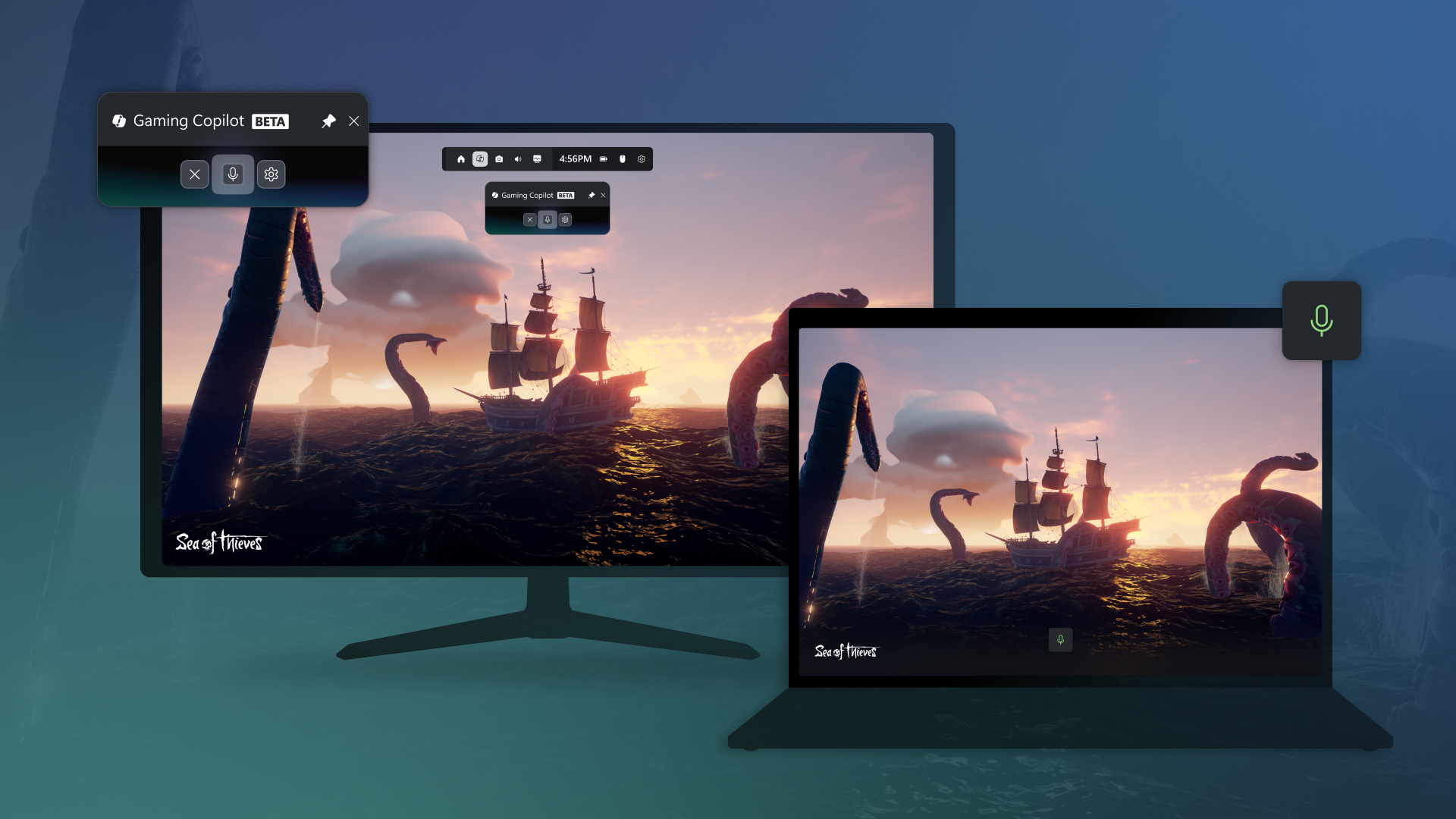
Gaming Copilot (Beta) in Game Bar.
In the Xbox PC app, you can now seamlessly access your gaming library, apps and play history in one place with Xbox on Windows PCs and Handhelds.

Add or Remove My Apps within Xbox app Library in Windows 11
This tutorial will show you how to add or remove "My Apps" in Library of the Xbox app for your account in Windows 11. The Xbox app for Windows is where you can go to play and manage PC gaming content on your Windows device. Whether you’re an Xbox Game Pass member, or you’ve bought titles from...
www.elevenforum.com
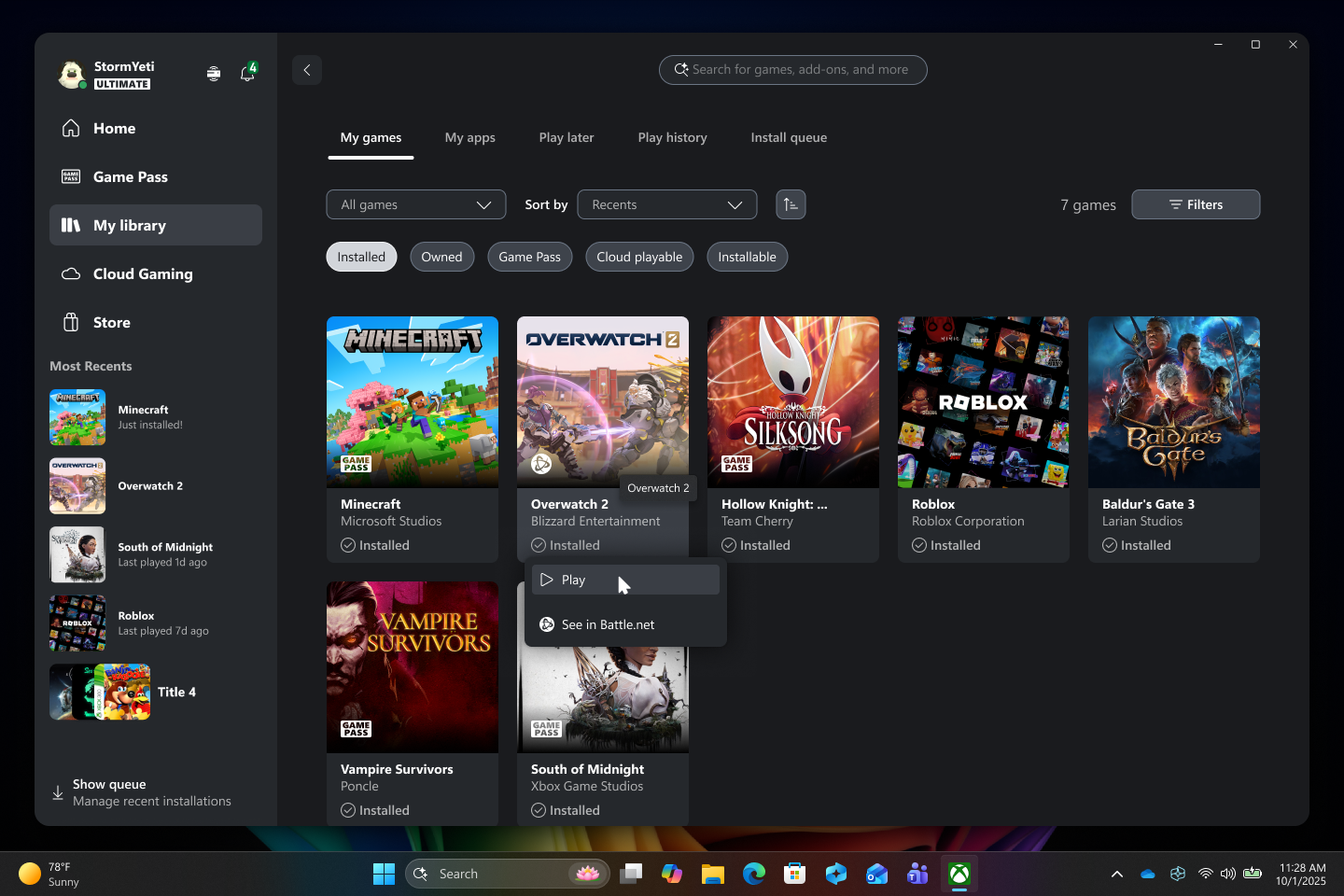
Seamlessly access your gaming library.
The new Network Quality Indicator (NQI) tool is now available to help you monitor and troubleshoot common cloud gaming issues like audio and video disruptions.
- To turn NQI on before streaming: Go to your Profile pic > Settings > Cloud Gaming > Network Quality Indicator.
- To turn NQI on during streaming: Press Win + G > Xbox Cloud Gaming widget > Settings > Enable Network Quality Indicator.
For Game Bar, we’ve given Social widgets a visual update for a cleaner design across both Compact and Desktop Modes. Controller navigation has been improved as well with smoother, more intuitive movement.
You can read more about these changes as part of Xbox’s September Update.
Security
Windows 11 is secure by design and by default, with layers of defense enabled on day one to enhance your protection. And we continue to improve these layers of defense, making Windows 11 even more reliable and more secure for all our customers. With the new Copilot and agentic experiences announced today, we are establishing a set of durable security and privacy principles that must be met to make use of new agentic capabilities in Windows. We have also made some changes that are designed to protect you from phishing attacks with enhanced identity protection and protect you from malware with stronger app and driver controls while also improving overall Windows reliability. These are key pillars of our Windows Resiliency Initiative.Visual refresh for Windows Hello
With the modernized visual refresh to Windows Hello, we automatically prioritize the best credential for you when you sign in to your Windows 11 PC with your Microsoft account. You no longer need to look at a long list of ways you can sign in; it all happens automatically to get you signed in as safely and easily as possible and right to your desktop.
Windows 11 login screen depicting new Windows Hello iconography for signing in to your PC as safely and quickly as possible.
As part of these visual updates to Windows Hello, you will also see a cleaner experience that supports secure and quick authentication with passkeys. You can now easily switch between authentication options such as passkeys or connected devices.
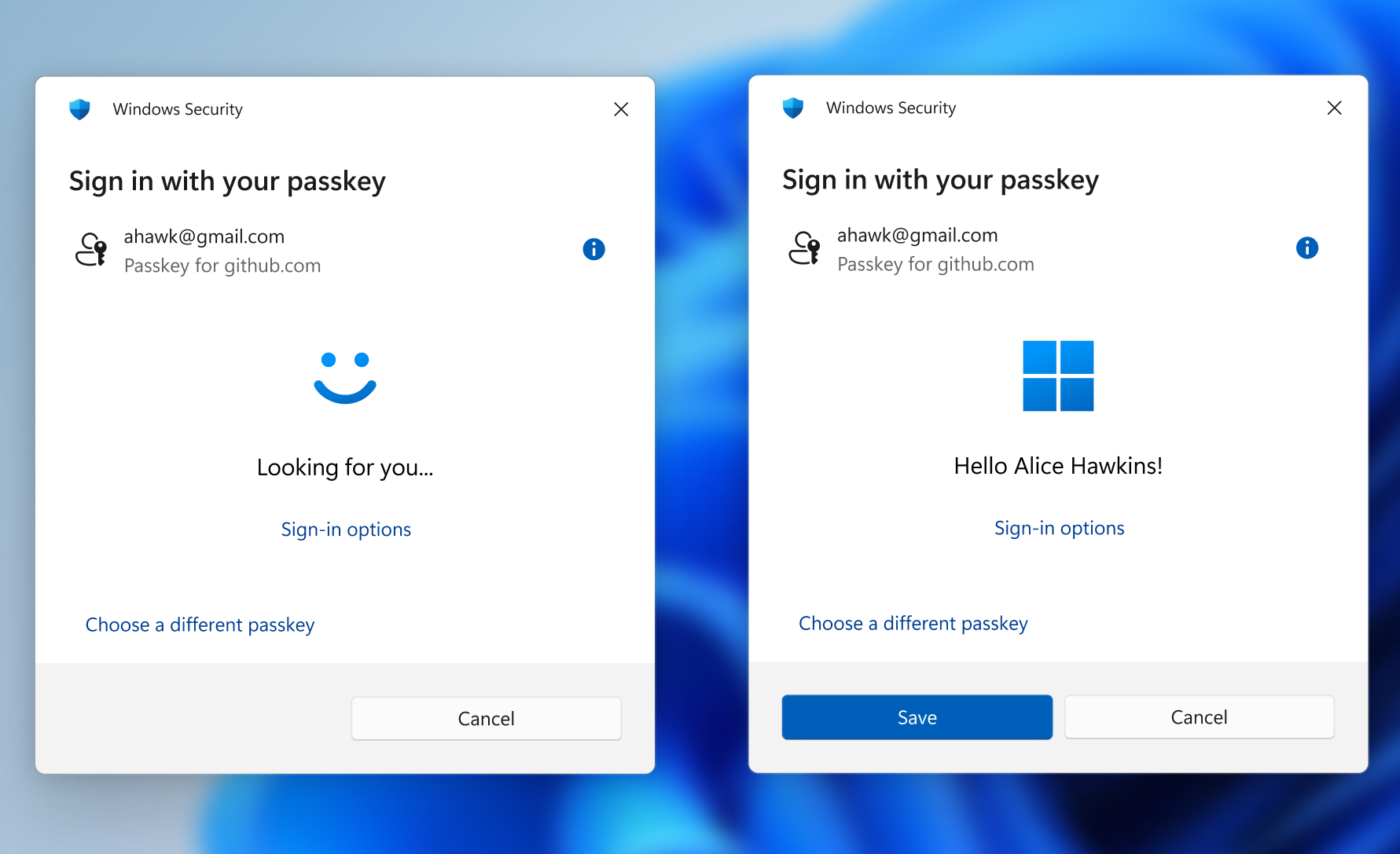
Image showing new passkey sign-in flow screens.
Passkey manager integration
Speaking of passkeys, Windows 11 now has seamless passkey manager integration. This means you can use your passkey credential manager of choice such as 1Password to use passkeys in Windows. You can turn this on via Settings > Accounts > Passkeys > Advanced options. Once you turn this on, you will need to complete user verification using Windows Hello (through biometric authentication using face recognition or fingerprint, or with a PIN). Once verified, you can use your existing passkeys saved in your passkey credential manager or save new passkeys – and your passkeys are protected by Windows Hello.
Enable or Disable Passkey Managers in Windows 11
This tutorial will show you how to turn on or off passkey managers available to save passkeys to for your account in Windows 11. Passkeys provide a more secure and convenient method to logging into websites and applications compared to passwords. Unlike passwords, which users must remember and...
www.elevenforum.com
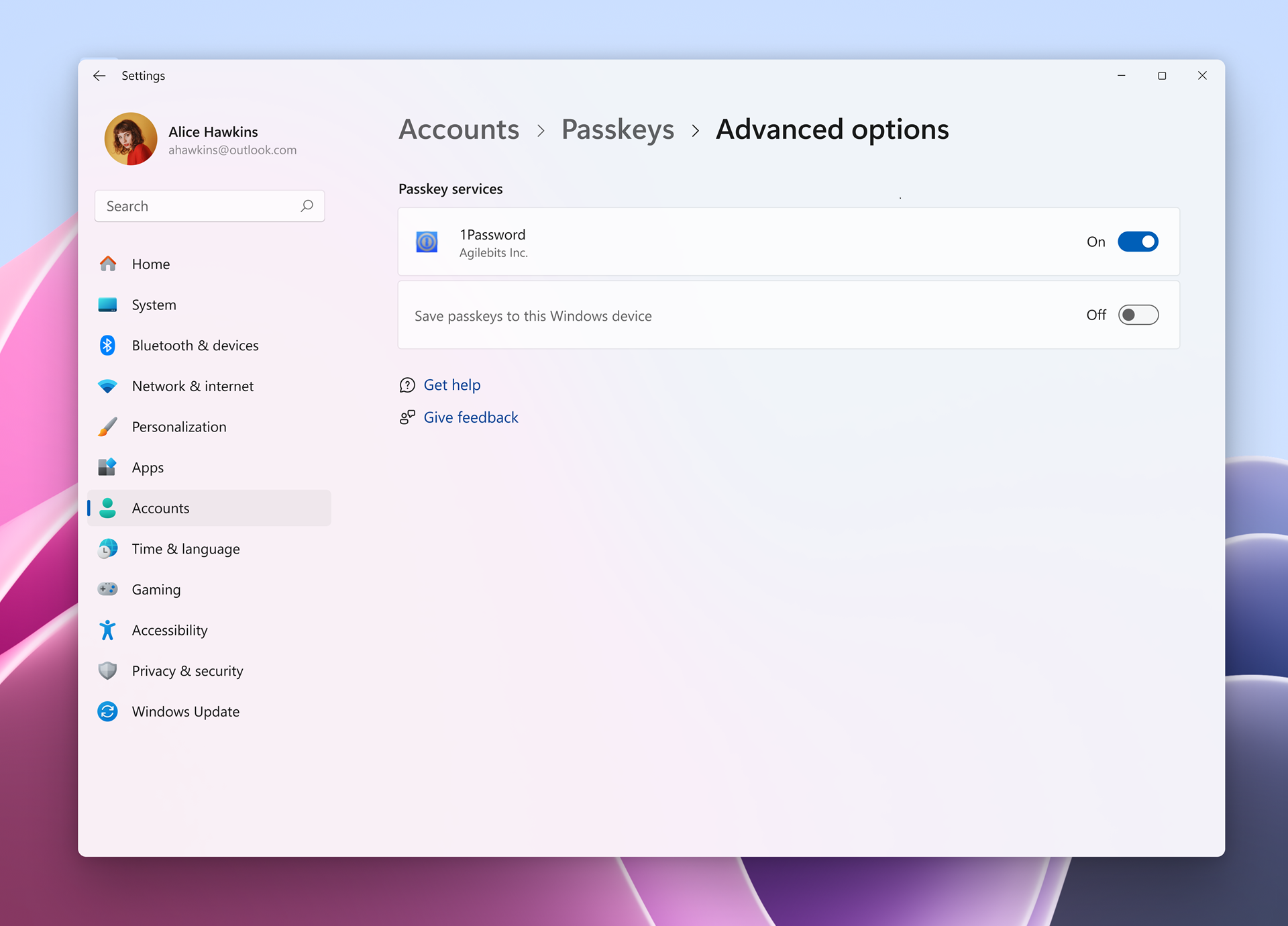
Enabling plugin passkey services in Settings.
Password management with Microsoft Edge
Microsoft Edge has recently introduced significant improvements to password management, designed to make browsing safer and more seamless. The legacy Wallet experience has been fully retired, and all credentials now live in Microsoft Password Manager under Settings > Passwords and autofill. This change ensures better integration with Microsoft accounts, enabling secure syncing across devices. Learn more about password management in Edge, including Password Monitor, which checks your saved passwords against data breaches and identifies reused and weak passwords.
Export and Import Saved Passwords in Microsoft Edge
This tutorial will show you how to manually export (backup) and import (restore) your saved website passwords in Microsoft Edge for your account in Windows 10 and Windows 11. The Microsoft Edge web browser included in Windows 11 is based on Chromium and was released on January 15, 2020. It is...
www.elevenforum.com

View Saved Passwords in Microsoft Edge
This tutorial will show you how to view saved website passwords in Microsoft Edge for your account in Windows 10 and Windows 11. The Microsoft Edge web browser included in Windows 11 is based on Chromium and was released on January 15, 2020. It is compatible with all supported versions of...
www.elevenforum.com

Edit Saved Passwords in Microsoft Edge
This tutorial will show you how to edit saved website passwords in Microsoft Edge for your account in Windows 10 and Windows 11. The Microsoft Edge web browser included in Windows 11 is based on Chromium and was released on January 15, 2020. It is compatible with all supported versions of...
www.elevenforum.com

Delete Saved Passwords in Microsoft Edge
This tutorial will show you how to delete saved website passwords in Microsoft Edge for your account in Windows 10 and Windows 11. The Microsoft Edge web browser included in Windows 11 is based on Chromium and was released on January 15, 2020. It is compatible with all supported versions of...
www.elevenforum.com
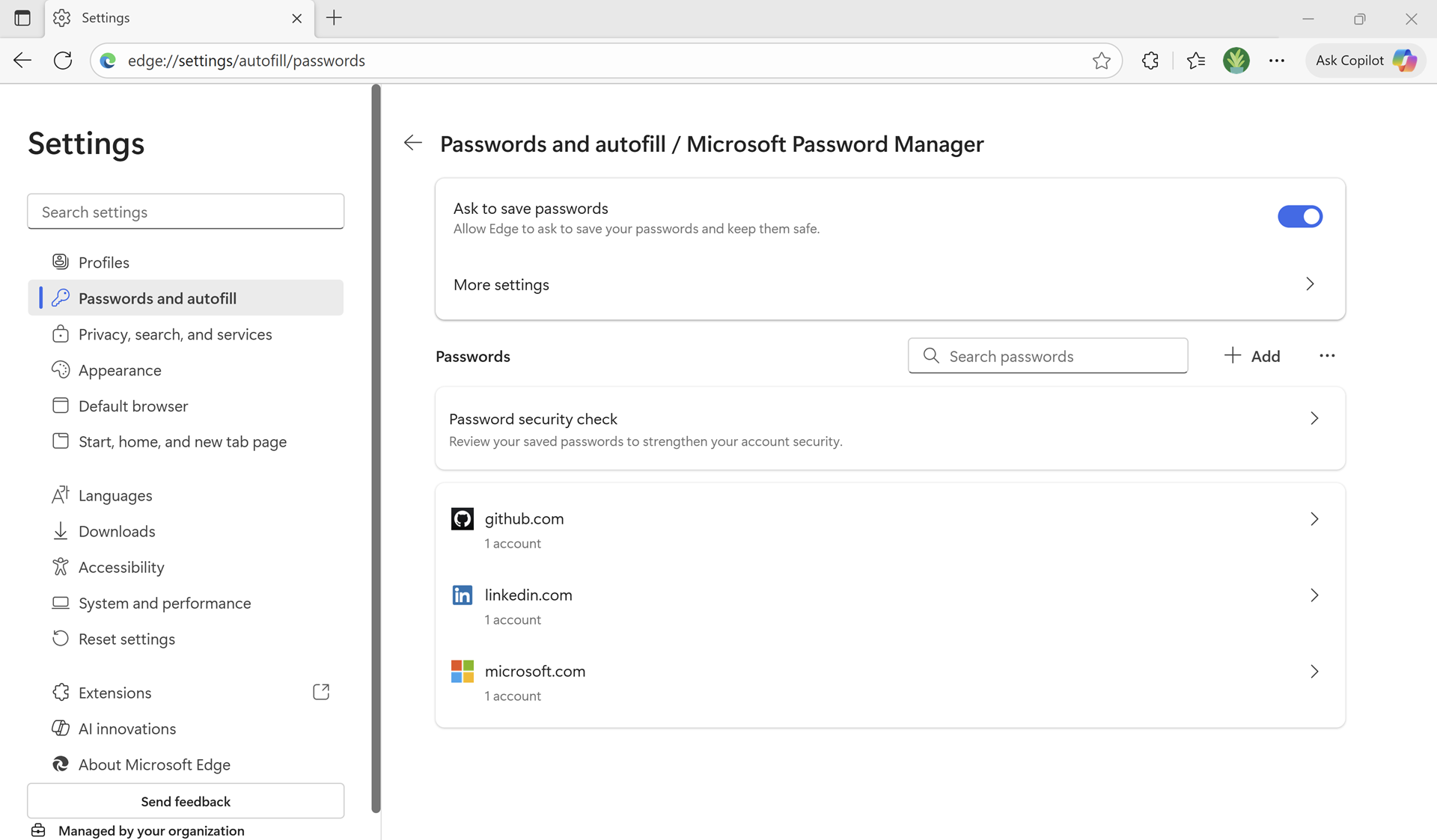
Password Manager in Microsoft Edge.
Improved kernel security
Parts of the kernel in Windows 11 have been rewritten in Rust which helps mitigate against memory corruption vulnerabilities like buffer overflows and helps reduce attack surfaces. Driver developers can also begin writing their drivers in Rust to take advantage of its benefits in terms of security and reliability.Wi-Fi 7
Windows 11 now supports Wi-Fi 7 offering unprecedented speed, reliability and efficiency for your wireless devices. This also includes Wi-Fi 7 support for enterprise access points. Our commercial customers can benefit from better speed, high throughput, improved reliability and enhanced security for modern enterprise environments that support Wi-Fi 7 enterprise access points. Find more information on Wi-Fi 7 for enterprise connectivity.App Control for Business with Intune managed installer
IT administrators can now use Intune managed installer to designate their line of business apps as verified and allowed to run when rolling out App Control for Business in their organizations. With App Control for Business, our commercial customers can ensure their workforce is allowed to run only verified trusted apps – protecting against malware and other security threats.For Developers
Advanced settings
The redesigned Advanced settings page (Settings > System > Advanced) is an update of the For Developers page and makes it easier to find key options. Settings include File Explorer + version control, which shows Git details such as branch, diff count and last commit message directly in File Explorer when you select a repository folder. The Advanced settings page is also open source on GitHub.
The new Advanced settings page.
Microsoft Edit
Edit, a command line text editor, is now delivered with Windows! You can quickly edit a file while in your terminal by typing edit followed by the file name. Edit is open source on GitHub and for a full list of its features, check out its docs.
Open and Use Edit Command Line Text Editor in Windows 11
This tutorial will show you how to open and use the Edit command line text editor in Windows Terminal in Windows 11. Starting with Windows 11 build 26100.6725 (24H2) and build 26200.6725 (25H2), Windows now includes Edit, a text editor you can use from the command line in Windows Terminal...
www.elevenforum.com
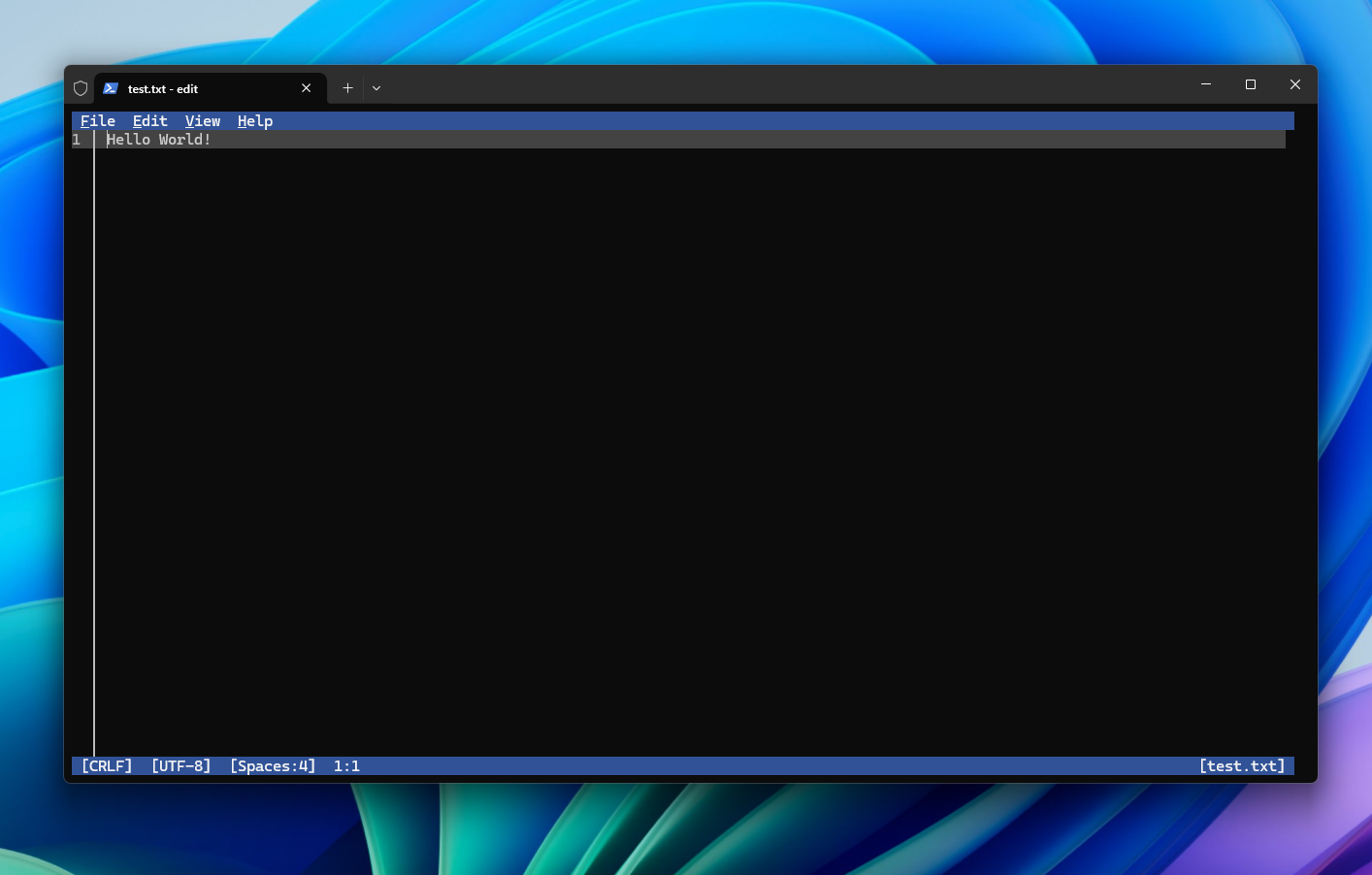
Editing a text file in Terminal using the Edit command line text editor.
Windows ML
Windows ML is now generally available for production use to assist developers with deploying production experiences in the evolving AI landscape. First introduced at Build 2025, Windows ML is the built-in AI inferencing runtime optimized for on-device model inference and streamlined model dependency management across CPUs, GPUs and NPUs, serving as the foundation for Windows AI Foundry and utilized by Foundry Local to enable expanded silicon support which is being released today. Find more details on getting started with Windows ML today.Advanced shader delivery
At gamescom this year, the DirectX team announced advanced shader delivery in partnership with Xbox and AMD. Advanced shader delivery addresses one of the most frustrating challenges for PC gamers today – long load times and disruptive stuttering during a game’s first launch. These delays are caused by the need to compile graphics shaders and cache them for future use. PC game developers can take advantage of advanced shader deliver in their games with the release of Agility SDK 1.618.Task Manager improvements
Task Manager will now use the standard metrics to display CPU workload consistently across all pages and aligning with industry standards and third-party tools. For backward compatibility, a new optional column called CPU Utility is available (hidden by default) on the Details tab showing the previous CPU value used on the Processes page.
Add or Remove Columns in Task Manager in Windows 11
This tutorial will show you how to add or remove columns for details in Task Manager for your account in Windows 11. Task Manager can be used to view and manage your processes, performance statistics, app history, startup apps, users, process details, and services in Windows 11. Starting with...
www.elevenforum.com
Craft improvements
We continue to make craft improvements to Windows 11. In July, we introduced user friendly improvements such as the streamlined unexpected restart experience and quick machine recovery so you can quickly recover, troubleshoot and get back to where you left off should something go wrong with your PC. We are delivering more improvements in areas like system tray and taskbar, File Explorer, Settings and more:- The larger clock with seconds is now back in the notification center, displayed above the date and calendar. To turn this option on, go to Settings > Time & language > Date & time, and turn on Show time in the Notification Center.

Add or Remove Time in Notification Center in Windows 11
This tutorial will show you how to turn on or off showing time (clock) in the Notification Center for your account in Windows 11. The Notification Center (Win+N) is a taskbar flyout where you can quickly access notifications, the calendar, and start or end a focus session from. Starting with...
www.elevenforum.com
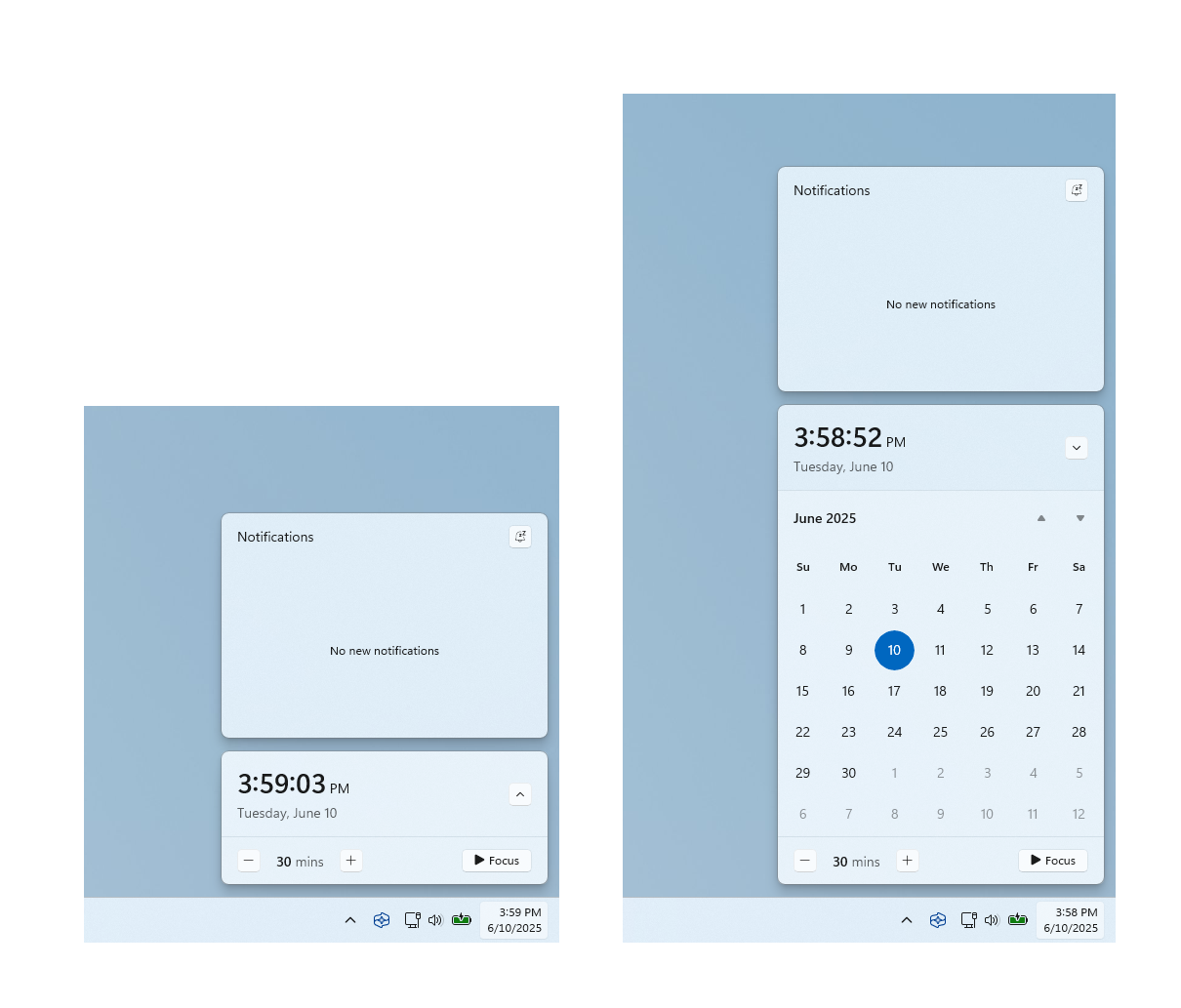
Clock showing in notification center with the calendar both collapsed and expanded. - Notification center will now show on secondary monitors. To open it, just select the date and time in the system tray on the taskbar on a secondary monitor. This includes the larger clock with seconds mentioned above.
- We have added dividers to the top-level icons that show at the top (or bottom) of the File Explorer context menu.
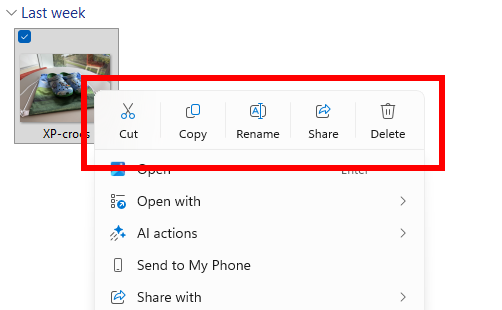
Dividers between top-level icons in the File Explorer context menu. - You can now move the hardware indicators for brightness, volume, airplane mode and virtual desktops to different positions on your screen. To change their position, go to Settings > System > Notifications, and then pick from the options in the Position of the onscreen pop-up in the dropdown list.
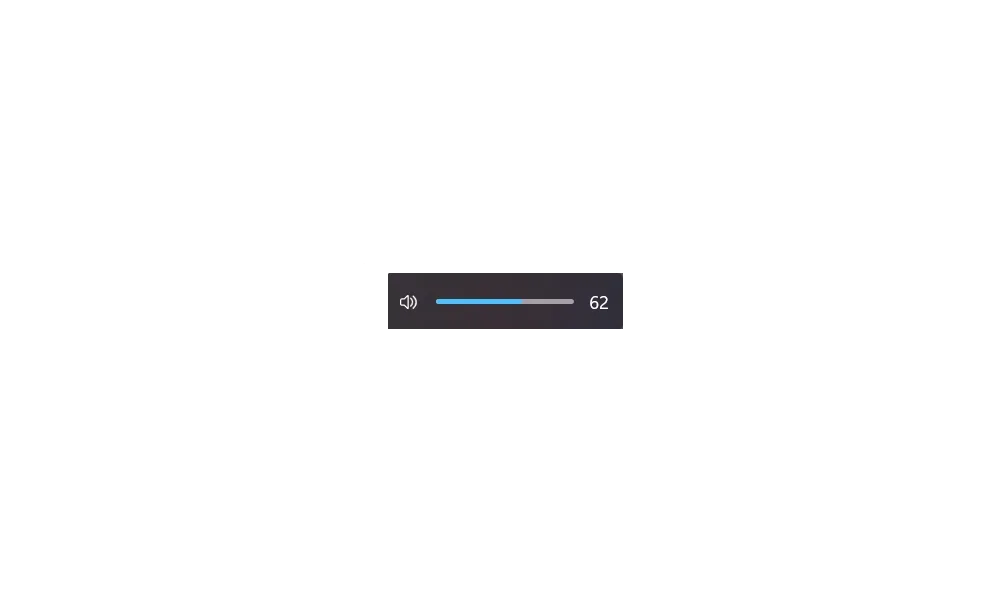
Change Position of On-screen Indicators in Windows 11
This tutorial will show you how to change the position of where hardware indicators appear on-screen by default for your account in Windows 11. When you change the brightness, volume, airplane mode, or virtual desktops from keyboard actions, you will see a on-screen indicator of that action at...
www.elevenforum.com
- Insert dashes with new keyboard shortcuts. You can quickly insert an en dash (–) or em dash (—) while typing. Press Windows logo key + Minus (-) to insert an en dash, and Windows logo key + Shift + Minus (-) to insert an em dash. If Magnifier is running, Windows logo key + hyphen (-) will zoom out Magnifier instead of inserting an en dash.

Type Special Characters and Symbols in Windows 11
This tutorial will show you different ways to find and type special characters, accents (diacritical mark), and symbols in Windows 11. Starting with Windows 11 build 262100.6725 (24H2), Microsoft is adding a new keyboard shortcut to make it easier for you to insert an En dash (–) or Em dash (—)...
www.elevenforum.com
- We continue to update dialog pop-ups across Windows 11 with a more modern design including the dialogs for Windows Update, activating Windows and when an app fails to open.
- More time, language and keyboard settings have moved from Control Panel to Settings. You can now add additional clocks, change your time server, and customize date and time formatting—including AM/PM symbols—directly from Settings > Time & language > Date & time. Number and currency formats, Unicode UTF-8 support, and options to copy language and region settings to other accounts are now under Settings > Time & language > Language & region. Keyboard character repeat and cursor blink rate settings are now easier to find under Settings > Accessibility.
Copilot+ PC Experiences
Recall (preview) homepage
When you open Recall3 (preview) on your Copilot+ PC, we’ve introduced a new personalized homepage that puts your recent activity and top-used apps and websites front and center, making it easy to pick up where you left off.
Enable or Disable Recall Personalized Homepage in Windows 11
This tutorial will show you how to turn on or off Recall homepage showing a customized experience using your recent snapshots and app usage for your account on Windows 11 Copilot+ PCs. Recall is an experience exclusive to Copilot+ PCs that will help you easily find and remember things you've...
www.elevenforum.com
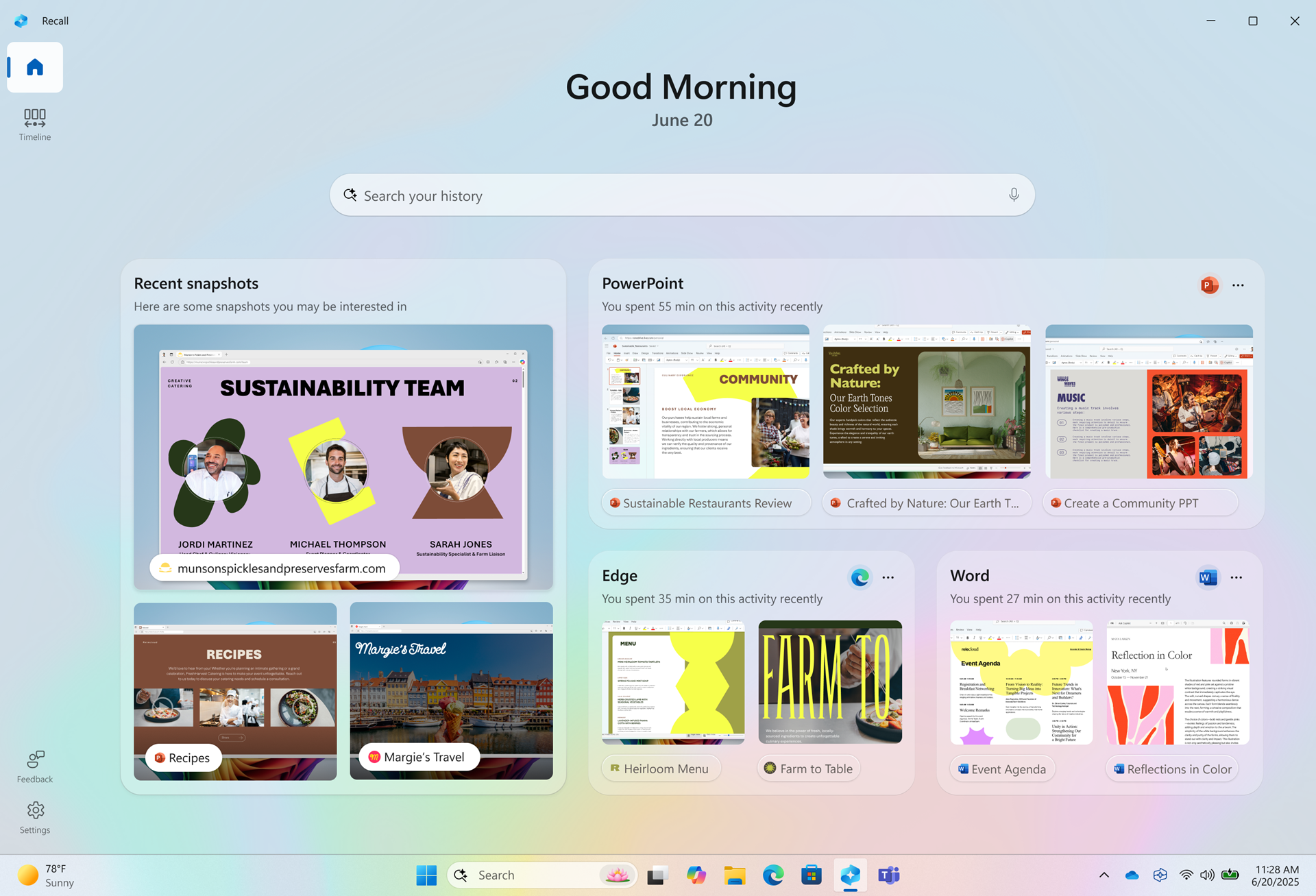
Personalized homepage in Recall.
After you opt-in to snapshot collection, Recall’s homepage will highlight:

Enable or Disable Recall Snapshots in Windows 11
This tutorial will show you how to enable or disable saving Recall snapshots for your account or all users in Windows 11 on Copilot+ PCs. Recall is an experience exclusive to Copilot+ PCs that will help you easily find and remember things you've seen using natural language. To help provide you...
www.elevenforum.com
- Recent snapshots, which will show the latest snapshots to help you quickly resume tasks.
- Apps and Websites, which will display the three apps and websites you’ve used most in the past 24 hours. You are in control of which apps and websites get captured in snapshots in Recall.

Exclude an App from Recall Snapshots in Windows 11
This tutorial will show you how to add or remove apps to filter out of your Recall snapshots for your account in Windows 11. Recall is an experience exclusive to Copilot+ PCs that will help you easily find and remember things you've seen using natural language. To help provide you with that...
www.elevenforum.com

Exclude a Website from Recall Snapshots in Windows 11
This tutorial will show you how to add or remove websites to filter out of your Recall snapshots for your account in Windows 11. Recall is an experience exclusive to Copilot+ PCs that will help you easily find and remember things you've seen using natural language. To help provide you with that...
www.elevenforum.com

Use Recall with Snapshots in Windows 11
This tutorial will show you how to use Recall with snapshots of your activity to find and jump back into what you have seen before on your Windows 11 Copilot+ PC. Recall is an experience exclusive to Copilot+ PCs that will help you easily find and remember things you've seen using natural...
www.elevenforum.com
Click to Do improvements
For Click to Do4, we now show new and popular action tags in the Click to Do’s context menu to help you discover our newest and most popular AI-powered actions available to use. And Click to Do will now provide more concise summaries with Summarize action.
Use Click to Do in Windows 11
This tutorial will show you how to use Click to Do to perform AI actions with text and images for your account on a Windows 11 Copilot+ PC. Click to Do (preview) helps you get things done faster by identifying text and images on your screen that you can take actions with. Click to Do analyzes...
www.elevenforum.com
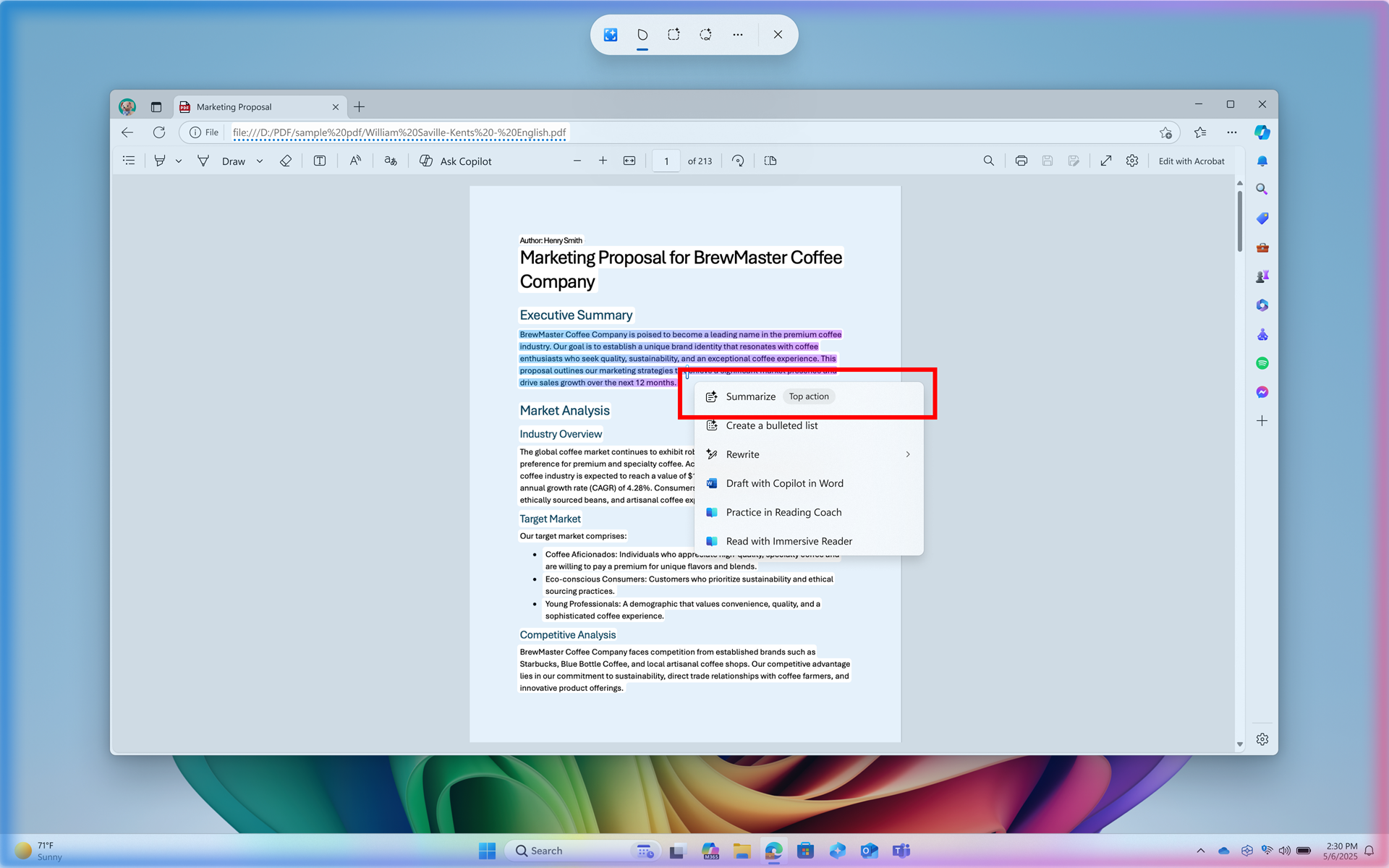
Example of a top action highlighted in a red box in Click to Do’s context menu.
If you are opening Click to Do for the first time, you’ll see a quick interactive tutorial that will show you how to complete tasks faster by demonstrating actions on both text and images. For example, it’ll show you how to summarize large blocks of text or remove image backgrounds. You can always revisit the tutorial anytime by selecting more options (…) and then Start tutorial. Many of the actions in Click to Do today such as the ability to rewrite and summarize on-device is powered by our small language model called Phi Silica.
Agent in Settings improvements
When using agent in Settings5, a direct navigation link is now provided to the corresponding settings page in agent search results. Agent in Settings is also now available across all Copilot+ PCs. Agent in Settings is powered by one of our newest on-device small language models called Mu.
Find a Setting in Settings app in Windows 11
This tutorial will show you how to search to find a setting within the Settings app in Windows 11. Microsoft designed Settings to be beautiful, easy to use and inclusive of all your Microsoft experiences in Windows 11. Settings has left-handed navigation that persists between pages, and...
www.elevenforum.com
Voice access natural language commanding
Voice access in Windows 11 enables people with mobility disabilities to control their PC through voice commands. Traditionally, voice commands in voice access would require you to follow a fixed syntax, making interactions rigid and sometimes frustrating. For example, if you said “Can you Open Edge application” instead of “Open Edge” which is the actual command, it wouldn’t work. Now with natural language commanding in voice access, you have the flexibility to speak commands naturally, using filler words and synonyms, rather than rigid, predefined commands. With this improvement on Copilot+ PCs, you can now say “Can you open Edge application”, or “Switch to Microsoft Edge”, or “Please open the Edge browser”. Voice access understands your intent and executes the right action for the voice command you speak. This means that you no longer need to pause and remember the exact phrasing of a command, just say what feels most intuitive. This feature is now available across all Copilot+ PCs.
Turn On or Off Voice Access in Windows 11
This tutorial will show you how to turn on or off voice access for your account in Windows 11. Voice access is a new experience starting with Windows 11 build 22518 that enables everyone, including people with mobility disabilities, to control their PC and author text using only their voice and...
www.elevenforum.com

Open Voice Access Command List Page in Windows 11
This tutorial will show you how to open the voice access command list page in Windows 11. Voice access is a new experience starting with Windows 11 build 22518 that enables everyone, including people with mobility disabilities, to control their PC and author text using only their voice and...
www.elevenforum.com

Real-time command suggestions in voice access to help you remember the right commands.
Inbox apps
Project files and opacity slider in Paint
We’ve introduced project files in Paint so you can now save your creation as an editable Paint project file (.paint files) and seamlessly pick up where you left off. Just go to the File menu and select Save as project. An opacity slider has also been added, giving you control over the transparency of your strokes with the Pencil and Brush tools.
Save as Project File in Paint app in Windows 11
This tutorial will show you how to save your creation as an editable .paint project file from the Paint app in Windows 11. The Paint app included in Windows 11 is a simple and powerful graphics editor with a range of uses. You can edit images quickly or create masterpieces with the tools in...
www.elevenforum.com

Change Opacity of Pencil and Brush tools in Paint app in Windows 11
This tutorial will show you how to adjust the opacity level of your strokes with the Pencil and Brush tools in the Paint app in Windows 11. The Paint app included in Windows 11 is a simple and powerful graphics editor with a range of uses. You can edit images quickly or create masterpieces with...
www.elevenforum.com
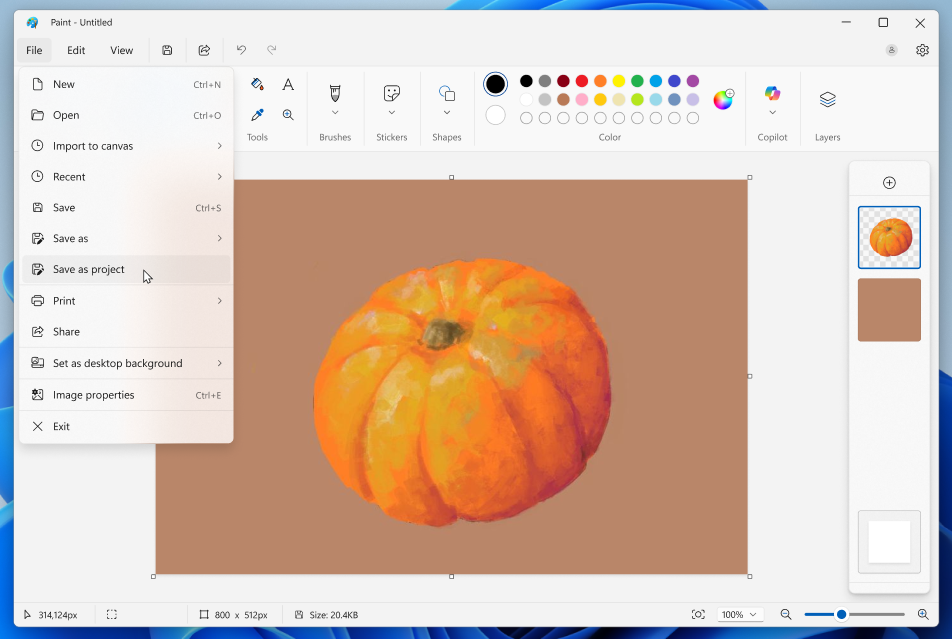
Paint app screenshot of pumpkin and saving as a project file.
Quick markup in Snipping Tool
Quick markup in Snipping Tool is a faster way to annotate your screenshots. Just open Snipping Tool (Win + Shift + S). You will now see a Quick markup button in the top toolbar before capturing your selection area. Click on this button to toggle the feature on, or use the keyboard shortcut Ctrl + E. Once Quick markup is on, go ahead and select your selection region. You’ll notice after this, you’ll be able to mark up and make edits to your image right in Snipping Tool’s selection area before finishing your screenshot!
Use Quick Markup in Snipping Tool app in Windows 11
This tutorial will show you how use the Quick Markup tool in the Snipping Tool app to annotate live on your screen in Windows 11. The Snipping Tool app includes a built-in screen recorder and allows you to quickly take and annotate screenshots, photos and other images with your pen, touch, or...
www.elevenforum.com

Snipping Tool Capture Toolbar with the cursor hovering over the new Quick markup tool.
No subscription needed for Notepad AI features
Notepad now supports AI features like Summarize, Write and Rewrite on Copilot+ PCs, with no subscription required. If you have a subscription, you can seamlessly switch between local and cloud models based on your needs. If you’re not signed in or don’t have a subscription, you can use the local model to accomplish your tasks. These AI features in Notepad support English only today.
Use Summarize in Notepad app to Enhance Writing with AI in Windows 11
This tutorial will show you how to use the Summarize feature in the Notepad app to enhance your writing with AI in Windows 11. Notepad is a fast and simple text editor that can be used to view, edit, and search through plain text documents instantly. Notepad in Windows includes Rewrite...
www.elevenforum.com

Use Write in Notepad app to Enhance Writing with AI in Windows 11
This tutorial will show you how to use the Write feature in Notepad to write new content using generative AI in Windows 11. Notepad is a fast and simple text editor that can be used to view, edit, and search through plain text documents instantly. Notepad in Windows includes Rewrite...
www.elevenforum.com
Use Rewrite in Notepad app to Enhance Writing with AI in Windows 11
This tutorial will show you how to use the Rewrite feature in the Notepad app to enhance your writing with AI in Windows 11. Notepad is a fast and simple text editor that can be used to view, edit, and search through plain text documents instantly. Notepad in Windows includes Rewrite...
www.elevenforum.com
Get updated!
Windows 11, version 25H2 is available today via our “seeker” experience in Windows Update. Just go to Settings and Windows Update and check for updates – if you are on a PC that meets the Windows 11 hardware requirements you will see Windows 11, version 25H2 available6 for you to download and install. Update today!
How to get the Windows 11 2025 version 25H2 Update
Windows Experience Blog: Windows is essential for more than a billion people to connect, learn, play and work, and today we are announcing the availability of the Windows 11 2025 Update (also known as Windows 11, version 25H2). This year’s annual feature update (version 25H2) will continue the...
www.elevenforum.com
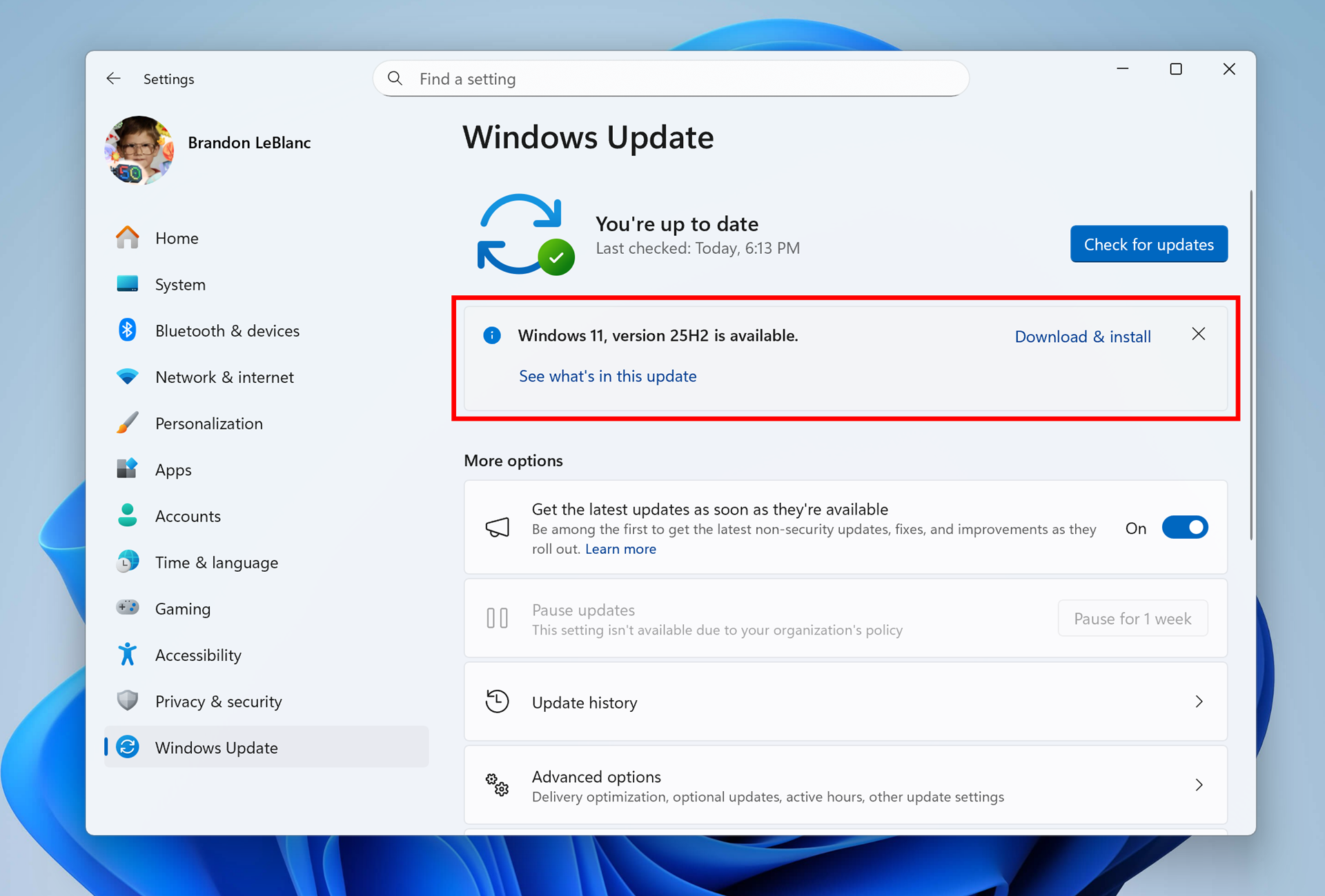
Windows 11, version 25H2 shown as available as an optional update for you to install today.
Once you’re on Windows 11, version 25H2 – please be sure to update to the October 2025 security update to ensure you are getting the latest features7 and improvements rolled out via a controlled feature rollout.
Keeping your Windows 11 PC updated from Windows Update ensures your PC has the latest features and security improvements!
—————————————————–
1 Availability varies by market.
2 Functionality will vary by device and market; text actions will be available across markets in select character sets. See aka.ms/copilotpluspcs.
3 Requires Windows Hello Enhanced Sign-in Security. Optimized for select languages; content-based and storage limitations apply. See aka.ms/copilotpluspcs.
4 Actions vary by device, region, language and character sets. Subscription required for some actions. See aka.ms/copilotpluspcs.
5 Inputs limited initially to English; availability varies by market.
6 If we detect that your device may have an issue, such as an application or driver incompatibility, we may put a safeguard hold in place and not offer the update until that issue is resolved.
7 Because Windows 11, version 25H2 and version 24H2 have a shared code base and servicing branch, the above mentioned features and improvements are also available for customers on Windows 11, version 24H2.
Source:
New experiences currently rolling out for Windows 11
Today, we announced some new Copilot and agentic experiences that make every Windows 11 PC an AI PC with Copilot at the center. You can read all about these new experiences. We are a
 blogs.windows.com
Last edited: