Windows Blogs:
Edge just made it easier to go from first tab to final plan, wherever you go. Your favorite Copilot experiences, plus new ones, are now available directly in Edge on desktop and, for the first time, in the Edge mobile app.
This includes capabilities now available to everyone on desktop and mobile like reasoning across multiple open tabs so Copilot can compare info, surface key details, and see what matters, more relevant answers from Copilot built on your browsing history and past chats, and hands-free browsing with Voice and Vision. We’re also making it easier to jumpstart your day and pick up where you left off with a redesigned new tab page and Journeys, now broadly available across desktop and mobile. Plus, new productivity tools on Edge desktop are designed to move you from idea to done without breaking stride.
As part of today’s update, we’re retiring Copilot Mode. With helpful features built directly into Edge, it’s now simpler to shape how you browse and get more done.

Enable or Disable Copilot Mode in Microsoft Edge on Windows 11
This tutorial will show you how to enable or disable Copilot Mode in Microsoft Edge for your account in Windows 10 and Windows 11. Microsoft Edge is the AI-powered browser. A smarter way to browse. As the only browser built and optimized for Windows, it’s AI-powered tools are designed to help...
 www.elevenforum.com
To explore what’s new, visit aka.ms/CopilotinEdge or download the Edge Mobile app.
New updates to the Edge mobile app
Today, we’re bringing the experiences you love on Edge desktop to the Edge mobile app so you can get more done wherever you go.Juggling tabs on your phone used to mean endless swiping and tab hopping. Not anymore. With your permission, Copilot in Edge can reason across your open tabs. Just ask a question and it pulls from your tabs to compare details, surface answers, and help you decide without the back-and-forth.
Previously available only on desktop, Journeys is now available on the Edge mobile app. Journeys makes it easier to pick up where you left off and resume your projects by, with your permission, organizing your browsing history into meaningful topics – with summaries and suggested next steps – so you can quickly get back to planning that dog-friendly camping adventure or that piece of clothing you can’t stop thinking about.
Sometimes the fastest way to get help is to just ask. With Vision and Voice, available to everyone on desktop and now in the Edge mobile app, you can, with your permission, share your screen and talk through what you’re looking at — hands-free. Ask questions, get explanations, or think through a decision out loud. It’s like having a second pair of eyes wherever you are. When Copilot is active, you’ll always see clear visual cues so you know when it’s taking an action, helping, listening, or viewing.
We are also bringing Edge desktop’s redesigned new tab page to the Edge mobile app to streamline how you get your day started, making it easier to jump right into what you need to get done. Bringing together chat, searching, and browsing in one clean starting point, Edge keeps you moving forward.
Stay in your flow
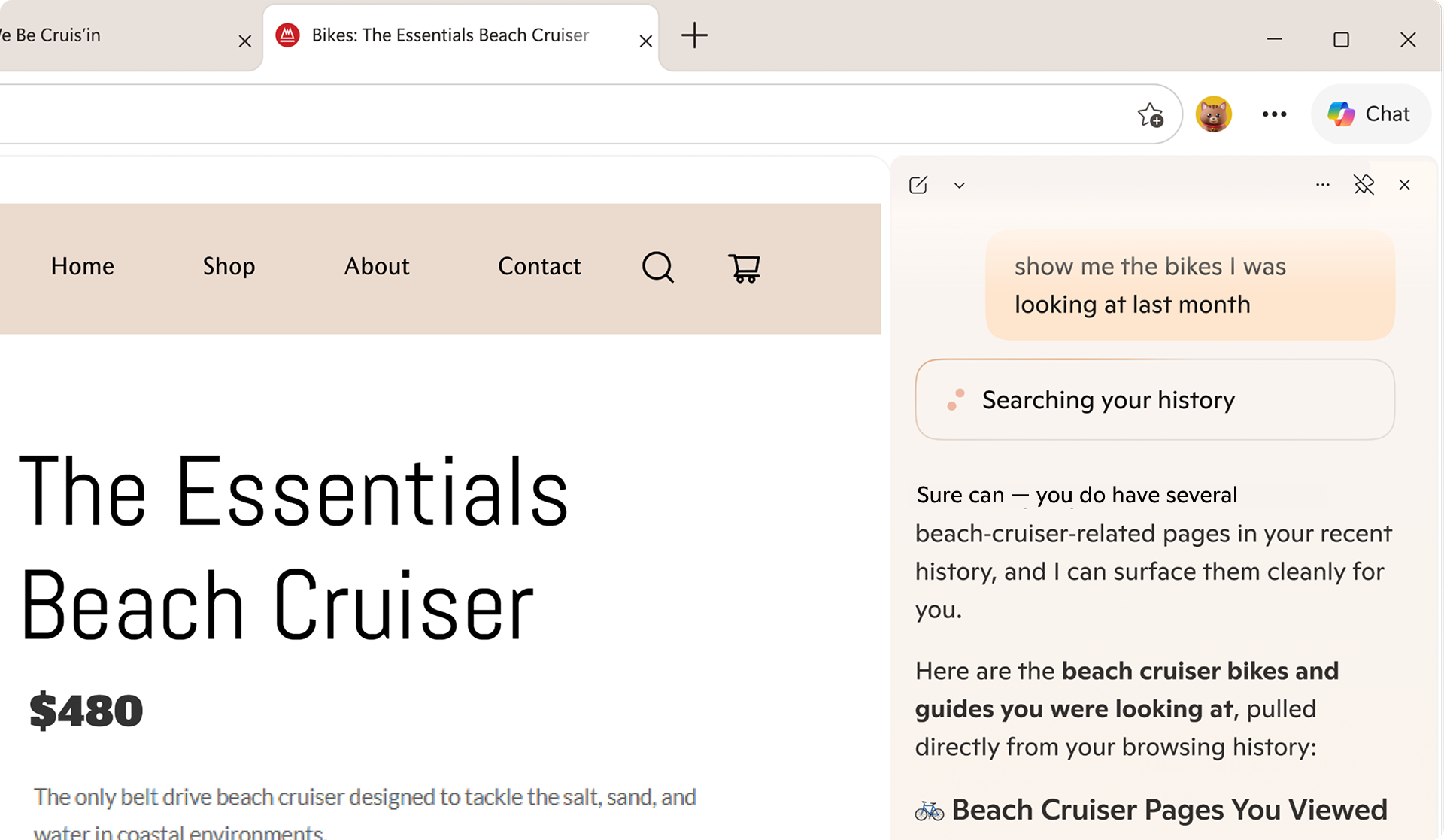
Life doesn’t happen in one tab. Now available to everyone, Copilot can pull context from your open tabs to surface relevant information and help you make decisions with less effort to keep you moving forward— without having to leave the page you’re on. No setup required. Just click the Copilot icon in the top right corner and ask Copilot to compare options across tabs, explain what matters, and get clear answers.Take planning your next trip to Napa — comparing wineries, restaurants, and routes across a dozen tabs is the hardest part. Copilot in Edge, with your permission, reads across every tab you have open, so you can compare options, surface what matters, and make decisions with less tab-hopping.
With your permission, Copilot can also use your browsing history to deliver more relevant, higher-quality answers — like finishing up your shopping, returning to a thread you were following, or picking up research you started days ago. Copilot builds on what you’ve already seen so you spend less time switching and more time staying in your flow. Now, with long-term memory on desktop and mobile, Copilot not only builds on what you’ve seen but also can reference your past chats to provide more relevant help. You’re always in control of what Copilot can access.

Enable or Disable Copilot Personalization and Memory
This tutorial will show you how to turn on or off Copilot personalization and memory usage for your Microsoft account. Microsoft Copilot is an AI-powered digital assistant designed to help you with a range of tasks and activities. When you sign in to Copilot with your Microsoft account Copilot...
www.elevenforum.com
Built to keep you moving forward
Sometimes getting started is the hardest part. The redesigned new tab page, now available for everyone to try, brings together chat, search, and web navigation in one place so you can effortlessly explore the web. It’s also where all your Journeys live, so it’s easy to jump back in and keep going.
Enable or Disable Copilot New Tab Page in Microsoft Edge on Windows 11
This tutorial will show you how to turn on or off using the Copilot new tab page in Microsoft Edge for your account in Windows 10 and Windows 11. Microsoft Edge is the AI-powered browser. A smarter way to browse. As the only browser built and optimized for Windows, it’s AI-powered tools are...
www.elevenforum.com

Enable or Disable Focus on Copilot New Tab Page in Microsoft Edge on Windows 11
This tutorial will show you how to enable or disable keyboard focus applied to the page instead of the address bar by default when opening a Copilot new tab page in Microsoft Edge for your account in Windows 10 and Windows 11. The setting Focus on new tab page in this tutorial is no longer...
www.elevenforum.com
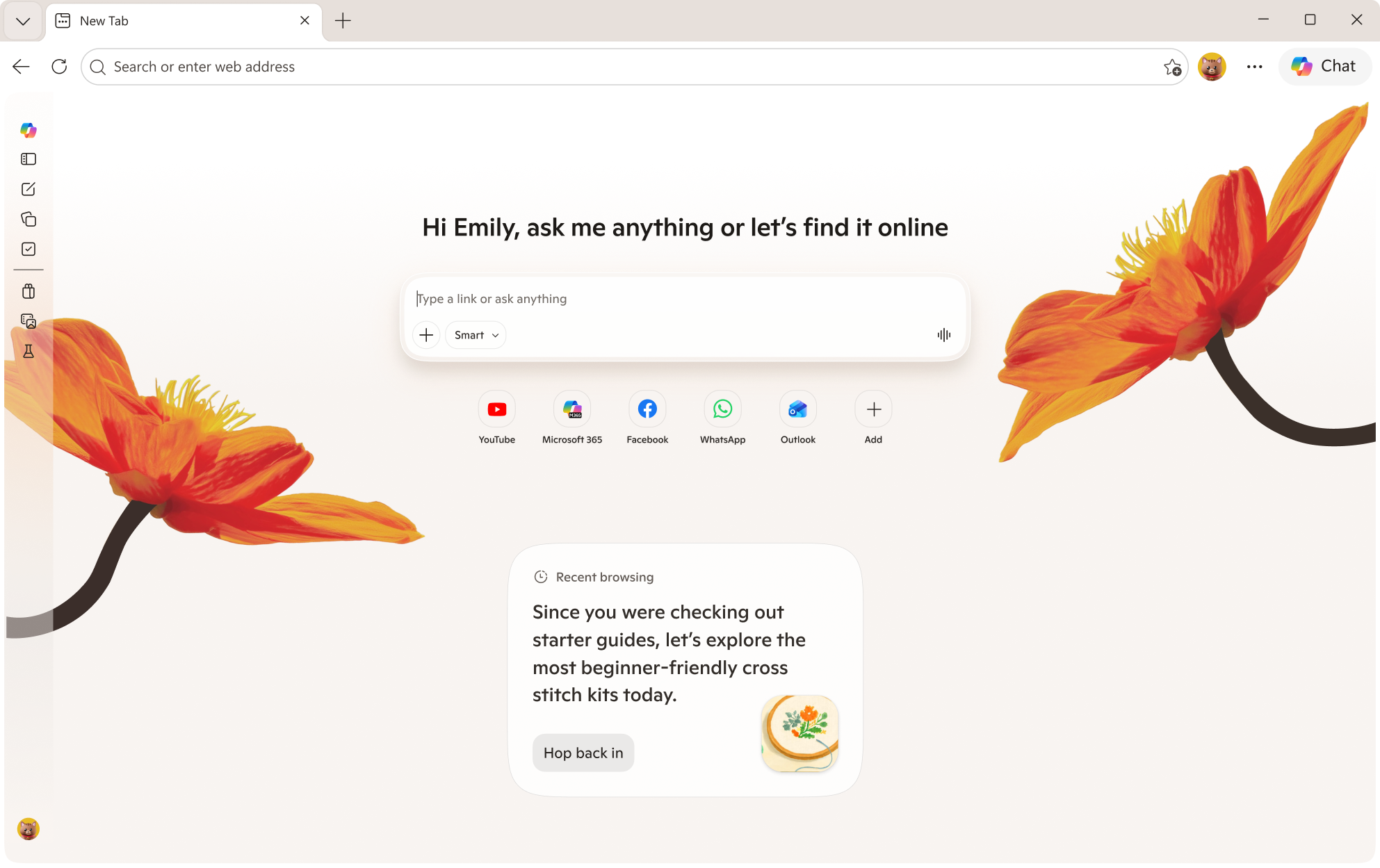
Journeys, now available for free in all English markets, helps pick up where you left off. Ever start trying to learn something new then … life happens? Journeys brings you back to past browsing projects by grouping your browsing history into helpful topic cards on your new tab page so you can resume that cross stitching hobby – without starting from scratch.

Enable or Disable Copilot Journeys in Microsoft Edge on Windows 11
This tutorial will show you how to turn on or off Copilot Journeys in Microsoft Edge for your account in Windows 10 and Windows 11. Microsoft Edge is the AI-powered browser. A smarter way to browse. As the only browser built and optimized for Windows, it’s AI-powered tools are designed to help...
www.elevenforum.com
New tools to boost your productivity
Whether you’re cramming for finals, writing a research paper, or understanding a complex topic, Edge has new built-in tools to help you focus, learn faster and get more done without ever leaving your browser.Study and Learn mode helps you get started breaking down topics into guided study sessions, interactive quizzes, and more to supplement your learning. To get started, simply type into Copilot in Edge “Quiz me on this topic” when you have a webpage open or locate the mode dropdown at the bottom left of the input box on the redesigned new tab page and select “Study and Learn mode.”
Write with confidence, right where you are. Writing assistant gives you extra help by generating drafts, rewriting for clarity, or adjusting tone right where you’re already typing in Edge. Just look for the blue dot the next time you’re writing to get help in the moment.
Enable or Disable Writing Assistant in Microsoft Edge on Windows 11
This tutorial will show you how to enable or disable using Writing Assistant on the web feature in Microsoft Edge for your account or all users in Windows 10 and Windows 11. Rewrite with Copilot is now called Writing Assistant in Edge. Editor is built into Microsoft Edge to help you write with...
www.elevenforum.com
Turn your browsing into a study session with Copilot quizzes. Easily generate quizzes, flashcards, and guided sessions based on what you’re reading so you can test yourself as you go, right in your browser.
Finally, you can now turn your tabs into a podcast. Whether you’re catching up on research or exploring something new, now you can listen, learn, and keep moving without missing a beat. Podcasts in Edge is available in English markets.

You choose what you need
We’re making it easier to shape your experience on the web. At any time, you can select which experiences you want or leave off the ones you don’t. Just head to aka.ms/CopilotinEdge or Edge Settings to customize your experience anytime.With Copilot in Edge, your data stays yours. Microsoft only collects what’s needed to improve your experience—or what you choose to provide via Personalization settings. Copilot follows Microsoft’s trusted privacy standards, meaning your information is never shared without your permission. Your browser data is protected under the Microsoft Privacy Statement.
Tell us what you think
Copilot features are available in all Copilot markets on Edge for Windows and Mac and the Edge mobile app today. We’re excited to bring you these Copilot features directly to your Edge browser and want to hear from you.To get started, visit aka.ms/CopilotinEdge and give us your feedback.
Source:
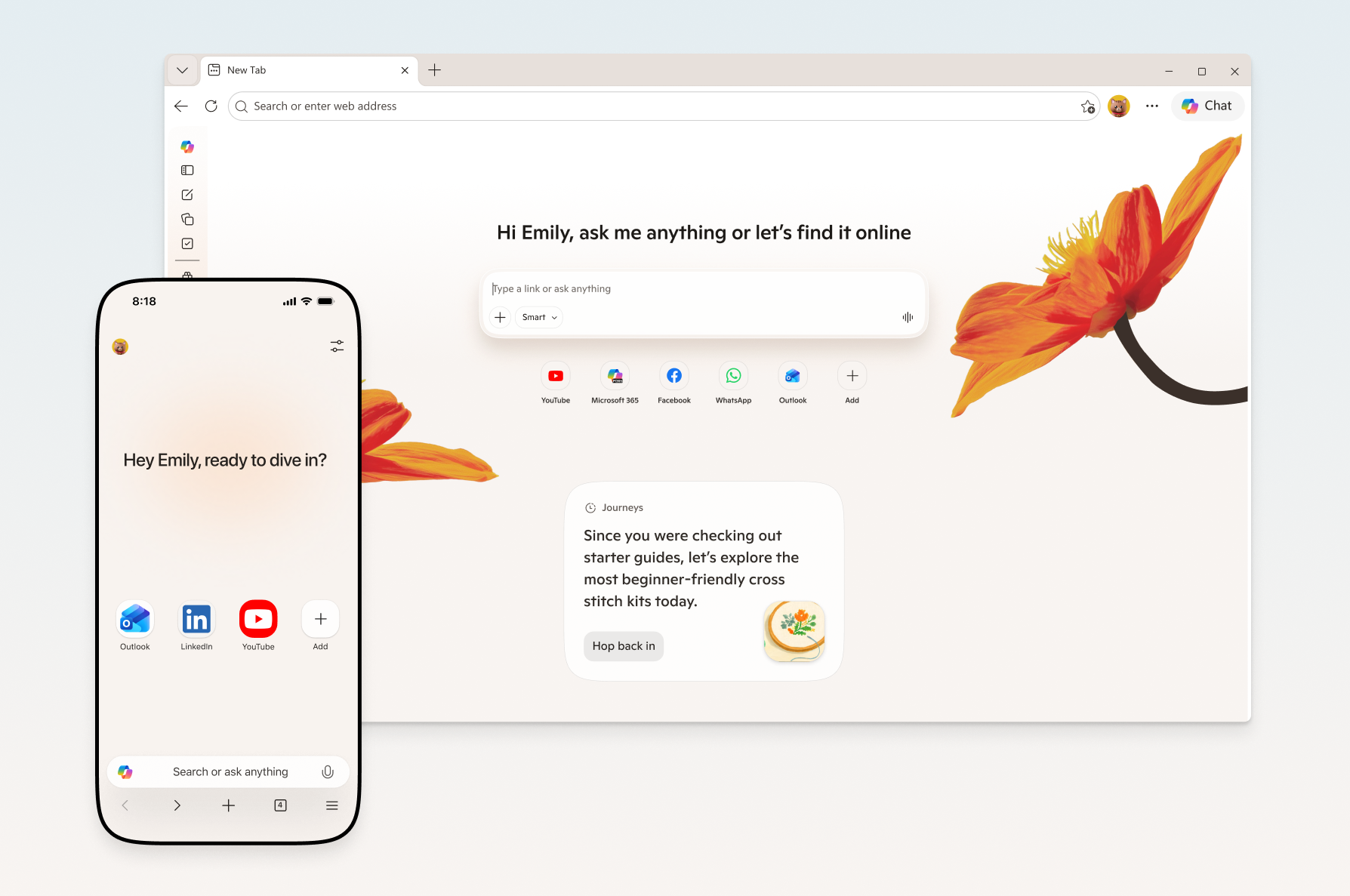
New updates to Edge across desktop and mobile
Edge just made it easier to go from first tab to final plan, wherever you go. Your favorite Copilot experiences, plus new ones, are now available directly in Edge on desktop and, for the first time, in the Edge mobile app. This includes capabilities
 blogs.windows.com
Last edited: