This tutorial will show you different ways to open Performance Monitor in Windows 11.
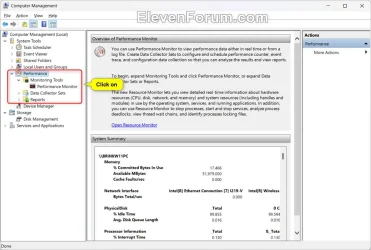
Performance Monitor is an MMC snap-in in Windows that helps monitor system usage and various performance metrics. You can use Performance Monitor to view performance data either in real time or from a log file. Create Data Collector Sets to configure and schedule performance counter, event trace, and configuration data collection so that you can analyze the results and view reports.
The default view upon opening shows a few different areas and real-time metrics, which include:
- Performance Monitor: Real-time viewing of metrics
- Data Collector Sets: Defined data collection within a given time interval
- Reports: The data collected in the Data Collector Sets
References:

Windows Performance Monitor
learn.microsoft.com
Troubleshoot issues using Performance Monitor - Windows Server
Helps troubleshoot issues using Performance Monitor.
learn.microsoft.com
perfmon
Reference article for the perfmon command, which starts the Windows Reliability and Performance Monitor in a specific standalone mode.
learn.microsoft.com
Contents
- Option One: Open Performance Monitor from Windows Search
- Option Two: Open Performance Monitor from Task Manager
- Option Three: Open Performance Monitor from Windows Tools
- Option Four: Open Performance Monitor from Run
- Option Five: Open Performance Monitor from System Configuration (msconfig)
- Option Six: Open Performance Monitor from Command
EXAMPLE: Performance Monitor
1 Open Windows Search (Win+S) or the Start menu.
2 Type perfmon into the search box. (see screenshot below)
3 Click/tap on Open or press Enter.
1 Open Task Manager (Ctrl+Shift+Esc).
2 Click/tap on Run new task on the command bar. (see screenshot below)
4 Type perfmon, and click/tap on OK. (see screenshot below)
1 Open Windows Tools.
2 Click/tap on Performance Monitor. (see screenshot below)
1 Open Run (Win+R).
2 Type perfmon into Run. (see screenshot below)
3 Click/tap on OK or press Enter.
1 Open System Configuration (msconfig).
2 Click/tap on the Tools tab. (see screenshot below)
3 Select Performance Monitor.
4 Click/tap on the Launch button.
5 Click/tap on OK to close msconfig.
1 Open Terminal, and select either Windows PowerShell or Command Prompt.
2 Type perfmon into Terminal, and press Enter. (see screenshot below)
That's it,
Shawn Brink
Attachments
Last edited: