General Open Performance Monitor in Windows 11

  • Thread starter Thread starter Brink
  • Start date Published: Start date Updated Updated:
  • Tags Tags
    mmc

Performance_Monitor_banner.webp

This tutorial will show you different ways to open Performance Monitor in Windows 11.

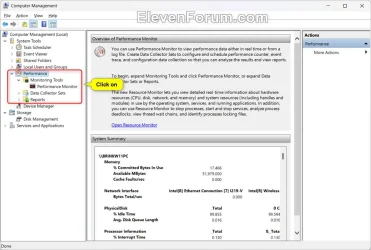
Performance Monitor is an MMC snap-in in Windows that helps monitor system usage and various performance metrics. You can use Performance Monitor to view performance data either in real time or from a log file. Create Data Collector Sets to configure and schedule performance counter, event trace, and configuration data collection so that you can analyze the results and view reports.

The default view upon opening shows a few different areas and real-time metrics, which include:
Performance Monitor provides a visual display of built-in Windows performance counters, either in real time or as a way to review historical data. You can add performance counters to Performance Monitor by dragging and dropping, or by creating custom Data Collector Sets. It features multiple graph views that enable you to visually review performance log data. You can create custom views in Performance Monitor that can be exported as Data Collector Sets for use with performance and logging features.

References:


Contents


EXAMPLE: Performance Monitor

Performance_Monitor-1.webp
Performance_Monitor-2.webp


Option One

Open Performance Monitor from Windows Search


1 Open Windows Search (Win+S) or the Start menu.

2 Type perfmon into the search box. (see screenshot below)

3 Click/tap on Open or press Enter.

Open_perfmon_in_Search.webp


Option Two

Open Performance Monitor from Task Manager


1 Open Task Manager (Ctrl+Shift+Esc).

2 Click/tap on Run new task on the command bar. (see screenshot below)

Open_perfmon_in_Task_Manager-1.webp

4 Type perfmon, and click/tap on OK. (see screenshot below)

Open_perfmon_in_Task_Manager-2.webp


Option Three

Open Performance Monitor from Windows Tools


1 Open Windows Tools.

2 Click/tap on Performance Monitor. (see screenshot below)

Open_perfmon_in_Windows_Tools.webp


Option Four

Open Performance Monitor from Run


1 Open Run (Win+R).

2 Type perfmon into Run. (see screenshot below)

3 Click/tap on OK or press Enter.

Open_perfmon_in_Run.webp


Option Five

Open Performance Monitor from System Configuration (msconfig)


1 Open System Configuration (msconfig).

2 Click/tap on the Tools tab. (see screenshot below)

3 Select Performance Monitor.

4 Click/tap on the Launch button.

5 Click/tap on OK to close msconfig.

Open_perfmon_in_msconfig.webp


Option Six

Open Performance Monitor from Command Line


1 Open Terminal, and select either Windows PowerShell or Command Prompt.

2 Type perfmon into Terminal, and press Enter. (see screenshot below)

Open_perfmon_in_Terminal.webp


That's it,
Shawn Brink


Attachments

  • Open_perfmon_in_Computer_Management.webp
    Open_perfmon_in_Computer_Management.webp
    48.5 KB · Views: 13
Last edited:
Added to Leader Board, (Miscellaneous section).
 

My Computers My Computers

  • At a glance

    Win 11 Home ♦♦♦26300.9550 ♦♦♦♦♦♦♦26H2AMD Ryzen 7 3700XG.Skill (F4-3200C14D-16GTZKW)EVGA RTX 2070 (08G-P4-2171-KR)
    OS
    Win 11 Home ♦♦♦26300.9550 ♦♦♦♦♦♦♦26H2
    Computer type
    PC/Desktop
    Manufacturer/Model
    Built by Ghot® [May 2020]
    CPU
    AMD Ryzen 7 3700X
    Motherboard
    Asus Pro WS X570-ACE (BIOS 5302)
    Memory
    G.Skill (F4-3200C14D-16GTZKW)
    Graphics Card(s)
    EVGA RTX 2070 (08G-P4-2171-KR)
    Sound Card
    Realtek ALC1220P / ALC S1220A
    Monitor(s) Displays
    Dell U3011 30"
    Screen Resolution
    2560 x 1600
    Hard Drives
    2x Samsung 860 EVO 500GB,
    WD 4TB Black FZBX - SATA III,
    WD 8TB Black FZBX - SATA III,
    DRW-24B1ST CD/DVD Burner
    PSU
    PC Power & Cooling 750W Quad EPS12V
    Case
    Cooler Master ATCS 840 Tower
    Cooling
    CM Hyper 212 EVO (push/pull)
    Keyboard
    Ducky DK9008 Shine II Blue LED
    Mouse
    Logitech Optical M-100
    Internet Speed
    300/300
    Browser
    Firefox (latest)
    Antivirus
    Bitdefender Total Security
    Other Info
    Speakers: Klipsch Pro Media 2.1
  • At a glance

    Windows XP Pro 32bit w/SP3AMD Athlon 64 X2 5000+ (OC'd @ 3.2Ghz)TWIN2X2048-6400C4DHX (2 x 1GB, DDR2 800)EVGA 256-P2-N758-TR GeForce 8600GT SSC
    Operating System
    Windows XP Pro 32bit w/SP3
    Computer type
    PC/Desktop
    Manufacturer/Model
    Built by Ghot® (not in use)
    CPU
    AMD Athlon 64 X2 5000+ (OC'd @ 3.2Ghz)
    Motherboard
    ASUS M2N32-SLI Deluxe Wireless Edition
    Memory
    TWIN2X2048-6400C4DHX (2 x 1GB, DDR2 800)
    Graphics card(s)
    EVGA 256-P2-N758-TR GeForce 8600GT SSC
    Sound Card
    Onboard
    Monitor(s) Displays
    ViewSonic G90FB Black 19" Professional (CRT)
    Screen Resolution
    up to 2048 x 1536
    Hard Drives
    WD 36GB 10,000rpm Raptor SATA
    Seagate 80GB 7200rpm SATA
    Lite-On LTR-52246S CD/RW
    Lite-On LH-18A1P CD/DVD Burner
    PSU
    PC Power & Cooling Silencer 750 Quad EPS12V
    Case
    Generic Beige case, 80mm fans
    Cooling
    ZALMAN 9500A 92mm CPU Cooler
    Keyboard
    Logitech Classic Keybooard 200
    Mouse
    Logitech Optical M-BT96a
    Internet Speed
    300/300
    Browser
    Firefox 3.x ??
    Antivirus
    Symantec (Norton)
    Other Info
    Still assembled, still runs. Haven't turned it on for 15 years?
Back
Top Bottom