"Open powershell window here as administrator" - throws errors now?


My Computers

System One System Two

  • OS
    Windows 11 Pro for Workstations
    Computer type
    PC/Desktop
    Manufacturer/Model
    Custom self build
    CPU
    Intel i7-8700K 5 GHz
    Motherboard
    ASUS ROG Maximus XI Formula Z390
    Memory
    64 GB (4x16GB) G.SKILL TridentZ RGB DDR4 3600 MHz (F4-3600C18D-32GTZR)
    Graphics Card(s)
    ASUS ROG-STRIX-GTX1080TI-O11G-GAMING (11GB GDDR5X)
    Sound Card
    Integrated Digital Audio (S/PDIF)
    Monitor(s) Displays
    2 x Samsung Odyssey G75 27"
    Screen Resolution
    2560x1440
    Hard Drives
    1TB Samsung 990 PRO M.2,
    4TB Samsung 990 PRO M.2,
    TerraMaster F8 SSD Plus NAS
    PSU
    Seasonic Prime Titanium 850W
    Case
    Thermaltake Core P3 wall mounted
    Cooling
    Corsair Hydro H115i
    Keyboard
    Amazon Basics Wired Full Keyboard MD005
    Mouse
    Logitech MX Master 4
    Internet Speed
    2 Gbps Download and 100 Mbps Upload
    Browser
    Chrome and Edge
    Antivirus
    Microsoft Defender
    Other Info
    Logitech Z625 speaker system,
    Logitech BRIO 4K Pro webcam,
    HP Color LaserJet Pro MFP M477fdn,
    CyberPower CP1500PFCLCD
    Galaxy S23 Plus phone
  • Operating System
    Windows 11 Pro
    Computer type
    Laptop
    Manufacturer/Model
    Surface Laptop 7 Copilot+ PC
    CPU
    Snapdragon X Elite (12 core) 3.42 GHz
    Memory
    16 GB LPDDR5x-7467 MHz
    Monitor(s) Displays
    15" HDR
    Screen Resolution
    2496 x 1664
    Hard Drives
    1 TB SSD
    Internet Speed
    Wi-Fi 7 and Bluetooth 5.4
    Browser
    Chrome and Edge
    Antivirus
    Microsoft Defender

My Computer

System One

  • OS
    Windows 11
    Computer type
    PC/Desktop
Thank you for the fix.

But I believe the 'Directory\Background' key also needs to be changed, otherwise the error persists when clicking inside the c: folder.
That's a bit of a pickle because adding a trailing backslash for directory background will fix the error when it's a drive window but will add an error for all folder windows. We'll need our thinking caps on this one.

Maybe we can fix it for Windows 11 using "-WorkingDirectory". I'll post more about that later. Right now, I have to shovel snow. 😟
 

My Computer

System One

  • OS
    Windows 10/11
    Computer type
    Laptop
    Manufacturer/Model
    Acer
That's a bit of a pickle because adding a trailing backslash for directory background will fix the error when it's a drive window but will add an error for all folder windows. We'll need our thinking caps on this one.

Maybe we can fix it for Windows 11 using "-WorkingDirectory". I'll post more about that later. Right now, I have to shovel snow. 😟
oh ok, no worries. @Brink, better to roll back to how it was before for now...
 

My Computer

System One

  • OS
    Windows 11
    Computer type
    PC/Desktop
@DisposableEmail

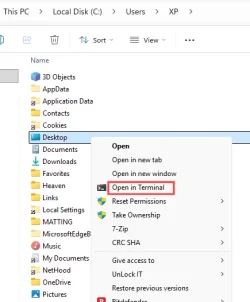
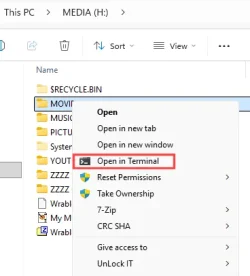
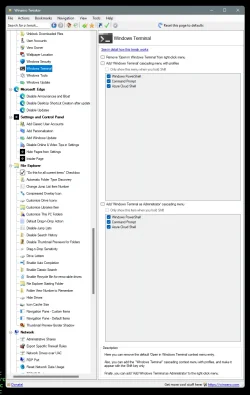
With out any tweaks, you should see Open in Terminal ...on Windows 11, on the right click menu.
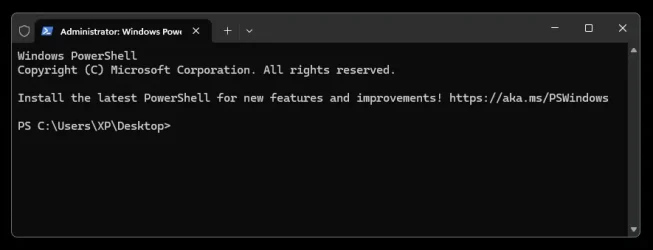
It should open Terminal in Powershell (admin).

I'm on the "classic" Context Menu".
You can get that with this tutorial...


For example...

Image1.webp Image1.webp
 

My Computers

System One System Two

  • OS
    Win 11 Home ♦♦♦26200.8457 ♦♦♦♦♦♦♦25H2
    Computer type
    PC/Desktop
    Manufacturer/Model
    Built by Ghot® [May 2020]
    CPU
    AMD Ryzen 7 3700X
    Motherboard
    Asus Pro WS X570-ACE (BIOS 5302)
    Memory
    G.Skill (F4-3200C14D-16GTZKW)
    Graphics Card(s)
    EVGA RTX 2070 (08G-P4-2171-KR)
    Sound Card
    Realtek ALC1220P / ALC S1220A
    Monitor(s) Displays
    Dell U3011 30"
    Screen Resolution
    2560 x 1600
    Hard Drives
    2x Samsung 860 EVO 500GB,
    WD 4TB Black FZBX - SATA III,
    WD 8TB Black FZBX - SATA III,
    DRW-24B1ST CD/DVD Burner
    PSU
    PC Power & Cooling 750W Quad EPS12V
    Case
    Cooler Master ATCS 840 Tower
    Cooling
    CM Hyper 212 EVO (push/pull)
    Keyboard
    Ducky DK9008 Shine II Blue LED
    Mouse
    Logitech Optical M-100
    Internet Speed
    300/300
    Browser
    Firefox (latest)
    Antivirus
    Bitdefender Total Security
    Other Info
    Speakers: Klipsch Pro Media 2.1
  • Operating System
    Windows XP Pro 32bit w/SP3
    Computer type
    PC/Desktop
    Manufacturer/Model
    Built by Ghot® (not in use)
    CPU
    AMD Athlon 64 X2 5000+ (OC'd @ 3.2Ghz)
    Motherboard
    ASUS M2N32-SLI Deluxe Wireless Edition
    Memory
    TWIN2X2048-6400C4DHX (2 x 1GB, DDR2 800)
    Graphics card(s)
    EVGA 256-P2-N758-TR GeForce 8600GT SSC
    Sound Card
    Onboard
    Monitor(s) Displays
    ViewSonic G90FB Black 19" Professional (CRT)
    Screen Resolution
    up to 2048 x 1536
    Hard Drives
    WD 36GB 10,000rpm Raptor SATA
    Seagate 80GB 7200rpm SATA
    Lite-On LTR-52246S CD/RW
    Lite-On LH-18A1P CD/DVD Burner
    PSU
    PC Power & Cooling Silencer 750 Quad EPS12V
    Case
    Generic Beige case, 80mm fans
    Cooling
    ZALMAN 9500A 92mm CPU Cooler
    Keyboard
    Logitech Classic Keybooard 200
    Mouse
    Logitech Optical M-BT96a
    Internet Speed
    300/300
    Browser
    Firefox 3.x ??
    Antivirus
    Symantec (Norton)
    Other Info
    Still assembled, still runs. Haven't turned it on for 15 years?

My Computers

System One System Two

  • OS
    Windows 11 Pro for Workstations
    Computer type
    PC/Desktop
    Manufacturer/Model
    Custom self build
    CPU
    Intel i7-8700K 5 GHz
    Motherboard
    ASUS ROG Maximus XI Formula Z390
    Memory
    64 GB (4x16GB) G.SKILL TridentZ RGB DDR4 3600 MHz (F4-3600C18D-32GTZR)
    Graphics Card(s)
    ASUS ROG-STRIX-GTX1080TI-O11G-GAMING (11GB GDDR5X)
    Sound Card
    Integrated Digital Audio (S/PDIF)
    Monitor(s) Displays
    2 x Samsung Odyssey G75 27"
    Screen Resolution
    2560x1440
    Hard Drives
    1TB Samsung 990 PRO M.2,
    4TB Samsung 990 PRO M.2,
    TerraMaster F8 SSD Plus NAS
    PSU
    Seasonic Prime Titanium 850W
    Case
    Thermaltake Core P3 wall mounted
    Cooling
    Corsair Hydro H115i
    Keyboard
    Amazon Basics Wired Full Keyboard MD005
    Mouse
    Logitech MX Master 4
    Internet Speed
    2 Gbps Download and 100 Mbps Upload
    Browser
    Chrome and Edge
    Antivirus
    Microsoft Defender
    Other Info
    Logitech Z625 speaker system,
    Logitech BRIO 4K Pro webcam,
    HP Color LaserJet Pro MFP M477fdn,
    CyberPower CP1500PFCLCD
    Galaxy S23 Plus phone
  • Operating System
    Windows 11 Pro
    Computer type
    Laptop
    Manufacturer/Model
    Surface Laptop 7 Copilot+ PC
    CPU
    Snapdragon X Elite (12 core) 3.42 GHz
    Memory
    16 GB LPDDR5x-7467 MHz
    Monitor(s) Displays
    15" HDR
    Screen Resolution
    2496 x 1664
    Hard Drives
    1 TB SSD
    Internet Speed
    Wi-Fi 7 and Bluetooth 5.4
    Browser
    Chrome and Edge
    Antivirus
    Microsoft Defender
 

My Computers

System One System Two

  • OS
    Windows 11 Pro for Workstations
    Computer type
    PC/Desktop
    Manufacturer/Model
    Custom self build
    CPU
    Intel i7-8700K 5 GHz
    Motherboard
    ASUS ROG Maximus XI Formula Z390
    Memory
    64 GB (4x16GB) G.SKILL TridentZ RGB DDR4 3600 MHz (F4-3600C18D-32GTZR)
    Graphics Card(s)
    ASUS ROG-STRIX-GTX1080TI-O11G-GAMING (11GB GDDR5X)
    Sound Card
    Integrated Digital Audio (S/PDIF)
    Monitor(s) Displays
    2 x Samsung Odyssey G75 27"
    Screen Resolution
    2560x1440
    Hard Drives
    1TB Samsung 990 PRO M.2,
    4TB Samsung 990 PRO M.2,
    TerraMaster F8 SSD Plus NAS
    PSU
    Seasonic Prime Titanium 850W
    Case
    Thermaltake Core P3 wall mounted
    Cooling
    Corsair Hydro H115i
    Keyboard
    Amazon Basics Wired Full Keyboard MD005
    Mouse
    Logitech MX Master 4
    Internet Speed
    2 Gbps Download and 100 Mbps Upload
    Browser
    Chrome and Edge
    Antivirus
    Microsoft Defender
    Other Info
    Logitech Z625 speaker system,
    Logitech BRIO 4K Pro webcam,
    HP Color LaserJet Pro MFP M477fdn,
    CyberPower CP1500PFCLCD
    Galaxy S23 Plus phone
  • Operating System
    Windows 11 Pro
    Computer type
    Laptop
    Manufacturer/Model
    Surface Laptop 7 Copilot+ PC
    CPU
    Snapdragon X Elite (12 core) 3.42 GHz
    Memory
    16 GB LPDDR5x-7467 MHz
    Monitor(s) Displays
    15" HDR
    Screen Resolution
    2496 x 1664
    Hard Drives
    1 TB SSD
    Internet Speed
    Wi-Fi 7 and Bluetooth 5.4
    Browser
    Chrome and Edge
    Antivirus
    Microsoft Defender


I get this from the pic above... (left side)

Image1.webp


As far as I know, I didn't ADD that to the Context Menu, in Win 10 or Win 11.
I don't have it on the Leader Board (Context Menu section), either.
I didn't add it in Winaero.
Even in the right click Start Menu... both Terminal and Terminal (Admin) "show" the same Terminal window. ??

Image1.webp


Anyone have a harmless Powershell command that must be run as Admin, that I can test with?
 
Last edited:

My Computers

System One System Two

  • OS
    Win 11 Home ♦♦♦26200.8457 ♦♦♦♦♦♦♦25H2
    Computer type
    PC/Desktop
    Manufacturer/Model
    Built by Ghot® [May 2020]
    CPU
    AMD Ryzen 7 3700X
    Motherboard
    Asus Pro WS X570-ACE (BIOS 5302)
    Memory
    G.Skill (F4-3200C14D-16GTZKW)
    Graphics Card(s)
    EVGA RTX 2070 (08G-P4-2171-KR)
    Sound Card
    Realtek ALC1220P / ALC S1220A
    Monitor(s) Displays
    Dell U3011 30"
    Screen Resolution
    2560 x 1600
    Hard Drives
    2x Samsung 860 EVO 500GB,
    WD 4TB Black FZBX - SATA III,
    WD 8TB Black FZBX - SATA III,
    DRW-24B1ST CD/DVD Burner
    PSU
    PC Power & Cooling 750W Quad EPS12V
    Case
    Cooler Master ATCS 840 Tower
    Cooling
    CM Hyper 212 EVO (push/pull)
    Keyboard
    Ducky DK9008 Shine II Blue LED
    Mouse
    Logitech Optical M-100
    Internet Speed
    300/300
    Browser
    Firefox (latest)
    Antivirus
    Bitdefender Total Security
    Other Info
    Speakers: Klipsch Pro Media 2.1
  • Operating System
    Windows XP Pro 32bit w/SP3
    Computer type
    PC/Desktop
    Manufacturer/Model
    Built by Ghot® (not in use)
    CPU
    AMD Athlon 64 X2 5000+ (OC'd @ 3.2Ghz)
    Motherboard
    ASUS M2N32-SLI Deluxe Wireless Edition
    Memory
    TWIN2X2048-6400C4DHX (2 x 1GB, DDR2 800)
    Graphics card(s)
    EVGA 256-P2-N758-TR GeForce 8600GT SSC
    Sound Card
    Onboard
    Monitor(s) Displays
    ViewSonic G90FB Black 19" Professional (CRT)
    Screen Resolution
    up to 2048 x 1536
    Hard Drives
    WD 36GB 10,000rpm Raptor SATA
    Seagate 80GB 7200rpm SATA
    Lite-On LTR-52246S CD/RW
    Lite-On LH-18A1P CD/DVD Burner
    PSU
    PC Power & Cooling Silencer 750 Quad EPS12V
    Case
    Generic Beige case, 80mm fans
    Cooling
    ZALMAN 9500A 92mm CPU Cooler
    Keyboard
    Logitech Classic Keybooard 200
    Mouse
    Logitech Optical M-BT96a
    Internet Speed
    300/300
    Browser
    Firefox 3.x ??
    Antivirus
    Symantec (Norton)
    Other Info
    Still assembled, still runs. Haven't turned it on for 15 years?
@Brink and @tortadefrango97 Here's a new command that works in all scenarios, including the root drive and root background. This replaces the previous one-liners for directory, directory background, and drive. It works on Windows 10 and Windows 11:
Code:
@="cmd /c reg add hkcu\\software\\_dir /v p /d \"%v \" /f & start powershell -WindowS H -noP -c Start-Process -v RunAs powershell.exe '-noL -noE -c cd -literalP ((gp hkcu:\\software\\_dir).p).TrimEnd(); ri hkcu:\\software\\_dir'"

Given that "-WorkingDirectory" is supported for the PowerShell.exe command line in the Windows 11 version of PowerShell 5.1, I can probably make a shorter version specifically for Windows 11.
 

My Computer

System One

  • OS
    Windows 10/11
    Computer type
    Laptop
    Manufacturer/Model
    Acer
@Brink and @tortadefrango97 Here's a new command that works in all scenarios, including the root drive and root background. This replaces the previous one-liners for directory, directory background, and drive. It works on Windows 10 and Windows 11:
Code:
@="cmd /c reg add hkcu\\software\\_dir /v p /d \"%v \" /f & start powershell -WindowS H -noP -c Start-Process -v RunAs powershell.exe '-noL -noE -c cd -literalP ((gp hkcu:\\software\\_dir).p).TrimEnd(); ri hkcu:\\software\\_dir'"

Given that "-WorkingDirectory" is supported for the PowerShell.exe command line in the Windows 11 version of PowerShell 5.1, I can probably make a shorter version specifically for Windows 11.

Thank you. Works great. Now updated. :shawn:


My Computers

System One System Two

  • OS
    Windows 11 Pro for Workstations
    Computer type
    PC/Desktop
    Manufacturer/Model
    Custom self build
    CPU
    Intel i7-8700K 5 GHz
    Motherboard
    ASUS ROG Maximus XI Formula Z390
    Memory
    64 GB (4x16GB) G.SKILL TridentZ RGB DDR4 3600 MHz (F4-3600C18D-32GTZR)
    Graphics Card(s)
    ASUS ROG-STRIX-GTX1080TI-O11G-GAMING (11GB GDDR5X)
    Sound Card
    Integrated Digital Audio (S/PDIF)
    Monitor(s) Displays
    2 x Samsung Odyssey G75 27"
    Screen Resolution
    2560x1440
    Hard Drives
    1TB Samsung 990 PRO M.2,
    4TB Samsung 990 PRO M.2,
    TerraMaster F8 SSD Plus NAS
    PSU
    Seasonic Prime Titanium 850W
    Case
    Thermaltake Core P3 wall mounted
    Cooling
    Corsair Hydro H115i
    Keyboard
    Amazon Basics Wired Full Keyboard MD005
    Mouse
    Logitech MX Master 4
    Internet Speed
    2 Gbps Download and 100 Mbps Upload
    Browser
    Chrome and Edge
    Antivirus
    Microsoft Defender
    Other Info
    Logitech Z625 speaker system,
    Logitech BRIO 4K Pro webcam,
    HP Color LaserJet Pro MFP M477fdn,
    CyberPower CP1500PFCLCD
    Galaxy S23 Plus phone
  • Operating System
    Windows 11 Pro
    Computer type
    Laptop
    Manufacturer/Model
    Surface Laptop 7 Copilot+ PC
    CPU
    Snapdragon X Elite (12 core) 3.42 GHz
    Memory
    16 GB LPDDR5x-7467 MHz
    Monitor(s) Displays
    15" HDR
    Screen Resolution
    2496 x 1664
    Hard Drives
    1 TB SSD
    Internet Speed
    Wi-Fi 7 and Bluetooth 5.4
    Browser
    Chrome and Edge
    Antivirus
    Microsoft Defender
They used the powershell.exe -noexit -command Set-Location -literalPath '%V' comand before , and now they are using powershell.exe -noexit -WorkingDirectory "%V"

The new command handles Unicode characters well, but it doesn't work on the C: drive.

Microsoft traded one glitch/limitation for another.

The old command, using literalPath, and single quotes, worked for everything except folders containing a single quote, such as Bob's Files.

The new command has the %V in double quotes and uses -WorkingDirectory which would be perfect except for registry character escaping. When you right-click drive C, %V is assigned the string C:\, but %V is inside double quotes, so you have a trailing \" which is the escape sequence for a double quote, so PowerShell gets passed C:".

Our PowerShell Admin command had the same issue. I worked around it by appending a space character to buffer between \ and " and prevent the unintended escape sequence. The trailing space is stripped off afterwards.

For Microsoft's baked in command to launch PowerShell a quick fix for the Drive command is to change it to:
powershell.exe -noexit -WorkingDirectory "%V\"

However, that won't work for the directory background entry because it will eliminate the error for a root view but add an error for all folder views.

Microsoft really screwed this up. I'll work on a fix. Stay tuned...
 

My Computer

System One

  • OS
    Windows 10/11
    Computer type
    Laptop
    Manufacturer/Model
    Acer
Microsoft traded one glitch/limitation for another.

The old command, using literalPath, and single quotes, worked for everything except folders containing a single quote, such as Bob's Files.

The new command has the %V in double quotes and uses -WorkingDirectory which would be perfect except for registry character escaping. When you right-click drive C, %V is assigned the string C:\, but %V is inside double quotes, so you have a trailing \" which is the escape sequence for a double quote, so PowerShell gets passed C:".

Our PowerShell Admin command had the same issue. I worked around it by appending a space character to buffer between \ and " and prevent the unintended escape sequence. The trailing space is stripped off afterwards.

For Microsoft's baked in command to launch PowerShell a quick fix for the Drive command is to change it to:
powershell.exe -noexit -WorkingDirectory "%V\"

However, that won't work for the directory background entry because it will eliminate the error for a root view but add an error for all folder views.

Microsoft really screwed this up. I'll work on a fix. Stay tuned...
Thanks, good job.

I'm always amazed at how Microsoft manages to create new bugs while trying to fix existing ones haha
 

My Computer

System One

  • OS
    Windows 11
    Computer type
    PC/Desktop
I spent a lot of time looking at the built in commands and the only way I can make it work without error for all folder names (including ones with single quotes) and root drives is to use the same method that we're using for open-powershell-window-here-as-administrator. That method uses Cmd so there's an extra console flash. That's not so bad when you're getting a UAC prompt anyhow, but it's not so desirable as a replacement for the direct opening of PowerShell in the User context. We need Microsoft to fix it. In the meantime, you can do this:

For the Drive registry entry, add a trailing backslash. This prevents the backslash in a root drive path (e.g. C:\) from being parsed as an escape sequence and works as long as the path ends in a backslash.

powershell.exe -noexit -WorkingDirectory "%V\"

The above "fix" cannot be used for the Directory Background registry entry because it will error when there isn't a trailing backslash (i.e. every folder except root drive views). So, you can either live with the error when it's a right-click on a directory background of a root drive or change it to the old "LiteralPath" code and have an error whenever the folder name contains an apostrophe (e.g. Bob's Files):

powershell.exe -noexit -command Set-Location -literalPath '%V'

If you wish to make either of those changes, you'll need to open RegEdit as TrustedInstaller. You can do that using Right-Click Tools or PowerRun or AdvancedRun etc.
 

My Computer

System One

  • OS
    Windows 10/11
    Computer type
    Laptop
    Manufacturer/Model
    Acer
When adding "conhost --headless" (to hide the flash) but Defender immediately flagged that reg file as a no-no.
 

My Computer

System One

  • OS
    Windows 7
Back
Top Bottom