
Solved Open with fails to open


bonky

Member
Local time
10:40 AM
Posts
24
OS
win10
Hi all

Im using windows 11 - 25H2

I have an issue with associating file types

so what I do is

right click (for an example) on a .docx and left click on "Choose and App"

as soon as I "Choose and App" (im expecting the "Select an app to open this .docx file") the dialogue box pops up and then promptly disappears

I went to the default apps and tried to do the same and the dialogue box pops up and promptly disappears also as the right click...

anyone come up with this issue before?
 

Attachments
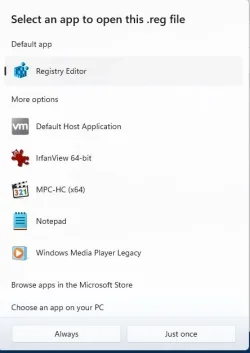
  • Capture.webp
    Capture.webp
    17.5 KB · Views: 1

My Computer

System One

  • OS
    win10
    Computer type
    PC/Desktop
Hi all

Im using windows 11 - 25H2

I have an issue with associating file types

so what I do is

right click (for an example) on a .docx and left click on "Choose and App"

as soon as I "Choose and App" (im expecting the "Select an app to open this .docx file") the dialogue box pops up and then promptly disappears

I went to the default apps and tried to do the same and the dialogue box pops up and promptly disappears also as the right click...

anyone come up with this issue before?
I am still running 2H24, but I often run into a very close issue. After I have opened and closed a program several time, let's say Outlook, I can't get outlook to start again, even if I double-click on Outlook.exe in the MS Office folder. If I reboot my system, the problem goes away.
 

My Computer

System One

  • OS
    Windows 11 2H25
    Computer type
    PC/Desktop
    Manufacturer/Model
    DIY
    CPU
    AMD 9900X
    Motherboard
    MSI X870E Carbon
    Memory
    64 GB
    Graphics Card(s)
    AMD 9070 XT
    Sound Card
    built-in
    Monitor(s) Displays
    Dell 24"
    Hard Drives
    Sabrent 1 TB NVMe, 4 x SSD (need to check models), 4 x 3.5" HDD, 8-16 TB, all WD
    PSU
    Seasonic 850
    Case
    Fractal Design North XL (which I likw)
    Cooling
    Corsair AIO for CPU, fans for case
    Keyboard
    Das Keyboard 4
    Mouse
    Corsair M65 (white)
    Internet Speed
    1 TB download
    Browser
    Firefox
    Antivirus
    Bitdefender
    Other Info
    Also have Lenovo T14S laptop (me) and Lenovo Slim 71 (wife)
I have opened and closed a program several time, let's say Outlook, I can't get outlook to start again, even if I double-click on Outlook.exe in the MS Office folder. If I reboot my system, the problem goes away.
This means the app didn't close properly on the last attempt because of the amount of times you started it and closed it.
Right click the Taskbar select Task Manager. Under Processes,
Find the app, Right click it and choose End Task.
You can now click the app to Start it again.
 

My Computer

System One

  • OS
    Windows 11 Pro Insider 64 bit 25H2 26200.5742
    Computer type
    PC/Desktop
    Manufacturer/Model
    Gigabyte Z390 UD
    CPU
    Intel Core i7 9700K 3.60
    Motherboard
    Gigabyte Z390 UD
    Memory
    16 GB
    Graphics Card(s)
    nVidia GEForce RTX 2060 Super
    Sound Card
    onboard
    Monitor(s) Displays
    Two 27" Dell 4K monitors
    Screen Resolution
    3840 x 2160
    Hard Drives
    M.2 NVME SSD, 500 GB; Two 2TB Mechanical HDD's
    PSU
    850w PSU
    Case
    Cyberpower PC
    Cooling
    Water cooled
    Keyboard
    Backlit Cyberpower gaming keyboard
    Mouse
    Backlit Cyberpower gaming mouse
    Internet Speed
    1 GB mbps
    Browser
    Brave
    Antivirus
    Windows Security
Hi all

Im using windows 11 - 25H2

I have an issue with associating file types

so what I do is

right click (for an example) on a .docx and left click on "Choose and App"

as soon as I "Choose and App" (im expecting the "Select an app to open this .docx file") the dialogue box pops up and then promptly disappears

I went to the default apps and tried to do the same and the dialogue box pops up and promptly disappears also as the right click...

anyone come up with this issue before?
try clearing icon cache to see if that fixes it. save this as a .bat and run it


Code:
@echo off

echo.
taskkill /f /im explorer.exe
timeout 2 /nobreak>nul
echo.

DEL /F /Q /A %LocalAppData%\IconCache.db
DEL /F /S /Q /A %LocalAppData%\Microsoft\Windows\Explorer\iconcache_*.db
DEL /F /S /Q /A %LocalAppData%\Microsoft\Windows\Explorer\thumbcache_*.db

timeout 2 /nobreak>nul
start explorer.exe

you can also use nirsoft's openwithview to see all entries that are there. maybe a corrupt one is causing the issue:


My Computer

System One

  • OS
    Windows 11 Pro
try clearing icon cache to see if that fixes it. save this as a .bat and run it


Code:
@echo off

echo.
taskkill /f /im explorer.exe
timeout 2 /nobreak>nul
echo.

DEL /F /Q /A %LocalAppData%\IconCache.db
DEL /F /S /Q /A %LocalAppData%\Microsoft\Windows\Explorer\iconcache_*.db
DEL /F /S /Q /A %LocalAppData%\Microsoft\Windows\Explorer\thumbcache_*.db

timeout 2 /nobreak>nul
start explorer.exe

you can also use nirsoft's openwithview to see all entries that are there. maybe a corrupt one is causing the issue:

unfort this didnt work
 

My Computer

System One

  • OS
    win10
    Computer type
    PC/Desktop
did you use openwithview to see all the entries?
 

My Computer

System One

  • OS
    Windows 11 Pro
post a screen shot of what all is listed there
 

My Computer

System One

  • OS
    Windows 11 Pro
wordpad looks a little odd. missing some info. you can right click any and disable them and try. go through them and see if any are the culprit
 

My Computer

System One

  • OS
    Windows 11 Pro
I found the issue... there is a program that's preventing the box popping up
 

My Computer

System One

  • OS
    win10
    Computer type
    PC/Desktop
if you want to list it so others that may have the same issue find it. if not... either way please mark as solved
 

My Computer

System One

  • OS
    Windows 11 Pro
thank you for your help..... I guess the moral of the story is..... close any running third party apps......
 

My Computer

System One

  • OS
    win10
    Computer type
    PC/Desktop
Back
Top Bottom





