PC goes to sleep, but won't fully wake up (3rd time in 3 years)


It reported normal boot.

Please reboot into safe mode > post a new V2 share link


My Computer

System One

  • OS
    Windows 10
    Computer type
    Laptop
    Manufacturer/Model
    HP
    CPU
    Intel(R) Core(TM) i7-4800MQ CPU @ 2.70GHz
    Motherboard
    Product : 190A Version : KBC Version 94.56
    Memory
    16 GB Total: Manufacturer : Samsung MemoryType : DDR3 FormFactor : SODIMM Capacity : 8GB Speed : 1600
    Graphics Card(s)
    NVIDIA Quadro K3100M; Intel(R) HD Graphics 4600
    Sound Card
    IDT High Definition Audio CODEC; PNP Device ID HDAUDIO\FUNC_01&VEN_111D&DEV_76E0
    Hard Drives
    Model Hitachi HTS727575A9E364
    Antivirus
    Microsoft Defender
    Other Info
    Mobile Workstation

My Computer

System One

  • OS
    Windows 11 Pro
    Computer type
    PC/Desktop
    Manufacturer/Model
    Assembled
    CPU
    AMD Ryzen 7 7700X 8-Core
    Motherboard
    B650M AORUS ELITE AX
    Memory
    Corsair 16GB DDR5 XMP x2
    Graphics Card(s)
    4054MB NVIDIA GeForce RTX 5060 Ti (MSI)
    Monitor(s) Displays
    2
    Screen Resolution
    2351 x 1323 (NVIDIA DSR)
    Hard Drives
    SSD
    PSU
    CORSAIR CV750 Watts bronze80 PLUS
    Cooling
    cooler master AIO water cooled
    Keyboard
    red dragon cherry
    Mouse
    Galax 04
    Browser
    Brave, floorp, zen and others
    Antivirus
    windows defender
    Other Info
    I also have two more desktops, a windows 10 and 11 gaming desktop and a dell gaming laptop that runs windows 11
It reported normal boot.

Please reboot into safe mode > post a new V2 share link

Let me describe the issue again. Once it is put to sleep it doesn't go all the way to sleep, mouse, keyboard and monitor go to sleep, my case RGB and fans don't go to sleep. Making PC wake up, doesn't wake it up, so I have to hard reset the PC, which forces it to reboot, probably making it "clean reboot"?

In any case, I have uploaded safe mode logs like you asked for and thanks again for looking into this.
 

My Computer

System One

  • OS
    Windows 11 Pro
    Computer type
    PC/Desktop
    Manufacturer/Model
    Assembled
    CPU
    AMD Ryzen 7 7700X 8-Core
    Motherboard
    B650M AORUS ELITE AX
    Memory
    Corsair 16GB DDR5 XMP x2
    Graphics Card(s)
    4054MB NVIDIA GeForce RTX 5060 Ti (MSI)
    Monitor(s) Displays
    2
    Screen Resolution
    2351 x 1323 (NVIDIA DSR)
    Hard Drives
    SSD
    PSU
    CORSAIR CV750 Watts bronze80 PLUS
    Cooling
    cooler master AIO water cooled
    Keyboard
    red dragon cherry
    Mouse
    Galax 04
    Browser
    Brave, floorp, zen and others
    Antivirus
    windows defender
    Other Info
    I also have two more desktops, a windows 10 and 11 gaming desktop and a dell gaming laptop that runs windows 11
@surio
you have disabled 'fast startup' could you now disable hibernation

restart the system and then try sleep mode please.
best of luck Steve ..
 

My Computers

System One System Two

  • OS
    Windows 11 Home
    Computer type
    PC/Desktop
    Manufacturer/Model
    HP 24" AiO
    CPU
    Ryzen 7 5825u
    Motherboard
    HP
    Memory
    64GB DDR4 3200
    Graphics Card(s)
    Ryzen 7 5825u
    Sound Card
    RealTek
    Monitor(s) Displays
    24" HP AiO
    Screen Resolution
    1920 x 1080 @60 Hz
    Hard Drives
    1TB WD Blue SN580 M2 SSD Partitioned.
    2x 1TB USB HDD External Backup/Storage.
    PSU
    90W external power brick
    Case
    24" All in One
    Cooling
    Default Air Cooling
    Keyboard
    HP WiFi UK extended
    Mouse
    HP WiFi 3 Button
    Internet Speed
    1GB full fibre
    Browser
    Edge & Firefox
    Antivirus
    AVG Internet Security/Windows Defender
    Other Info
    Mainly Open Source Software
  • Operating System
    Ubuntu 22.04.5 LTS
    Computer type
    Laptop
    Manufacturer/Model
    Dell 13" Latitude 2017
    CPU
    i5 7200u
    Motherboard
    Dell
    Memory
    16GB DDR4
    Graphics card(s)
    Intel
    Sound Card
    Intel
    Monitor(s) Displays
    13" Dell Laptop
    Hard Drives
    250GB Crucial 2.5" SSD
    Mouse
    Generic WiFi 3 button
    Internet Speed
    WiFi only
    Browser
    Firefox
    Antivirus
    ClamAV TK
    Other Info
    Mainly Open Source Software
@surio
you have disabled 'fast startup' could you now disable hibernation

restart the system and then try sleep mode please.
best of luck Steve ..
I tried this out. It still wouldn't go into sleep mode and I had to hard reset it to recover the PC again.
As usual, keyboard, mouse and monitor went to sleep. RGB on case panel and fans remained on.
When I tried to wake up, keyboard RGB came ON when I pressed keys, mouse and monitor and OS would not recover.
Disk indicator on the case was blinking.

Thanks,
surio.
 

My Computer

System One

  • OS
    Windows 11 Pro
    Computer type
    PC/Desktop
    Manufacturer/Model
    Assembled
    CPU
    AMD Ryzen 7 7700X 8-Core
    Motherboard
    B650M AORUS ELITE AX
    Memory
    Corsair 16GB DDR5 XMP x2
    Graphics Card(s)
    4054MB NVIDIA GeForce RTX 5060 Ti (MSI)
    Monitor(s) Displays
    2
    Screen Resolution
    2351 x 1323 (NVIDIA DSR)
    Hard Drives
    SSD
    PSU
    CORSAIR CV750 Watts bronze80 PLUS
    Cooling
    cooler master AIO water cooled
    Keyboard
    red dragon cherry
    Mouse
    Galax 04
    Browser
    Brave, floorp, zen and others
    Antivirus
    windows defender
    Other Info
    I also have two more desktops, a windows 10 and 11 gaming desktop and a dell gaming laptop that runs windows 11
1) Open administrative PS and copy and paste:

wmic baseboard get product,manufacturer,version,serialnumber

Get-CimInstance Win32_BaseBoard | Format-List *

systeminfo | findstr /i "BaseBoard"

wmic bios get smbiosbiosversion

Post a share link.


2) Check the motherboard for the revision > report findings
1.0/1.1
1.2
1.3
1.4


3) Open administrative PS and copy and paste:

Get-PnpDeviceProperty -InstanceId "USB\VID_045E&PID_028E\8A2D1ED10400" -KeyName DEVPKEY_Device_Manufacturer

Get-PnpDeviceProperty -InstanceId "USB\VID_045E&PID_028E\8A2D1ED10400" -KeyName DEVPKEY_Device_FriendlyName

pnputil /enum-devices /connected | findstr /i 028E

Post a share link.


4) Open administrative PS and copy and paste:

manage-bde -status

manage-bde -protectors -get C: (copy/save the 48‑digit recovery key)

manage-bde -protectors -disable C:

Post a share link.
 
Last edited:

My Computer

System One

  • OS
    Windows 10
    Computer type
    Laptop
    Manufacturer/Model
    HP
    CPU
    Intel(R) Core(TM) i7-4800MQ CPU @ 2.70GHz
    Motherboard
    Product : 190A Version : KBC Version 94.56
    Memory
    16 GB Total: Manufacturer : Samsung MemoryType : DDR3 FormFactor : SODIMM Capacity : 8GB Speed : 1600
    Graphics Card(s)
    NVIDIA Quadro K3100M; Intel(R) HD Graphics 4600
    Sound Card
    IDT High Definition Audio CODEC; PNP Device ID HDAUDIO\FUNC_01&VEN_111D&DEV_76E0
    Hard Drives
    Model Hitachi HTS727575A9E364
    Antivirus
    Microsoft Defender
    Other Info
    Mobile Workstation
I do think the issue is with the Operating System with combination of different graphics driver. My laptop had this issue with windows 10 and since updating to fresh install of windows 11 21h2 fixed the issue for me. For me this issue was occasional and would be unpredictable that I'd stopped trusting my laptop but I've been free from this issue for 3 years now.

A simple cause I found was badly written apps preventing sleeping of dedicated GPU (rtx3050 in my case) and the OS would think it had gone to sleep but freezes to hell. You could try closing background apps from task manager and then letting the pc to sleep.

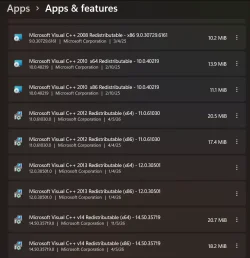
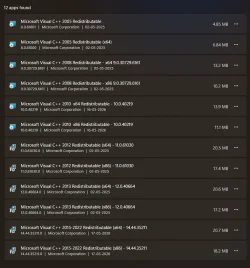
Also do check if there are multiple version of visual c++ Your pc should only have one x64 and another x86 for a single year and it wont cause bugs in older apps. I hope I'm not wrong here.
Going to a older version of graphics driver also could fix the issue.
1780250011164.webp
 

My Computer

System One

  • OS
    Windows 11 21H2
    Computer type
    Laptop
    Manufacturer/Model
    Acer Nitro 5 AN515-58 (2022)
    CPU
    12500H (12c16t)
    Motherboard
    (BIOS v2.05) ADL Jimny_ADH
    Memory
    2x8 GB DDR4
    Graphics Card(s)
    NVidia RTX 3050 Mobile 4GB
    Sound Card
    Realtek configured by DTS:X
    Monitor(s) Displays
    72hz Dell SE2719H external, 144hz internal
    Screen Resolution
    1920x1080
    Hard Drives
    Internal: Raid Config 1TB (Samsung MZVL2_512 + Micron 3400_512) NVME SSD
    Portables: WD Elements 4tb, WD Elements SE 2TB, Seagate 3.5inch HDD 1TB, WD Blue 3.5inch 512gb, Hitachi 2.5 inch HDD 512gb
    Keyboard
    Redragon Kitava - Red Switches
    Mouse
    Meetion GM80 Transformers
    Internet Speed
    250mbps
    Browser
    Waterfox (Windows), Kiwi (Android)
    Antivirus
    MalwareBytes
    Other Info
    Speaker: Mingo 5.1 Home Theatre System (used everyday since Early 2000 without repair)
    Headphone: Ugreen HiTune Max 5C
    Earphone: Mi In-Ear Headphones Pro HD Dual Driver (Neutral sound profile)
1) Open administrative PS and copy and paste:

wmic baseboard get product,manufacturer,version,serialnumber

Get-CimInstance Win32_BaseBoard | Format-List *

systeminfo | findstr /i "BaseBoard"

wmic bios get smbiosbiosversion

Post a share link.


2) Check the motherboard for the revision > report findings
1.0/1.1
1.2
1.3
1.4


3) Open administrative PS and copy and paste:

Get-PnpDeviceProperty -InstanceId "USB\VID_045E&PID_028E\8A2D1ED10400" -KeyName DEVPKEY_Device_Manufacturer

Get-PnpDeviceProperty -InstanceId "USB\VID_045E&PID_028E\8A2D1ED10400" -KeyName DEVPKEY_Device_FriendlyName

pnputil /enum-devices /connected | findstr /i 028E

Post a share link.


4) Open administrative PS and copy and paste:

manage-bde -status

manage-bde -protectors -get C: (copy/save the 48‑digit recovery key)

manage-bde -protectors -disable C:

Post a share link.
All the command results are in the attached text file.

The BIOS/motherboard was not updated from the time PC was assembled.
AMD revision number 0x0
bios version is F32g as shown in the attached file and date is 19/12/2024

Fresh installation of windows 11. I have been having this problem almost every year and I am having to end up reinstalling windows 11 to remove this problem each time. I hope we can get to the root cause without having to reinstall, as I am loathe to start fresh and install so many software applications all over again.

EDIT: the message about bitlocker not enabled at start is a one off? how can I turn it off if it's a recurring thing? Thank you.
 

Attachments

My Computer

System One

  • OS
    Windows 11 Pro
    Computer type
    PC/Desktop
    Manufacturer/Model
    Assembled
    CPU
    AMD Ryzen 7 7700X 8-Core
    Motherboard
    B650M AORUS ELITE AX
    Memory
    Corsair 16GB DDR5 XMP x2
    Graphics Card(s)
    4054MB NVIDIA GeForce RTX 5060 Ti (MSI)
    Monitor(s) Displays
    2
    Screen Resolution
    2351 x 1323 (NVIDIA DSR)
    Hard Drives
    SSD
    PSU
    CORSAIR CV750 Watts bronze80 PLUS
    Cooling
    cooler master AIO water cooled
    Keyboard
    red dragon cherry
    Mouse
    Galax 04
    Browser
    Brave, floorp, zen and others
    Antivirus
    windows defender
    Other Info
    I also have two more desktops, a windows 10 and 11 gaming desktop and a dell gaming laptop that runs windows 11
I do think the issue is with the Operating System with combination of different graphics driver. My laptop had this issue with windows 10 and since updating to fresh install of windows 11 21h2 fixed the issue for me. For me this issue was occasional and would be unpredictable that I'd stopped trusting my laptop but I've been free from this issue for 3 years now.

A simple cause I found was badly written apps preventing sleeping of dedicated GPU (rtx3050 in my case) and the OS would think it had gone to sleep but freezes to hell. You could try closing background apps from task manager and then letting the pc to sleep.

Also do check if there are multiple version of visual c++ Your pc should only have one x64 and another x86 for a single year and it wont cause bugs in older apps. I hope I'm not wrong here.
Going to a older version of graphics driver also could fix the issue.
View attachment 173055
Screenshot 2026-06-01 211830.webp

Yes, only one version of those redistributables are present.

Even in my case, there was some glitch with the Radeon display drivers but there was no clean resolution. My issues started on a fresh win11 install and never on win10.
I have included all the information regarding my power info in a previous post. If someone can find a way to detect and isolate what is causing the pc to not completely sleep, it would save me from having to reinstall windows 11 to fix the issue.

Thanks.
 

My Computer

System One

  • OS
    Windows 11 Pro
    Computer type
    PC/Desktop
    Manufacturer/Model
    Assembled
    CPU
    AMD Ryzen 7 7700X 8-Core
    Motherboard
    B650M AORUS ELITE AX
    Memory
    Corsair 16GB DDR5 XMP x2
    Graphics Card(s)
    4054MB NVIDIA GeForce RTX 5060 Ti (MSI)
    Monitor(s) Displays
    2
    Screen Resolution
    2351 x 1323 (NVIDIA DSR)
    Hard Drives
    SSD
    PSU
    CORSAIR CV750 Watts bronze80 PLUS
    Cooling
    cooler master AIO water cooled
    Keyboard
    red dragon cherry
    Mouse
    Galax 04
    Browser
    Brave, floorp, zen and others
    Antivirus
    windows defender
    Other Info
    I also have two more desktops, a windows 10 and 11 gaming desktop and a dell gaming laptop that runs windows 11
As I previously mentioned that closing apps might help narrow the issue. In my case the Event Viewer log was completely empty that it didn't even detect I had to force-reboot after leaving the device to sleep/hibernate. It also wasn't the BIOS update that fixed it. In my case it most definitely was an app and windows update.

I would start by closing apps from the bottom right taskbar tray area and then move on to task manager or Task scheduler to stop a program from starting at boot.

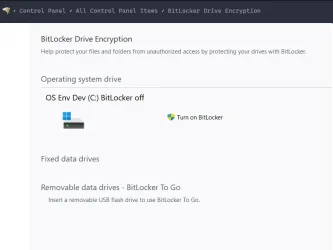
To stop Bitlocker: Search for "Services" from start menu and stop bitlocker and disable it.
1780337846691.webp


Also we have to make sure your device has not been auto-encrypted. so again search for bitlocker in start menu and make sure it has been turned off
1780337920286.webp
 

My Computer

System One

  • OS
    Windows 11 21H2
    Computer type
    Laptop
    Manufacturer/Model
    Acer Nitro 5 AN515-58 (2022)
    CPU
    12500H (12c16t)
    Motherboard
    (BIOS v2.05) ADL Jimny_ADH
    Memory
    2x8 GB DDR4
    Graphics Card(s)
    NVidia RTX 3050 Mobile 4GB
    Sound Card
    Realtek configured by DTS:X
    Monitor(s) Displays
    72hz Dell SE2719H external, 144hz internal
    Screen Resolution
    1920x1080
    Hard Drives
    Internal: Raid Config 1TB (Samsung MZVL2_512 + Micron 3400_512) NVME SSD
    Portables: WD Elements 4tb, WD Elements SE 2TB, Seagate 3.5inch HDD 1TB, WD Blue 3.5inch 512gb, Hitachi 2.5 inch HDD 512gb
    Keyboard
    Redragon Kitava - Red Switches
    Mouse
    Meetion GM80 Transformers
    Internet Speed
    250mbps
    Browser
    Waterfox (Windows), Kiwi (Android)
    Antivirus
    MalwareBytes
    Other Info
    Speaker: Mingo 5.1 Home Theatre System (used everyday since Early 2000 without repair)
    Headphone: Ugreen HiTune Max 5C
    Earphone: Mi In-Ear Headphones Pro HD Dual Driver (Neutral sound profile)
1) Please physically verify the motherboard revision:

Look at the bottom left motherboard corner.

(REV: 1.0 / 1.1 / 1.2 / 1.3 / 1.4 / etc.)

Report the revision.


2) The BIOS Version/Date American Megatrends International, LLC. F32g, 19-12-2024

Upgrade to the latest non‑beta BIOS available for that revision.


3) Open administrative PS and copy and paste:

pnputil /enum-drivers | findstr /i amd

Get-PnpDevice -InstanceId "USB\VID_045E&PID_028E\*" | Format-List *

powercfg /availablesleepstates

Post a share link.


4) Unplug the Xbox 360 controller


5) Open administrative PS and copy and paste:

pnputil /enum-devices /connected | findstr /i xusb

Post a share link.


6) If nothing appears open administrative PS and copy and paste:

rundll32.exe powrprof.dll,SetSuspendState 0,1,0


7) Wake the computer using the keyboard


8) Open administrative PS and copy and paste:

shutdown /s /t 0


9) Power on the computer

Let it idle for 10–15 minutes

Wake using keyboard or mouse.


10) Open event viewer > post share links

a) Microsoft‑Windows‑USBHUB3/Operational
b) Microsoft‑Windows‑Kernel‑Pnp/Device Configuration
c) Microsoft‑Windows‑Kernel‑Power
d) System
e) V2 log collector


11) Disable-usb-selective-suspend:

Open administrative PS and copy and paste:

powercfg -setacvalueindex SCHEME_CURRENT SUB_USB USBSELECTSUSPEND 0

powercfg -setdcvalueindex SCHEME_CURRENT SUB_USB USBSELECTSUSPEND 0

powercfg -SetActive SCHEME_CURRENT

Post a share link.


12) Plug the Xbox 360 controller into a rear USB 2.0 port (black ports on the back of the motherboard)

(do not use: front panel ports, USB 3 or C ports, or hubs)


13) Open administrative PS and copy and paste:

pnputil /enum-devices /connected | findstr /i "USB Root Hub"

Post a share link.


14) Open device manager > click view > click show hidden devices > expand Universal Serial Bus controllers >

For each USB hub:

a) right‑click properties

b) click Power Management tab

c) Uncheck: “Allow the computer to turn off this device to save power.”


15) Run again step #11:

Open administrative PS and copy and paste:

powercfg -setacvalueindex SCHEME_CURRENT SUB_USB USBSELECTSUSPEND 0

powercfg -setdcvalueindex SCHEME_CURRENT SUB_USB USBSELECTSUSPEND 0

powercfg -SetActive SCHEME_CURRENT

Post a share link.


16) Open administrative PS and copy and paste:

pnputil /enum-drivers | findstr /i xusb

Post a share link.


17) If an OEM INF appears (example: oem22.inf):

Open administrative PS and copy and paste:

pnputil /delete-driver oem22.inf /uninstall /force

Post a share link.


18) Unplug the Xbox controller

Wait 5 - 10 seconds

Replug it into the same rear USB 2 port


19) Open administrative PS and copy and paste:

rundll32.exe powrprof.dll,SetSuspendState 0,1,0

Post a share link.


20) More to follow pending the above results.

 
Last edited:

My Computer

System One

  • OS
    Windows 10
    Computer type
    Laptop
    Manufacturer/Model
    HP
    CPU
    Intel(R) Core(TM) i7-4800MQ CPU @ 2.70GHz
    Motherboard
    Product : 190A Version : KBC Version 94.56
    Memory
    16 GB Total: Manufacturer : Samsung MemoryType : DDR3 FormFactor : SODIMM Capacity : 8GB Speed : 1600
    Graphics Card(s)
    NVIDIA Quadro K3100M; Intel(R) HD Graphics 4600
    Sound Card
    IDT High Definition Audio CODEC; PNP Device ID HDAUDIO\FUNC_01&VEN_111D&DEV_76E0
    Hard Drives
    Model Hitachi HTS727575A9E364
    Antivirus
    Microsoft Defender
    Other Info
    Mobile Workstation
1) Please physically verify the motherboard revision:

Look at the bottom left motherboard corner.

(REV: 1.0 / 1.1 / 1.2 / 1.3 / 1.4 / etc.)

Report the revision.


2) The BIOS Version/Date American Megatrends International, LLC. F32g, 19-12-2024

Upgrade to the latest non‑beta BIOS available for that revision.


3) Open administrative PS and copy and paste:

pnputil /enum-drivers | findstr /i amd

Get-PnpDevice -InstanceId "USB\VID_045E&PID_028E\*" | Format-List *

powercfg /availablesleepstates

Post a share link.


4) Unplug the Xbox 360 controller


5) Open administrative PS and copy and paste:

pnputil /enum-devices /connected | findstr /i xusb

Post a share link.


6) If nothing appears open administrative PS and copy and paste:

rundll32.exe powrprof.dll,SetSuspendState 0,1,0


7) Wake the computer using the keyboard


8) Open administrative PS and copy and paste:

shutdown /s /t 0


9) Power on the computer

Let it idle for 10–15 minutes

Wake using keyboard or mouse.


10) Open event viewer > post share links

a) Microsoft‑Windows‑USBHUB3/Operational
b) Microsoft‑Windows‑Kernel‑Pnp/Device Configuration
c) Microsoft‑Windows‑Kernel‑Power
d) System
e) V2 log collector


11) Disable-usb-selective-suspend:

Open administrative PS and copy and paste:

powercfg -setacvalueindex SCHEME_CURRENT SUB_USB USBSELECTSUSPEND 0

powercfg -setdcvalueindex SCHEME_CURRENT SUB_USB USBSELECTSUSPEND 0

powercfg -SetActive SCHEME_CURRENT

Post a share link.


12) Plug the Xbox 360 controller into a rear USB 2.0 port (black ports on the back of the motherboard)

(do not use: front panel ports, USB 3 or C ports, or hubs)


13) Open administrative PS and copy and paste:

pnputil /enum-devices /connected | findstr /i "USB Root Hub"

Post a share link.


14) Open device manager > click view > click show hidden devices > expand Universal Serial Bus controllers >

For each USB hub:

a) right‑click properties

b) click Power Management tab

c) Uncheck: “Allow the computer to turn off this device to save power.”


15) Run again step #11:

Open administrative PS and copy and paste:

powercfg -setacvalueindex SCHEME_CURRENT SUB_USB USBSELECTSUSPEND 0

powercfg -setdcvalueindex SCHEME_CURRENT SUB_USB USBSELECTSUSPEND 0

powercfg -SetActive SCHEME_CURRENT

Post a share link.


16) Open administrative PS and copy and paste:

pnputil /enum-drivers | findstr /i xusb

Post a share link.


17) If an OEM INF appears (example: oem22.inf):

Open administrative PS and copy and paste:

pnputil /delete-driver oem22.inf /uninstall /force

Post a share link.


18) Unplug the Xbox controller

Wait 5 - 10 seconds

Replug it into the same rear USB 2 port


19) Open administrative PS and copy and paste:

rundll32.exe powrprof.dll,SetSuspendState 0,1,0

Post a share link.


20) More to follow pending the above results.

Here's some good news, written towards the end

1) Please physically verify the motherboard revision:

Look at the bottom left motherboard corner.
This one took too much effort as I had to unplug everything and take the case to a lighted area from the nook it usually is in, and still had to remove glass panel, shine torch etc.
My MB says "Rev 1.1"

I plugged all the wires back, rebooted and after windows login screen came on, I put the computer to sleep on a whim
The PC went to sleep!!
I repeated it a few times to confirm! It did!
Then I rebooted again and logged back into the machine, allowed steam updates and all and put it to sleep AFTER I had logged in and allowed system to stabilise. PC went back to sleep this time!!

Please let me know what commands and logs you want from me, so we can find what changed!! Thanks. I moved the XBox controller that was in red coloured USB slot to a black one. But, even 2 days ago before this this problem flared up, it was always in red USB but did allow the PC to go to sleep.

After ascertaining my present state of logs and system parameters, please provide me a new set of TO DO as you feel right to get rid of this.

Thanks again, zbook!
 

My Computer

System One

  • OS
    Windows 11 Pro
    Computer type
    PC/Desktop
    Manufacturer/Model
    Assembled
    CPU
    AMD Ryzen 7 7700X 8-Core
    Motherboard
    B650M AORUS ELITE AX
    Memory
    Corsair 16GB DDR5 XMP x2
    Graphics Card(s)
    4054MB NVIDIA GeForce RTX 5060 Ti (MSI)
    Monitor(s) Displays
    2
    Screen Resolution
    2351 x 1323 (NVIDIA DSR)
    Hard Drives
    SSD
    PSU
    CORSAIR CV750 Watts bronze80 PLUS
    Cooling
    cooler master AIO water cooled
    Keyboard
    red dragon cherry
    Mouse
    Galax 04
    Browser
    Brave, floorp, zen and others
    Antivirus
    windows defender
    Other Info
    I also have two more desktops, a windows 10 and 11 gaming desktop and a dell gaming laptop that runs windows 11
As I previously mentioned that closing apps might help narrow the issue. In my case the Event Viewer log was completely empty that it didn't even detect I had to force-reboot after leaving the device to sleep/hibernate. It also wasn't the BIOS update that fixed it. In my case it most definitely was an app and windows update.

I would start by closing apps from the bottom right taskbar tray area and then move on to task manager or Task scheduler to stop a program from starting at boot.

To stop Bitlocker: Search for "Services" from start menu and stop bitlocker and disable it.
View attachment 173143


Also we have to make sure your device has not been auto-encrypted. so again search for bitlocker in start menu and make sure it has been turned off
View attachment 173144
Thank you for the suggestions. If you read the earlier post, suddenly the PC has decided to stop playing rebel and goes to sleep when told!! So, I shall hold on to these recommendations for now. I hope you'll understand.

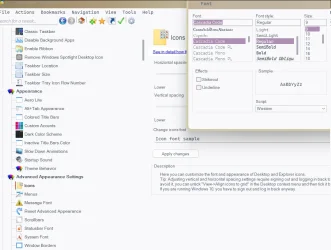
Let me know, how and where did you change the font on the services GUI and selectively for the title bar too (rest of it is Segoe UI, iirc?). What font are you using. It is much more readable than that "MS Shell Dlg" or whatever it is called!! I would like to fix this one for my PC too! Thanks for the help.
 

My Computer

System One

  • OS
    Windows 11 Pro
    Computer type
    PC/Desktop
    Manufacturer/Model
    Assembled
    CPU
    AMD Ryzen 7 7700X 8-Core
    Motherboard
    B650M AORUS ELITE AX
    Memory
    Corsair 16GB DDR5 XMP x2
    Graphics Card(s)
    4054MB NVIDIA GeForce RTX 5060 Ti (MSI)
    Monitor(s) Displays
    2
    Screen Resolution
    2351 x 1323 (NVIDIA DSR)
    Hard Drives
    SSD
    PSU
    CORSAIR CV750 Watts bronze80 PLUS
    Cooling
    cooler master AIO water cooled
    Keyboard
    red dragon cherry
    Mouse
    Galax 04
    Browser
    Brave, floorp, zen and others
    Antivirus
    windows defender
    Other Info
    I also have two more desktops, a windows 10 and 11 gaming desktop and a dell gaming laptop that runs windows 11
When available please update the progress with the steps in post #31.


These steps were to identify / fix the sleep / wake problem: (related to the Xbox controller)

(From your comment it appears to be fixed)

(stability / instability testing be performed after viewing the step results)


My Computer

System One

  • OS
    Windows 10
    Computer type
    Laptop
    Manufacturer/Model
    HP
    CPU
    Intel(R) Core(TM) i7-4800MQ CPU @ 2.70GHz
    Motherboard
    Product : 190A Version : KBC Version 94.56
    Memory
    16 GB Total: Manufacturer : Samsung MemoryType : DDR3 FormFactor : SODIMM Capacity : 8GB Speed : 1600
    Graphics Card(s)
    NVIDIA Quadro K3100M; Intel(R) HD Graphics 4600
    Sound Card
    IDT High Definition Audio CODEC; PNP Device ID HDAUDIO\FUNC_01&VEN_111D&DEV_76E0
    Hard Drives
    Model Hitachi HTS727575A9E364
    Antivirus
    Microsoft Defender
    Other Info
    Mobile Workstation
Let me know, how and where did you change the font on the services GUI and selectively for the title bar too (rest of it is Segoe UI, iirc?). What font are you using. It is much more readable than that "MS Shell Dlg" or whatever it is called!! I would like to fix this one for my PC too! Thanks for the help.
Glad the issue has been resolved and I know the feeling when windows just works and personally I haven't touched any settings in years...I'm still in win11 21h2 with malwarebytes.

The font I used is a standard ms "Cascadia Code" which does bring a little flare to windows.....Segoe WP is still great in windows 11...a lot better than SegoeUI.... The program I used to change the font is also a harmless well-known lite app "WinAeroTweaker"
You can also be selective on where you want your font changed with this app. It also changes UI font in Firefox based browsers (I use Waterfox) so its a win for me.
1780408910955.webp
 

My Computer

System One

  • OS
    Windows 11 21H2
    Computer type
    Laptop
    Manufacturer/Model
    Acer Nitro 5 AN515-58 (2022)
    CPU
    12500H (12c16t)
    Motherboard
    (BIOS v2.05) ADL Jimny_ADH
    Memory
    2x8 GB DDR4
    Graphics Card(s)
    NVidia RTX 3050 Mobile 4GB
    Sound Card
    Realtek configured by DTS:X
    Monitor(s) Displays
    72hz Dell SE2719H external, 144hz internal
    Screen Resolution
    1920x1080
    Hard Drives
    Internal: Raid Config 1TB (Samsung MZVL2_512 + Micron 3400_512) NVME SSD
    Portables: WD Elements 4tb, WD Elements SE 2TB, Seagate 3.5inch HDD 1TB, WD Blue 3.5inch 512gb, Hitachi 2.5 inch HDD 512gb
    Keyboard
    Redragon Kitava - Red Switches
    Mouse
    Meetion GM80 Transformers
    Internet Speed
    250mbps
    Browser
    Waterfox (Windows), Kiwi (Android)
    Antivirus
    MalwareBytes
    Other Info
    Speaker: Mingo 5.1 Home Theatre System (used everyday since Early 2000 without repair)
    Headphone: Ugreen HiTune Max 5C
    Earphone: Mi In-Ear Headphones Pro HD Dual Driver (Neutral sound profile)

Latest Support Threads

Back
Top Bottom