Solved Printer won't print


RhinoCan

Member
Member
Local time
10:32 AM
Posts
65
OS
Win 11 Pro
I'm trying to print a one page document and it won't print. I can't see any error messages on the printer and Windows 11 isn't giving me much either. When I looked at the print queue, I could see the progress bar shuttling back and forth rather than moving from left to right, then there was a message saying it couldn't print, and finally the words "Printing, error" under the print job. But there's not a whisper of a hint of a clue WHY it can't print. I've had the printer for several years, the toner is almost full, and there's adequate paper in the tray.

I don't print often so it's possible that it's the first time I've printed with this laptop, which I bought in late September, and is my first Windows 11 machine but I doubt it: I *think* I printed a short document or two with it since I got this laptop.

How do I figure out what the problem is without any error messages to guide me?
 
Windows Build/Version
25H2

My Computer

System One

  • OS
    Win 11 Pro
    Computer type
    Laptop
    Manufacturer/Model
    HP Elitebook 665 G11
    CPU
    AMD Ryzen 7 7735U
    Memory
    16GB
    Graphics Card(s)
    AMD Radeon™ 680M Graphics
    Monitor(s) Displays
    1920 x 1200
    Hard Drives
    512GB SSD
    Browser
    Brave, Chrome
    Other Info
    Windows version: 24H2

Right about now, a printer model would be nice.;-)
 

My Computers

System One System Two

  • OS
    All Branches but Release
    Computer type
    Laptop
    Manufacturer/Model
    Acer Nitro ANV15-51
    CPU
    AMD Ryzen 7 7735HS 3200-4500 Mhz 8 cores x 2
    Motherboard
    Sportage_RBH
    Memory
    32 GB DDR5
    Graphics Card(s)
    Radeon Graphic / NVIDIA GeForce RTX 4060 8 GB GDDR6
    Sound Card
    AMD/Realtek(R) Audio
    Monitor(s) Displays
    Integrated Monitor (15.3"vis)
    Screen Resolution
    FHD 1920X1080 16:9 144Hz
    Hard Drives
    KINGSTON OM8SEP4512Q-AA 1TB
    Western Digital 256GB
    PSU
    19V DC 6.32 A 120 W
    Cooling
    Dual Fans
    Mouse
    MS Bluetooth
    Internet Speed
    Fiber 1GB Cox -us & 1GB Orange-fr
    Browser
    Edge Canary- Firefox Nightly-Chrome Dev-Chrome Dev
    Antivirus
    Windows Defender
  • Operating System
    Windows 11 Beta
    Computer type
    Laptop
    Manufacturer/Model
    Asus X751BP
    CPU
    AMD A9-9420
    Memory
    8 GB of DDR4
    Graphics card(s)
    AMD Radeon R5
    Screen Resolution
    1600x900
    Hard Drives
    Seagate 1 TB

My Computer

System One

  • OS
    Win 11 Pro
    Computer type
    Laptop
    Manufacturer/Model
    HP Elitebook 665 G11
    CPU
    AMD Ryzen 7 7735U
    Memory
    16GB
    Graphics Card(s)
    AMD Radeon™ 680M Graphics
    Monitor(s) Displays
    1920 x 1200
    Hard Drives
    512GB SSD
    Browser
    Brave, Chrome
    Other Info
    Windows version: 24H2

My Computers

System One System Two

  • OS
    All Branches but Release
    Computer type
    Laptop
    Manufacturer/Model
    Acer Nitro ANV15-51
    CPU
    AMD Ryzen 7 7735HS 3200-4500 Mhz 8 cores x 2
    Motherboard
    Sportage_RBH
    Memory
    32 GB DDR5
    Graphics Card(s)
    Radeon Graphic / NVIDIA GeForce RTX 4060 8 GB GDDR6
    Sound Card
    AMD/Realtek(R) Audio
    Monitor(s) Displays
    Integrated Monitor (15.3"vis)
    Screen Resolution
    FHD 1920X1080 16:9 144Hz
    Hard Drives
    KINGSTON OM8SEP4512Q-AA 1TB
    Western Digital 256GB
    PSU
    19V DC 6.32 A 120 W
    Cooling
    Dual Fans
    Mouse
    MS Bluetooth
    Internet Speed
    Fiber 1GB Cox -us & 1GB Orange-fr
    Browser
    Edge Canary- Firefox Nightly-Chrome Dev-Chrome Dev
    Antivirus
    Windows Defender
  • Operating System
    Windows 11 Beta
    Computer type
    Laptop
    Manufacturer/Model
    Asus X751BP
    CPU
    AMD A9-9420
    Memory
    8 GB of DDR4
    Graphics card(s)
    AMD Radeon R5
    Screen Resolution
    1600x900
    Hard Drives
    Seagate 1 TB
Very good, now under devices what driver do you have listed for that printer?
or you can go to the link below and select your driver installation package.


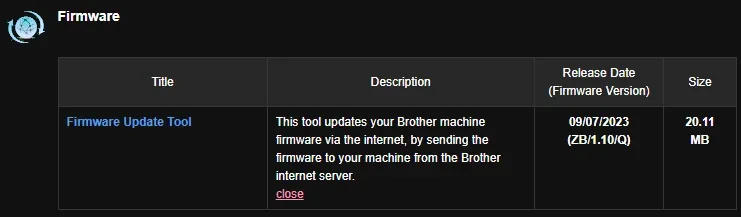
Please also note this, as it's comparatively recent, printer firmware:

View attachment 157334
In devices, I have the following that relate to the printer:

Brother MFC-9130CW BR-Script3
Brother MFC-9130CW Printer (marked with "Error")
Brother MFC-9130CW (Copy 2)
Brother PC-FAX v3.1
PaperPort ImagePrinter

A few comments:
- my old laptop also had a "Copy 2"; I was never sure why but suspected I may have done some install steps that I didn't need causing a duplication.
- I have never faxed with this printer; I don't even have landline service in this house any more
- I've never used PaperPort, which was a bonus app that came with the printer
- I don't remember seeing "BR-Script3" device on my old laptop; I have no idea what it does

Also, I truly don't remember if I ever did that Firmware update on my old laptop; I certainly didn't do it on this new one. Should I?
 

My Computer

System One

  • OS
    Win 11 Pro
    Computer type
    Laptop
    Manufacturer/Model
    HP Elitebook 665 G11
    CPU
    AMD Ryzen 7 7735U
    Memory
    16GB
    Graphics Card(s)
    AMD Radeon™ 680M Graphics
    Monitor(s) Displays
    1920 x 1200
    Hard Drives
    512GB SSD
    Browser
    Brave, Chrome
    Other Info
    Windows version: 24H2
I've had odd things last time. Last time I wasn't connected to the right wifi network (it needed to be the same one the printer was connected to). Another time, it had run out of paper. Even after adding paper, it took turning the printer off and on again and the computer on and off again.
 

My Computers

System One System Two

  • OS
    Windows 11 Home 25H2
    Computer type
    Laptop
    Manufacturer/Model
    HP Pavilion 14-ce3606sa
    CPU
    Core i5-1035G1
    Memory
    32gb
    Hard Drives
    Samsung 870 evo sata ssd
    Cooling
    Could be better
    Internet Speed
    50 mbps Starlink
    Browser
    Firefox
    Other Info
    Originally came installed with a 500gb H10 Optane ssd
  • Operating System
    Windows 11 Home
    Computer type
    Laptop
    Manufacturer/Model
    HP Pavilion ce3606sa
    CPU
    Intel Core i5-1035G1
    Memory
    16gb
    Hard Drives
    Hynix Gold P31 2TB
    Internet Speed
    200mbps Starlink
    Browser
    Firefox
    Antivirus
    Defender
I've had odd things last time. Last time I wasn't connected to the right wifi network (it needed to be the same one the printer was connected to). Another time, it had run out of paper. Even after adding paper, it took turning the printer off and on again and the computer on and off again.
I turned the printer off and then on again. It didn't start printing. I looked in the print queue again and it was unchanged. I tried printing a second copy of my one page document but I got a different error this time: a message about the printer not being in the proper state to print. I'm going to try rebooting the computer now so I'll have to tell you what happened in that regard in a separate message; I'm posted this one now so that anyone watching this thread knows that power-cycling the printer didn't help (although it was worth trying).
 

My Computer

System One

  • OS
    Win 11 Pro
    Computer type
    Laptop
    Manufacturer/Model
    HP Elitebook 665 G11
    CPU
    AMD Ryzen 7 7735U
    Memory
    16GB
    Graphics Card(s)
    AMD Radeon™ 680M Graphics
    Monitor(s) Displays
    1920 x 1200
    Hard Drives
    512GB SSD
    Browser
    Brave, Chrome
    Other Info
    Windows version: 24H2
I turned the printer off and then on again. It didn't start printing. I looked in the print queue again and it was unchanged. I tried printing a second copy of my one page document but I got a different error this time: a message about the printer not being in the proper state to print. I'm going to try rebooting the computer now so I'll have to tell you what happened in that regard in a separate message; I'm posted this one now so that anyone watching this thread knows that power-cycling the printer didn't help (although it was worth trying).
After rebooting the laptop, the print queue still had the previous 2 jobs. After attempting to print again, I have a third job in the queue: it says "unknown status", just like the second one. The first job just says "Printing, error". Nothing has been printed yet.
 

My Computer

System One

  • OS
    Win 11 Pro
    Computer type
    Laptop
    Manufacturer/Model
    HP Elitebook 665 G11
    CPU
    AMD Ryzen 7 7735U
    Memory
    16GB
    Graphics Card(s)
    AMD Radeon™ 680M Graphics
    Monitor(s) Displays
    1920 x 1200
    Hard Drives
    512GB SSD
    Browser
    Brave, Chrome
    Other Info
    Windows version: 24H2
I turned the printer off and then on again. It didn't start printing. I looked in the print queue again and it was unchanged. I tried printing a second copy of my one page document but I got a different error this time: a message about the printer not being in the proper state to print. I'm going to try rebooting the computer now so I'll have to tell you what happened in that regard in a separate message; I'm posted this one now so that anyone watching this thread knows that power-cycling the printer didn't help (although it was worth trying).
You need to start that printer installation anew.
It means uninstalling whatever installation was used to install the printer drivers.
Once done, reboot then reinstall the driver package from the Brother link above.
The firmware may address the issue you are having right now, then again it may not.

Comparing the old PC with the new PC means absolutely nothing as far as the printer is concerned.
 

My Computers

System One System Two

  • OS
    All Branches but Release
    Computer type
    Laptop
    Manufacturer/Model
    Acer Nitro ANV15-51
    CPU
    AMD Ryzen 7 7735HS 3200-4500 Mhz 8 cores x 2
    Motherboard
    Sportage_RBH
    Memory
    32 GB DDR5
    Graphics Card(s)
    Radeon Graphic / NVIDIA GeForce RTX 4060 8 GB GDDR6
    Sound Card
    AMD/Realtek(R) Audio
    Monitor(s) Displays
    Integrated Monitor (15.3"vis)
    Screen Resolution
    FHD 1920X1080 16:9 144Hz
    Hard Drives
    KINGSTON OM8SEP4512Q-AA 1TB
    Western Digital 256GB
    PSU
    19V DC 6.32 A 120 W
    Cooling
    Dual Fans
    Mouse
    MS Bluetooth
    Internet Speed
    Fiber 1GB Cox -us & 1GB Orange-fr
    Browser
    Edge Canary- Firefox Nightly-Chrome Dev-Chrome Dev
    Antivirus
    Windows Defender
  • Operating System
    Windows 11 Beta
    Computer type
    Laptop
    Manufacturer/Model
    Asus X751BP
    CPU
    AMD A9-9420
    Memory
    8 GB of DDR4
    Graphics card(s)
    AMD Radeon R5
    Screen Resolution
    1600x900
    Hard Drives
    Seagate 1 TB
I've started poking around and found something in my Device Information for the printer. There's a link there to its webpage (http://192.168.2.17:80) and that page says the printer is sleeping. I don't see anything that would wake it up though. Does anyone have any ideas?
 

My Computer

System One

  • OS
    Win 11 Pro
    Computer type
    Laptop
    Manufacturer/Model
    HP Elitebook 665 G11
    CPU
    AMD Ryzen 7 7735U
    Memory
    16GB
    Graphics Card(s)
    AMD Radeon™ 680M Graphics
    Monitor(s) Displays
    1920 x 1200
    Hard Drives
    512GB SSD
    Browser
    Brave, Chrome
    Other Info
    Windows version: 24H2
You need to start that printer installation anew.
It means uninstalling whatever installation was used to install the printer drivers.
Once done, reboot then reinstall the driver package from the Brother link above.
The firmware may address the issue you are having right now, then again it may not.
So I need to remove all 5 of the devices that I listed earlier, then do the firmware update, which may or may not make any difference, then re-install the printer drivers again? Is there any special technique to remove the existing devices or can I just click on that item in the list of printers, then click on Remove?
Comparing the old PC with the new PC means absolutely nothing as far as the printer is concerned.
I don't know what will help so I'm just telling you everything that might be relevant. Sorry to waste your time.
 

My Computer

System One

  • OS
    Win 11 Pro
    Computer type
    Laptop
    Manufacturer/Model
    HP Elitebook 665 G11
    CPU
    AMD Ryzen 7 7735U
    Memory
    16GB
    Graphics Card(s)
    AMD Radeon™ 680M Graphics
    Monitor(s) Displays
    1920 x 1200
    Hard Drives
    512GB SSD
    Browser
    Brave, Chrome
    Other Info
    Windows version: 24H2
I turned the printer off and then on again. It didn't start printing. I looked in the print queue again and it was unchanged. I tried printing a second copy of my one page document but I got a different error this time: a message about the printer not being in the proper state to print. I'm going to try rebooting the computer now so I'll have to tell you what happened in that regard in a separate message; I'm posted this one now so that anyone watching this thread knows that power-cycling the printer didn't help (although it was worth trying).
I've often had to re-cycle both the printer and the computer - one straight after the other or at the same time.

Edit - sorry I can see you've done that. Yes best start again. My printer is an HP and there's just an app to install from the MS store and the drivers all get sorted automatically. Maybe check if there's an app for the printer? It can also be troubleshooted via the app as well.

And as mentioned earlier - check the computer and printer are using the same wifi network.
 

My Computers

System One System Two

  • OS
    Windows 11 Home 25H2
    Computer type
    Laptop
    Manufacturer/Model
    HP Pavilion 14-ce3606sa
    CPU
    Core i5-1035G1
    Memory
    32gb
    Hard Drives
    Samsung 870 evo sata ssd
    Cooling
    Could be better
    Internet Speed
    50 mbps Starlink
    Browser
    Firefox
    Other Info
    Originally came installed with a 500gb H10 Optane ssd
  • Operating System
    Windows 11 Home
    Computer type
    Laptop
    Manufacturer/Model
    HP Pavilion ce3606sa
    CPU
    Intel Core i5-1035G1
    Memory
    16gb
    Hard Drives
    Hynix Gold P31 2TB
    Internet Speed
    200mbps Starlink
    Browser
    Firefox
    Antivirus
    Defender
Save this as a .bat and run as admin

Code:
net stop spooler
del %systemroot%\System32\spool\printers\* /Q /F /S
net start spooler
I wrote and executed the batch file. Nothing looks any different in the print queue. I tried cancelling the 2 latest jobs but got a "failed to cancel" message for each of them. I tried to restart the earliest job but got a "failed to restart" message for that one. I looked at the list of printers and the device that used to say "Error" no longer has that designation. The device status is still "Sleep". I looked at the print queue again and it was empty, despite the failures to cancel or restart. I tried printing my document again but got notified that there was a problem printing; the print queue again shows the job with "Printing, error" beneath the job description.
 

My Computer

System One

  • OS
    Win 11 Pro
    Computer type
    Laptop
    Manufacturer/Model
    HP Elitebook 665 G11
    CPU
    AMD Ryzen 7 7735U
    Memory
    16GB
    Graphics Card(s)
    AMD Radeon™ 680M Graphics
    Monitor(s) Displays
    1920 x 1200
    Hard Drives
    512GB SSD
    Browser
    Brave, Chrome
    Other Info
    Windows version: 24H2
I've often had to re-cycle both the printer and the computer - one straight after the other or at the same time.

Edit - sorry I can see you've done that. Yes best start again. My printer is an HP and there's just an app to install from the MS store and the drivers all get sorted automatically. Maybe check if there's an app for the printer? It can also be troubleshooted via the app as well.

And as mentioned earlier - check the computer and printer are using the same wifi network.
Checking that they were on the same network is the *first* thing I did, although I failed to mention that.
 

My Computer

System One

  • OS
    Win 11 Pro
    Computer type
    Laptop
    Manufacturer/Model
    HP Elitebook 665 G11
    CPU
    AMD Ryzen 7 7735U
    Memory
    16GB
    Graphics Card(s)
    AMD Radeon™ 680M Graphics
    Monitor(s) Displays
    1920 x 1200
    Hard Drives
    512GB SSD
    Browser
    Brave, Chrome
    Other Info
    Windows version: 24H2
if you want to really force uninstall...


Force Uninstall

clear the print queue by using the commands via Command Prompt as Admin:

net stop spooler
del %systemroot%\system32\spool\printers\*.shd /F /S /Q
del %systemroot%\system32\spool\printers\*.spl /F /S /Q
net start spooler


Force Uninstall Delete from Registry

  1. HKEY_LOCAL_MACHINE\SYSTEM\CurrentControlSet\Control\Print\Printers
  2. Find the registry sub-key with the name of your printer
  3. Delete the registry key for the printer
  4. Restart computer

Uninstall a Printer Driver on Windows

  1. services.msc > restart the Print Spooler.
  2. Print Management snap-in in mmc
  3. Expand Print Manager > Print Servers > select your computer -> Drivers
  4. All installed printer drivers are listed
  5. Right-click the driver you want to uninstall and select Remove driver package
 

My Computer

System One

  • OS
    Windows 11 Pro
if you want to really force uninstall...


Force Uninstall

clear the print queue by using the commands via Command Prompt as Admin:

net stop spooler
del %systemroot%\system32\spool\printers\*.shd /F /S /Q
del %systemroot%\system32\spool\printers\*.spl /F /S /Q
net start spooler


Force Uninstall Delete from Registry

  1. HKEY_LOCAL_MACHINE\SYSTEM\CurrentControlSet\Control\Print\Printers
  2. Find the registry sub-key with the name of your printer
  3. Delete the registry key for the printer
  4. Restart computer

Uninstall a Printer Driver on Windows

  1. services.msc > restart the Print Spooler.
  2. Print Management snap-in in mmc
  3. Expand Print Manager > Print Servers > select your computer -> Drivers
  4. All installed printer drivers are listed
  5. Right-click the driver you want to uninstall and select Remove driver package
Just before I saw this message, I removed each of the 5 items listed for this printer in the list of printers and scanners by clicking on the item, then clicking the Remove button. I've just obtained the firmware update that OAT implied might help but I haven't run it yet. I'm confused by what you're proposing since you combine clearing the printing queue, which seems reasonable for removing accumulated dead jobs that didn't seem to be clearing when I tried cancelling or restarting them but *did* go away on their own after several seconds, but why am I deleting a registry key for the printer and restarting the spooler when the "net start spooler" command should do that? Why am I deleting drivers via services.msc if the "Remove" option for each device is provided? Does the Remove option not work reliably?
 

My Computer

System One

  • OS
    Win 11 Pro
    Computer type
    Laptop
    Manufacturer/Model
    HP Elitebook 665 G11
    CPU
    AMD Ryzen 7 7735U
    Memory
    16GB
    Graphics Card(s)
    AMD Radeon™ 680M Graphics
    Monitor(s) Displays
    1920 x 1200
    Hard Drives
    512GB SSD
    Browser
    Brave, Chrome
    Other Info
    Windows version: 24H2
After rebooting the laptop, the print queue still had the previous 2 jobs. After attempting to print again, I have a third job in the queue: it says "unknown status", just like the second one. The first job just says "Printing, error". Nothing has been printed yet.
I hope you get your printer problem solved. Take it from me, out of nowhere I couldn't print from my laptop and it took me days to get it straightened out and except for God's grace I couldn't tell you how I got it back.

But just a tip, and you may know this already, once you have a printer error trying to print a document, the printer won't be able to print again until that document that caused the error gets cleared/deleted as it just clogs the que.
 

My Computers

System One System Two

  • OS
    Windows 11 Home, ver 25H2 build 26200.8246
    Computer type
    Laptop
    Manufacturer/Model
    Hewlett-Packard Spectre 13-4001 x360 convertable
    CPU
    Intel Core i5 5200U @ 2.20GH
    Motherboard
    Hewlett-Packard 802D
    Memory
    4 GB
    Graphics Card(s)
    Intel HD Graphics 5500 on board
    Sound Card
    Intel Smart Sound Technology (Intel SST)
    Hard Drives
    Micron 256GB M.2 2280 NGFF SSD MTFDDAV256TBN, (SATA 6.0 Gb/s)
    Keyboard
    Model # G01KB
    Antivirus
    Microsoft Defender
    Other Info
    born on date: 25 Feb 2016
  • Operating System
    Win 11 Home 25H2 build 26200.7922
    Computer type
    PC/Desktop
    Manufacturer/Model
    Asus Desktop model M32AD-US019S (DOM: 6/9/2014 )
    CPU
    Intel Core i7 4th Gen 4790 (3.60GHz), Haswell 22nm Technology, SOCKET 1150
    Motherboard
    H81M-E/M51AD/DP_MB
    Memory
    Samsung 16 GB DDR3 (8GB in 2 modules)
    Graphics card(s)
    NVIDIA GeForce GTX 760, 3GB, and on-board Intel HD Graphics 4600 Rev 6
    Monitor(s) Displays
    HP EliteDisplay E241i LED; HP EliteDisplay E243
    Hard Drives
    Samsung 500GB SSD, 870 EVO (SATA 6.0 )
    Micron 250GB SSD, CT250MX500
    Toshiba HDD, 3GB (original drive w/PC)
    Case
    ASUS
    Keyboard
    ASUS-------------------------
    Antivirus
    MS Defender
    Other Info
    Additional Laptops:

    HEWLETT PACKARD
    HP OmniBook X Flip NGAI (Next Gen AI),
    Model: 16-as0023dx
    PT# B5UH1UA#ABA Product #: B5UH1UA
    delivered and setup 7/25/25
    16" 2K Touch-Screen Laptop
    Intel Core Ultra 7 256V '24 Series 2 - CPU
    Boost Clock Frequency 4.8 gigahertz; Neural Processing Unit (NPU) Yes;
    16GB Memory, LPDDR5X
    1TB SSD PCIe 4.0
    Graphics: Intel Arc 140V
    1 x HDMI 2.1
    1 x Thunderbolt 4
    2K Touch-Screen display, LED, IPS; 1920 x 1200 (Full HD+)
    USB Ports: 1 x USB-C 3.1, 2 x USB-A 3.1
    Wi-Fi 6E
    weight 4.15 pounds

    DELL
    Model:I7591-7483BLK-PUS 2-in-1 (7000 Series)
    purchased 12/3/2019,
    15.6 inch 2-IN-1;
    4K Ultra HD Touch-Screen, 3840 x 2160,
    Intel Core i7 10510U CPU 1.80GHz,
    16GB RAM DDR4 SDRAM 2400 megahert (2 slots),
    dedicated graphics Nvidia GeForce MX250 2 GB Graphics,
    PCIe 512GB Intel SSD + 32GB Optane Memory (Intel Optane Memory H10 with solid-state storage),
    wireless-AX & Bluetooth
    Battery: 68wh, Type 4VGMP 4 cell

My Computers

System One System Two

  • OS
    Debian Trixie KDE Windows 11 Home
    Computer type
    PC/Desktop
    Manufacturer/Model
    HP 24" AiO
    CPU
    Ryzen 7 5825u
    Motherboard
    HP
    Memory
    64GB DDR4 3200
    Graphics Card(s)
    Ryzen 7 5825u
    Sound Card
    RealTek
    Monitor(s) Displays
    24" HP AiO
    Screen Resolution
    1920 x 1080 @60 Hz
    Hard Drives
    1TB WD Blue SN580 M2 SSD Partitioned.
    2x 1TB USB HDD External Backup/Storage.
    PSU
    90W external power brick
    Case
    24" All in One
    Cooling
    Default Air Cooling
    Keyboard
    HP WiFi UK extended
    Mouse
    HP WiFi 3 Button
    Internet Speed
    1GB full fibre
    Browser
    Edge & Firefox
    Antivirus
    AVG Internet Security/Windows Defender
    Other Info
    Mainly Open Source Software
  • Operating System
    Ubuntu 22.04.5 LTS
    Computer type
    Laptop
    Manufacturer/Model
    Dell 13" Latitude 2017
    CPU
    i5 7200u
    Motherboard
    Dell
    Memory
    16GB DDR4
    Graphics card(s)
    Intel
    Sound Card
    Intel
    Monitor(s) Displays
    13" Dell Laptop
    Hard Drives
    250GB Crucial 2.5" SSD
    Mouse
    Generic WiFi 3 button
    Internet Speed
    WiFi only
    Browser
    Firefox
    Antivirus
    ClamAV TK
    Other Info
    Mainly Open Source Software
I managed to get the printer working again by removing the old drivers (all of the ones I had listed) via the Remove option that comes up when you select each driver from the list under Devices. I did not add/change/delete any registry entries. I reinstalled wirelessly and successfully printed the document I was trying to print earlier. I also installed the firmware update tool. I have no idea if it makes any difference and maybe I never will.

Thanks to all who responded!
 

My Computer

System One

  • OS
    Win 11 Pro
    Computer type
    Laptop
    Manufacturer/Model
    HP Elitebook 665 G11
    CPU
    AMD Ryzen 7 7735U
    Memory
    16GB
    Graphics Card(s)
    AMD Radeon™ 680M Graphics
    Monitor(s) Displays
    1920 x 1200
    Hard Drives
    512GB SSD
    Browser
    Brave, Chrome
    Other Info
    Windows version: 24H2

Latest Support Threads

Back
Top Bottom