
Raspberry Pi 5 and Home folder


Tasmania Green

Well-known member
Member
Local time
8:59 PM
Posts
556
OS
Windows 11 Pro - version 24H2
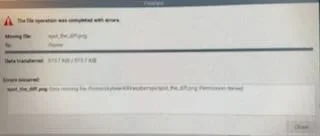
I recently got a Raspberry Pi 5 and am working through the manual. According to the manual, in the attached document, I'm supposed to move some simple files from the Downloads folder to the Home folder. But the system says I'm not allowed to do that. I have a screenshot of the error message. Sorry for the image quality. I had to take a screenshot of it with my iPhone.
 

Attachments
  • IMG_0068.webp
    IMG_0068.webp
    3.2 KB · Views: 2
  • Pi manual.pdf
    Pi manual.pdf
    1.9 MB · Views: 1

My Computer

System One

  • OS
    Windows 11 Pro - version 24H2
    Computer type
    PC/Desktop
    CPU
    AMD Ryzen 5 7600X 6 Core AM5 5.3GHz CPU
    Motherboard
    2024 MSI MAG B650 GAMING PLUS WIFI
    Memory
    Silicon Power XPOWER Zenith 32GB (16GBx2) CL30,1.35V UDIMM 6000MHz DDR5 RAM
    Graphics Card(s)
    MSI GeForce RTX 4060 Ventus 2X Black 8G OC Graphics Card
    Monitor(s) Displays
    Asus ROG Strix XG32WCS - 32in HDR VA 180Hz USB Type-C FreeSync Curved Gaming Monitor
    Screen Resolution
    2560 x 1440
    Hard Drives
    1) Silicon Power 1TB P34A60 Gen3x4 TLC R/W up to 2,200/1,600 MB/s PCIe M.2 NVMe SSD

    2) Crucial 1TB E100 CT1000E100SSD8 Gen4 M.2 NVMe SSD
    PSU
    MSI 750W MAG A750GL 80+ Gold PCIe 5 ATX 3.0 Modular Power Supply
    Case
    SilverStone Fara R1 Pro V2 Tempered Glass ATX Case - Black
    Cooling
    Thermalright Peerless Assassin 120 SE ARGB Dual Loop CPU Cooler, 120mm Fan
    Antivirus
    Microsoft Defender
The words in your photo are too blurred to be read.
If your phone automatically produces thumbnails of each photo then I think you have posted the thumbnail not the photo itself.
Or did you, perhaps, use some utility to make the filesize only 3KB?

You can post photos within your text rather than as attachments by clicking on the Insert image icon on the post-editing toolbar.
Post a picture.webp

Your photo:-
IMG_0068.webp


Denis
 

My Computer

System One

  • OS
    Windows 11 Home x64 Version 25H2 Build 26200.8037
I've tried resizing the picture to below 1 MB, but the website still says the file is too large.

Here's what the error message says:

The file operation was completed with errors.
Moving file: spot_the_diff.png
To: /home
Data transferred: 573.7 KiB / 537.7 KiB
Error occurred: spot_the_diff.png: Error moving file /home/skybear400raspberrypi/spot_the_diff.png: Permission denied.
 

My Computer

System One

  • OS
    Windows 11 Pro - version 24H2
    Computer type
    PC/Desktop
    CPU
    AMD Ryzen 5 7600X 6 Core AM5 5.3GHz CPU
    Motherboard
    2024 MSI MAG B650 GAMING PLUS WIFI
    Memory
    Silicon Power XPOWER Zenith 32GB (16GBx2) CL30,1.35V UDIMM 6000MHz DDR5 RAM
    Graphics Card(s)
    MSI GeForce RTX 4060 Ventus 2X Black 8G OC Graphics Card
    Monitor(s) Displays
    Asus ROG Strix XG32WCS - 32in HDR VA 180Hz USB Type-C FreeSync Curved Gaming Monitor
    Screen Resolution
    2560 x 1440
    Hard Drives
    1) Silicon Power 1TB P34A60 Gen3x4 TLC R/W up to 2,200/1,600 MB/s PCIe M.2 NVMe SSD

    2) Crucial 1TB E100 CT1000E100SSD8 Gen4 M.2 NVMe SSD
    PSU
    MSI 750W MAG A750GL 80+ Gold PCIe 5 ATX 3.0 Modular Power Supply
    Case
    SilverStone Fara R1 Pro V2 Tempered Glass ATX Case - Black
    Cooling
    Thermalright Peerless Assassin 120 SE ARGB Dual Loop CPU Cooler, 120mm Fan
    Antivirus
    Microsoft Defender
So what are your permissions on the folder?
File explorer,
Home,
skybear400raspberrypi,
right-click,
Properties,
Security,
Advanced,
Effective access.
- While you are at it, who does it say is the folder owner?
- While you are at it, what are your permissions on other subfolders?

Denis
 

My Computer

System One

  • OS
    Windows 11 Home x64 Version 25H2 Build 26200.8037
Do you mean you are dropping it on what appear to be folders in the Quick access section - such as these Desktop, Documents, ... entries?
File explorer, Home.webp

If so, right click on the item and select Properties to see where the folder actually is so you can check it out.
The icons shown as folders in Home are not actually folders, they are shortcuts to folders [despite the icon MS use for them].

And perhaps you could post a screenshot of Home/skybear400raspberrypi so your situation can be better understood.

Denis
 

My Computer

System One

  • OS
    Windows 11 Home x64 Version 25H2 Build 26200.8037
You probably misunderstood the instructions. They mean to copy the files to the home user folder of your Raspberry device. This in Windows 11 is the folder C:\users\yourusername. The respective folder that has all the user accessible folders in Raspberry. Not the root folder of the device of course, you need special access for that.
 

My Computers

System One System Two

  • OS
    Windows 11 Pro 23H2 (5699), 25H2 (8655)
    Computer type
    Laptop
    Manufacturer/Model
    Acer Extensa 5630EZ
    CPU
    Mobile DualCore Intel Core 2 Duo T7250, 2000 MHz
    Motherboard
    Acer Extensa 5630
    Memory
    4GB
    Graphics Card(s)
    Mobile Intel(R) GMA 4500M (Mobile 4 series)
    Sound Card
    Realtek ALC268 @ Intel 82801IB ICH9 - High Definition Audio Controller
    Monitor(s) Displays
    1
    Screen Resolution
    1280x800
    Hard Drives
    Samsung SSD 850 EVO 250GB SATA Device (250 GB, SATA-III)
    Internet Speed
    VDSL 50 Mbps
    Browser
    MICROSOFT EDGE
    Antivirus
    WINDOWS DEFENDER
    Other Info
    Legacy MBR installation, no TPM, no Secure Boot, no WDDM 2.0 graphics drivers, no SSE4.2, cannot get more unsupported ;) This is only my test laptop. I had installed Windows 11 here before upgrading my main PC. For my main PC I use everyday see my 2nd system specs.
  • Operating System
    Windows 11 Pro v25H2 (build 26200.8655)
    Computer type
    PC/Desktop
    Manufacturer/Model
    Custom-built PC
    CPU
    Intel Core-i7 3770 3.40GHz s1155 (3rd generation)
    Motherboard
    Asus P8H61 s1155 ATX
    Memory
    2x Kingston Hyper-X Blu 8GB DDR3-1600
    Graphics card(s)
    GIGABYTE GeForce RTX 3050 WINDFORCE OC V2 6GB (GV-N3050WF2OCV2-6GD)
    Sound Card
    Realtek HD audio (ALC887)
    Monitor(s) Displays
    Sony Bravia KDL-19L4000 19" LCD TV via VGA
    Screen Resolution
    1440x900 32-bit 60Hz
    Hard Drives
    WD Blue SA510 2.5 1000GB SSD as system disk, Western Digital Caviar Purple 4TB SATA III (WD40PURZ) as second
    PSU
    Thermaltake Litepower RGB 550W Full Wired
    Case
    SUPERCASE MIDI-TOWER
    Cooling
    Deepcool Gamma Archer CPU cooler, 1x 8cm fan at the back
    Keyboard
    Mitsumi 101-key PS/2
    Mouse
    Sunnyline OptiEye PS/2
    Internet Speed
    100Mbps
    Browser
    Microsoft Edge, Mozilla Firefox
    Antivirus
    Microsoft Windows Defender
    Other Info
    Legacy BIOS (MBR) installation, no TPM, no Secure Boot, WDDM 3.0 graphics drivers, WEI score 7.4
You probably misunderstood the instructions. They mean to copy the files to the home user folder of your Raspberry device. This in Windows 11 is the folder C:\users\yourusername. The respective folder that has all the user accessible folders in Raspberry. Not the root folder of the device of course, you need special access for that.
Thanks. I’ll try that.
 

My Computer

System One

  • OS
    Windows 11 Pro - version 24H2
    Computer type
    PC/Desktop
    CPU
    AMD Ryzen 5 7600X 6 Core AM5 5.3GHz CPU
    Motherboard
    2024 MSI MAG B650 GAMING PLUS WIFI
    Memory
    Silicon Power XPOWER Zenith 32GB (16GBx2) CL30,1.35V UDIMM 6000MHz DDR5 RAM
    Graphics Card(s)
    MSI GeForce RTX 4060 Ventus 2X Black 8G OC Graphics Card
    Monitor(s) Displays
    Asus ROG Strix XG32WCS - 32in HDR VA 180Hz USB Type-C FreeSync Curved Gaming Monitor
    Screen Resolution
    2560 x 1440
    Hard Drives
    1) Silicon Power 1TB P34A60 Gen3x4 TLC R/W up to 2,200/1,600 MB/s PCIe M.2 NVMe SSD

    2) Crucial 1TB E100 CT1000E100SSD8 Gen4 M.2 NVMe SSD
    PSU
    MSI 750W MAG A750GL 80+ Gold PCIe 5 ATX 3.0 Modular Power Supply
    Case
    SilverStone Fara R1 Pro V2 Tempered Glass ATX Case - Black
    Cooling
    Thermalright Peerless Assassin 120 SE ARGB Dual Loop CPU Cooler, 120mm Fan
    Antivirus
    Microsoft Defender
You probably misunderstood the instructions. They mean to copy the files to the home user folder of your Raspberry device. This in Windows 11 is the folder C:\users\yourusername. The respective folder that has all the user accessible folders in Raspberry. Not the root folder of the device of course, you need special access for that.


Here's an update:

I erased the program and retyped it.

Once I finished, I ran it and got the following error message:
difference = pygame.image.load('spot_the_diff.png')
FileNotFoundError: No file 'spot_the_diff.png' found in the working directory '/home/skybear400raspberrypi/Projects'.
I realised the program was that not everything was in the same folder:
' spot_the_diff.png' - was in the /home/skybear400raspberrypi/Projects directory
But the program, 'Spot the difference.py' was in the '/home/skybear400raspberrypi/' directory.

Once I put everything into he same directory, Projects, the error message didn't appear. Unfortunately, the pygame window is completely black.

But in the next paragraph, the document writes "To have the image on the screen for a longer period of time, add the following line just about pygame.quit():
sleep(3)

That did it. The image of the witch standing in front of a cauldron stayed on screen. Evidently, it did appear on the screen before, but only for so short a time that it looked like it didn't appear at all.

Hopefully this will help someone else who is learning to program with RaspberryPi 5.
 

My Computer

System One

  • OS
    Windows 11 Pro - version 24H2
    Computer type
    PC/Desktop
    CPU
    AMD Ryzen 5 7600X 6 Core AM5 5.3GHz CPU
    Motherboard
    2024 MSI MAG B650 GAMING PLUS WIFI
    Memory
    Silicon Power XPOWER Zenith 32GB (16GBx2) CL30,1.35V UDIMM 6000MHz DDR5 RAM
    Graphics Card(s)
    MSI GeForce RTX 4060 Ventus 2X Black 8G OC Graphics Card
    Monitor(s) Displays
    Asus ROG Strix XG32WCS - 32in HDR VA 180Hz USB Type-C FreeSync Curved Gaming Monitor
    Screen Resolution
    2560 x 1440
    Hard Drives
    1) Silicon Power 1TB P34A60 Gen3x4 TLC R/W up to 2,200/1,600 MB/s PCIe M.2 NVMe SSD

    2) Crucial 1TB E100 CT1000E100SSD8 Gen4 M.2 NVMe SSD
    PSU
    MSI 750W MAG A750GL 80+ Gold PCIe 5 ATX 3.0 Modular Power Supply
    Case
    SilverStone Fara R1 Pro V2 Tempered Glass ATX Case - Black
    Cooling
    Thermalright Peerless Assassin 120 SE ARGB Dual Loop CPU Cooler, 120mm Fan
    Antivirus
    Microsoft Defender

Latest Support Threads

Back
Top Bottom




