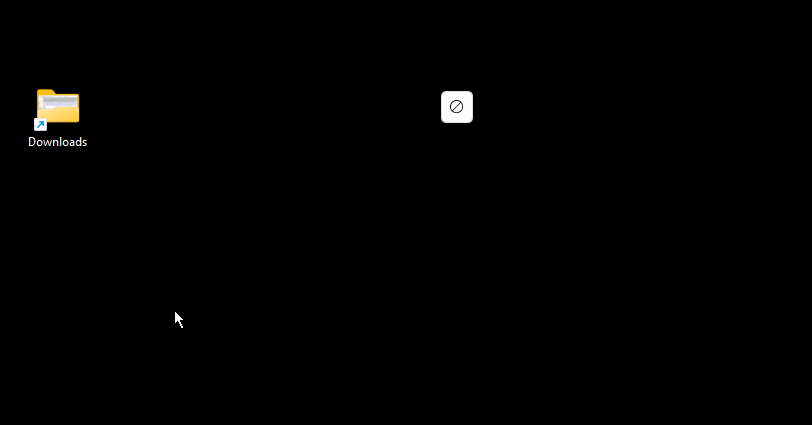
Remnants/parts of programs remain visible on the screen after closing the program


Donk

Well-known member
Local time
12:20 AM
Posts
152
OS
Win 11
Occasionally, remnants/parts of programs remain visible on the screen after closing the program, which I cannot get rid of except by restarting the computer:

slsyTD1.png


The remnant is ALWAYS above every window, so ALWAYS visible. How could I remove it without rebooting?
 

My Computer

System One

  • OS
    Win 11
    Computer type
    Laptop
    Manufacturer/Model
    Lenovo IdeaPad 3 17ABA7 Laptop - Type 82RQ (Lenovo IdeaPad 3 82RQ003EGE)
    Memory
    16 GB
Have you tried refreshing the screen display by pressing F5?
 

My Computers

System One System Two

  • OS
    Windows 11 Pro
    Computer type
    PC/Desktop
    Manufacturer/Model
    GMKtec K11
    CPU
    AMD Ryzen 9 8945HS
    Memory
    32GB DDR5 SO-DIMM
    Graphics Card(s)
    Integrated AMD Radeon 780M (4.00 GHz)
    Monitor(s) Displays
    Benq 2250HM
    Screen Resolution
    1920 x 1080
    Hard Drives
    1 TB PCIe 4.0 NVMe M.2 SSD
  • Operating System
    Windows 11 Home
    Computer type
    Laptop
    Manufacturer/Model
    ASUS Zenbook 14 OLED 14" Laptop - UX3405CA-QL192W
    CPU
    Intel® Core™ Ultra 7 - 255H processor
    Memory
    16 GB LPDDR5 SDRAM
    Graphics card(s)
    Intel Arc 140T onboard graphics
    Screen Resolution
    1920 x 1200 (16:10 WUXGA resolution) OLED Touchscreen
    Hard Drives
    1TB SSD
No, I didn't. Pressing F5 refreshes some programs / pages with me. Not the screen I would think. How (else) could one refresh the screen?
 

My Computer

System One

  • OS
    Win 11
    Computer type
    Laptop
    Manufacturer/Model
    Lenovo IdeaPad 3 17ABA7 Laptop - Type 82RQ (Lenovo IdeaPad 3 82RQ003EGE)
    Memory
    16 GB
To refresh the screen it needs to be the one that has focus before F5 works. To give the desktop focus simply click on any empty space before F5.

If this doesn't work then I hope someone else can help you. Good luck.
 

My Computers

System One System Two

  • OS
    Windows 11 Pro
    Computer type
    PC/Desktop
    Manufacturer/Model
    GMKtec K11
    CPU
    AMD Ryzen 9 8945HS
    Memory
    32GB DDR5 SO-DIMM
    Graphics Card(s)
    Integrated AMD Radeon 780M (4.00 GHz)
    Monitor(s) Displays
    Benq 2250HM
    Screen Resolution
    1920 x 1080
    Hard Drives
    1 TB PCIe 4.0 NVMe M.2 SSD
  • Operating System
    Windows 11 Home
    Computer type
    Laptop
    Manufacturer/Model
    ASUS Zenbook 14 OLED 14" Laptop - UX3405CA-QL192W
    CPU
    Intel® Core™ Ultra 7 - 255H processor
    Memory
    16 GB LPDDR5 SDRAM
    Graphics card(s)
    Intel Arc 140T onboard graphics
    Screen Resolution
    1920 x 1200 (16:10 WUXGA resolution) OLED Touchscreen
    Hard Drives
    1TB SSD
Thank you!

So here is the desktop:
tCFR9kk.png

Clicked on the (black) ground and pressed F5, the remnant is still there.
 

My Computer

System One

  • OS
    Win 11
    Computer type
    Laptop
    Manufacturer/Model
    Lenovo IdeaPad 3 17ABA7 Laptop - Type 82RQ (Lenovo IdeaPad 3 82RQ003EGE)
    Memory
    16 GB
Try running this batch file. You'll need to unzip it first.
It contains SFC /Scannow, DISM and CHKDSK commands in order to find and fix problems.
On my computer it takes over 10-minutes to complete so be patient.
 

Attachments

Last edited:

My Computers

System One System Two

  • OS
    Windows 11 Pro
    Computer type
    PC/Desktop
    Manufacturer/Model
    GMKtec K11
    CPU
    AMD Ryzen 9 8945HS
    Memory
    32GB DDR5 SO-DIMM
    Graphics Card(s)
    Integrated AMD Radeon 780M (4.00 GHz)
    Monitor(s) Displays
    Benq 2250HM
    Screen Resolution
    1920 x 1080
    Hard Drives
    1 TB PCIe 4.0 NVMe M.2 SSD
  • Operating System
    Windows 11 Home
    Computer type
    Laptop
    Manufacturer/Model
    ASUS Zenbook 14 OLED 14" Laptop - UX3405CA-QL192W
    CPU
    Intel® Core™ Ultra 7 - 255H processor
    Memory
    16 GB LPDDR5 SDRAM
    Graphics card(s)
    Intel Arc 140T onboard graphics
    Screen Resolution
    1920 x 1200 (16:10 WUXGA resolution) OLED Touchscreen
    Hard Drives
    1TB SSD
Thank you very much!

I had to reboot, so now the remnant is gone. So when I have the same problem the next time I just would click the bat twice and then I would post a result of a scan / check or so? Or does the bat change anything in the system / on a drive?

Many thanks again!
 

My Computer

System One

  • OS
    Win 11
    Computer type
    Laptop
    Manufacturer/Model
    Lenovo IdeaPad 3 17ABA7 Laptop - Type 82RQ (Lenovo IdeaPad 3 82RQ003EGE)
    Memory
    16 GB
Do I take it that the problem is now resolved?
Yes, just double-click on the bat file to run it. If it fixes the issue then no need to post scan results.
The bat file looks for and tries to fix issues.
Sometimes it can't and in that case other steps need to be taken but the bat file is the most simple thing to try first.
 

My Computers

System One System Two

  • OS
    Windows 11 Pro
    Computer type
    PC/Desktop
    Manufacturer/Model
    GMKtec K11
    CPU
    AMD Ryzen 9 8945HS
    Memory
    32GB DDR5 SO-DIMM
    Graphics Card(s)
    Integrated AMD Radeon 780M (4.00 GHz)
    Monitor(s) Displays
    Benq 2250HM
    Screen Resolution
    1920 x 1080
    Hard Drives
    1 TB PCIe 4.0 NVMe M.2 SSD
  • Operating System
    Windows 11 Home
    Computer type
    Laptop
    Manufacturer/Model
    ASUS Zenbook 14 OLED 14" Laptop - UX3405CA-QL192W
    CPU
    Intel® Core™ Ultra 7 - 255H processor
    Memory
    16 GB LPDDR5 SDRAM
    Graphics card(s)
    Intel Arc 140T onboard graphics
    Screen Resolution
    1920 x 1200 (16:10 WUXGA resolution) OLED Touchscreen
    Hard Drives
    1TB SSD
Do I take it that the problem is now resolved?
Yes, that is right. So the symton is gone at the moment, it sometime will come back. Like it did in the past, I guess, 5 or 10 years, maybe since Win 7 or so. Sometimes the leftover disappears when closing the program (every program might cause it, I believe, it is not a special one) somehow obviously causing it (respectively anything else causes it), sometimes, like today, it does not.

Sometimes it can't and in that case other steps need to be taken but the bat file is the most simple thing to try first.
Great to know that I now have a way to eliminate the problem/symptom with the bat. So I will come back here to report in any case.

Thank you very much!
 

My Computer

System One

  • OS
    Win 11
    Computer type
    Laptop
    Manufacturer/Model
    Lenovo IdeaPad 3 17ABA7 Laptop - Type 82RQ (Lenovo IdeaPad 3 82RQ003EGE)
    Memory
    16 GB

My Computer

System One

  • OS
    WindowsXP/7/8/8.1/10/11,Linux,Android,FreeBSD Unix
    Computer type
    Laptop
    Manufacturer/Model
    Dell XPS 15 9570
    CPU
    Intel® Core™ i7-8750H 8th Gen 2.2Ghz up to 4.1Ghz
    Motherboard
    Dell XPS 15 9570
    Memory
    64GB using 2x32GB CL16 Mushkin redLine modules
    Graphics Card(s)
    Intel UHD 630 & NVIDIA GeForce GTX 1050 Ti with 4GB DDR5
    Sound Card
    Realtek ALC3266-CG
    Monitor(s) Displays
    15.6" 4K Touch UltraHD 3840x2160 made by Sharp
    Screen Resolution
    3840x2160 4K UltraHD
    Hard Drives
    Samsung MZ-V9P4T0B/AM 990 PRO 4TB PCIe®4.0 NVMe™ M.2 SSD was Toshiba KXG60ZNV1T02 NVMe 1TB SSD
    PSU
    Dell XPS 15 9570
    Case
    Dell XPS 15 9570
    Cooling
    Stock
    Keyboard
    Stock
    Mouse
    SwitftPoint ProPoint
    Internet Speed
    Comcast/XFinity 1.44Gbps/42.5Mbps
    Browser
    Microsoft EDGE (Chromium based) & Google Chrome
    Antivirus
    Windows Defender that came with Windows
Many thanks!

Very surprising, another one had that issue. OK, I will try that (if need be) after using wiganken's great script the next time the issue occurrs again.

But the stuck items here are not clickable, when I try to click them the program on top is clickt somewhere.
 

My Computer

System One

  • OS
    Win 11
    Computer type
    Laptop
    Manufacturer/Model
    Lenovo IdeaPad 3 17ABA7 Laptop - Type 82RQ (Lenovo IdeaPad 3 82RQ003EGE)
    Memory
    16 GB
after using wiganken's great script
Thanks, but I should not and will not take the credit for the script. If you read the script you will see who the authors are. Matthew Wai and Ztrucker.
I just happened to suggest using it. Glad it worked.
 

My Computers

System One System Two

  • OS
    Windows 11 Pro
    Computer type
    PC/Desktop
    Manufacturer/Model
    GMKtec K11
    CPU
    AMD Ryzen 9 8945HS
    Memory
    32GB DDR5 SO-DIMM
    Graphics Card(s)
    Integrated AMD Radeon 780M (4.00 GHz)
    Monitor(s) Displays
    Benq 2250HM
    Screen Resolution
    1920 x 1080
    Hard Drives
    1 TB PCIe 4.0 NVMe M.2 SSD
  • Operating System
    Windows 11 Home
    Computer type
    Laptop
    Manufacturer/Model
    ASUS Zenbook 14 OLED 14" Laptop - UX3405CA-QL192W
    CPU
    Intel® Core™ Ultra 7 - 255H processor
    Memory
    16 GB LPDDR5 SDRAM
    Graphics card(s)
    Intel Arc 140T onboard graphics
    Screen Resolution
    1920 x 1200 (16:10 WUXGA resolution) OLED Touchscreen
    Hard Drives
    1TB SSD
I just happened to suggest using it.
Yes, and that's what I really appreciate. Thank you!
 

My Computer

System One

  • OS
    Win 11
    Computer type
    Laptop
    Manufacturer/Model
    Lenovo IdeaPad 3 17ABA7 Laptop - Type 82RQ (Lenovo IdeaPad 3 82RQ003EGE)
    Memory
    16 GB
Many thanks!

Very surprising, another one had that issue. OK, I will try that (if need be) after using wiganken's great script the next time the issue occurrs again.

But the stuck items here are not clickable, when I try to click them the program on top is clickt somewhere.
You don't click on it. The idea is to use the tool and drag it to where the stuck item is and it will identify the process where you can kill it.
 

My Computer

System One

  • OS
    WindowsXP/7/8/8.1/10/11,Linux,Android,FreeBSD Unix
    Computer type
    Laptop
    Manufacturer/Model
    Dell XPS 15 9570
    CPU
    Intel® Core™ i7-8750H 8th Gen 2.2Ghz up to 4.1Ghz
    Motherboard
    Dell XPS 15 9570
    Memory
    64GB using 2x32GB CL16 Mushkin redLine modules
    Graphics Card(s)
    Intel UHD 630 & NVIDIA GeForce GTX 1050 Ti with 4GB DDR5
    Sound Card
    Realtek ALC3266-CG
    Monitor(s) Displays
    15.6" 4K Touch UltraHD 3840x2160 made by Sharp
    Screen Resolution
    3840x2160 4K UltraHD
    Hard Drives
    Samsung MZ-V9P4T0B/AM 990 PRO 4TB PCIe®4.0 NVMe™ M.2 SSD was Toshiba KXG60ZNV1T02 NVMe 1TB SSD
    PSU
    Dell XPS 15 9570
    Case
    Dell XPS 15 9570
    Cooling
    Stock
    Keyboard
    Stock
    Mouse
    SwitftPoint ProPoint
    Internet Speed
    Comcast/XFinity 1.44Gbps/42.5Mbps
    Browser
    Microsoft EDGE (Chromium based) & Google Chrome
    Antivirus
    Windows Defender that came with Windows
Ah, OK, many thanks!
 

My Computer

System One

  • OS
    Win 11
    Computer type
    Laptop
    Manufacturer/Model
    Lenovo IdeaPad 3 17ABA7 Laptop - Type 82RQ (Lenovo IdeaPad 3 82RQ003EGE)
    Memory
    16 GB
I came across this thread as a top result in a web search, but unfortunately the given answers didn't work for me. I did some thinking and figured that whatever Windows Process is responsible for Drawing graphics/windows onto the display would need to be restarted. Turns out, all you need to do is go to process manager (ctrl+shift+esc), find "dwm.exe" (under details display) or "Desktop Windows Manager" (under processes display, subsection "Windows processes"), and choose to End Task. No, there is no "Restart" option, but Windows will automatically restart this process once it is killed, so it's effectively a Restart action.

Why is this a fix different from the previous responses? If a window closes without properly telling DWM to remove all of its GUI from the display, the action of restarting DWM will remove it. Because, of course, the application that was responsible for drawing it is not running. So you can't re-kill a dead process. It's just that DWM just didn't get the correct message that the app was closed and thus DWM didn't take the action to remove it. It logically follows, if you get DWM to restart cleanly, it would not attempt to draw a non-running process.

For the sake of boosting more web-search foo, this is what I ended up searching DuckDuckGo with to find this thread: "i closed a windows application but the program bar is still on screen what process do I restart to clear that"

 

My Computer

System One

  • OS
    Win 11
    Computer type
    PC/Desktop
So just close the dwm.exe process. OK, I will try the next time, many thanks!
 

My Computer

System One

  • OS
    Win 11
    Computer type
    Laptop
    Manufacturer/Model
    Lenovo IdeaPad 3 17ABA7 Laptop - Type 82RQ (Lenovo IdeaPad 3 82RQ003EGE)
    Memory
    16 GB
End task dwm.exe did not work for me. The colors went a little "weird" but the remnant remained so I just restarted. I really hate when I have this issue.
 

My Computer

System One

  • OS
    Windows 11 Home
    Computer type
    Laptop
    Manufacturer/Model
    Dell

My Computer

System One

  • OS
    Win 11
    Computer type
    Laptop
    Manufacturer/Model
    Lenovo IdeaPad 3 17ABA7 Laptop - Type 82RQ (Lenovo IdeaPad 3 82RQ003EGE)
    Memory
    16 GB
Back
Top Bottom